Export all queries report
All Query Report in EDC displays all the manual and system-created queries per visit, form, item, and record. The report includes data on the query status, topic, due or overdue, replies, users addressing them, inactivation reasons, and other useful details.
You can export the All Query Report as an XLSX file to use its data offline, share with stakeholders, and for other purposes.
-
In the EDC application header, select the REPORTS tab.
-
On the page that opens, in the left pane, select the Query Report subtab to expand the list of available reports and select All Query Report.
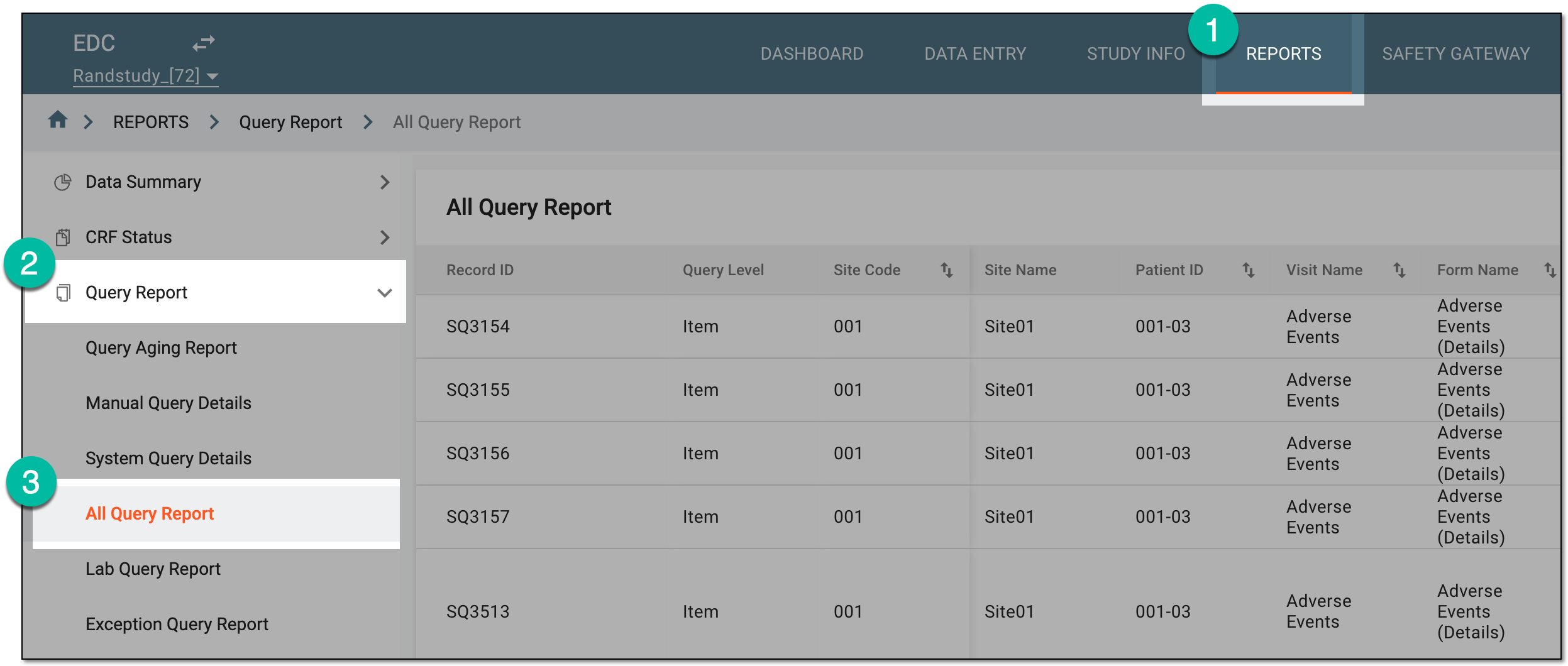 Figure 1. Accessing all query report
-
On the All Query Report page, you can adjust your report data with the following options:
-
Display Site Name: turn this toggle on or off to show or hide the Site Name column in your report.
-
Only show activated data: turn this toggle on or off for your report to exclude or include the data on queries that belong to inactivated forms.
-
-
Once the report is displayed as needed, from the workspace toolbar, select Export
 .
 Figure 2. Exporting all query report
-
In the Export dialog that opens, select one of the available options depending on the report data you want to extract as an XLSX file:
-
Export all data as Excel: to generate a full report with all the data available in the All Query Report table of EDC.
-
Export filtered data as Excel: to generate a report with selective data of the All Query Report table based on the applied filters.
-
Export Auto-Closed by Data Correction as Excel: to generate the report with selective data of the system queries that were not answered by the users and were automatically closed by the system once the data element on which they were raised has been edited in the CRF.
Important
This report will not include manual queries or queries that were closed manually by users.
-
Export Closed Without Response as Excel: to generate the report with selective data of the system and manual queries that are now closed and that were never answered by users, and the data element on which they were raised has not been edited in the CRF between the date the query was opened and closed.
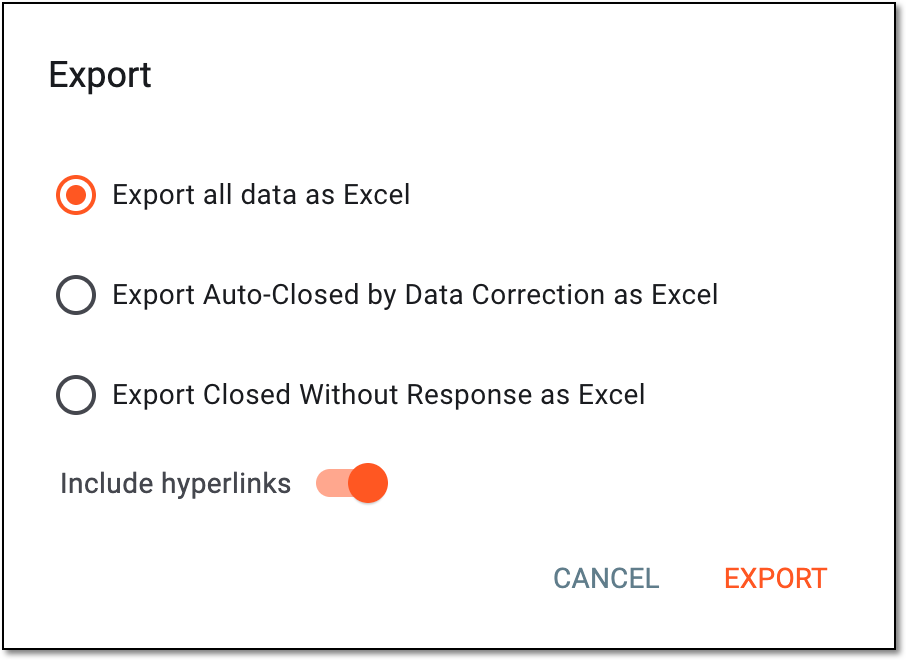 Figure 3. Selecting all query report version to export
-
-
Select
 .
-
In the downloads widget that appears, view your download progress. Select the widget to open the My Downloads dialog.
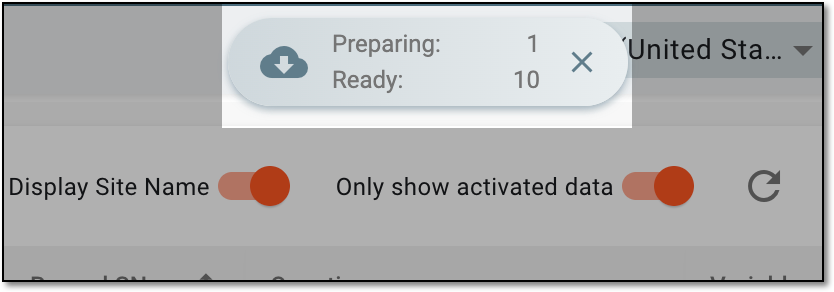 Figure 4. Downloads widget for all queries report
-
In the My Downloads dialog that opens, you can find the following tabs:
-
Preparing: lists all the files whose export is in progress, and they are not yet ready for download. Wait until the needed file moves to the Download is Ready tab.
-
Download is Ready: lists the files whose export is complete, and they can be downloaded to your computer by selecting
.
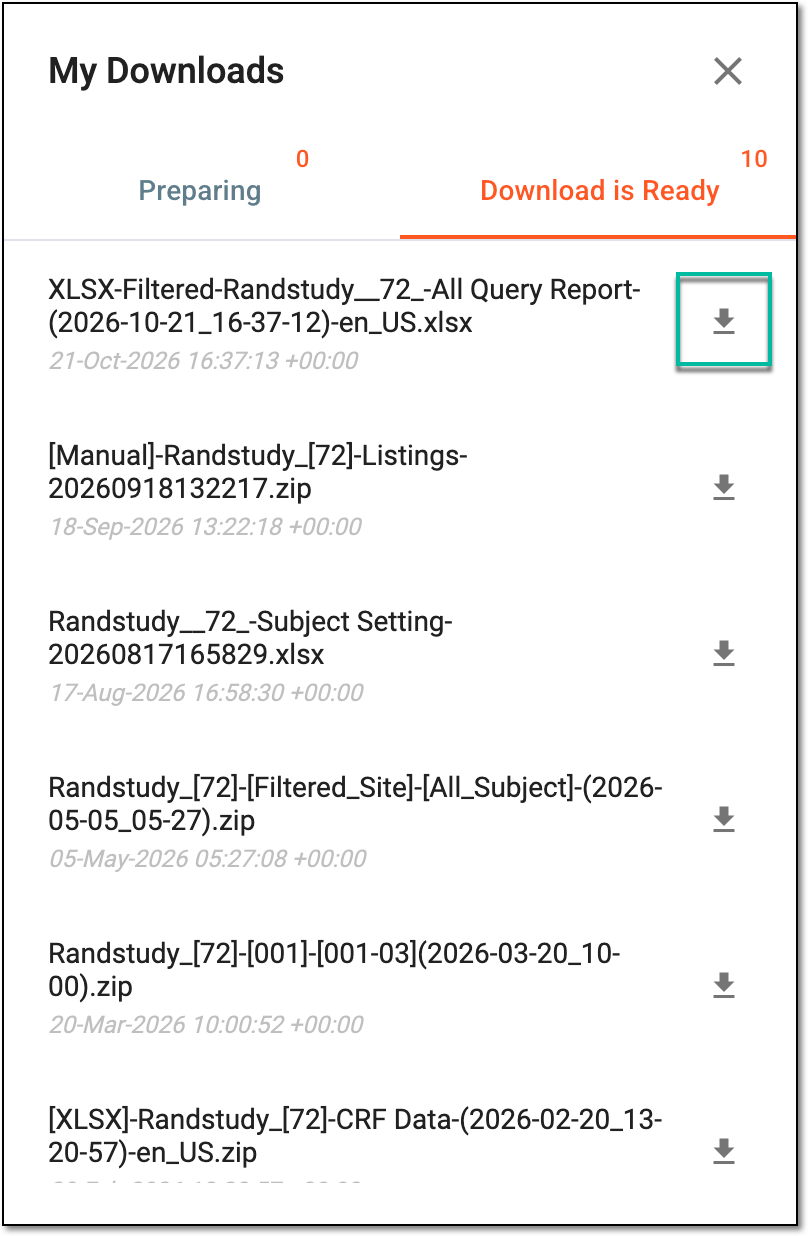 Figure 5. Downloading extracted all queries report
-
Once downloaded and saved, the all queries report data that you have selected to export becomes available on your computer in the XLSX format.