Export contact report PDF
After the scheduled meeting or event is successfully conducted and the contact report is successfully audited, the system can autogenerate the PDF version of the event summary that you can then preview in the system or export to your computer.
Important
The contact report PDF is only autogenerated for the events and meetings for which this setting is enabled via the documentation configuration of CTMS.
The language of the generated PDF depends on the study language selected on the Basic Information page.
-
Access the study management page in one of the following ways:
-
In the CTMS application header, select the DASHBOARD tab and then select the study dashboard of your interest.
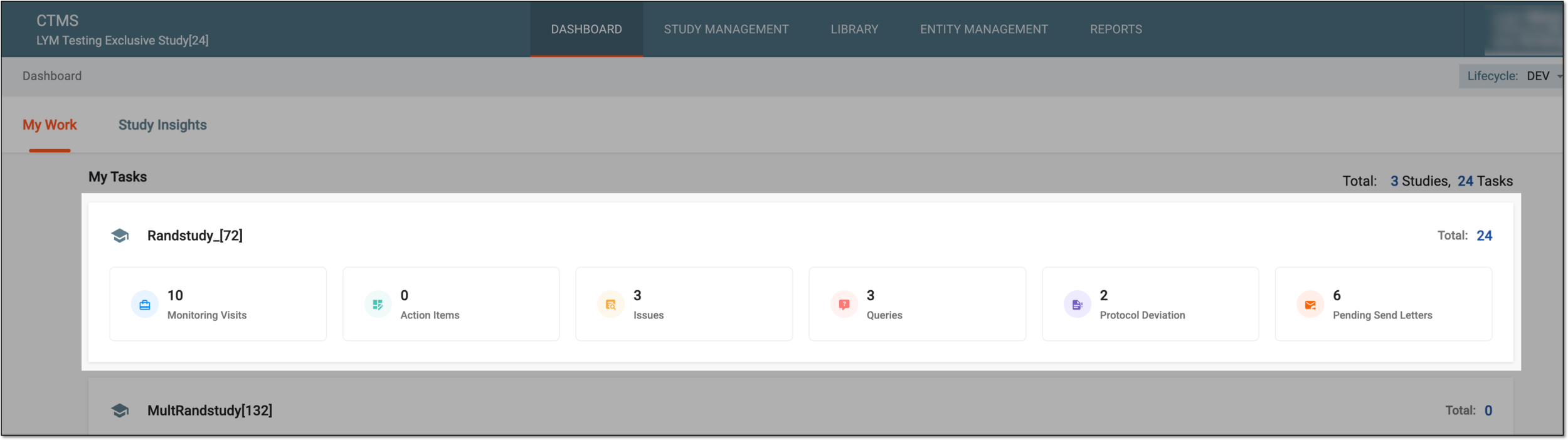 Figure 1. Accessing study management from dashboard
-
In the CTMS application header, select the STUDY MANAGEMENT tab. Then from the Study Data List table, select the study name of your interest.
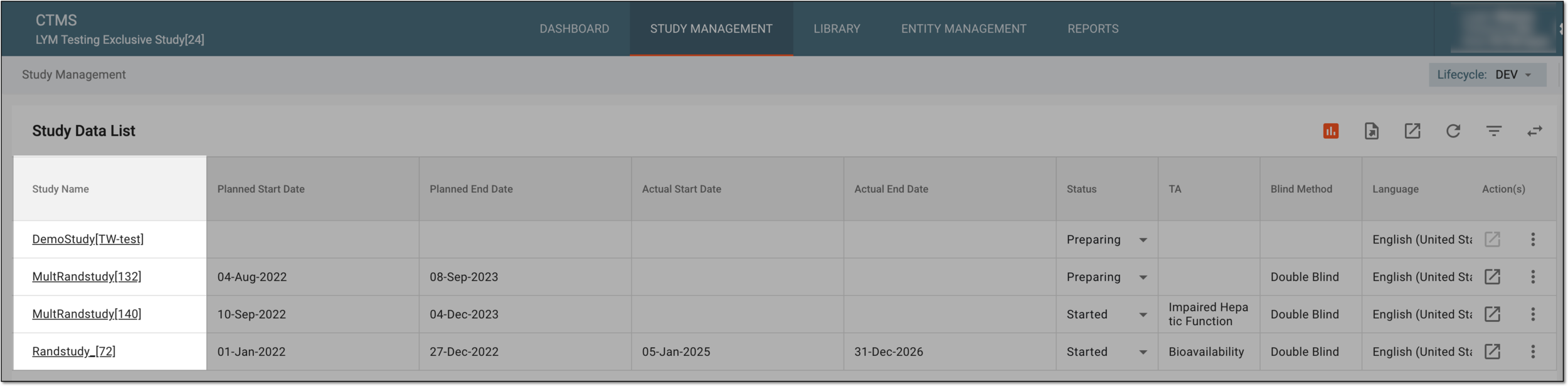 Figure 2. Accessing study management from study data list
-
-
From the left pane, select Communication Management > Communication Tracking.
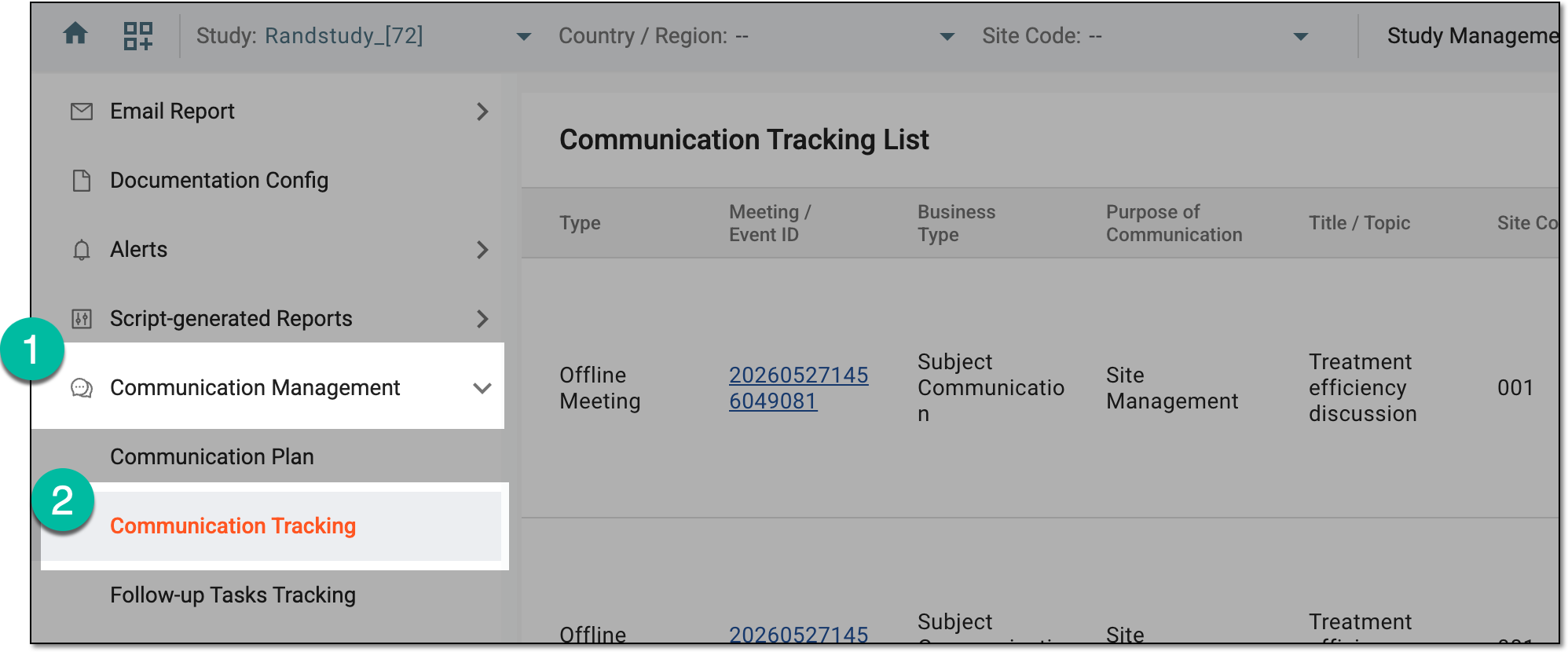 Figure 3. Accessing communication tracking
-
On the Communication Tracking List page that opens, from the workspace toolbar, select Export Contact Report
 .
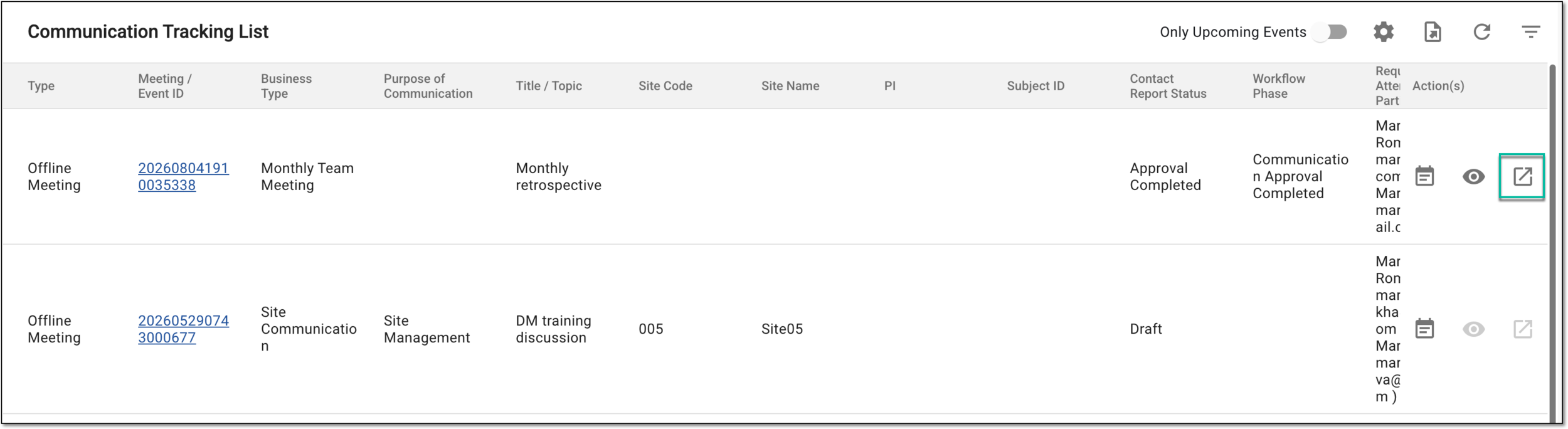 Figure 4. Selecting option to export contact report PDF
Once downloaded and saved, the contact report data in the PDF format becomes available on your computer.