Track follow-up tasks
In CTMS, you can view the meeting or event's follow-up in a dedicated interface to monitor the progress of tasks added during or after meetings or events. You can view task descriptions, assignees, due dates, and statuses to ensure responsibilities are clear and actions are completed on time, supporting accountability and smooth follow-through.
-
Access the study management page in one of the following ways:
-
In the CTMS application header, select the DASHBOARD tab and then select the study dashboard of your interest.
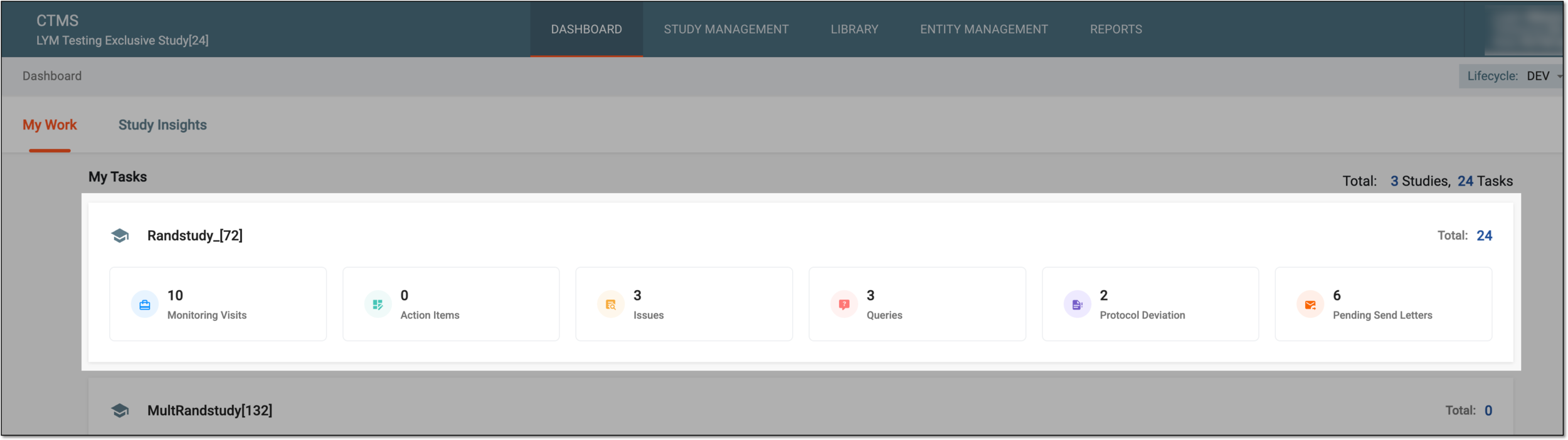 Figure 1. Accessing study management from dashboard
-
In the CTMS application header, select the STUDY MANAGEMENT tab. Then from the Study Data List table, select the study name of your interest.
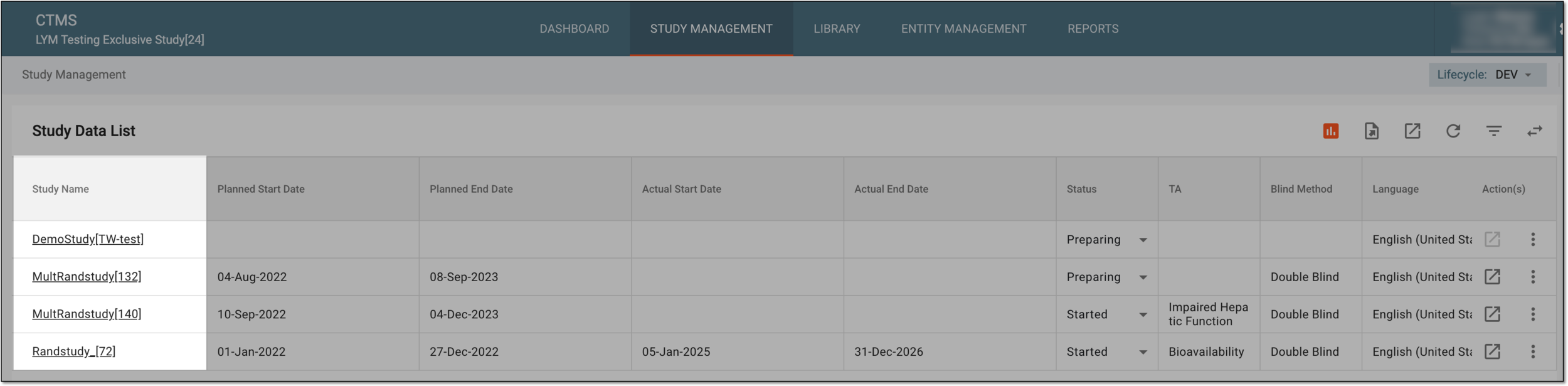 Figure 2. Accessing study management from study data list
-
-
From the left pane, select Communication Management > Follow-up Tasks Tracking.
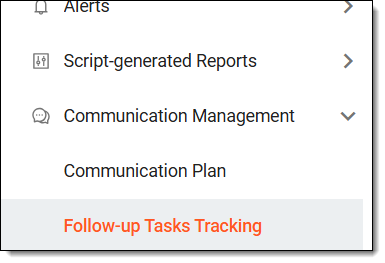 Figure 3. Accessing follow-up tasks
-
On the page that opens, locate the needed task, and select its meeting or event ID and then select Preview
 .
.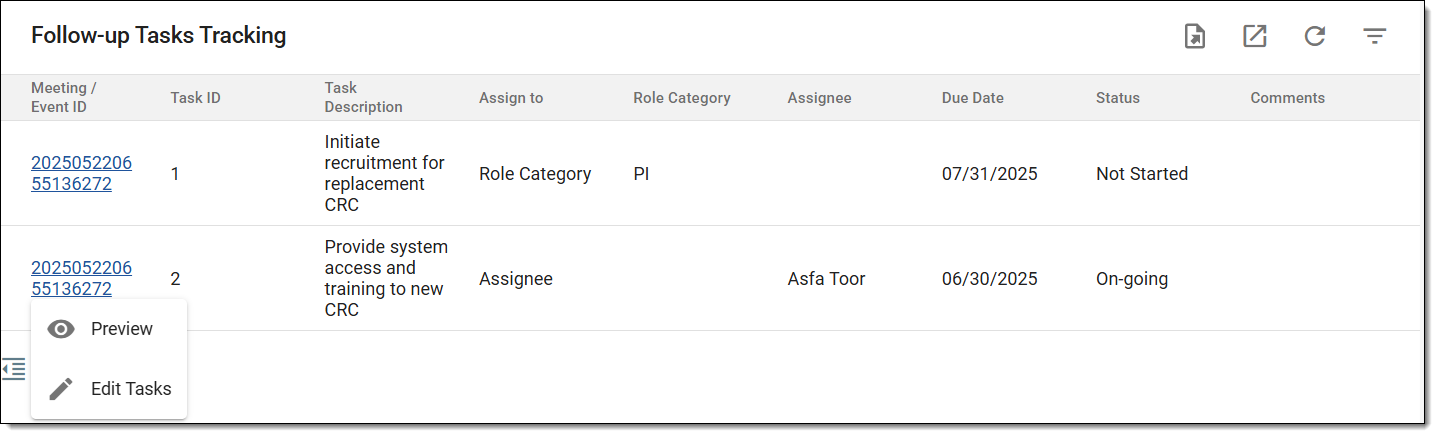 Figure 4. Accessing event preview for task
-
On the page that opens, analyze the details of the meeting or event as follows:
-
The details of the offline meetings are as explained in the table of the Schedule meeting or event section.
-
The details of the phone or email event are as explained in the table of the Schedule meeting or event section.
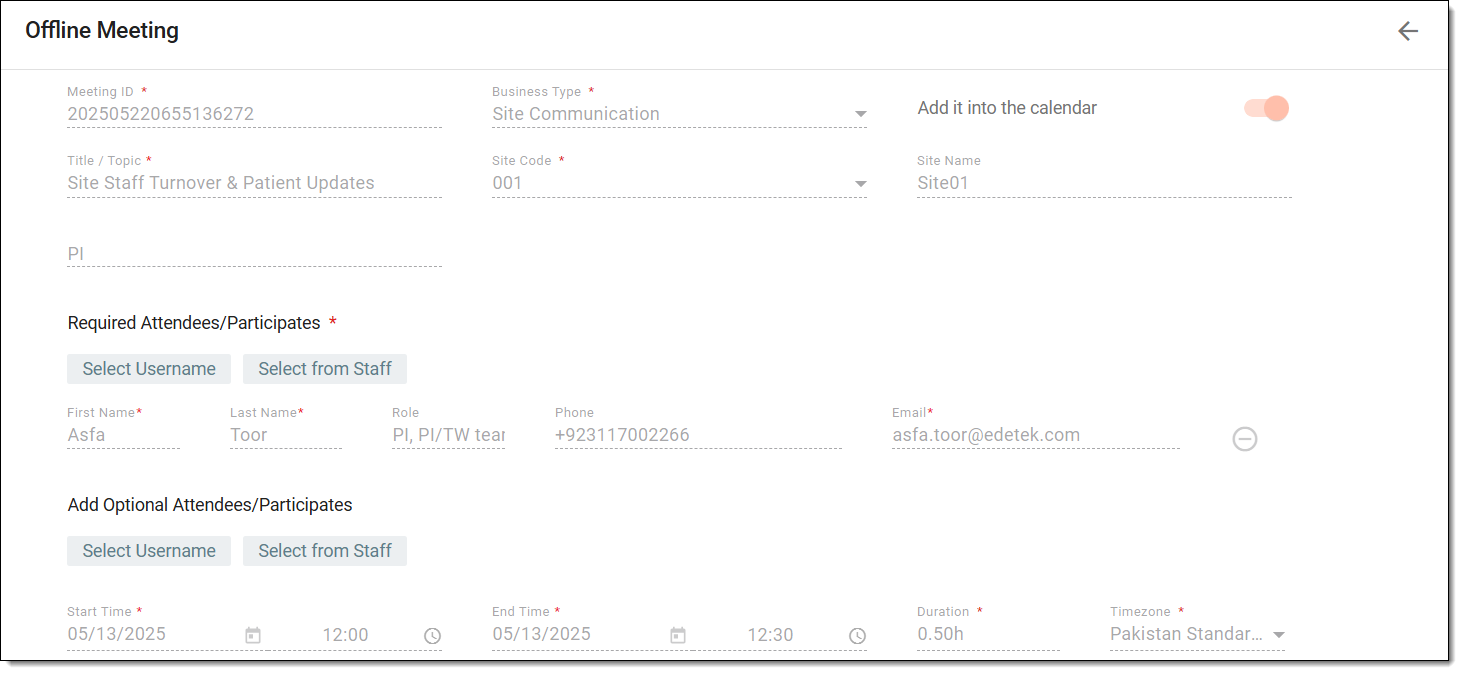 Figure 5. Previewing task-related meeting details
Important
Most fields are only available for preview and not editable, as they are configured once upon meeting or event creation.
-
-
If any changes are made, select
 to implement them.
You have previewed the required details and saved your updates.