Schedule meeting or event
In Communication Plan, you can create and schedule meetings or events related to the clinical trial, such as site communications, team check-ins, or protocol discussions. It helps keep all stakeholders informed, aligned, and engaged by organizing important interactions in a centralized, calendar-based view.
-
Access the study management page in one of the following ways:
-
In the CTMS application header, select the DASHBOARD tab and then select the study dashboard of your interest.
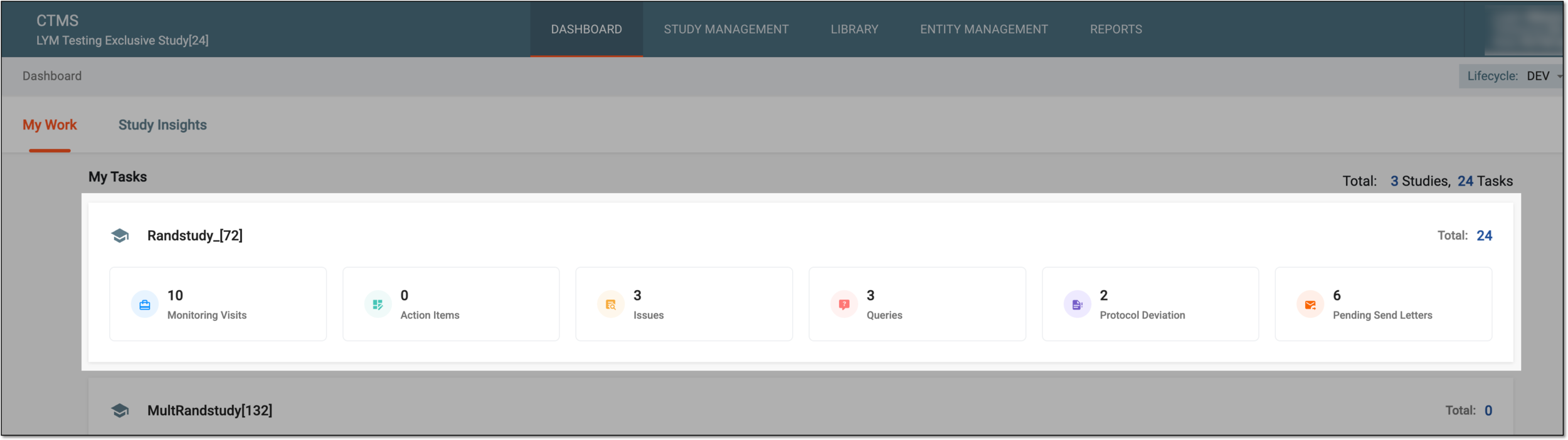 Figure 1. Accessing study management from dashboard
-
In the CTMS application header, select the STUDY MANAGEMENT tab. Then from the Study Data List table, select the study name of your interest.
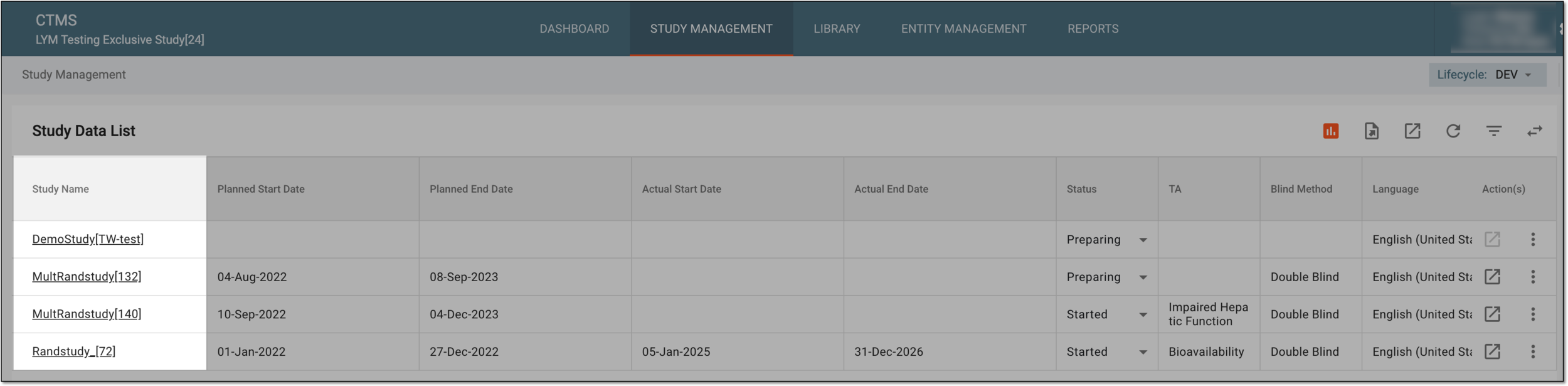 Figure 2. Accessing study management from study data list
-
-
From the left pane, select Communication Management > Communication Plan.
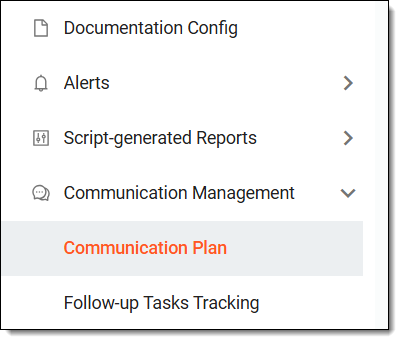 Figure 3. Accessing communication plan
-
From the workspace toolbar, select New Item
 and from the dropdown menu that appears, choose any of the following options.
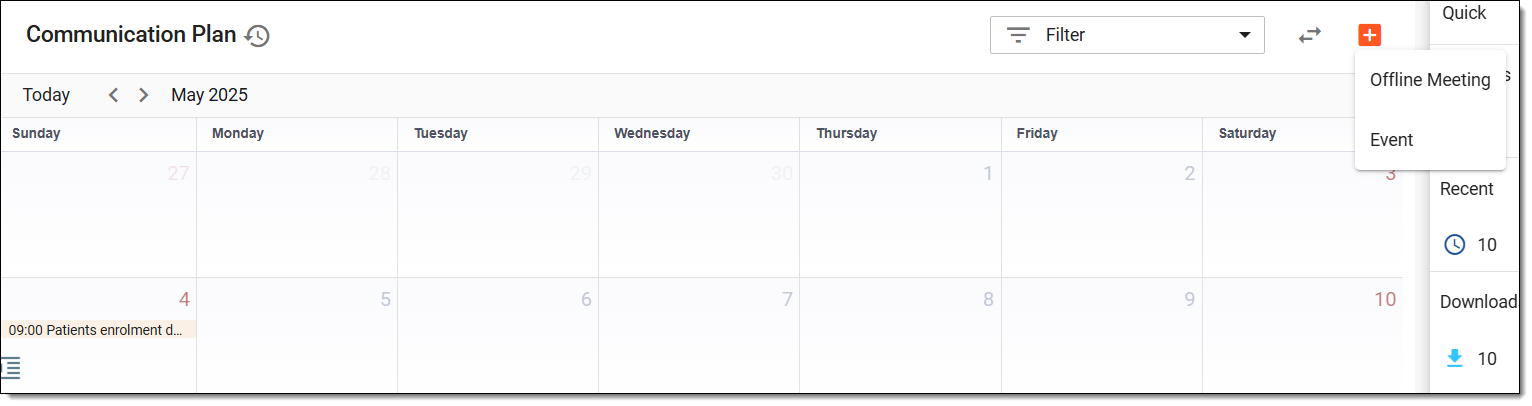 Figure 4. Creating new communication plan
Upon selecting, on the page that opens, schedule an offline meeting by entering the details as explained in the following table.
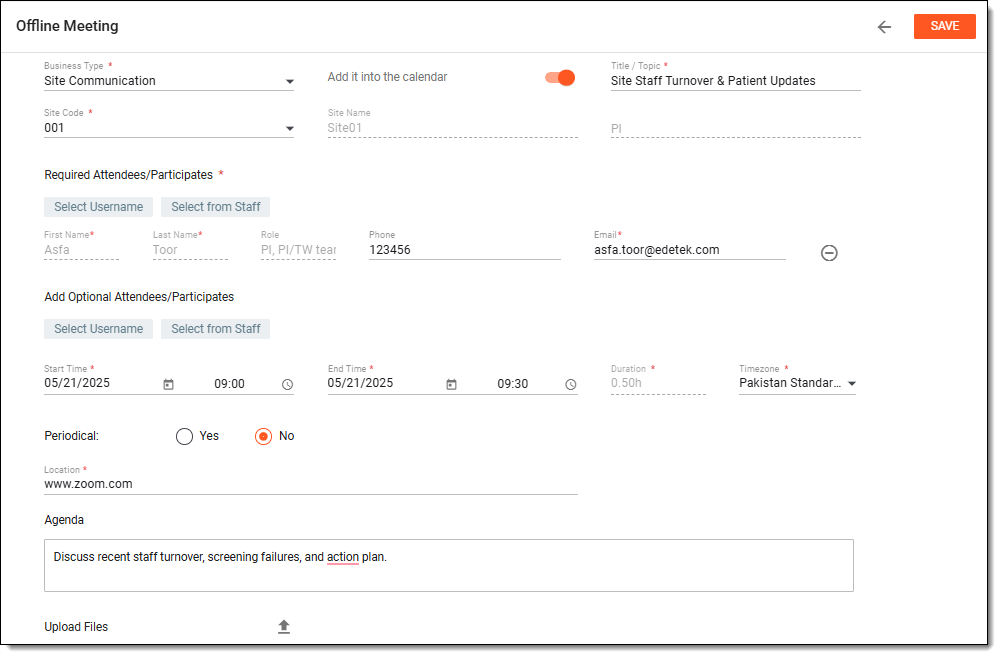 Figure 5. Scheduling offline meeting
Tip
In the following table, mandatory elements are marked with an asterisk (*).
Element
Details
Business Type*
Select the meeting's category or type, such as Site Communication, Subject Communication, and so on.
The values on the dropdown list are pulled from the preconfigured reference data elements of the Communication Plan Business Type dictionary in the CTMS library.
Add it into the calendar
Leave the toggle on to add the scheduled meeting to your calendar, or turn the toggle off not to include the meeting in the calendar.
If the toggle is turned on, the scheduled meeting will also appear in the calendar of the email account linked to your CONFORM profile. For example, if your registered email is a Microsoft account, the meeting will be visible in your Teams
                                        calendar.
Purpose of Communication*
Select the objective for which the meeting is created. The values on the dropdown list are pulled from the preconfigured reference data elements of the Purpose of Communication dictionary in the CTMS library.
Title / Topic*
Enter the title of the meeting or topic to be discussed.
Site Code*
Select the site related to the created meeting.
This field is available when the business type is selected as Site
                                        Communication or Subject Communication.
Subject ID
Select the unique identifier of the subject to whom the created meeting relates.
This field is available when the business type is selected as Subject
                                        Communication.
Site Name
Represents the autopopulated name of the site based on the selected site code.
PI
Represents the autopopulated name of the site's principal investigator (PI) based on the selected site code.
Required Attendees/Participates*
Select the participants who are required to attend the scheduled meeting by using either the Select Username option to choose from the eClinical system users, or the Select from Staff option to choose from study staff members configured through human resources.
Once selected, the participant’s details—name, role, phone number, and email—are displayed. You can update the phone and email address if needed.
Add Optional Attendees/Participates
Add any optional participants to the scheduled meeting the same way you have added the required attendees.
Remove
Select
 next to any participant to remove them from the list of the meeting attendees.
Start Time*
Set the date and time the meeting begins.
End Time*
Set the date and time the meeting ends.
Duration*
Represents the autocalculated meeting duration based on the defined start and end times.
Timezone*
Choose the meeting's time zone.
Periodical
Select Yes if the meeting recurs periodically; otherwise, select No.
For example, if the meeting needs to be conducted weekly or monthly, this setting ensures that the meeting is scheduled to occur at those intervals instead of being a one-time event.
Frequency
Specify when is the meeting expected to recur by choosing one of the options as follows.
This setting is only available if in the Periodical field, you select Yes.Location*
Enter the meeting location.
Agenda
Describe discussion points or objectives.
Upload Files
Select
 to upload and attach any material or documents to review or discuss during the meeting.
SAVE
Select
 to schedule the meeting.
Back
Select
 to discard any changes and go back to Communication Plan without scheduling the meeting.
Upon selecting, on the page that opens, schedule an event by entering the details as explained in the following table.
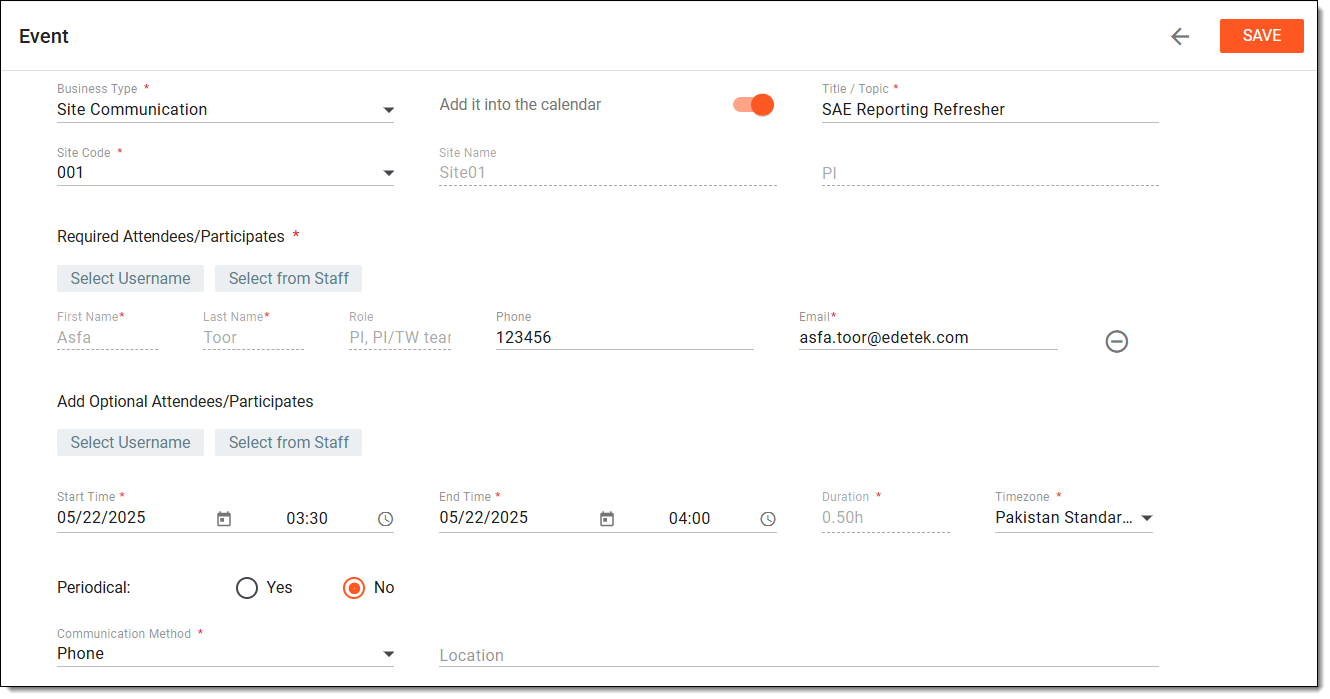 Figure 6. Scheduling event
Tip
In the following table, mandatory elements are marked with an asterisk (*).
Element
Details
Business Type*
Select the event's category or type, such as Site Communication, Subject Communication, and so on.
The values on the dropdown list are pulled from the preconfigured reference data elements of the Communication Plan Business Type dictionary in the CTMS library.
Add it into the calendar
Leave the toggle on to add the scheduled event to your calendar, or turn it off to not include the event in the calendar.
If the toggle is switched on, the scheduled event will also appear in the calendar of the email account linked to your CONFORM profile. For example, if your registered email is a Microsoft account, the event will be visible in your Teams
                                        calendar.
Purpose of Communication*
Select the objective for which the event is created. The values on the dropdown list are pulled from the preconfigured reference data elements of the Purpose of Communication dictionary in the CTMS library.
Title / Topic*
Enter the title or topic of the event to be discussed.
Site Code*
Select the site related to the event.
This field is available when the business type is selected as Site
                                        Communication or Subject Communication.
Subject ID
Select the unique identifier of the subject to whom the created meeting relates.
This field is available when the business type is selected as Subject
                                        Communication.
Site Name
Represents the autopopulated name of the site based on the selected site code.
PI
Represents the autopopulated name of the site's principal investigator (PI) based on the selected site code.
Required Attendees/Participates*
Select the participants who are required to attend the scheduled event by using either the Select Username option to choose from eClinical users, or the Select from Staff option to choose from users configured through human resources.
Once selected, the participant’s name, role, phone number, and email is displayed. You may update the phone and email details if needed.
Also, you can select
next to any participant to remove them from the list of event attendees.Add Optional Attendees/Participates
Add any optional participants to the scheduled event the same way you have added the required attendees.
Start Time*
Set the date and time the event begins.
End Time*
Set the date and time the event ends.
Duration*
Represents the autocalculated event duration based on the defined start and end times.
Timezone*
Choose the event's time zone.
Periodical
Select Yes if the event recurs periodically; otherwise, select No.
For example, if the event needs to occur weekly or monthly, this setting ensures that the event is scheduled to occur at those intervals instead of being a one-time event.
Frequency
If you select Yes in the previous Periodical field, then here specify when is the event expected to recur by choosing one of the following options:
Communication Method*
Select either Email or Phone as the communication means.
Email From*/Phone From*
Select the person who must send the email or initiate a phone call—depending on the selected communication method—according to the scheduled event. The names on the dropdown list are populated from the required participant list added previously.
Email To*/Phone To*
Select the person who is the recipient of the email or phone call—depending on the selected communication method—according to the scheduled event. The names on the dropdown list are populated from the required participant list added previously.
Location
Enter the location where the event you are scheduling takes place, if applicable.
SAVE
Select
to schedule the event.Back
Select
to go back to Communication Plan without scheduling the event.
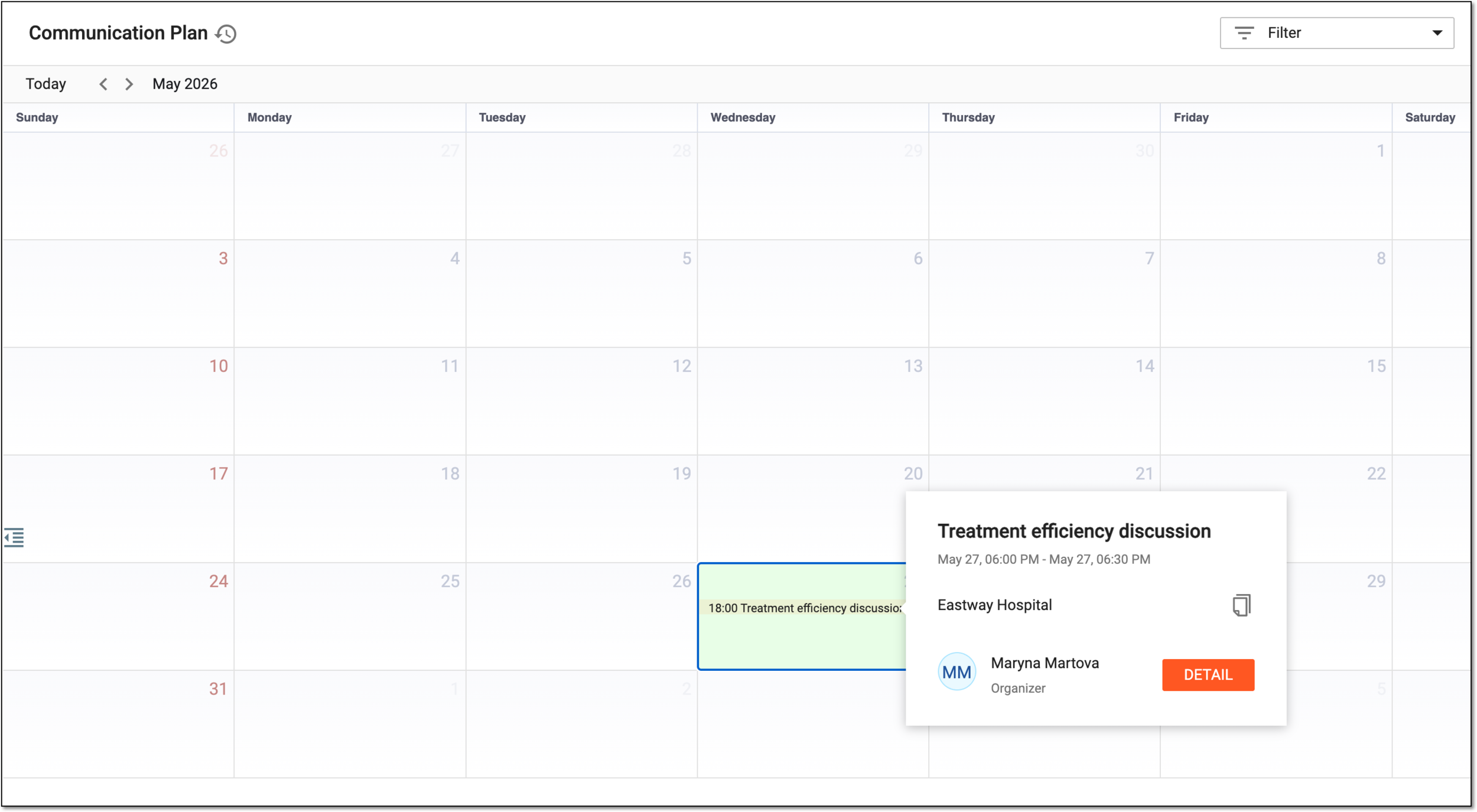
Once saved, the meeting or event is scheduled and, if added to the calendar, appears on the communication plan. Select the meeting or event to preview its details.