Prepare documentation configuration for communication management
When handling communication management in CTMS, you can schedule phone calls, emails, and meetings. For these events, you can manage outcomes by handling the attendance sheet, summary of communication, and follow-up tasks. To keep all the communication-related documentation under control, you can set up the documentation config to autogenerate the PDF version of the event summary and upload them into eTMF.
-
Access the study management page in one of the following ways:
-
In the CTMS application header, select the DASHBOARD tab and then select the study dashboard of your interest.
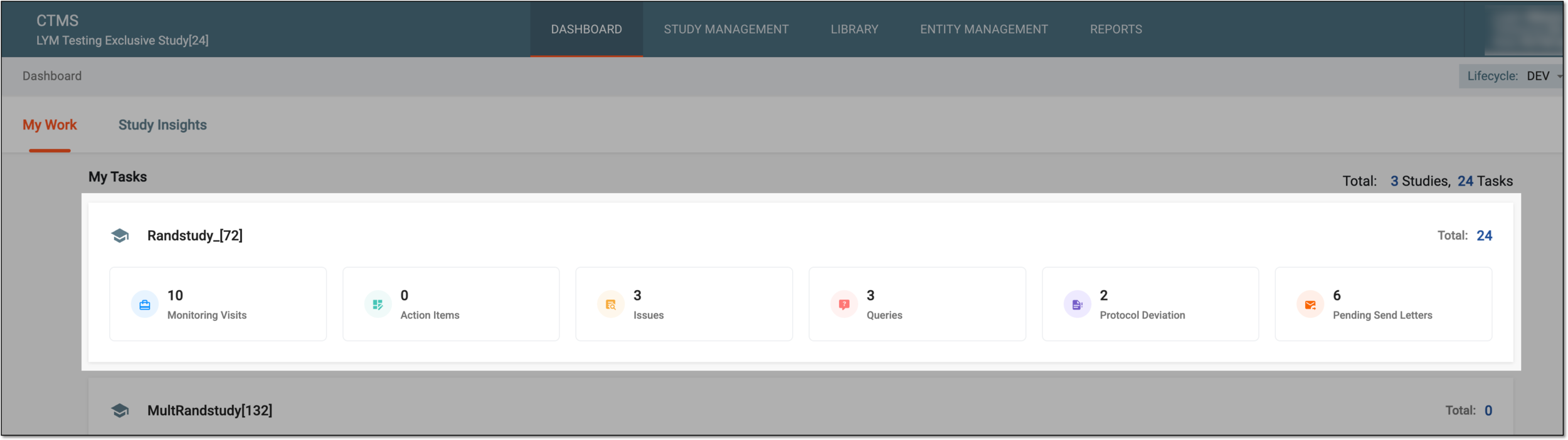 Figure 1. Accessing study management from dashboard
-
In the CTMS application header, select the STUDY MANAGEMENT tab. Then from the Study Data List table, select the study name of your interest.
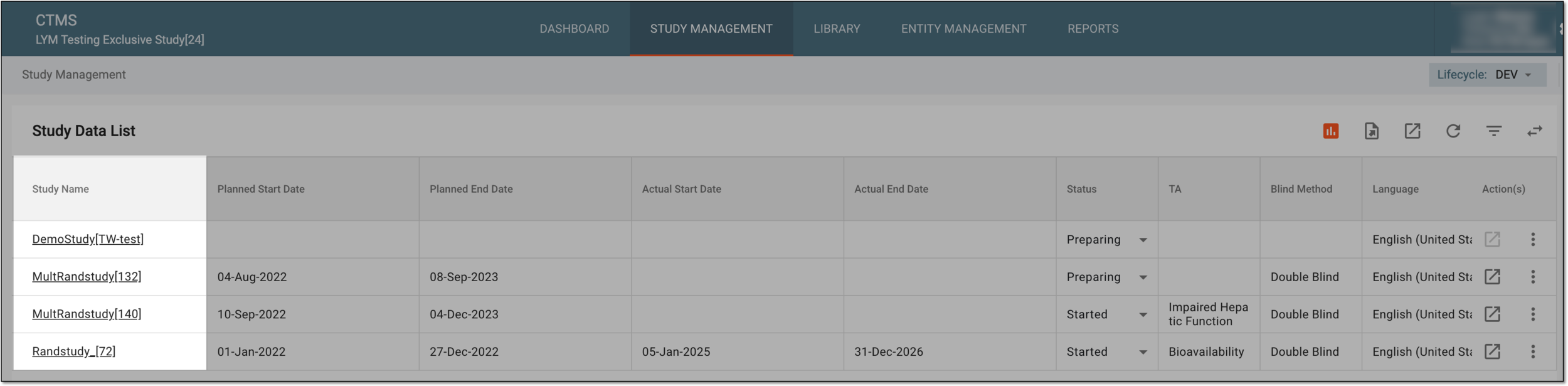 Figure 2. Accessing study management from study data list
-
-
On the study page that opens, in the left pane, select Documentation Config.
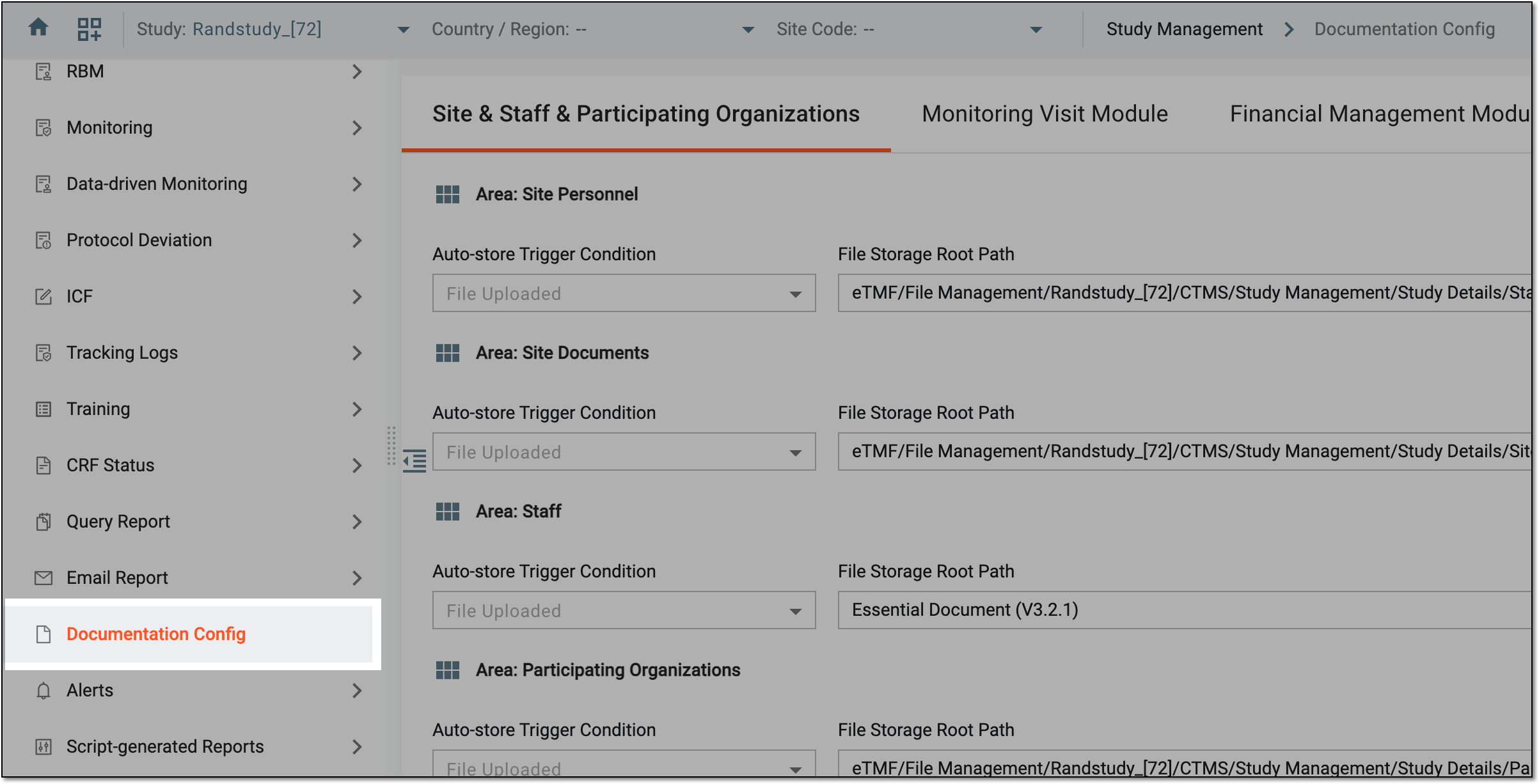 Figure 3. Accessing documentation configurations
-
On the page that opens, select the Communication Mgmt tab and in the Area: Contact Report block, manage the autogeneration of the files for communication activities as explained in the following thable.
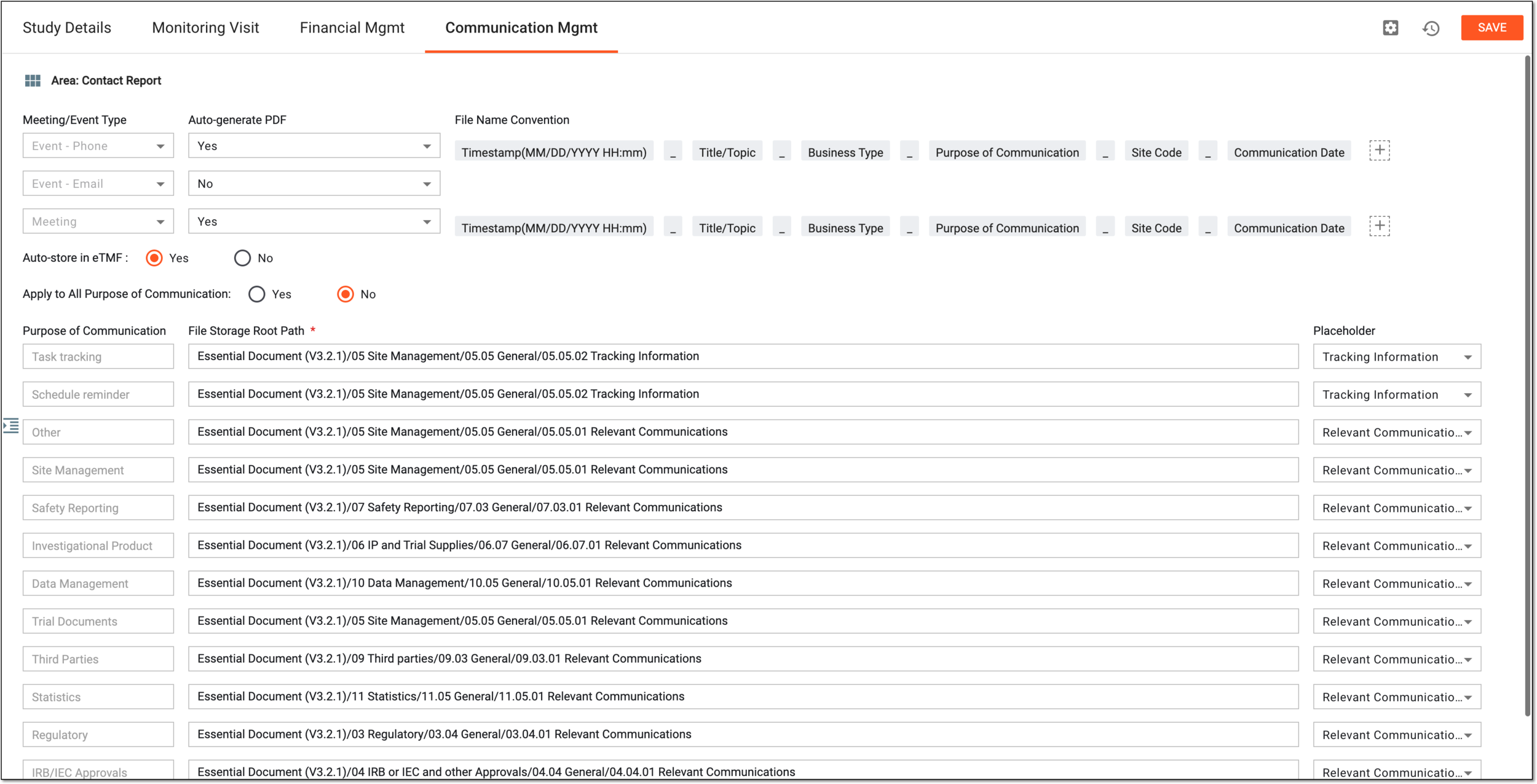 Figure 4. Configuring documentation for communication activities
Element
Details
Meeting/Event Type
Represents the following types of the occurred event:
-
Event - Phone: the event was a call held via phone or other means of online meeting arrangment.
-
Event - Email: the event was an email-based communication.
-
Meeting: the event was an offline meeting.
Auto-generate PDF
Select one of the following:
-
Yes: to automatically generate a summary of the event or meeting as a PDF file to then be available in CTMS and stored in eTMF as per your configuration.
-
No: not to generate a PDF summary.
For instance, you do not need a summary of an email, you can save the copy of the letter directly to eTMF. Thus, for the Event - Email type, select this option as No.
File Name Convention
Define the default identification number convention for all the communication activity files as follows:
-
Add more elements or separators to your naming convention by selecting Add
 .
. -
Move any elements around by dragging them.
-
Remove the elements by hovering over them and selecting
 .
.
Auto-Store in eTMF
Select one of the following:
-
Yes: to store all communication management files in the eTMF storage automatically once the file is generated by CTMS.
-
No: not to push the files to eTMF automatically and leave them only in CTMS.
Apply to All Purpose of Communication
Select one of the following:
-
Yes: to apply the same selected file storage location of eTMF to all communication activity files disregarding their purpose.
-
No: to select a different file storage location of eTMF for each purpose of communication.
This setting is only available if Auto-Store in eTMF is set to Yes.Purpose of Communication
Set up as follows:
-
Represents All and cannot be changed, so that you select the same storage path for all communication activity files.
This option is available when Apply to All Purpose of Communication is set to Yes. -
Select the purpose of communication for which you want to specify the file storage path.
This option is available when Apply to All Purpose of Communication is set to No.
This setting is only available if Auto-Store in eTMF is set to Yes.File Storage Root Path*
Select the storage location in eTMF for files of the set communication purpose.
This setting is only available if Auto-Store in eTMF is set to Yes.Placeholder
Select the placeholder in the eTMF system to be filled with the file when the file is uploaded.
This setting is only available if Auto-Store in eTMF is set to Yes.SAVE
Select
 to save the configurations.
Global Setting
Select
 to open a dialog in which you can choose if you want to store the documents in the eTMF application's TMF module. Then select SAVE.
Operation History
Select
 to analyze the history of operations made with the documentation configurations.
 -
Once enabled and the set conditions are met, the system starts generating the files for communication activities in CTMS and autostore them in eTMF according to the configured settings.