Create delayed shipment alert
A shipment refers to an action of transporting items (drugs) between depots and sites. A shipment alert is a customizable notification mechanism that generates an email to inform relevant parties about the details requested for a shipment when a certain shipment transaction is processed.
Shipment delays can occur due to different reasons, and it becomes useful to preconfigure the alert that triggers in case of a certain scenario. This helps timely notify the personnel in charge and take respective actions to prevent disruption in supply or dispensation.
-
In the IWRS application header, select the ALERT tab.
-
In the left pane of the page that appears, select Delayed Shipment Alert.
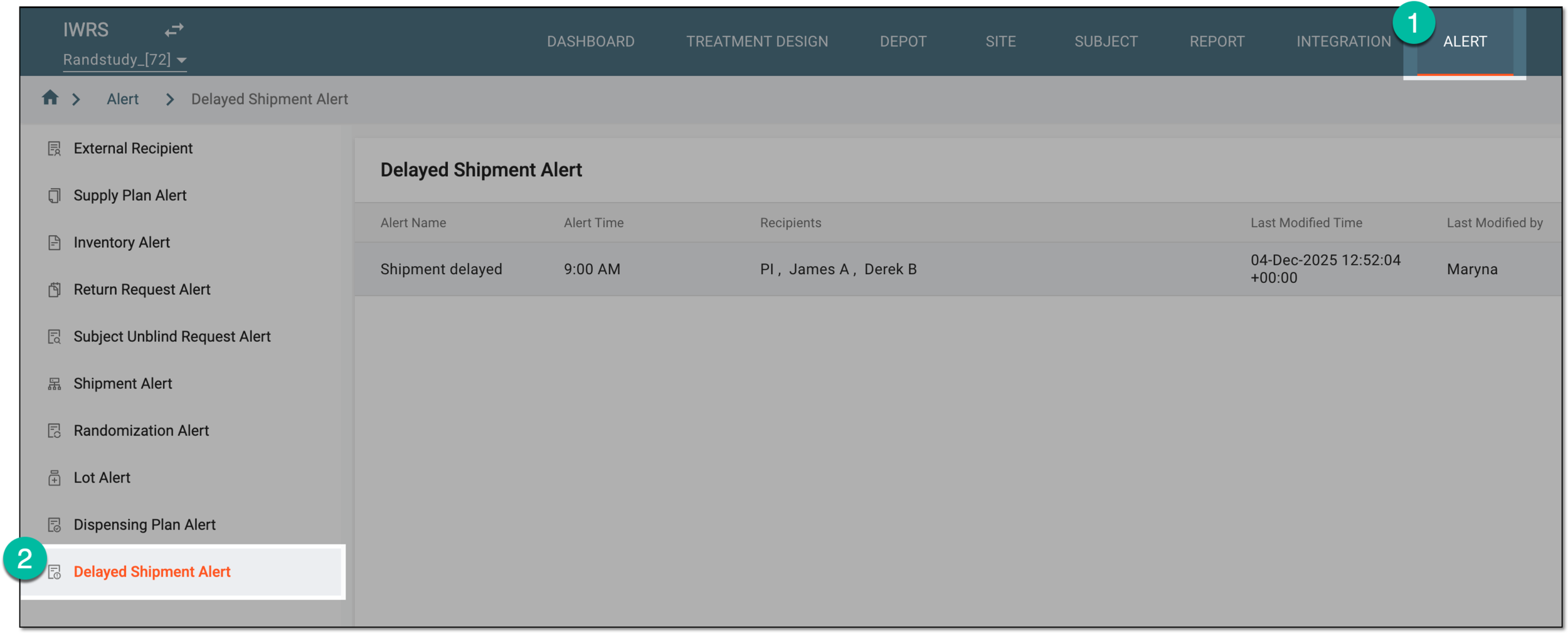 Figure 1. Accessing delayed shipment alert setting
-
From the workspace toolbar of the Delayed Shipment Alert table that appears, select Add
 .
. Figure 2. Adding delayed shipment alert
-
On the page that opens, configure a shipment alert as explained in the following table.
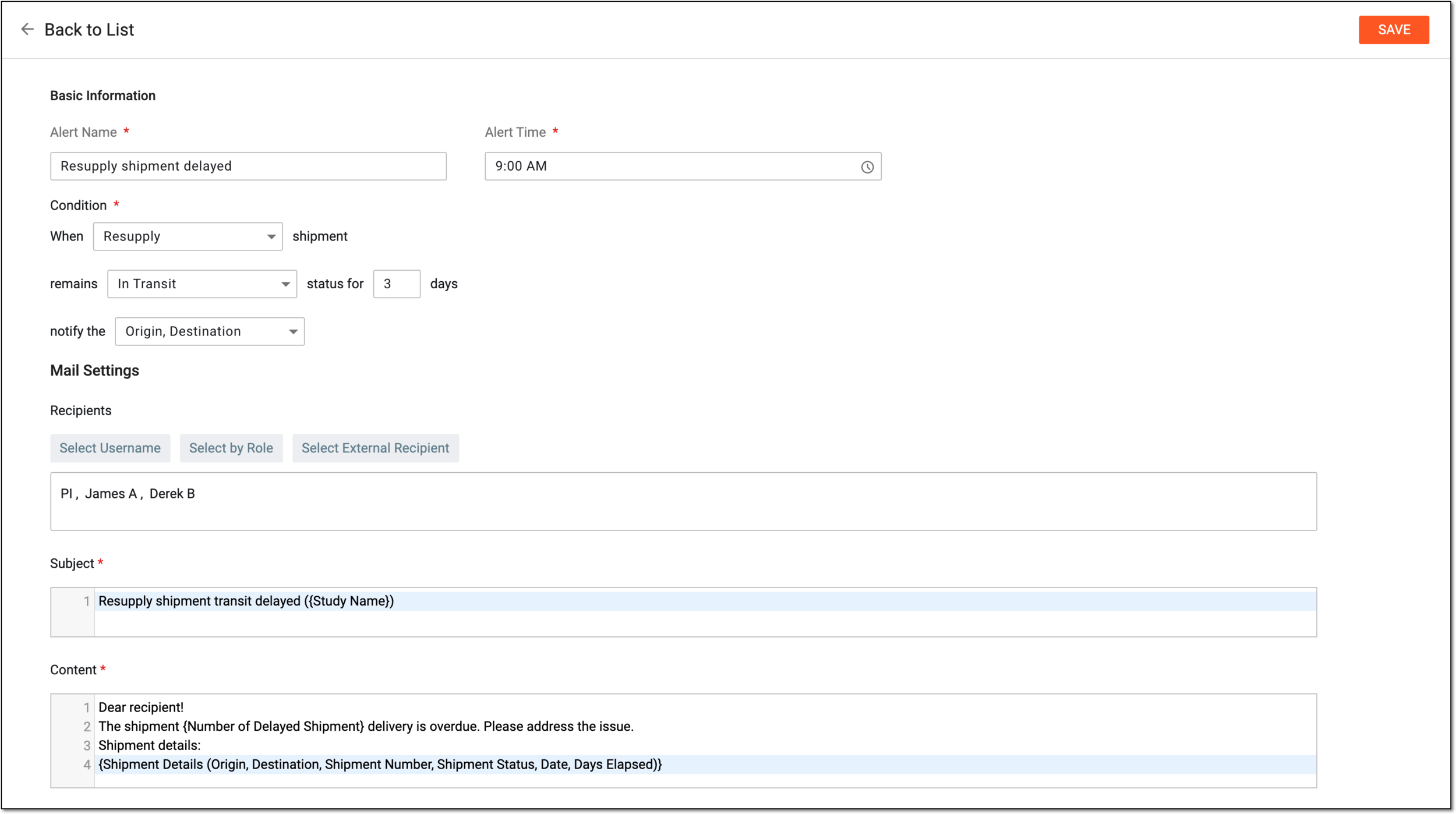 Figure 3. Configuring details for delayed shipment alert
Tip
In the following table, mandatory elements are marked with an asterisk (*).
Element
Details
Alert Name*
Enter a descriptive name for the delayed shipment alert.
Alert Time*
Select the time when the recipients must receive the email according to this alert setting. For system users and roles, the alert triggers at the set time according to the user-selected time zone via preferences; for external recipients, according to the time zone configured in the external recipient's account.
Condition*
When _ shipment
Select the type of shipment for which you want to trigger the delay alert, such as Initial, Manual, Resupply, Return for Destruction, or Return Available Items.
For instance, you want to notify the dedicated personnel at a site of the initial shipment delay. Then, you select the Initial type here.
remains _ status for _ days
Select the shipment status for which you want to trigger the delay alert, such as In Transit or Requested, and enter the number of days to outline the timeframe of the delay and trigger the alert once reached.
For instance, you want to notify the dedicated personnel at a site that the shipment of the selected type remains in transit for three days, because this surpasses the estimated delivery time. Then, you select the In Transit status and enter 3 days here.
notify the
Select who should be notified upon shipment delay—Origin (the site or depot that sent the shipment) or Destination (the recipient site or depot). You can select both if needed.
Mail Settings
Recipients
Select either of the following options:
-
Select Username: to expand the list of system users and select the ones to receive an alert email. To remove a user from recipients, clear the checkbox next to their name.
-
Select by Role: to expand the list of system user roles and select the ones to receive an alert email. To remove a user role from recipients, clear the checkbox next to its name.
-
Select External Recipient: to expand the list of preconfigured external recipients—contacts who are not system users but for whom the account exists in IWRS to be able to include them in correspondence—and select the ones to receive an alert email. To remove a person from recipients, clear the checkbox next to their name.
Subject*
Enter the subject of the email. You can also start typing with the opening brace "{" to expand the list of predefined values that you want to include in the email subject.
Content*
Enter the text of the email. You can also start typing with the opening brace "{" to expand the list of predefined values that you want to include in the email content.
SAVE
Select
 to implement the changes.
 -
Once saved, the delayed shipment alert is created. Whenever the set conditions are met, an email is sent to the corresponding recipients.