Delete draft contract
A contract is an agreement between the sponsor and the vendor for certain services to be financially compensated on the established terms.
In CTMS, you can create contracts with counterparties, reflecting different business scenarios and enabling financial operations. If needed, you can delete the contract from the system if it is unnecessary.
Important
You can only delete the first version of the contract in the Draft status. This ensures no contracts that are already validated or currently in audit are removed from the system. For these, consider the following:
-
Terminate the contract or contract version in the Active status to discontinue it instead of deleting.
-
Terminate the auditing workflow for the first version of the contract in the Auditing status to return it to Draft, and then delete the contract.
-
Access the study management page in one of the following ways:
-
In the CTMS application header, select the DASHBOARD tab and then select the study dashboard of your interest.
 Figure 1. Accessing study management from dashboard
-
In the CTMS application header, select the STUDY MANAGEMENT tab. Then from the Study Data List table, select the study name of your interest.
 Figure 2. Accessing study management from study data list
-
-
On the page that opens, in the left pane, select Financial Management > Contract.
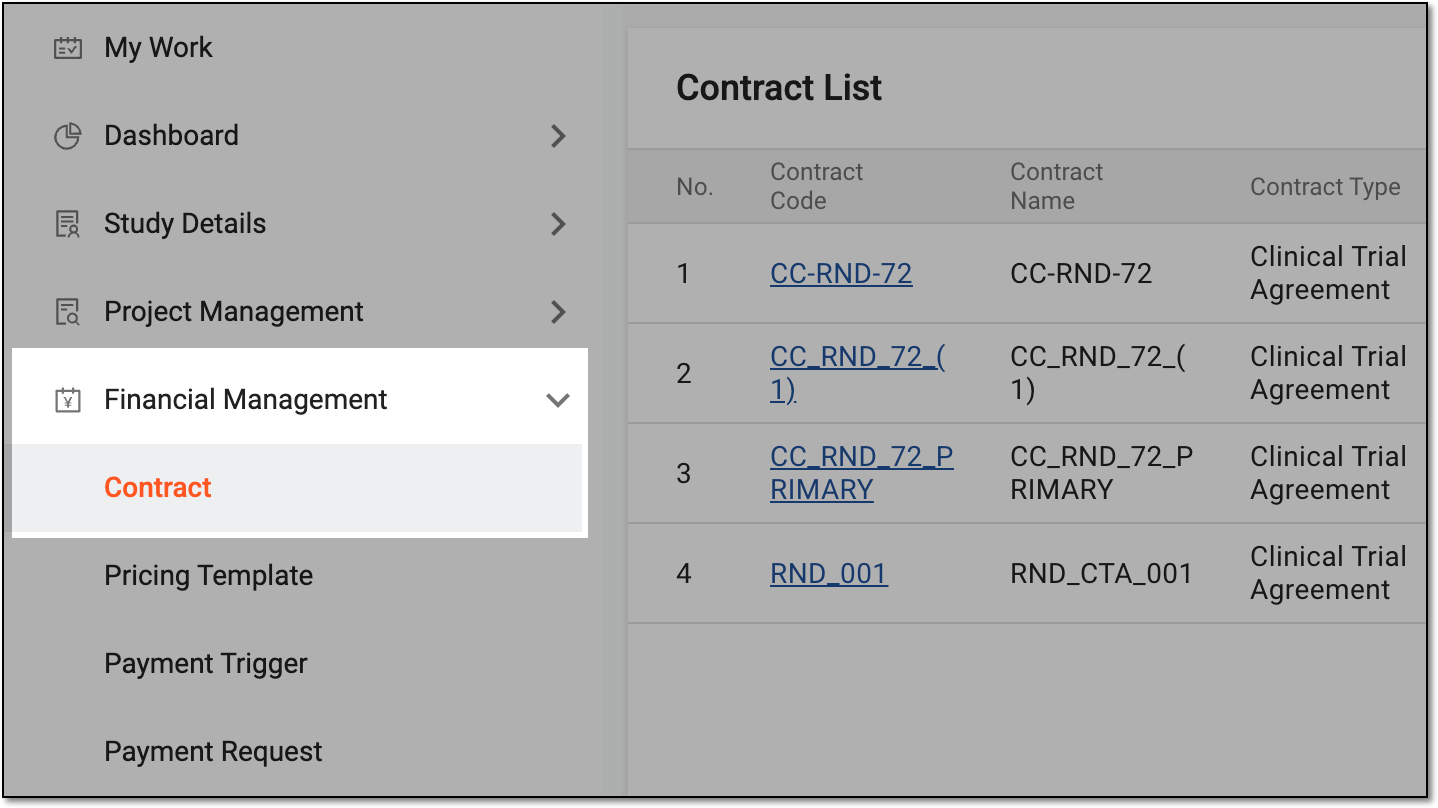 Figure 3. Accessing contract list
-
In Contract List that appears, locate the draft contract you want to remove. Then from the Action(s) column, select More
 > Delete
  .
.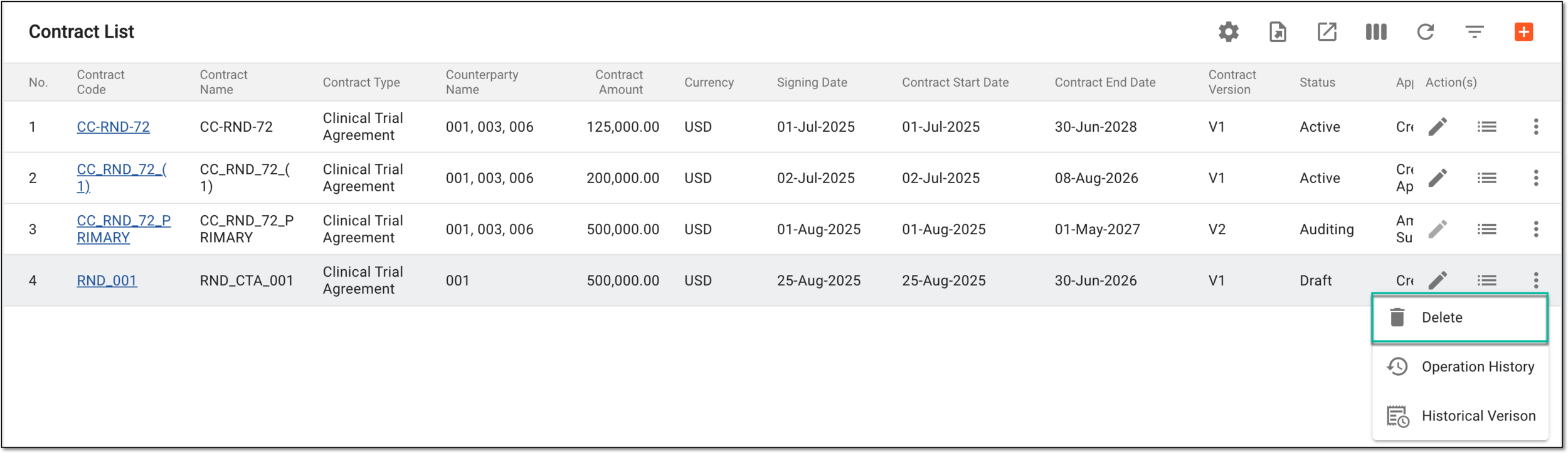 Figure 4. Deleting draft contract
-
In the Reason dialog that appears, provide the argument to confirm the deletion. Then select
 .
.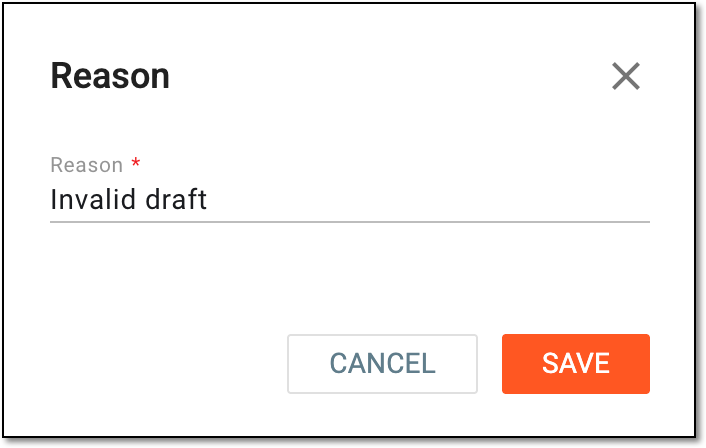 Figure 5. Providing reason for contract deletion
Once confirmed, the draft contract is deleted.