Payment triggers
In CTMS, you can configure payment triggers—conditions that, upon completion, set of payment requests. These triggers are intended to support various payments (based on form, visit, procedure, or lab test completion) by stating the CRFs whose submission with certain results trigger financial compensation.
Payment trigger configuration is performed at two levels—global (study) and site—as explained in the following sections.
In CTMS, you can configure payment triggers—conditions that, upon completion, set of payment requests. These triggers are intended to support various payments (based on form, visit, procedure, or lab test completion) by stating the CRFs whose submission with certain results trigger financial compensation.
By configuring the global-level triggers, you enable the unified set of rules for all the sites of the study on how the payable items available for creating payment requests in EDC are generated based on the completion of certain CRFs or subject phase changes.
For instance, you set the payment trigger condition for the Enrollment visit status to be Completed. Thus, every time the subject's Enrollment visit in EDC obtains the Completed status, a payable item intended to a certain payee becomes available for selection when creating payment request.
-
Access the study management page in one of the following ways:
-
In the CTMS application header, select the DASHBOARD tab and then select the study dashboard of your interest.
 Figure 1. Accessing study management from dashboard
-
In the CTMS application header, select the STUDY MANAGEMENT tab. Then from the Study Data List table, select the study name of your interest.
 Figure 2. Accessing study management from study data list
-
-
On the page that opens, from the left pane, expand Financial Management > Payment Trigger.
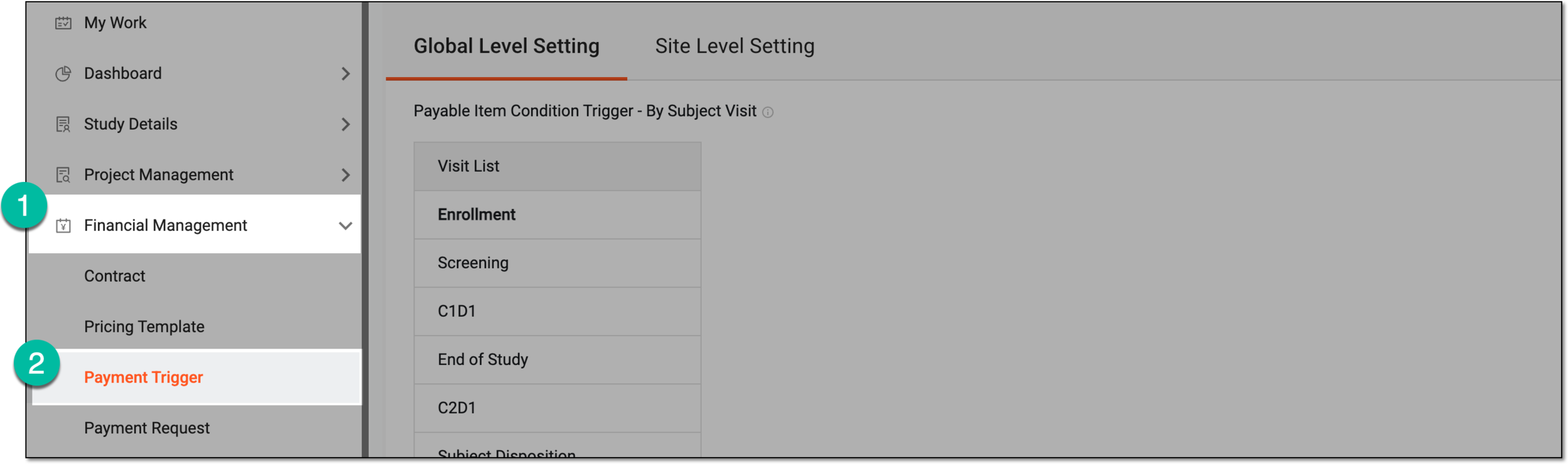 Figure 3. Accessing payment triggers
-
On the page that opens, under the Global Level Setting tab, start configuring the conditions for payment triggers as explained in the following table.
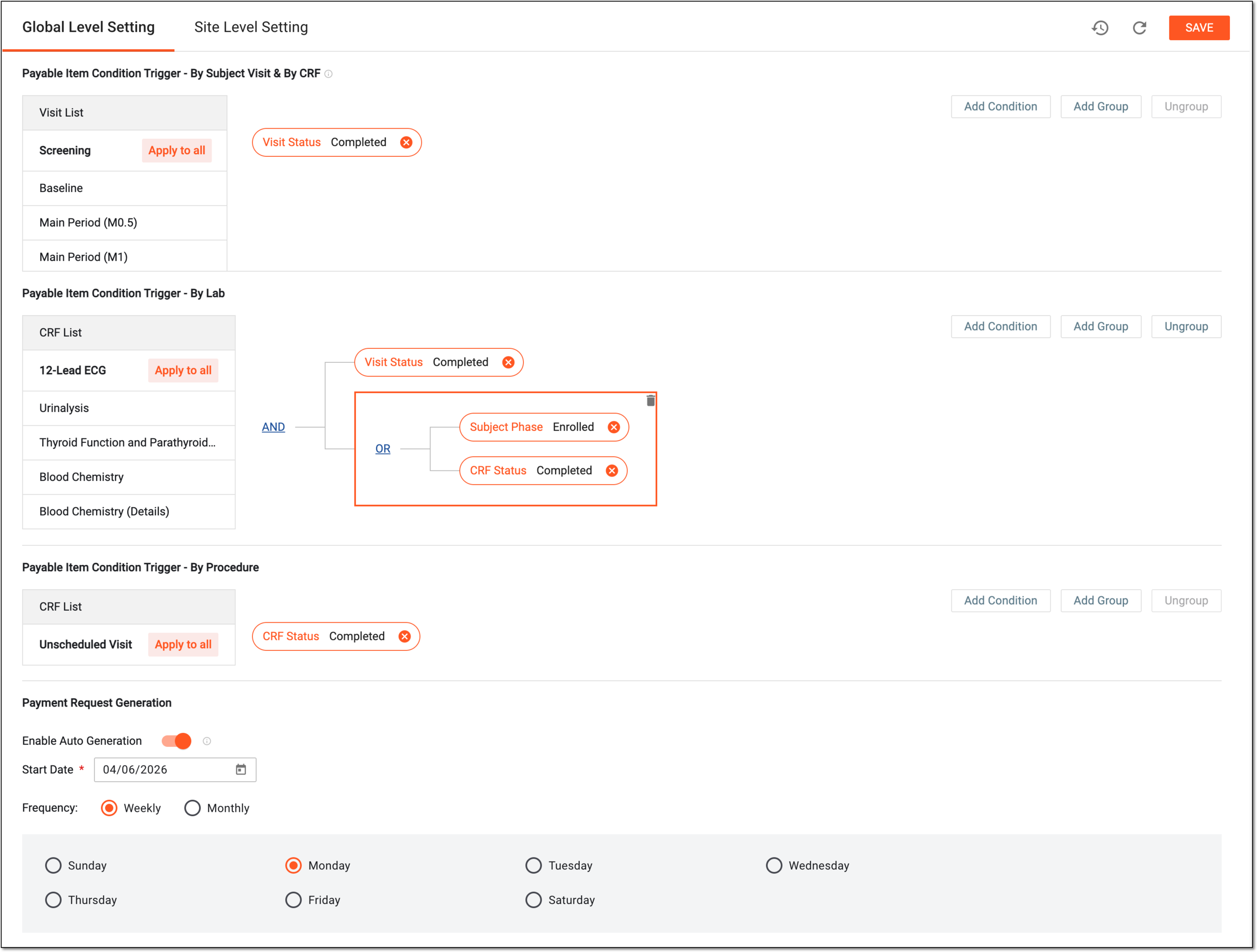 Figure 4. Configuring global-level payment triggers
Element
Details
Payable Item Condition Trigger - By Subject Visit & By CRF
In this block, select the visits from Visit List and add the condition for each visit and CRF to trigger a payment request once fulfilled. The combination of visit and CRF trigger settings ensures that payments by CRF are triggered once the visit to which they belong is completed.
The visits available here are populated from those configured in the subject visit-based or CRF-based pricing
                                        template.
Payable Item Condition Trigger - By Lab
In this block, select the forms from CRF List and add the condition for each CRF to trigger payment request once fulfilled.
The visits available here are populated from those configured in the lab-based pricing template.Payable Item Condition Trigger - By Procedure
In this block, select the forms from CRF List and add the condition for each CRF to trigger payment request once fulfilled.
The CRFs available here are populated from those configured in the procedure-based pricing template.Add Condition
Select
 to add blank condition fields. From the dropdown menus of each field, select the options that you want to set as trigger
conditions.
to add blank condition fields. From the dropdown menus of each field, select the options that you want to set as trigger
conditions.Add Group
Select
 to add a set of conditions to act as one within the general scheme. Configure your group following the same logic as for the
standalone condition.
to add a set of conditions to act as one within the general scheme. Configure your group following the same logic as for the
standalone condition.You can add groups of conditions within other groups to deepen the hierarchical connections of your payment triggers. To do this, select the group of conditions on the diagram, and then select
.Ungroup
Use
 to remove the grouping and convert to standalone conditions. To do this, select the grouped conditions on the diagram, then
click . Once done, the fields in the selected group are no longer interdependent.
to remove the grouping and convert to standalone conditions. To do this, select the grouped conditions on the diagram, then
click . Once done, the fields in the selected group are no longer interdependent.AND/OR
When more than one field is added, the AND/OR operator is used to make the conditions equal or alternate, respectively. Simply click the current operator to choose its value—AND or OR.

Select the red check mark next to the condition field to save its values.
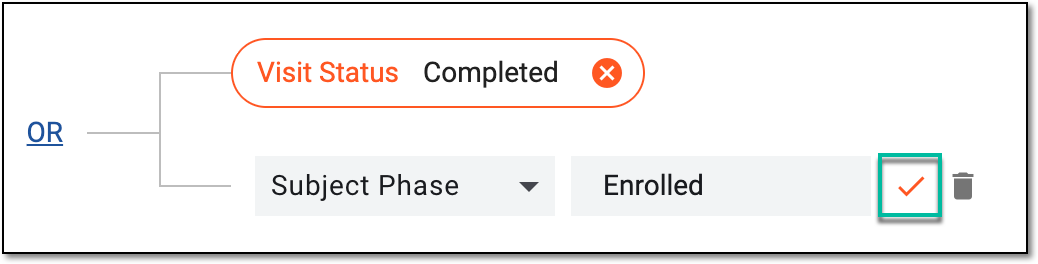 Figure 5. Saving condition

Select the deletion symbol next to the unsaved condition field or group to remove it from the diagram.
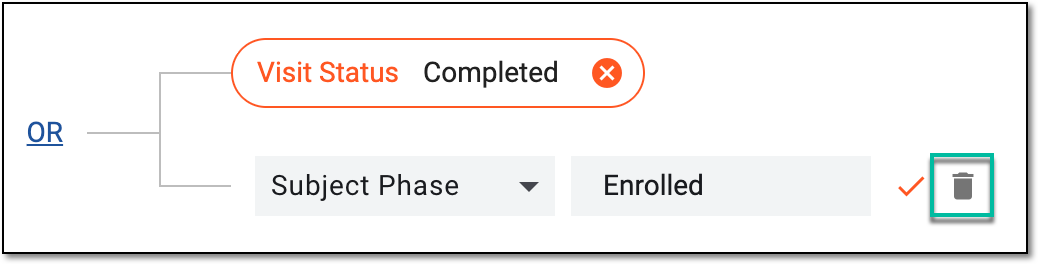 Figure 6. Deleting condition

Select the red cross symbol next to the saved condition field to remove it from the diagram.
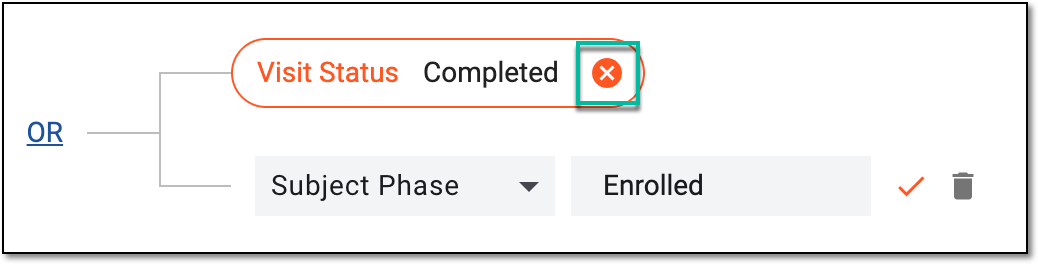 Figure 7. Removing condition
Apply to All
Select
 to apply the configured condition of a certain visit or CRF to all the visits or CRFs.
Payment Request Generation
Enable Auto Generation
Set as follows:
-
Turn on the toggle to enable the system to automatically generate payment requests in EDC regularly according to the set frequency. The requests will be generated in the Draft status per site and cover all the payable items intended for compensation for the period between the previous and current autogeneration.
-
Turn off the toggle to disable the autogeneration of payment requests.
Start Date*
Select the date when the system must start to autogenerate payment requests regularly according to the set frequency. If you select the current date, upon saving, the system notifies you to confirm immediate autogeneration of the requests for payable items.
Frequency
Select one of the following:
-
Weekly: to autogenerate payment requests once every week. Then select the day on which you want the payment requests to be generated.
-
Monthly: to autogenerate payment requests monthly. Then customize the schedule by selecting to generate requests on a specific day of the month (for instance, every second day of the month) or a particular weekday (for instance, every first Monday).
Refresh
Select
 to discard any changes you made and return to the latest saved version of trigger conditions.
SAVE
Select
 to implement the changes.
 -
-
For enabled payment request autogeneration with the start date set to today, in the dialog that appears, select one of the following:
-
CONFIRM: to allow the system to immediately generate payment requests for all the eligible payable items (those intended for compensation to date); after this immediate run, the system runs the request autogeneration according to the set frequency.
-
CANCEL: not to run any immediate payment request generation and start running the autogeneration according to the set frequency.
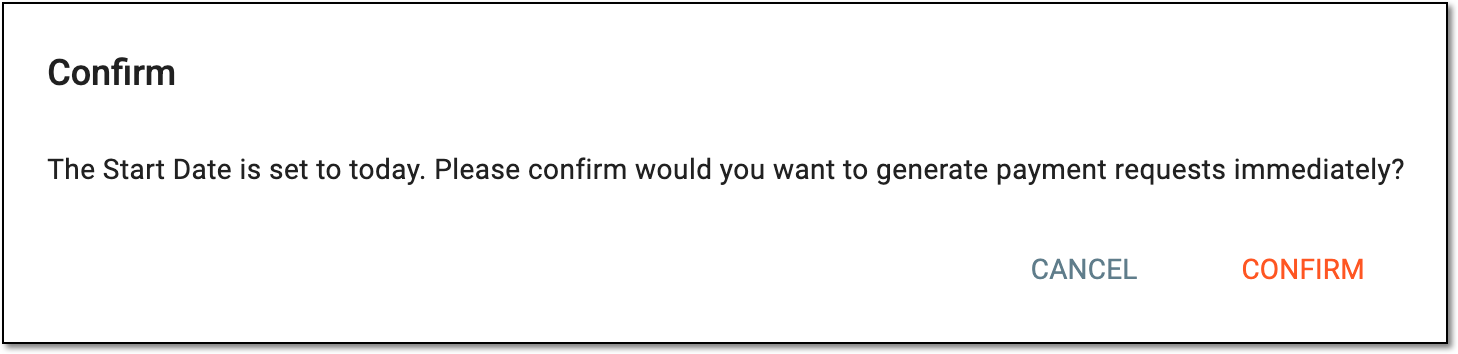 Figure 8. Confirming to autogenerate payment requests
-
You have configured the payment trigger conditions and payment request autogeneration. The set conditions become applicable on global level—for all sites of the study except those, for which individual site-level payment triggers are configured. If payment request autogeneration is enabled, it starts running according to the set frequency and you can analyze the history of executions for traceability.
In CTMS, you can configure payment triggers—conditions that, upon completion, set of payment requests. These triggers are intended to support various payments (based on form, visit, procedure, or lab test completion) by stating the CRFs whose submission with certain results trigger financial compensation.
By configuring the site-level triggers, you enable the unified set of rules for a specific site of your study on how the payable items available for creating payment requests in EDC are generated based on the completion of certain CRFs or subject phase changes. This provides flexibility for the studies whose sites have different payment approaches.
-
Access the study management page in one of the following ways:
-
In the CTMS application header, select the DASHBOARD tab and then select the study dashboard of your interest.
Figure 1. Accessing study management from dashboard
-
In the CTMS application header, select the STUDY MANAGEMENT tab. Then from the Study Data List table, select the study name of your interest.
Figure 2. Accessing study management from study data list
-
-
On the page that opens, from the left pane, expand Financial Management > Payment Trigger.
Figure 3. Accessing payment triggers
-
On the page that opens, select the Global Level Setting tab. Then configure the conditions for payment triggers as explained in the following table.
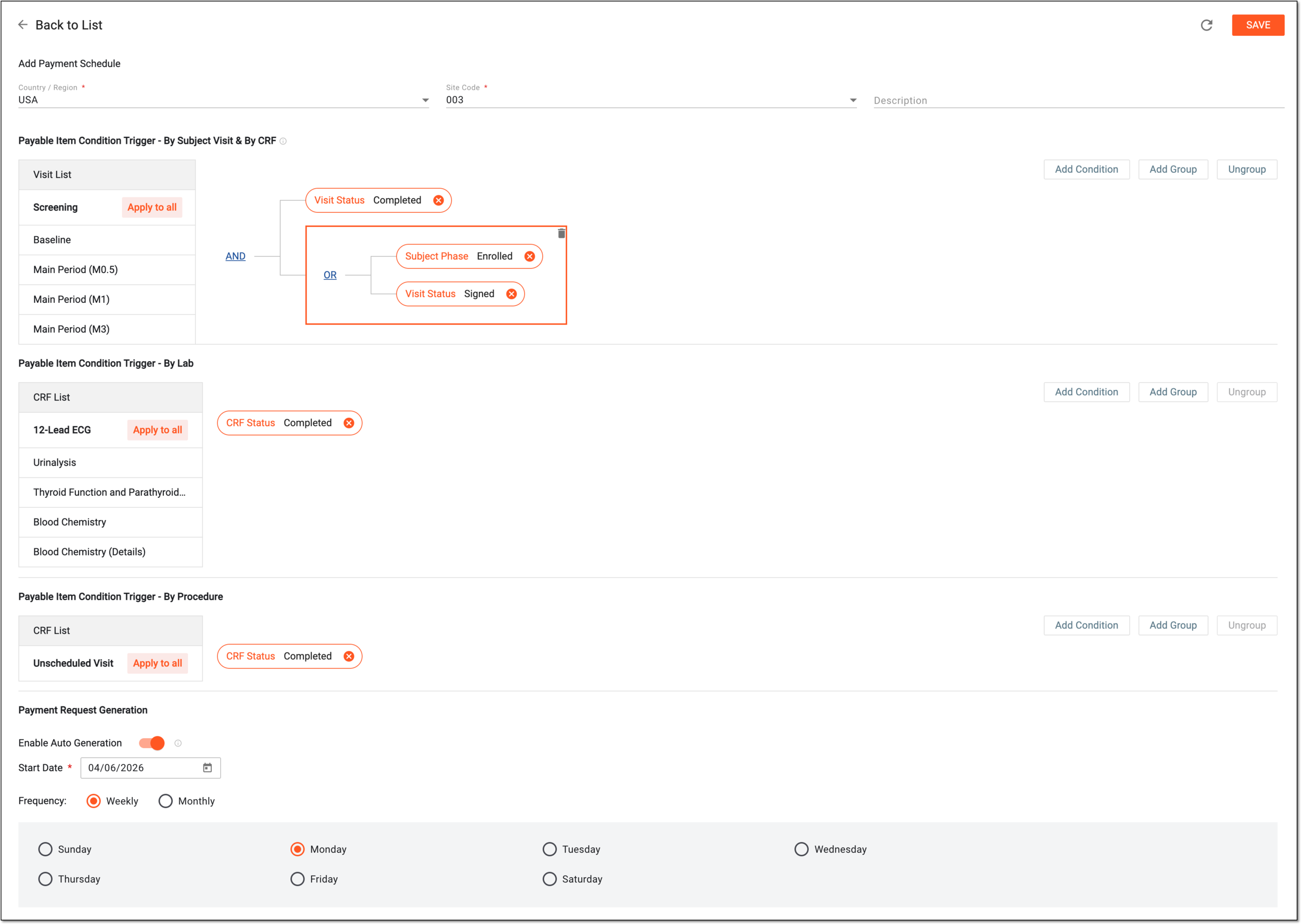 Figure 4. Configuring site-level payment triggers
Tip
In the following table, mandatory elements are marked with an asterisk (*).
Element
Details
Add Payment Schedule
Country / Region*
Select the country where the site is located.
Site Code*
Select the code of the site for which you want to configure payment trigger conditions.
Description
Enter auxiliary details to follow up on your conditions.
Payable Item Condition Trigger - By Subject Visit & By CRF
In this block, select the visits from Visit List and add the condition for each visit and CRF to trigger a payment request once fulfilled. The combination of visit and CRF trigger settings ensures that payments by CRF are triggered once the visit to which they belong is completed.
The visits available here are populated from those configured in the subject visit-based or CRF-based pricing
                                        template.
Payable Item Condition Trigger - By Lab
In this block, select the forms from CRF List and add the condition for each CRF to trigger payment request once fulfilled.
The visits available here are populated from those configured in the lab-based pricing template.Payable Item Condition Trigger - By Procedure
In this block, select the forms from CRF List and add the condition for each CRF to trigger payment request once fulfilled.
The CRFs available here are populated from those configured in the procedure-based pricing template.Add Condition
Select
to add blank condition fields. From the dropdown menus of each field, select the options that you want to set as trigger
conditions.Add Group
Select
to add a set of conditions to act as one within the general scheme. Configure your group following the same logic as for the
standalone condition.You can add groups of conditions within other groups to deepen the hierarchical connections of your payment triggers. To do this, select the group of conditions on the diagram, and then select
.Ungroup
Use
to remove the grouping and convert to standalone conditions. To do this, select the grouped conditions on the diagram, then
click . Once done, the fields in the selected group are no longer interdependent.AND/OR
When more than one field is added, the AND/OR operator is used to make the conditions equal or alternate, respectively. Simply click the current operator to choose its value—AND or OR.
Select the red check mark next to the condition field to save its values.
Figure 5. Saving condition
Select the deletion symbol next to the unsaved condition field or group to remove it from the diagram.
Figure 6. Deleting condition
Select the red cross symbol next to the saved condition field to remove it from the diagram.
Figure 7. Removing condition
Apply to All
Select
to apply the configured condition of a certain visit or CRF to all the visits or CRFs.Refresh
Select
to discard any changes you made and return to the latest saved version of trigger conditions.SAVE
Select
to implement the changes.
Once saved, the configured payment trigger conditions become applicable for the selected site.