Delete attribute template
You can remove an attribute template from the CTMS library when it is no longer needed. An attribute template incorporates custom attributes—such as status, owner, priority, or custom dates—that can be used across studies in CTMS to capture and manage various study components, including activities, milestones, and other operational elements. Deleting unused templates helps keep the attribute list organized and relevant, but can only be done if the template is not currently in use.
-
In the CTMS application header, select the LIBRARY tab.
-
On the page that opens, from the left pane, select Attribute Template.
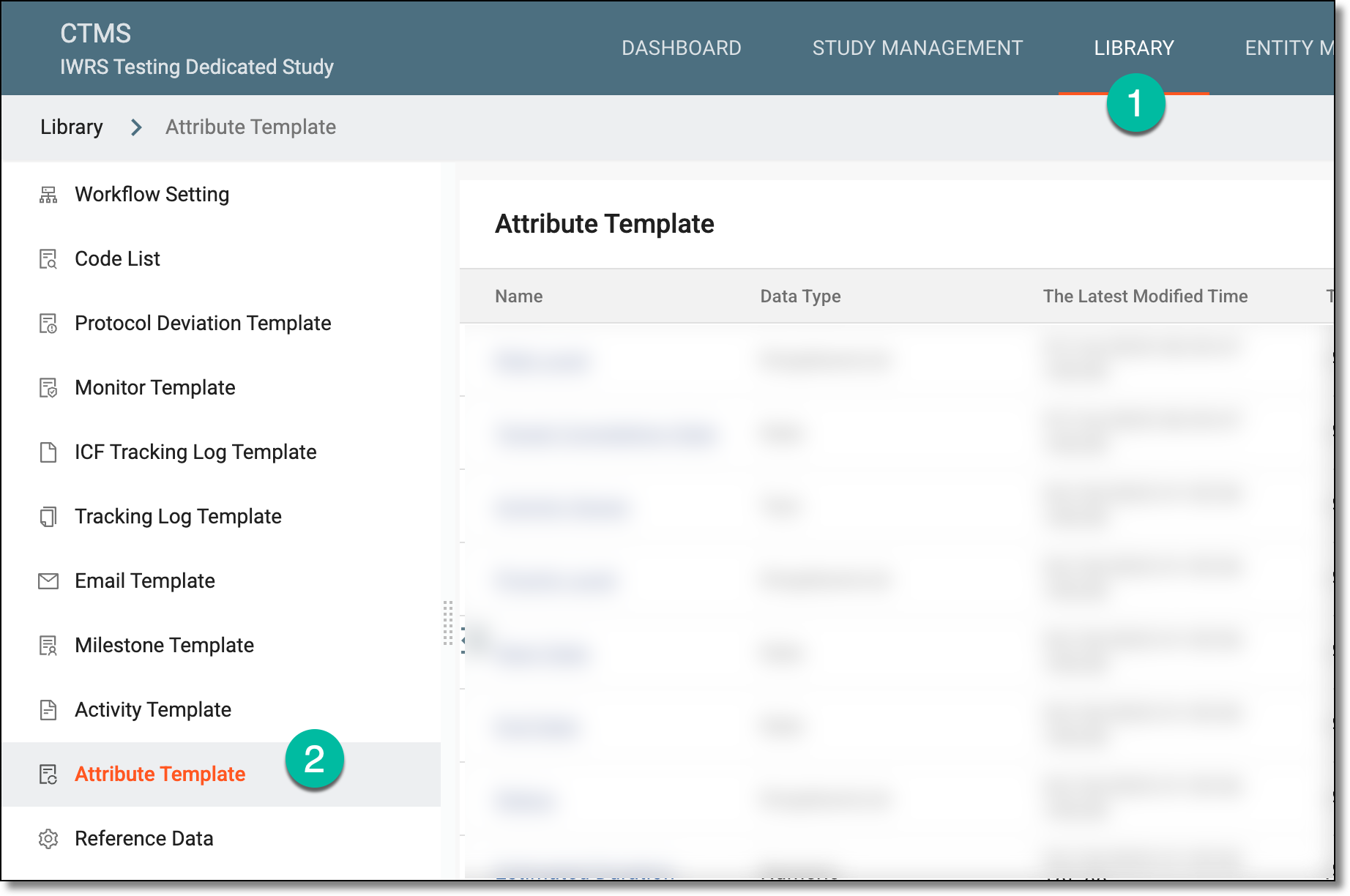 Figure 1. Accessing attribute template subtab
-
On the Activity Template List page that opens, locate the needed attribute template, and next to it, from the Action(s) column, select More
 > Delete
  .
.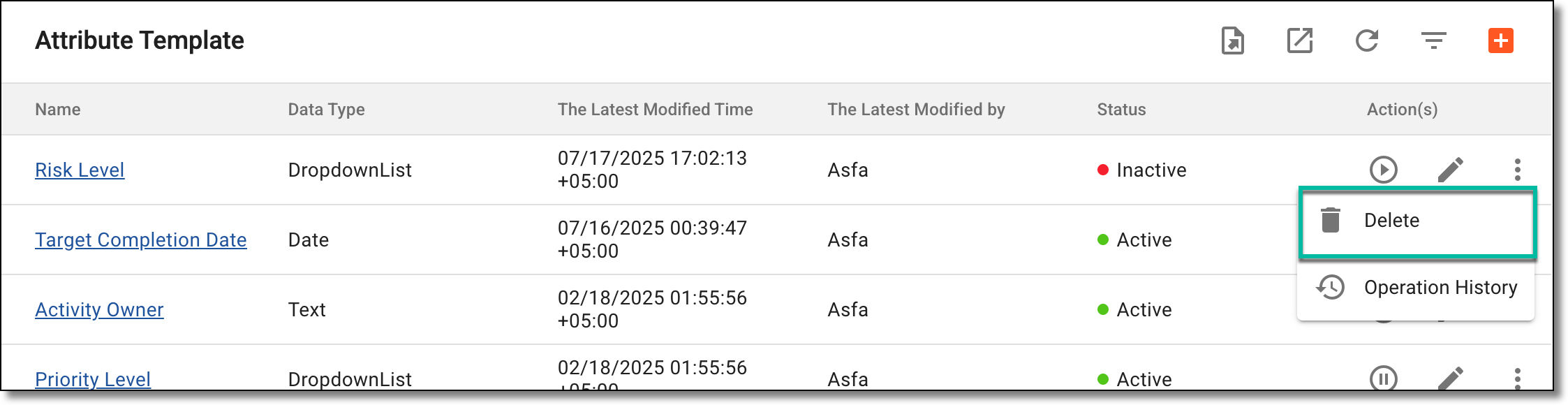 Figure 2. Selecting to delete attribute template
Important
You can only delete an inactivated attribute template.
-
In the Delete Item dialog that appears, confirm the action by selecting
 .
.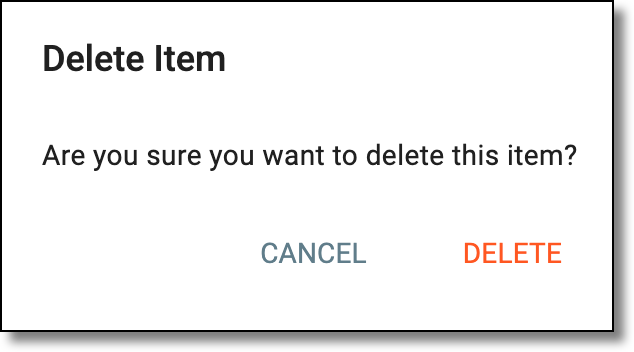 Figure 3. Deleting attribute template
Once selected, the attribute template is deleted.