Activate/Inactivate attribute template
In the CTMS library, you can manage the status of an attribute template, that is activate or inactivate it. An attribute template incorporates custom attributes—such as status, owner, priority, or custom dates—that can be used across studies in CTMS to capture and manage various study components, including activities, milestones, and other operational elements. Activating a template makes it available for use in studies or workflows, while inactivating it removes it from active use without deleting it—helping maintain a clean and relevant list of available attributes.
-
In the CTMS application header, select the LIBRARY tab.
-
On the page that opens, from the left pane, select Attribute Template.
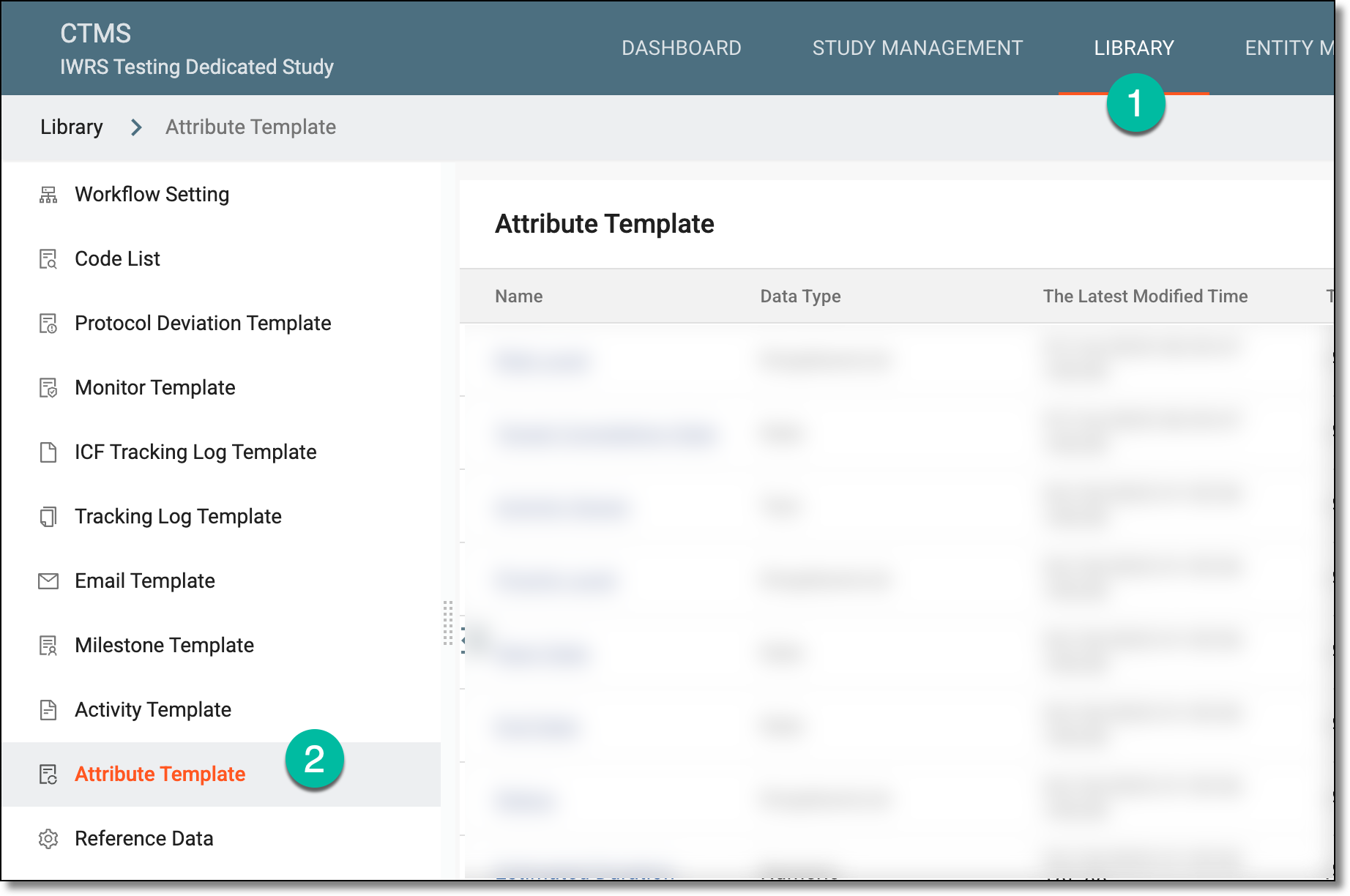 Figure 1. Accessing attribute template subtab
-
On the Attribute Template List page that opens, locate the needed attribute template, and do any of the following:
-
Next to the activated attribute template, from the Action(s) column, select Activate
 .
.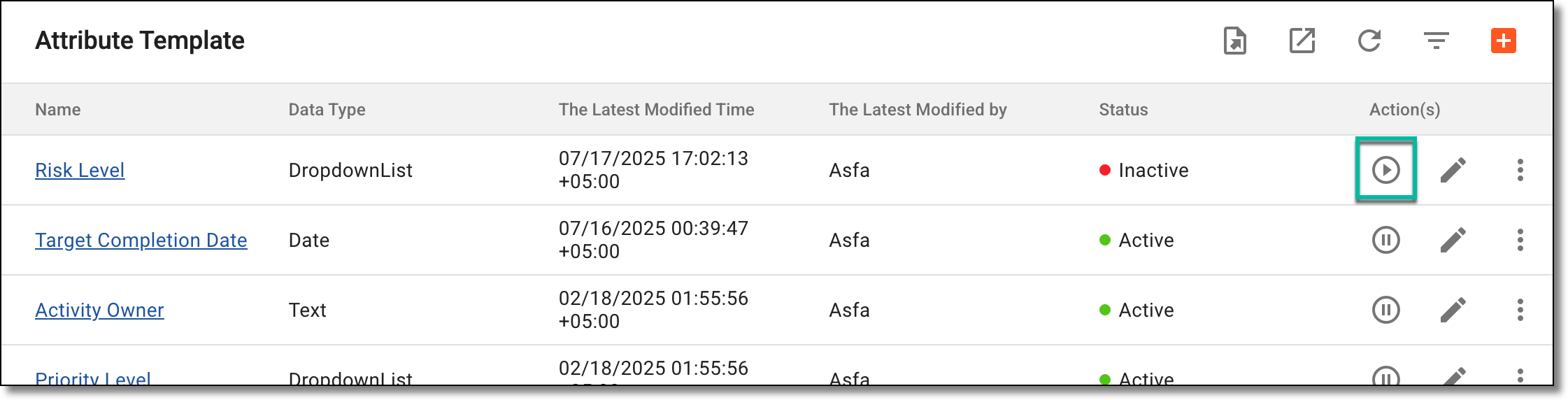 Figure 2. Activating attribute template
-
Next to the inactivated attribute template, from the Action(s) column, select Inactivate
 .
.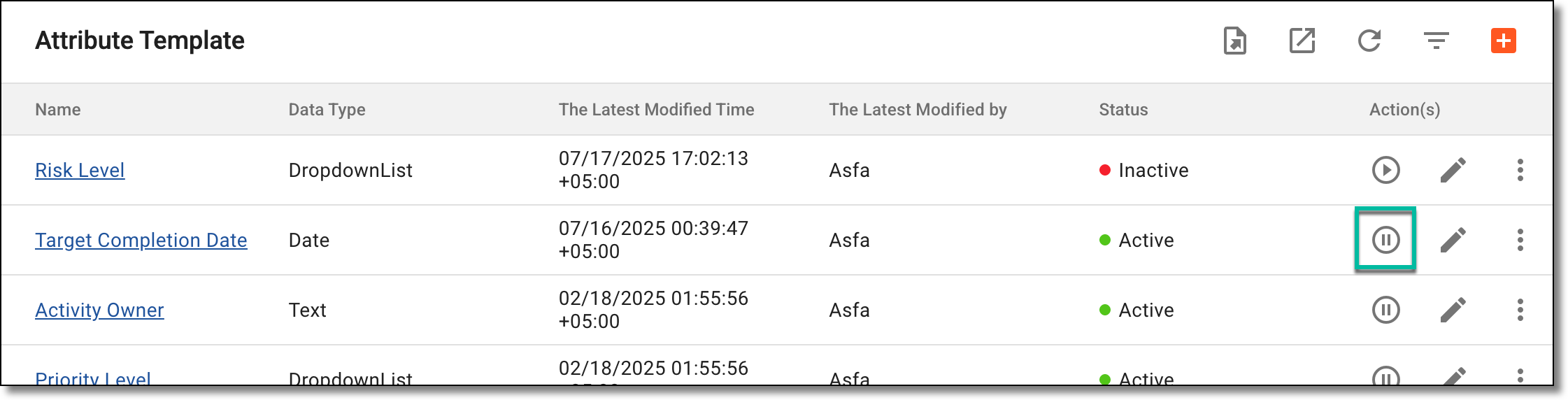 Figure 3. Inactivating attribute template
-
-
In the Reason dialog that appears, enter the reason for activating or inactivating the attribute template. Then select SAVE.
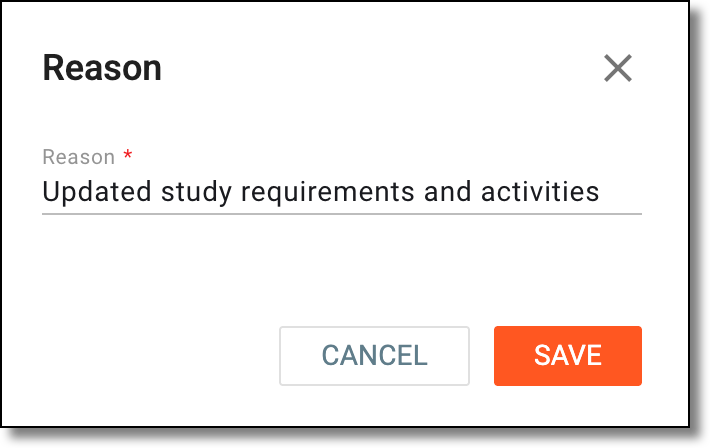 Figure 4. Entering reason to inactivate attribute template
Once saved, the attribute template is activated or inactivated.