Placeholder settings
Placeholder settings are configurations and parameters that govern how placeholders are managed within eTMF. This may include rules for when placeholders should be created, assigned, or removed, as well as workflows associated with the placeholders.
These configurations help standardize the management of placeholders, ensuring consistency across the trial. They enable organizations to define which documents require placeholders and the criteria for managing those markers effectively.
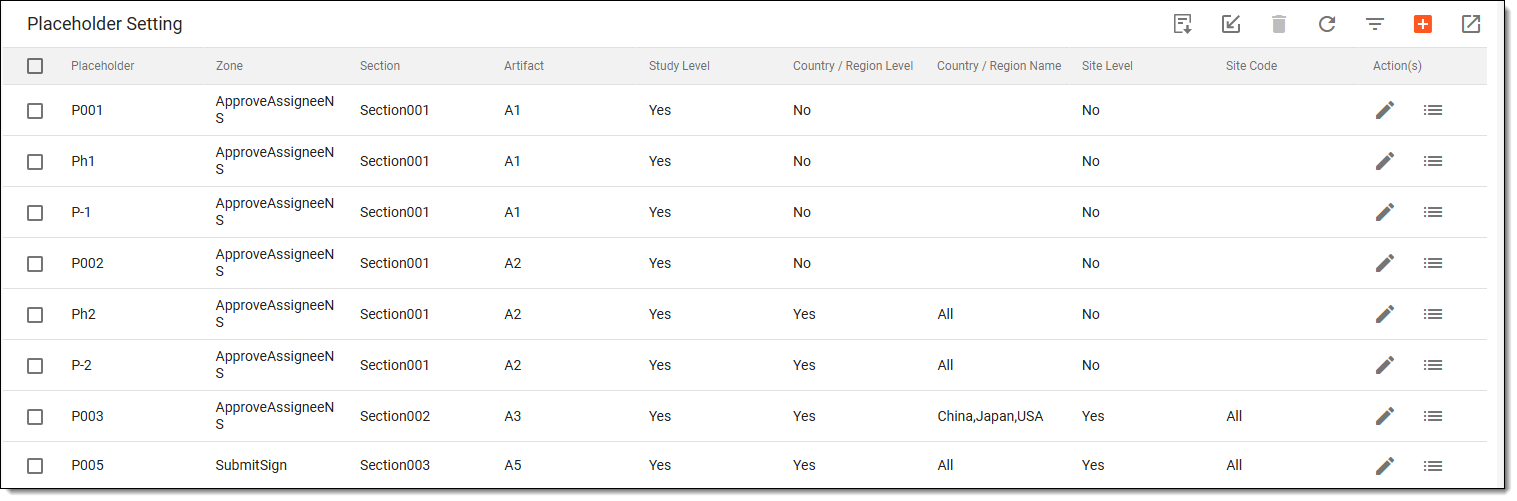
In this section, you can learn how to:
Create placeholder setting
Placeholder settings are configurations and parameters that govern how placeholders are managed within eTMF. This may include rules for when placeholders should be created, assigned, or removed, as well as workflows associated with the placeholders.
Placeholder settings are usually created based on the study milestones and essentially serve as containers for a missing study document or record planned to be received during a clinical study (such as consent forms, indemnity contracts, investigator Curricula Vitae, and so on).
In eTMF, you can create placeholder settings in two ways, as explained in the following sections.
Placeholder settings are configurations and parameters that govern how placeholders are managed within eTMF. This may include rules for when placeholders should be created, assigned, or removed, as well as workflows associated with the placeholders.
In the eTMF system, you can create the placeholder settings in batch by downloading the predefined placeholder template, filling it in with the necessary data, and then importing the completed file back into the eTMF system. This can be handy when you need to create many placeholder settings at once, and configuring them individually is too time-consuming.
-
In the eTMF application header, select the TMF tab.
-
On the page that opens, in the left pane, select the Study List subtab.
-
In the Study List table, select the needed study name.
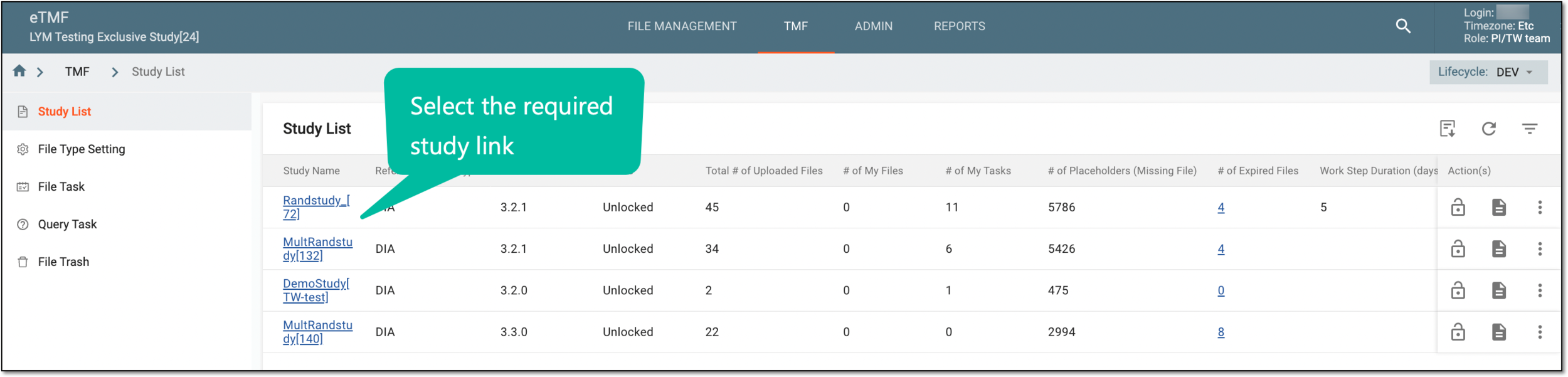 Figure 1. Selecting study
-
On the page that opens, select the Study Tracking pane option.
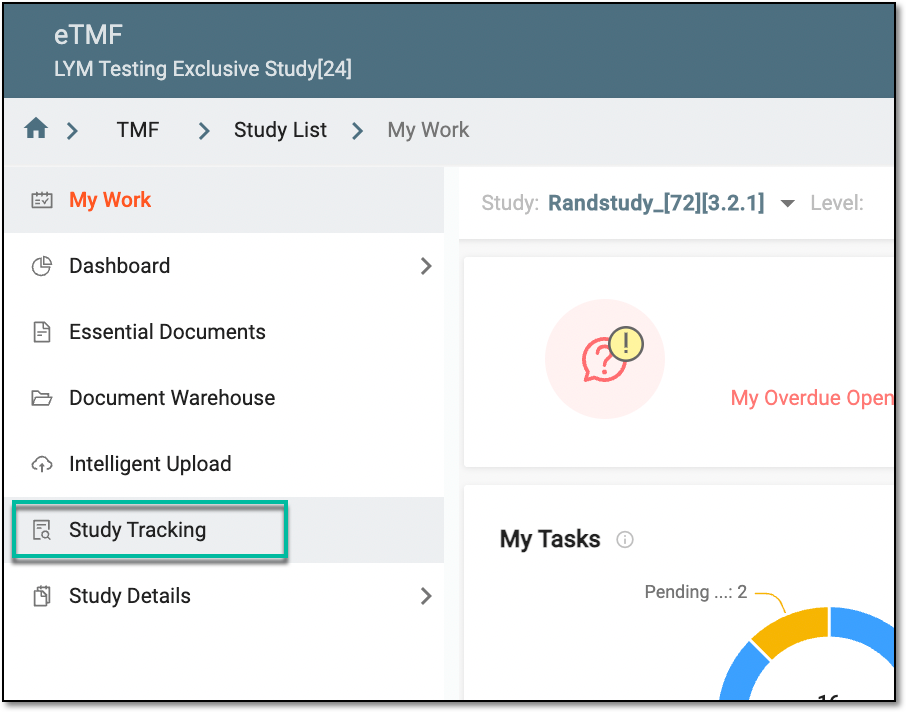 Figure 2. Accessing study tracking page
-
On the Study Tracking page that opens, switch to the Placeholder tab.
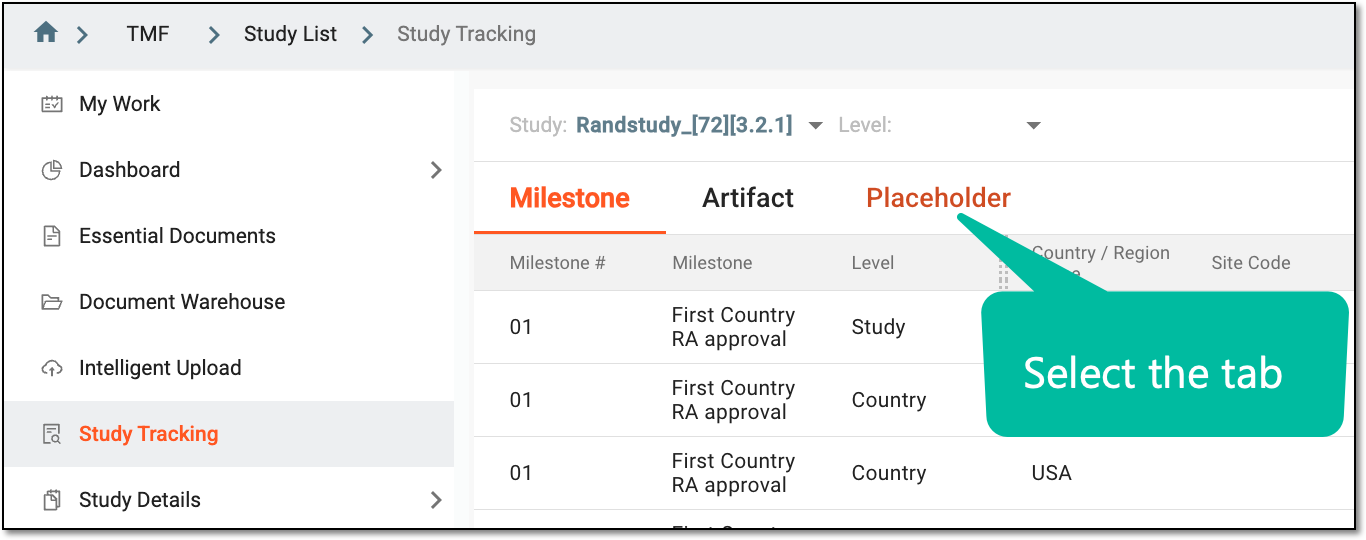 Figure 3. Accessing placeholders
-
From the workspace toolbar, select Setting
 .
.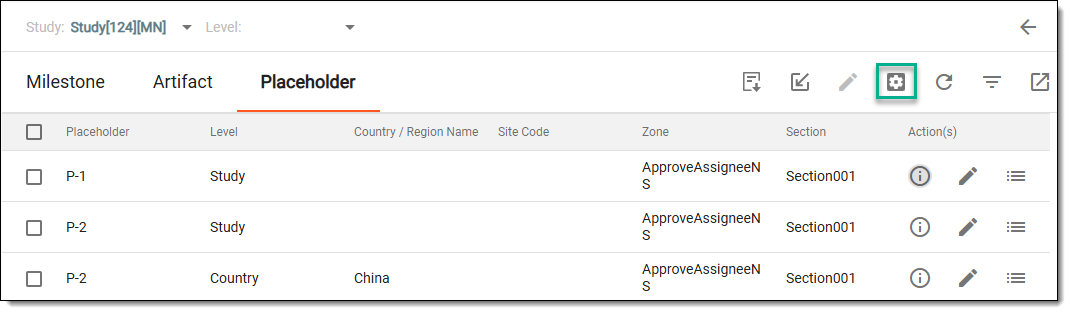 Figure 4. Accessing placeholder settings
-
On the Placeholder Setting page that opens, from the workspace toolbar, select New
 .
.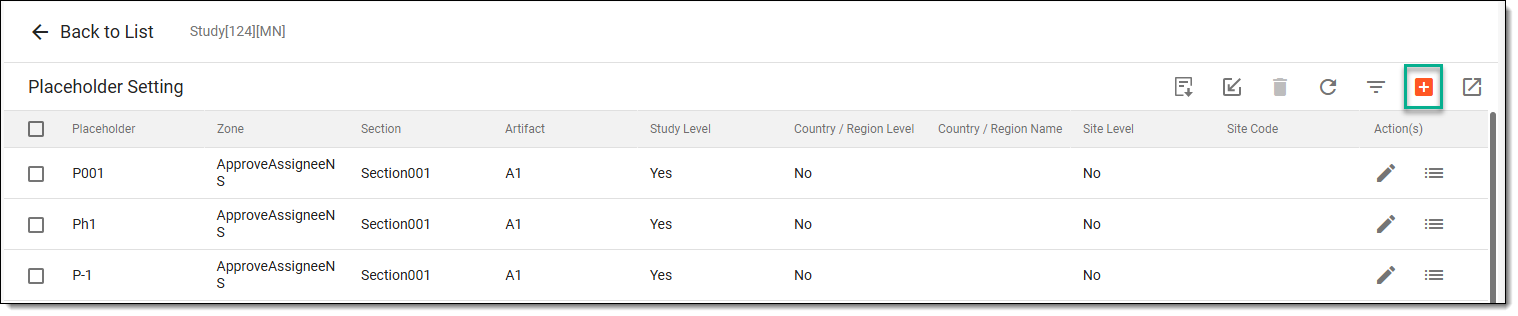 Figure 5. Accessing option to create placeholder setting
-
In the New dialog that opens, provide the details for your placeholder, as explained in the following table.
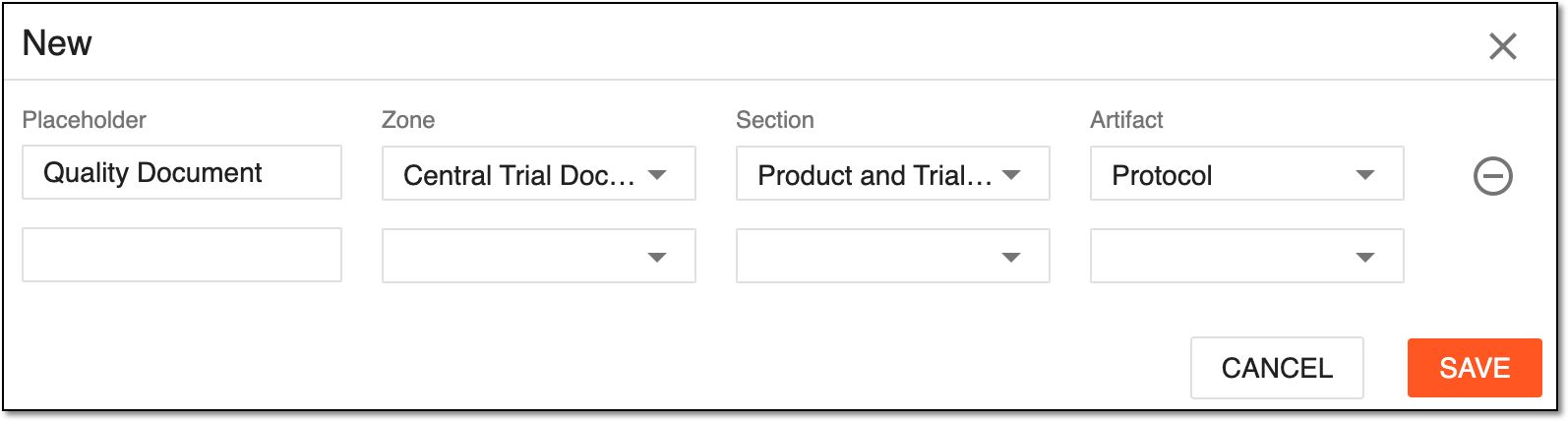 Figure 6. Adding new artifact
Element
Details
Placeholder
Enter the placeholder name. The name must reflect the type of the expected documents that will later be stored in this placeholder once you collect and upload them.
For example, Core Document List, SOP Deviations, Committee Correspondence, and so on.
Zone
Select the placeholder subfolder that reflects the zone for your expected documents. The following zones are available for selection:
Section
Select one of the sections into which the previously selected zone is divided. The values you see in this dropdown menu depend on the selected zone.
Artifact
Select the artifact you are going to upload to your placeholder.
-
Once Zone, Section, and Artifact are configured, in the same dialog, continue selecting the level at which each artifact must be typically filed based on its content, as explained in the following table.
For example, if an artifact has been customized for an individual site, the Site Level checkbox must be selected.
Element
Details
Study Level
Select the checkbox if an artifact is to be filed at the clinical trial level (if it is relevant to all sites or countries within a trial).
Country/Region Level
Select the checkbox if an artifact is to be filed at the country level (if it is relevant to all sites within a certain country).
Site Level
Select the checkbox if an artifact is to be filed at the site level only.
SAVE
Select
 to implement the changes.
CANCEL
Select
 to discard the changes without saving.
Upon saving, the new placeholder setting is created and displayed in the Placeholder Setting table. You can now proceed to upload your expected documents and records to the newly created placeholder setting.
Placeholder settings are configurations and parameters that govern how placeholders are managed within eTMF. This may include rules for when placeholders should be created, assigned, or removed, as well as workflows associated with the placeholders.
In the eTMF system, you can create the placeholder settings in batch by downloading the predefined placeholder setting template, filling it in with the necessary data, and then importing the completed file back into the eTMF system. This can be handy when you need to create many placeholder settings at once, and configuring them individually is too time-consuming.
-
In the eTMF application header, select the TMF tab.
-
On the page that opens, in the left pane, select the Study List subtab.
-
In the Study List table, select the needed study name.
Figure 1. Selecting study
-
On the page that opens, select the Study Tracking pane option.
Figure 2. Accessing study tracking page
-
On the Study Tracking page that opens, switch to the Placeholder tab.
Figure 3. Accessing placeholders
-
From the workspace toolbar, select Setting
.Figure 4. Accessing placeholder settings
-
Download the predefined placeholder setting template from the eTMF system:
-
On the Placeholder Setting page that opens, on the workspace toolbar, select Download Template
 .
.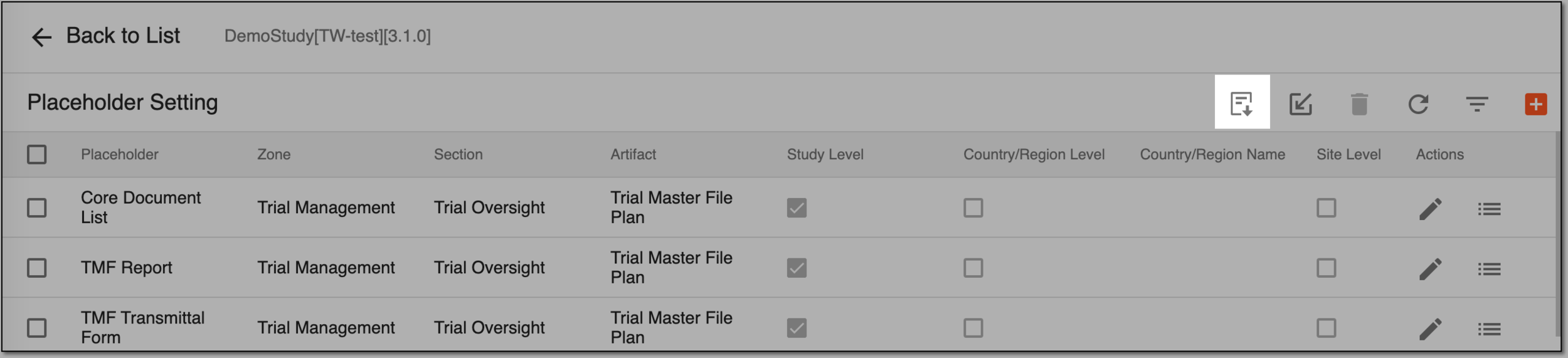 Figure 5. Downloading placeholder list template
-
Follow the prompts of your computer to save the file.
-
On your computer, open the downloaded file and fill it out with the needed information.
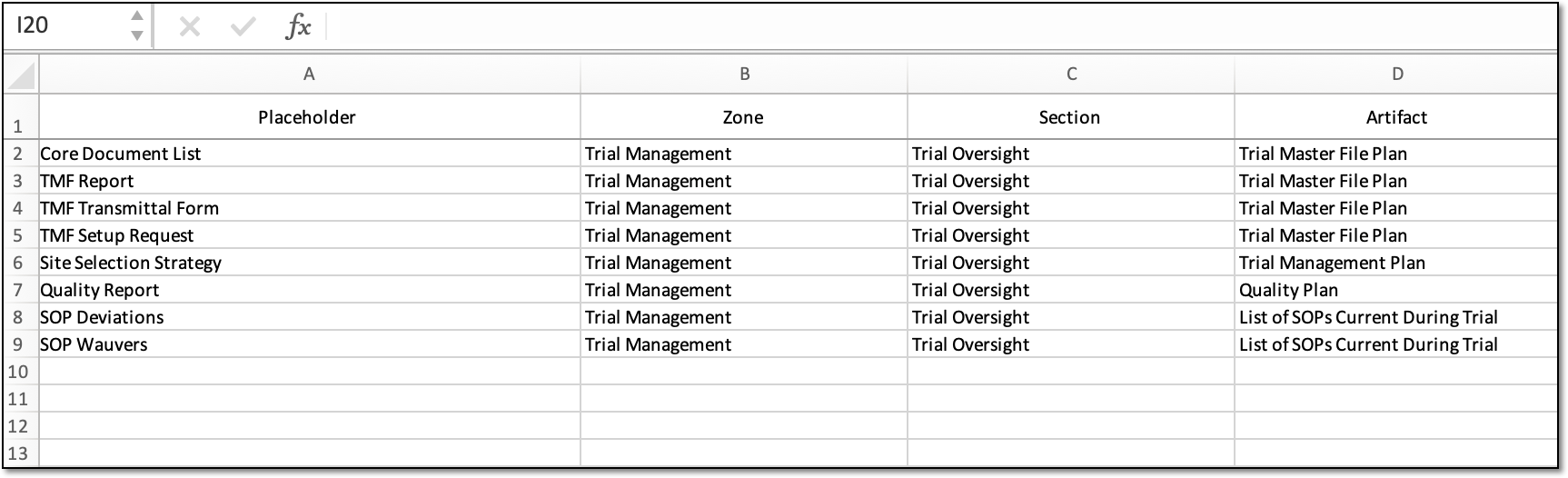 Figure 6. Downloaded template filled out
Tip
To understand what each column in a template means so you can fill it out properly, see the table of the Add placeholder settings individually section.
-
-
Import the file back to the eTMF system to generate the list of placeholder settings:
-
On the Placeholder Setting page, from the workspace toolbar, select Import
 .
.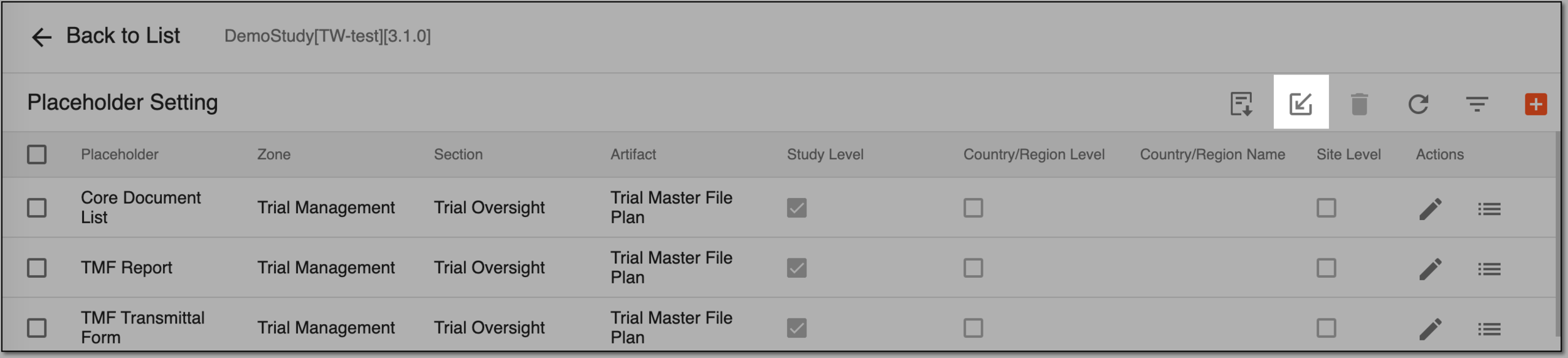 Figure 7. Importing placeholder list
-
Follow the prompts on your computer to locate and upload (import) the filled-out file in the eTMF application.
-
The placeholder settings from the file appear in the Placeholder Setting table. Now, you can proceed to upload your expected documents and records to the newly created placeholders.
Edit placeholder setting
Placeholder settings are configurations and parameters that govern how placeholders are managed within eTMF. This may include rules for when placeholders should be created, assigned, or removed, as well as workflows associated with the placeholders.
Initially, placeholder settings (folders and containers) are created in the eTMF system based on the study type, phase, vendors, protocol type, and so on. However, sometimes, you may need to edit the existing placeholder settings. For example, if you need to change the placeholder setting name or change its grouping level.
-
In the eTMF application header, select the TMF tab.
-
On the page that opens, in the left pane, select the Study List subtab.
-
In the Study List table, select the needed study name.
Figure 1. Selecting study
-
On the page that opens, select the Study Tracking pane option.
Figure 2. Accessing study tracking page
-
On the Study Tracking page that opens, switch to the Placeholder tab.
Figure 3. Accessing placeholders
-
On the Placeholder page, from the workspace toolbar, select Setting
.Figure 4. Accessing placeholder settings
-
On the Placeholder Setting page that opens, in the table, next to a placeholder you need to edit, select Edit
 .
.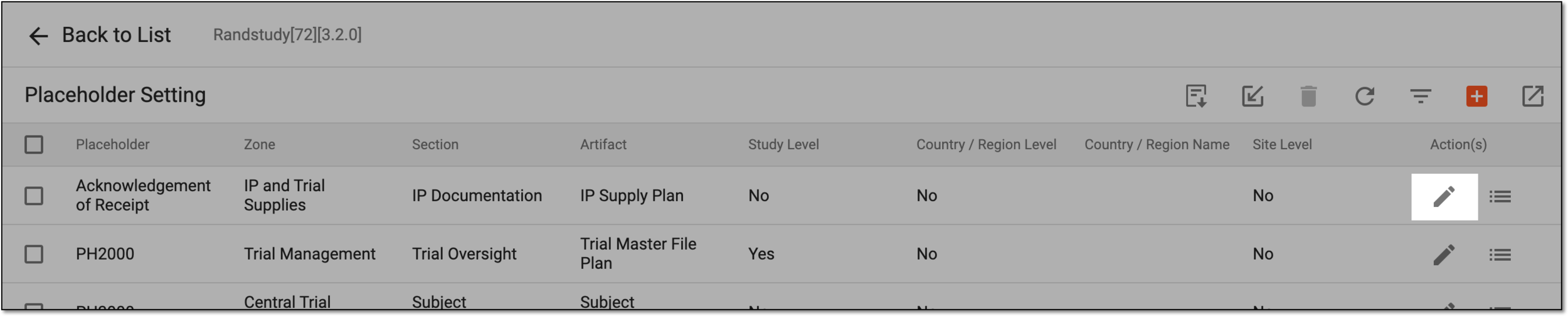 Figure 5. Selecting to edit placeholder details
-
In the Edit dialog that appears, update the placeholder setting details—such as its name, zone, section, or artifact. The fields here are identical to the ones explained in the table of the Add placeholder settings individually section.
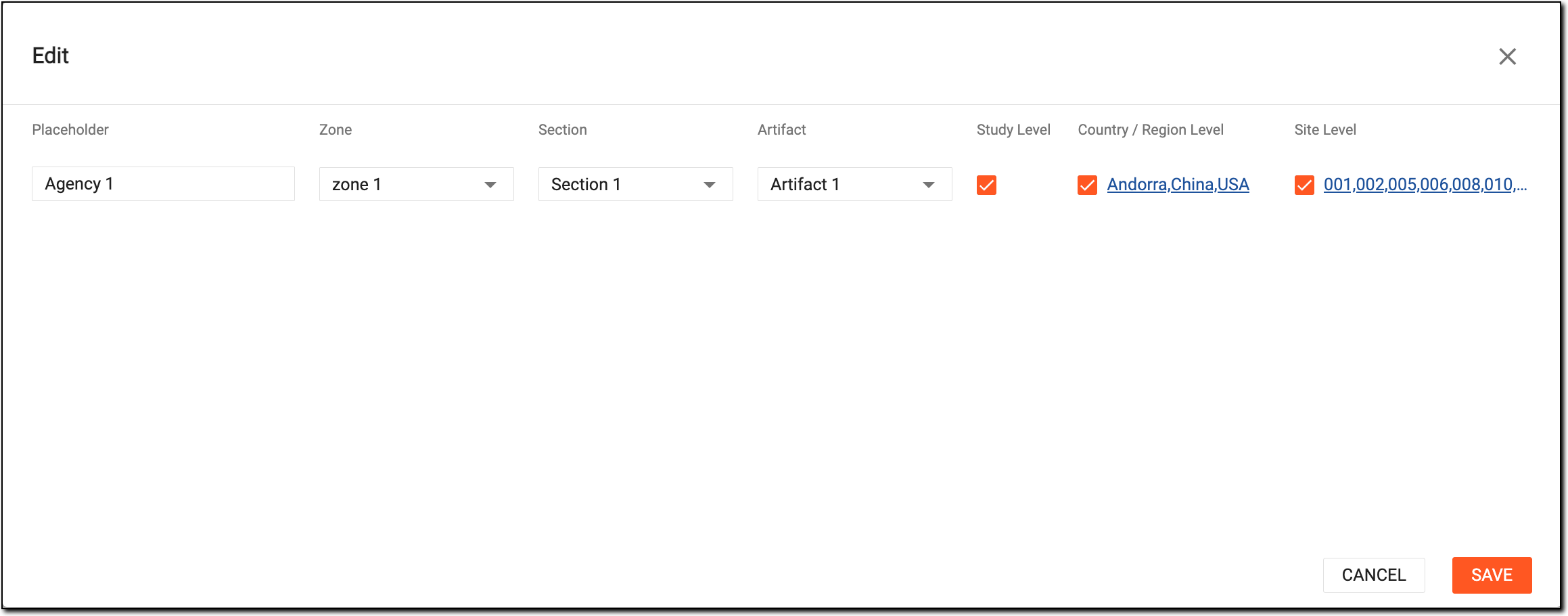 Figure 6. Editing placeholder
Upon saving, the placeholder setting is updated. You can now proceed to upload your study documents and records to the placeholder according to the updated settings.
View placeholder setting audit trail
Placeholder settings are configurations and parameters that govern how placeholders are managed within eTMF. This may include rules for when placeholders should be created, assigned, or removed, as well as workflows associated with the placeholders.
Placeholder settings are usually created according to the study plan and protocol based on the study milestones and essentially serve as containers for a missing study document or record planned to be received during a clinical trial (such as consent forms, indemnity contracts, investigator Curricula Vitae, and so on).
In eTMF, you can view the audit trail of existing placeholder settings; that is, you can track when and how the placeholder setting was created or modified.
-
In the eTMF application header, select the TMF tab.
-
On the page that opens, in the left pane, select the Study List subtab.
-
In the Study List table, select the needed study name.
Figure 1. Selecting study
-
On the page that opens, select the Study Tracking pane option.
Figure 2. Accessing study tracking page
-
On the Study Tracking page that opens, switch to the Placeholder tab.
Figure 3. Accessing placeholders
-
On the Placeholder page, from the workspace toolbar, select Setting
.Figure 4. Accessing placeholder settings
-
On the Placeholder Setting page that opens, in the table, go to the needed placeholder setting. Then in the Actions column next to it, select Audit Trail
 .
.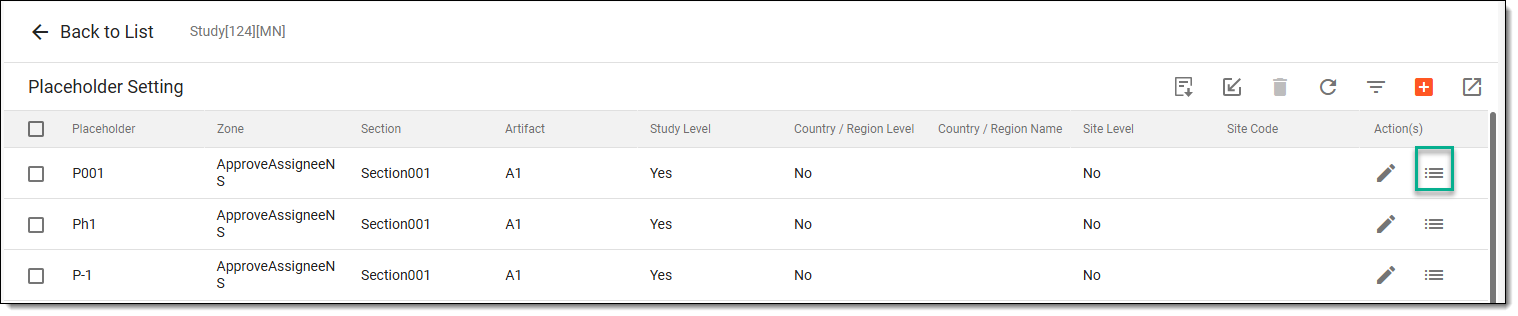 Figure 5. Accessing audit trail of placeholder setting
-
In the Audit Trail dialog that appears, view the audit trail of the placeholder setting (that is, check what was the placeholder setting name when it was first created, to which study it belongs, what zone, section, and artifact it has, and when (if ever) it was changed and how).
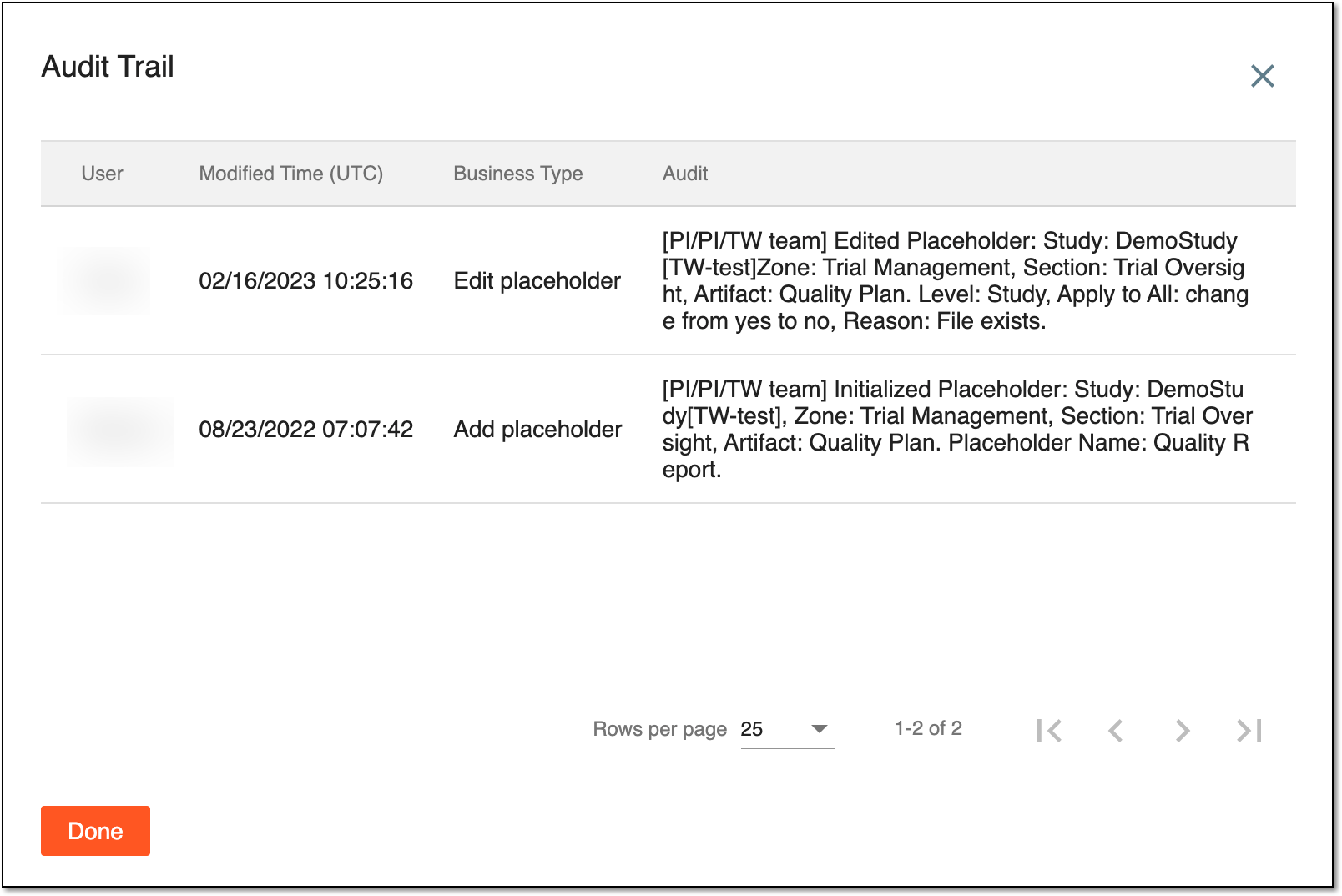 Figure 6. Viewing placeholder audit trail
-
Select
 to close the dialog.
Once done, you are redirected to the Placeholder Setting page where you can continue working with your placeholders.
Export placeholder setting
Placeholder settings are configurations and parameters that govern how placeholders are managed within eTMF. This may include rules for when placeholders should be created, assigned, or removed, as well as workflows associated with the placeholders.
In the eTMF application, you can export placeholder settings for a particular study to work with them offline and import them back into eTMF. With this functionality, you can update the existing placeholder settings in bulk instead of editing them one by one.
-
In the eTMF application header, select the TMF tab.
-
On the page that opens, in the left pane, select the Study List subtab.
-
In the Study List table, select the needed study name.
Figure 1. Selecting study
-
On the page that opens, select the Study Tracking pane option.
Figure 2. Accessing study tracking page
-
On the Study Tracking page that opens, switch to the Placeholder tab.
Figure 3. Accessing placeholders
-
On the Placeholder page, from the workspace toolbar, select Setting
.Figure 4. Accessing placeholder settings
-
In the Placeholder Settings page that opens, from the workspace toolbar, select Export
 .
.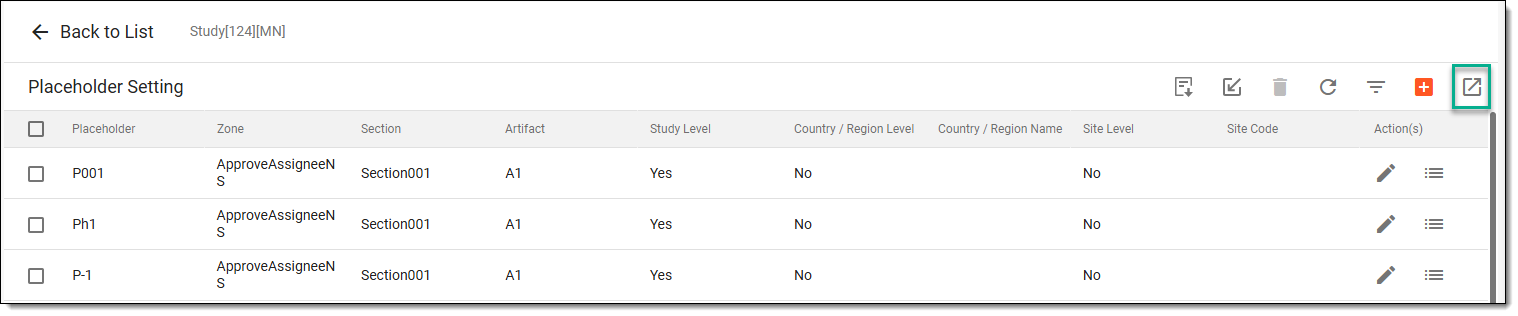 Figure 5. Exporting placeholder settings
Once exported, the file is saved on your system in the XLSX format. You can now work with it offline.
Delete placeholder setting
Placeholder settings are configurations and parameters that govern how placeholders are managed within eTMF. This may include rules for when placeholders should be created, assigned, or removed, as well as workflows associated with the placeholders.
To keep the list of placeholder settings up-to-date, you may need to remove the ones that are no longer needed. However, you cannot delete placeholders that already have stored study documents.
-
In the eTMF application header, select the TMF tab.
-
On the page that opens, in the left pane, select the Study List subtab.
-
In the Study List table, select the needed study name.
Figure 1. Selecting study
-
On the page that opens, select the Study Tracking pane option.
Figure 2. Accessing study tracking page
-
On the Study Tracking page that opens, switch to the Placeholder tab.
Figure 3. Accessing placeholders
-
On the Placeholder page, from the workspace toolbar, select Setting
.Figure 4. Accessing placeholder settings
-
On the Placeholder Setting page that opens, select checkboxes next to the placeholder settings you want to delete, and from the workspace toolbar, select Delete
 .
.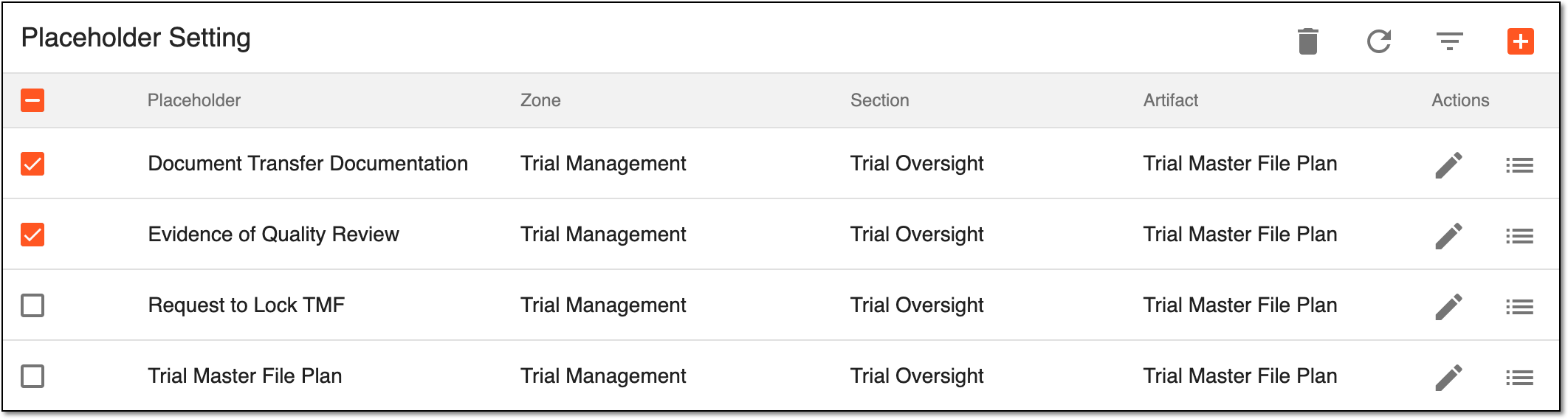 Figure 5. Deleting placeholder setting
-
In the Delete confirmation dialog that opens, select
 to delete the selected placeholder settings.
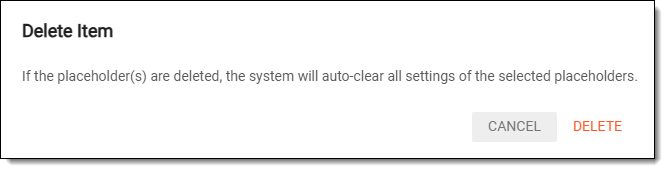 Figure 6. Confirming placeholder deletion
Important
If the placeholder setting already stores some study documents, the system displays an error message informing you that the placeholder setting cannot be deleted.
Upon confirmation, the placeholder settings are deleted.
An instance created in eTMF in place of a source file that has not yet been uploaded to the system (for example, has not yet been collected or completed).
Placeholders are a helpful tool in the process of filling out the Trial Master File (TMF). With the placeholders, you preserve the eTMF integrity until the source files become available.
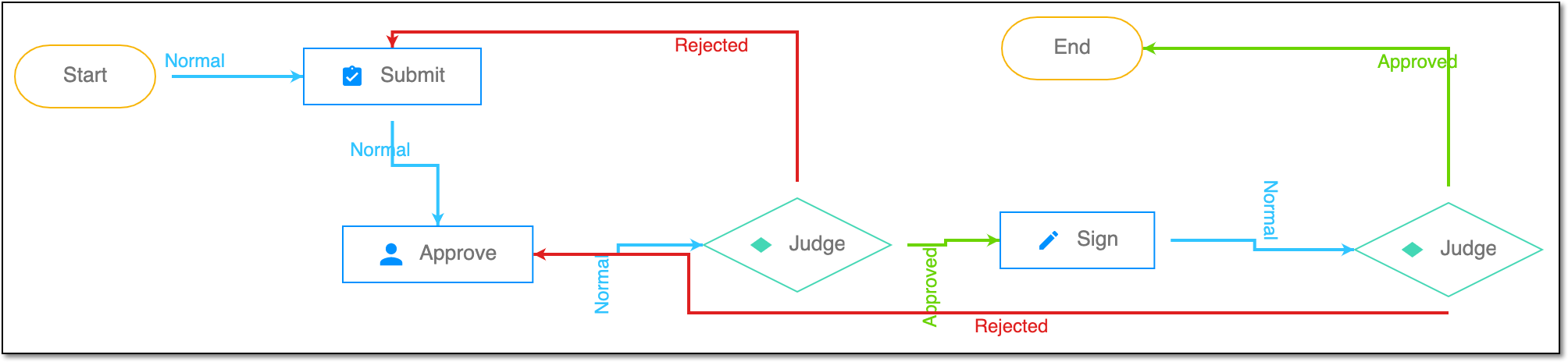
A schema, each step of which represents a stage of a specific entity lifecycle in the system.
A workflow can be considered an instrument to help control various actions on system entities for the sake of accountability, as it limits the actions that can be performed on the entity associated with a workflow. This provides an additional tier of scrutiny, and the approval/rejection mechanism reduces the risk of unintended impact on sensitive resources and important information.
 |
For instance, in eTMF, the workflow dictates the procedure of file and folder management from the moment of upload to the approval stage; in CTMS, the workflow controls the process of creation, completion, and approval of a trip report; in EDC, the workflow covers the process of source document handling.
A person who is involved in a clinical trial and is designated to ensure that an investigation is conducted according to the signed investigator statement, the investigational plan, and applicable regulations; for protecting the rights, safety, and welfare of subjects under the investigator's care; and for the control of drugs under investigation. The clinical investigator must meet requirements set forth by regulatory bodies.
See also: principal investigator
Also known as an Institutional Review Board (IRB), is a formally designated independent body that protects the rights, safety, and well-being of all human subjects involved in a clinical trial.
Any person, company, institution, group, or organization that is a client of EDETEK and a user of the eClinical system.
In the eClinical system, the Sponsor role is assigned to the user who oversees or pays for a clinical trial and collects and analyzes the data. Before the study goes live, the Sponsor users work closely with the data managers, configuring CRFs and other aspects to make sure everything meets their requirements before giving the green light for the study to go live. In the course of a trial, the Sponsor users make requests for amendments in the system according to a new protocol version, changes in business requirements, or other needs.
A client’s partner company represented by an automated system that derives clinical data and sends it to, or receives it from the eClinical system.
A specialized document in a clinical trial designed to collect the subject data.
See also eCRF.
An eClinical application that is mainly used to collect and manage subject data during clinical trials. It integrates with the Study Designer (SD) application and uses preconfigured there case report forms (CRFs) to complete data collection and management. It also provides an audit trail, data alert, source data verification (SDV), payment management, adjudication, and other functions as well as supports data export according to the CDISC ODM standard.
Get to know all the possibilities of the app with the comprehensive EDC User Guide.
In eTMF, the lowest level of the file directory predefined by the Drug Information Association Reference Model (DIA RM). Artifact-level folders exist within a section and store individual documents—the actual files related to the clinical trial that are stored in the eTMF system.
Artifacts could include files of regulatory submissions, consent forms, clinical trial protocols, or monitoring visit reports.
In eTMF, a highest level directory within the file storage organized according to the Drug Information Association Reference Model (DIA RM). Zones are typically used to categorize documents by their role or type within the clinical trial. The zone helps with the general document grouping that may later be subdivided into specific sections and artifacts.
Zones can represent large groups of documents such as regulatory documents, study documentation, clinical trial agreements, and so on.
In eTMF, a level of the file directory predefined by the Drug Information Association Reference Model (DIA RM). Sections are grouped within zones and help divide the documents of the zone into more specific categories. Each section defines a group of documents that share a similar purpose or function within the clinical trial.
For example, within the regulatory zone, sections might include ethical approvals, investigator brochures, or site contracts.