Edit job configuration for report extraction
In IWRS, all the available reports can be extracted from the system to the preset external server using scheduled jobs—automated tasks for data extraction. Scheduling jobs saves time for manual export and enables regular and timely execution, minimizing risks of human error. If at any time your requirements change, you can adjust the existing job by editing its details. You can change its schedule, name, add more reports, and more.
-
In the IWRS application header, select the REPORTS tab.
-
On the page that opens, from the left pane, select Report Extraction Job.
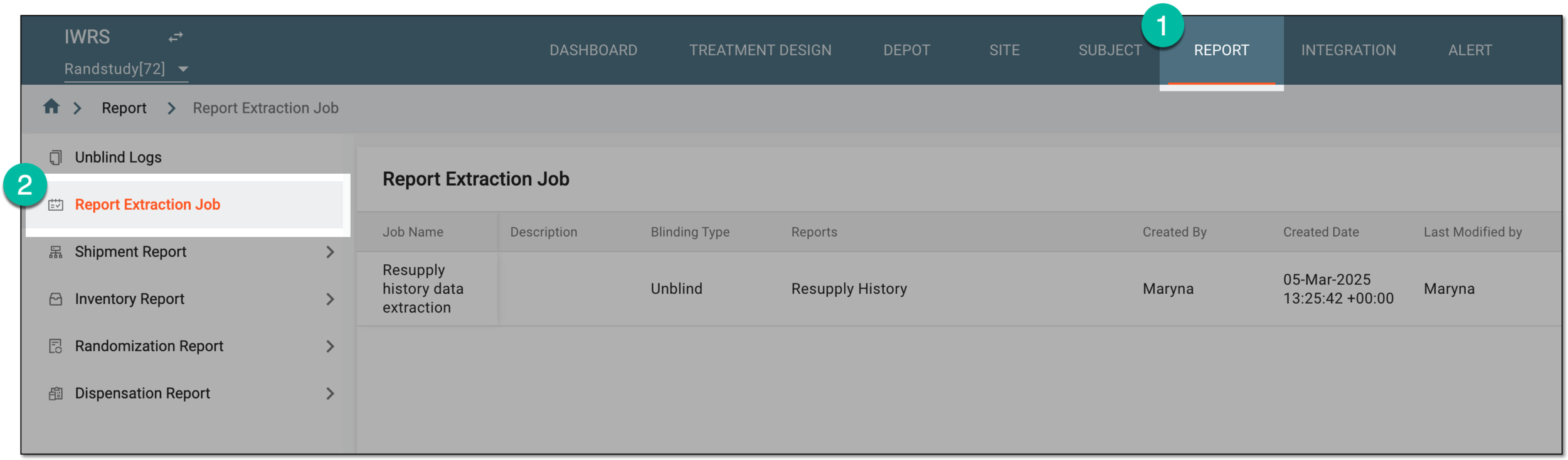 Figure 1. Accessing report extraction jobs
-
On the Report Extraction Job page that opens, locate the job whose details you want to change. Then from the Action(s) column next to the job, select More
 > Edit
  .
. Figure 2. Selecting option to edit report extraction job
-
In the Edit dialog that opens, update the fields as needed. These fields are identical to the ones explained in the table of the Schedule report extraction job section.
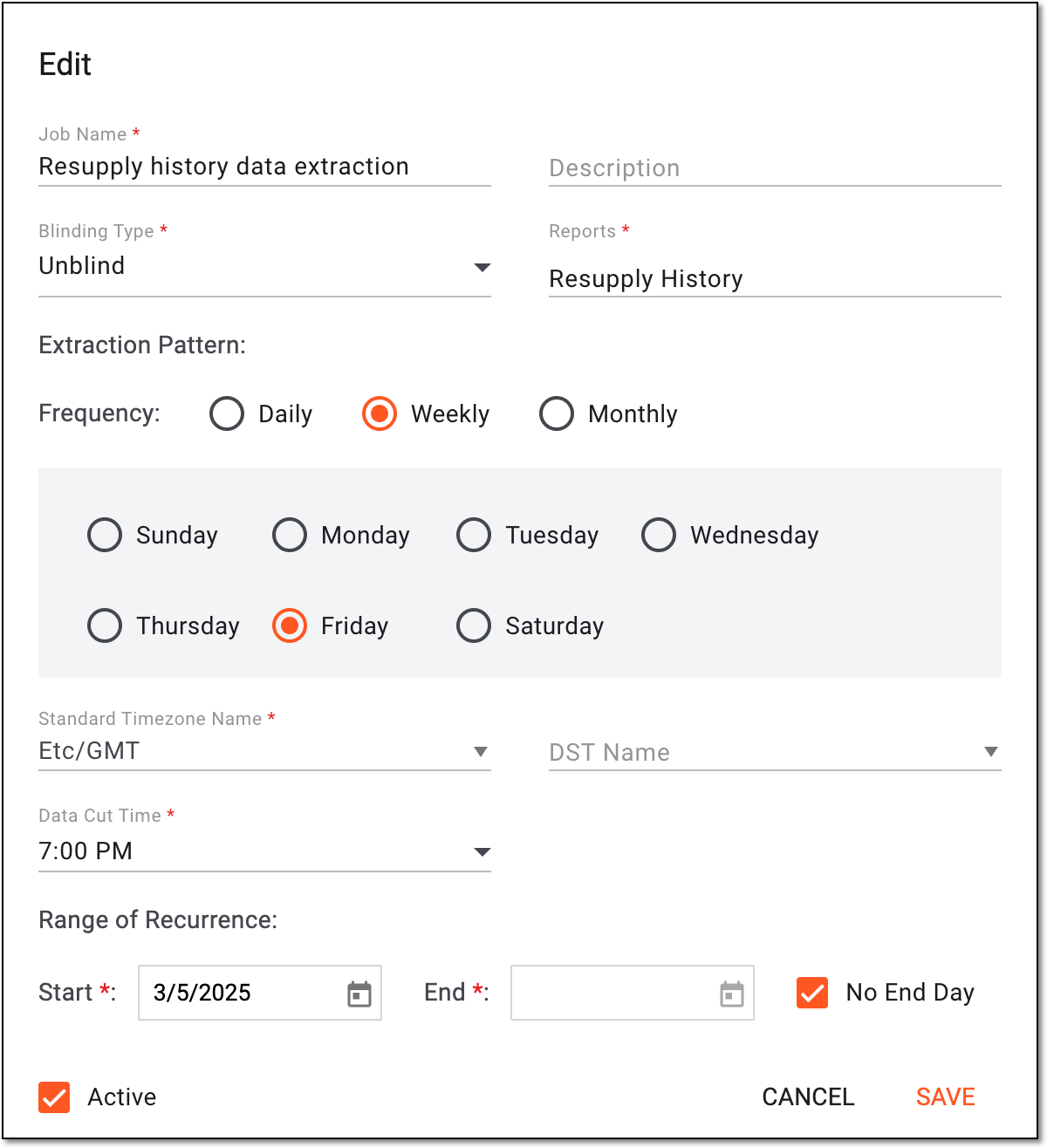 Figure 3. Editing report extraction job
-
Select
 to implement the changes.
Once saved, your report extraction job is updated.