Activity types
The Activity Types feature creates and manages types for organizing activities in these types in the Master Activities feature. Grouping similar tasks under specific types makes it easier to track, assign, and analyze workloads as well as ensures consistency in planning, simplifies reporting, and improves efficiency in resource allocation. By linking activities to their respective types, users gain better visibility into task distribution and can manage study workflows with greater clarity and control.
In the following sections, you can learn how to create and manage the activity types.
Defining an activity type helps standardize and organize activities within a study. Instead of managing tasks separately, creating an activity type groups similar activities under a common structure, ensuring consistency in planning and execution.
-
Access the study management page in one of the following ways:
-
In the CTMS application header, select the DASHBOARD tab and then select the study dashboard of your interest.
 Figure 1. Accessing study management from dashboard
-
In the CTMS application header, select the STUDY MANAGEMENT tab. Then from the Study Data List table, select the study name of your interest.
 Figure 2. Accessing study management from study data list
-
-
In the left pane, select Project Management > Activity Types.
-
In the Activity Type List table, from the workspace toolbar, select New Item
 .
. -
On the page that opens, in the Basic Information panel, in the Activity Type Name field, enter a unique name of the activity type. Optionally, in the Description field, add additional information about the activity type you are creating.
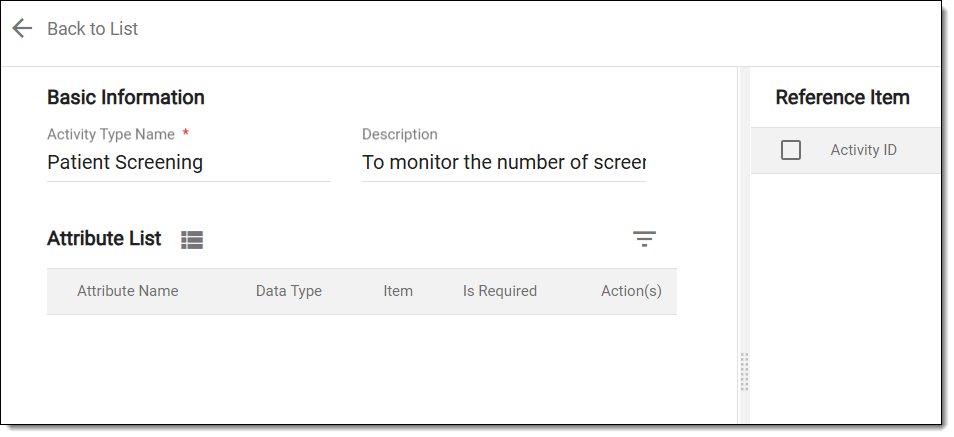 Figure 3. Defining basic activity type information
-
Then in the Attribute List panel, select
 and in the New
dialog that opens, enter the details as explained in the following table.
and in the New
dialog that opens, enter the details as explained in the following table.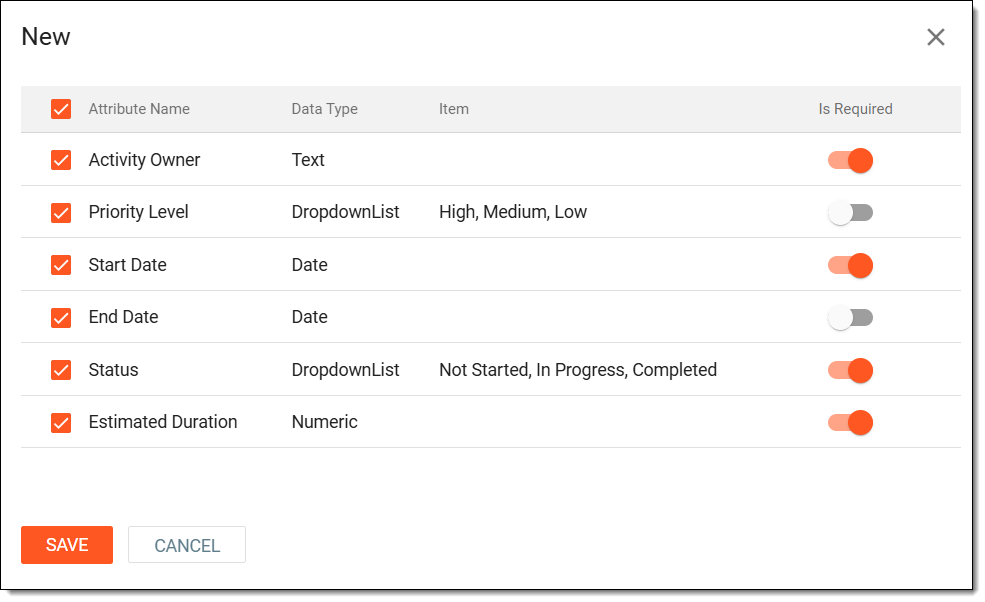 Figure 4. Selecting activity attributes
Element
Details
Attribute Name
Represents the names of attributes that define key details for an activity.
Data Type
Specifies the type of input required for each attribute, such as text, dropdown list, date, and so on.
Item
Displays predefined options for attributes that use dropdown lists.
Is Required
Turn the toggle on to indicate that the respective field must be filled for an activity associated with the activity type you are adding.
SAVE
Select
 to implement your changes and add the activity type.
CANCEL
Select
 to dismiss your changes without saving.
 -
Once saved, in the Attribute List panel, you can view the selected attributes. If some attribute is selected accidentally, remove it by selecting Delete
 from the Action(s) column next to it. Then confirm your action by selecting DELETE in the resulting dialog.
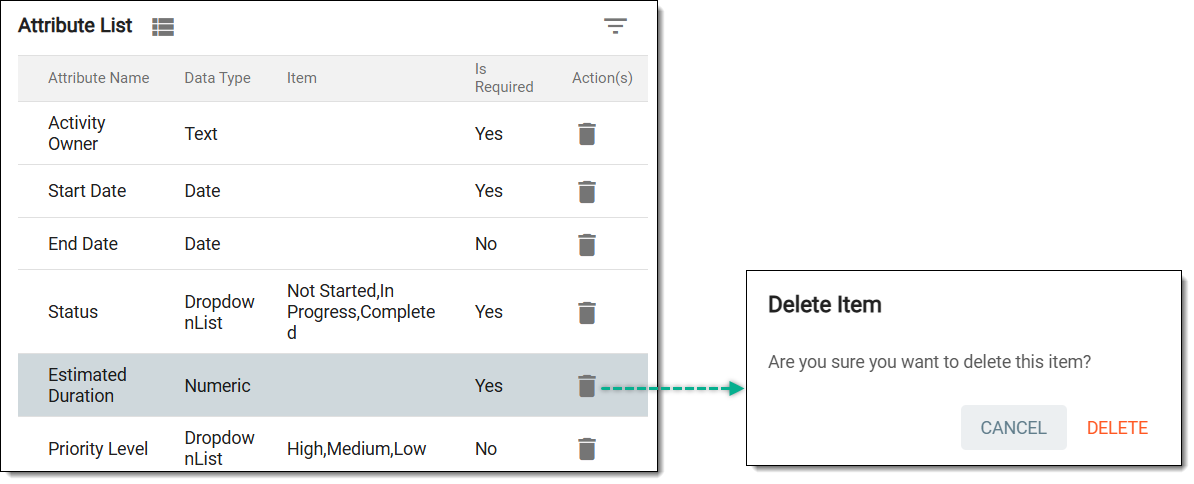 Figure 5. Deleting attribute from activity
-
Select SAVE.
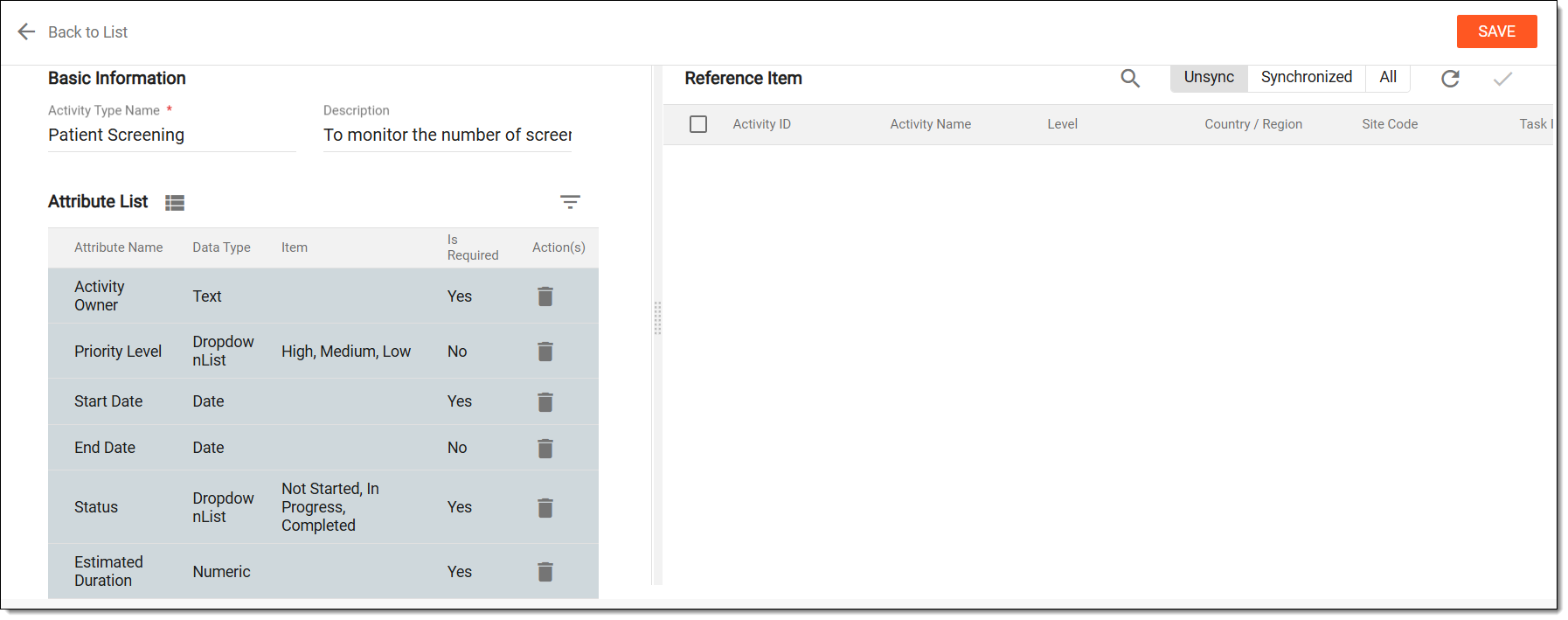 Figure 6. Adding activity type
Once saved, the activity type is defined. You can now proceed with associating the activity with the defined type.
Defining an activity type helps establish a structured and consistent approach to organizing activities within a study. Existing activity types can be modified to update details such as their name, attributes, and other relevant information.
-
Access the study management page in one of the following ways:
-
In the CTMS application header, select the DASHBOARD tab and then select the study dashboard of your interest.
Figure 1. Accessing study management from dashboard
-
In the CTMS application header, select the STUDY MANAGEMENT tab. Then from the Study Data List table, select the study name of your interest.
Figure 2. Accessing study management from study data list
-
-
In the left pane, select Project Management > Activity Types.
-
In the Activity Type List table, locate the required activity, and next to it, from the Action(s) column, select Edit
 .
.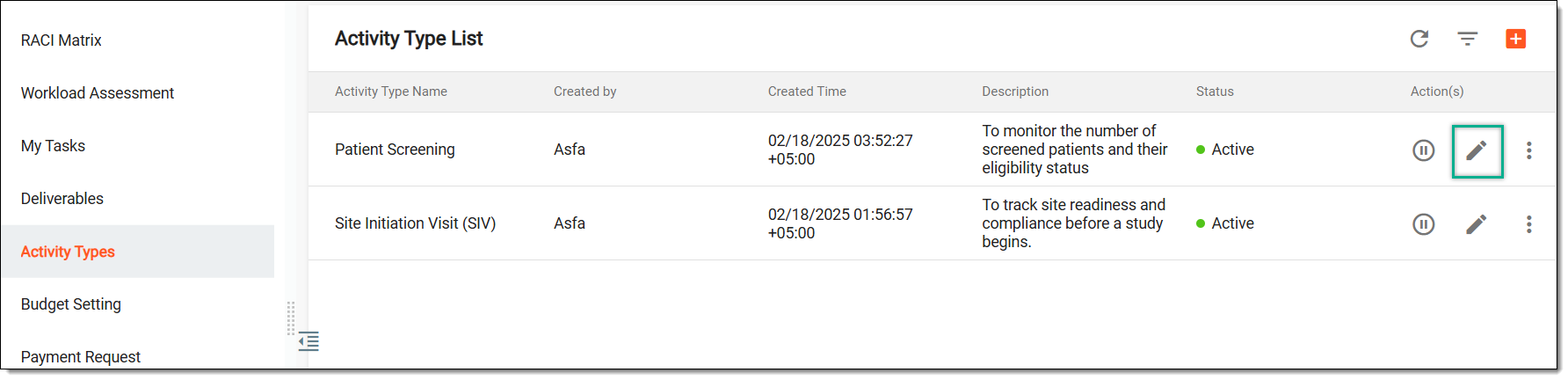 Figure 3. Selecting option to update activity type
-
On the page that opens, do any of the following:
-
In the Attribute List panel, select
to update the activity's attributes.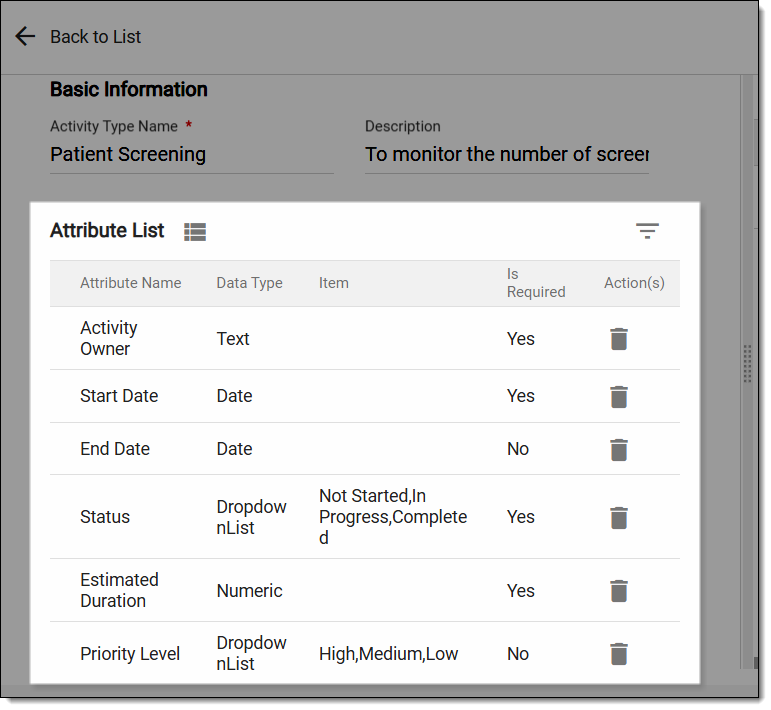 Figure 5. Updating activity type's attributes
-
In the New dialog that opens, select the attributes you want in your activity type as explained in the table of the Create activity type section. Then, select SAVE.
Figure 6. Selecting activity attributes
-
Once saved, in the Attribute List panel, you can view the selected attributes and if you have accidentally selected an attribute, then next to the required attribute, from the Action(s) column, click Delete
to remove the attribute.In the confirmation dialog that appears, select DELETE to confirm the attribute's deletion from the activity type.
Figure 7. Deleting attribute from activity
-
-
Select SAVE.
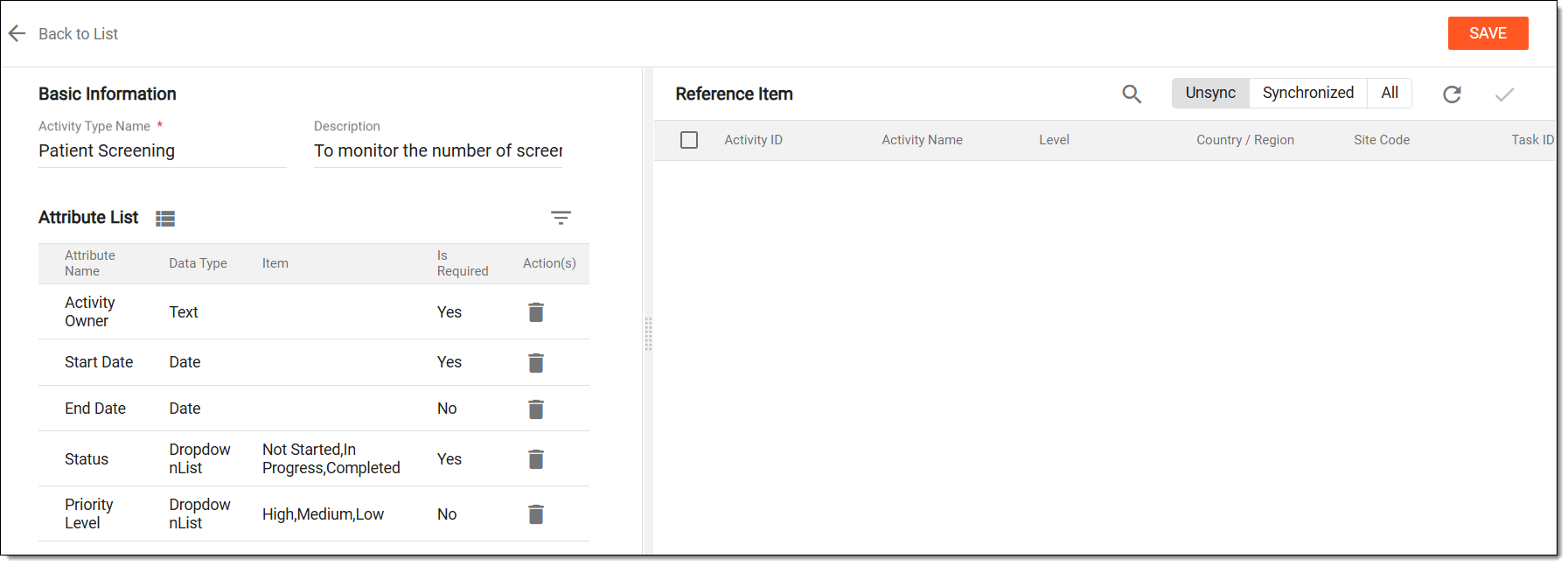 Figure 8. Updating activity type
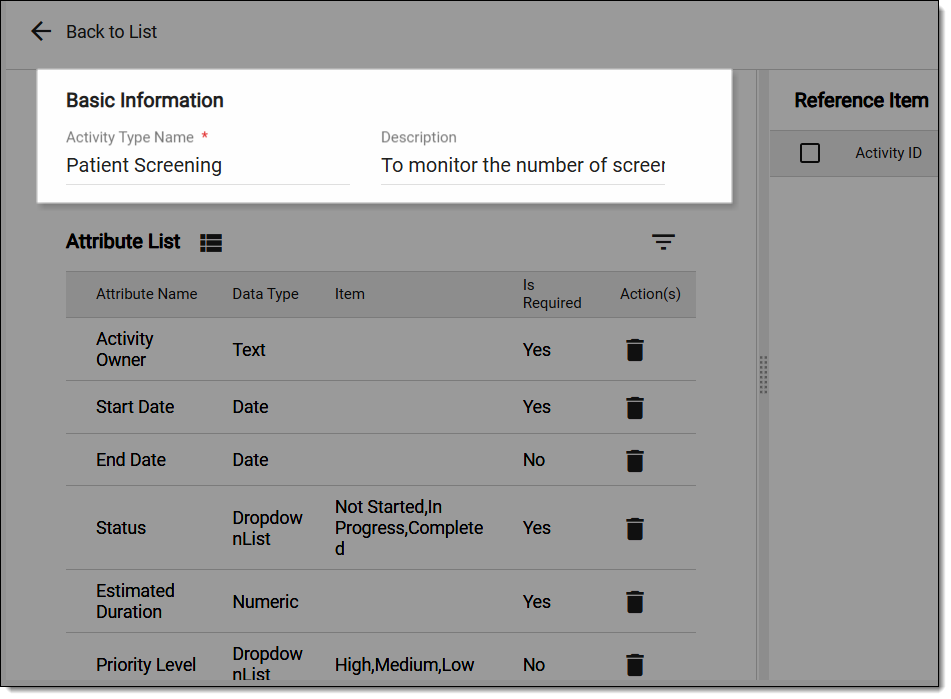
Once saved, the activity type is updated. Any associated activities now appear under Unsync or All tabs. You can now proceed with syncing the updated type with the activities.
Defining an activity type helps establish a structured and consistent approach to organizing activities within a study. After updating an activity you must synchronize it with the activity type to reflect any recent changes.
-
Access the study management page in one of the following ways:
-
In the CTMS application header, select the DASHBOARD tab and then select the study dashboard of your interest.
Figure 1. Accessing study management from dashboard
-
In the CTMS application header, select the STUDY MANAGEMENT tab. Then from the Study Data List table, select the study name of your interest.
Figure 2. Accessing study management from study data list
-
-
In the left pane, select Project Management > Activity Types.
-
In the Activity Type List table, locate the required activity, and next to it, from the Action(s) column, select Edit
.Figure 3. Selecting option to update activity type
-
On the page that opens, in the Reference Item table, all the activities associated with the activity type are displayed in the following tabs:
-
Unsync: lists any unsynchronized activities that do not reflect the recently introduced changes in the activity type.
-
Synchronized: lists all the activities that are aligned with the existing state of the activity type.
-
All: lists both synchronized and unsynchronized activities that are associated with the activity type.
-
-
In the Unsync tab, select any unsynchronized activities, and then, from the workspace toolbar, select SAVE
 .
.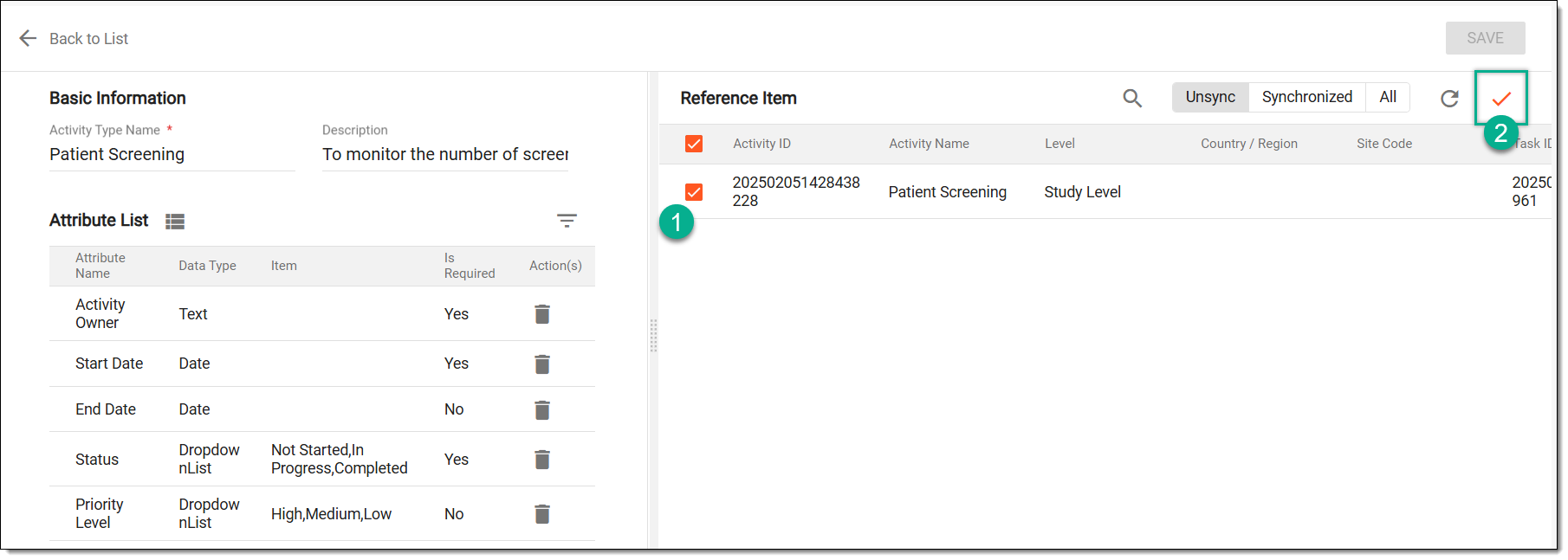 Figure 4. Syncing activities
Once saved, the activities appear in the Synchronized and All tabs.
Managing the status of an Activity Type ensures better control over its usage in a study. Activation makes an activity type available for assigning tasks, while inactivation prevents further use without deleting existing data. If an activity type is no longer needed, it must first be inactivated before it can be deleted. This process helps maintain data integrity, ensuring that only relevant activity types remain active while outdated or unused ones are phased out systematically.
-
Access the study management page in one of the following ways:
-
In the CTMS application header, select the DASHBOARD tab and then select the study dashboard of your interest.
Figure 1. Accessing study management from dashboard
-
In the CTMS application header, select the STUDY MANAGEMENT tab. Then from the Study Data List table, select the study name of your interest.
Figure 2. Accessing study management from study data list
-
-
In the left pane, select Project Management > Activity Types.
-
In the Activity Type List table, next to the required activity type, from the Action(s) column, select Activate
 to reactivate an activity type. Or, select Inactivate
  to deactivate an activity type.
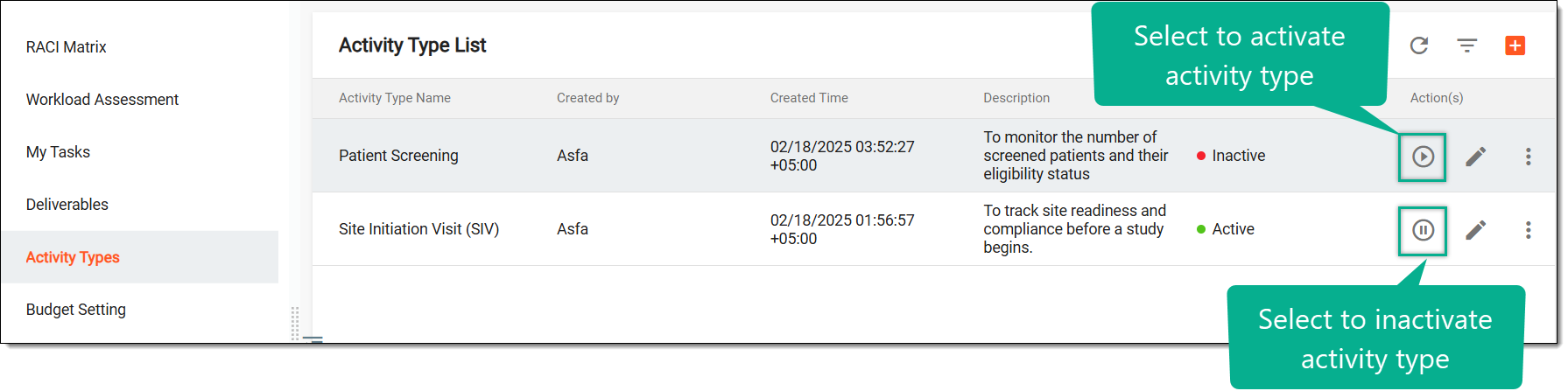 Figure 3. Activating inactivating activity type
-
In the Reason dialog that appears, enter the reason for activating or inactivating the activity type. Then, select SAVE.
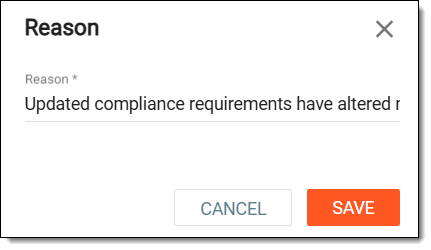 Figure 4. Entering reason to inactivate activity type
Once saved, the activities are activated or inactivated.
Deleting an activity type removes it permanently from the system, ensuring that only relevant and actively used types remain available. Before deletion, make sure to do the following:
-
Access the study management page in one of the following ways:
-
In the CTMS application header, select the DASHBOARD tab and then select the study dashboard of your interest.
Figure 1. Accessing study management from dashboard
-
In the CTMS application header, select the STUDY MANAGEMENT tab. Then from the Study Data List table, select the study name of your interest.
Figure 2. Accessing study management from study data list
-
-
In the left pane, select Project Management > Activity Types.
-
In the Activity Type List table, next to the inactive activity type, from the Action(s) column, select More
 > Delete .
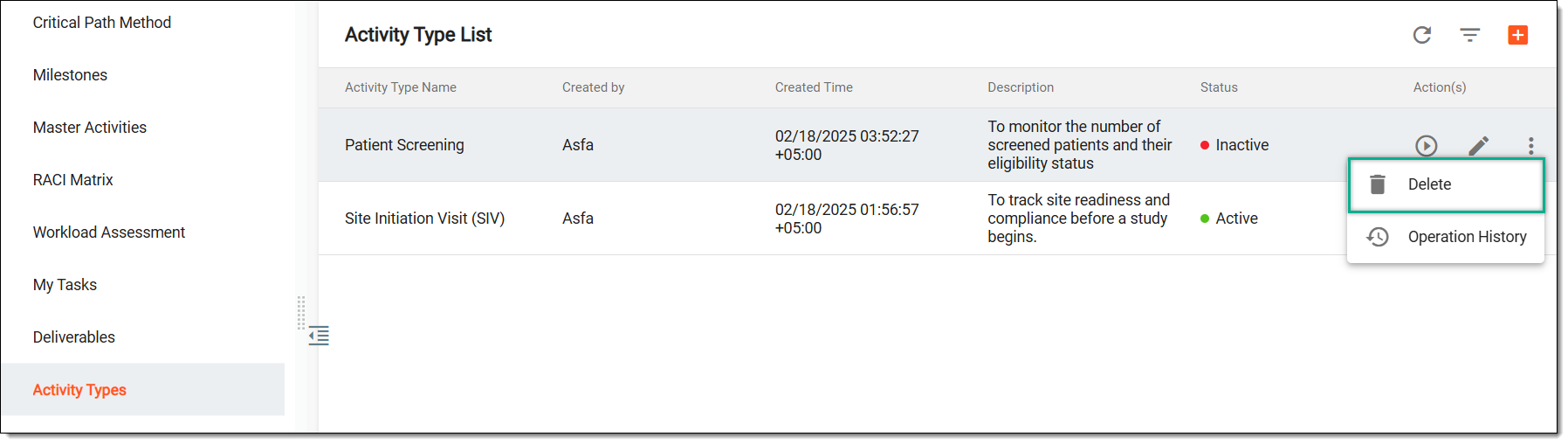 Figure 3. Deleting activity type
-
In the Reason dialog that opens, describe the reason for deleting the activity type. Then, select SAVE.
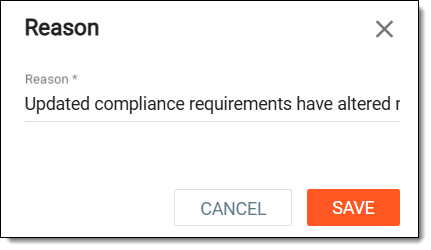 Figure 4. Entering reason to delete activity type
Once saved, the activity type is deleted from the system.
Tracking the operation history of an activity type provides a detailed record of all modifications, ensuring transparency and accountability. This feature logs changes such as updates to attributes, status changes, and synchronization actions. Reviewing the history helps users monitor adjustments over time helping to maintain data integrity.
-
Access the study management page in one of the following ways:
-
In the CTMS application header, select the DASHBOARD tab and then select the study dashboard of your interest.
Figure 1. Accessing study management from dashboard
-
In the CTMS application header, select the STUDY MANAGEMENT tab. Then from the Study Data List table, select the study name of your interest.
Figure 2. Accessing study management from study data list
-
-
In the left pane, select Project Management > Activity Types.
-
In the Activity Type List table, next to the inactive activity type, from the Action(s) column, select More
> Operation History  .
.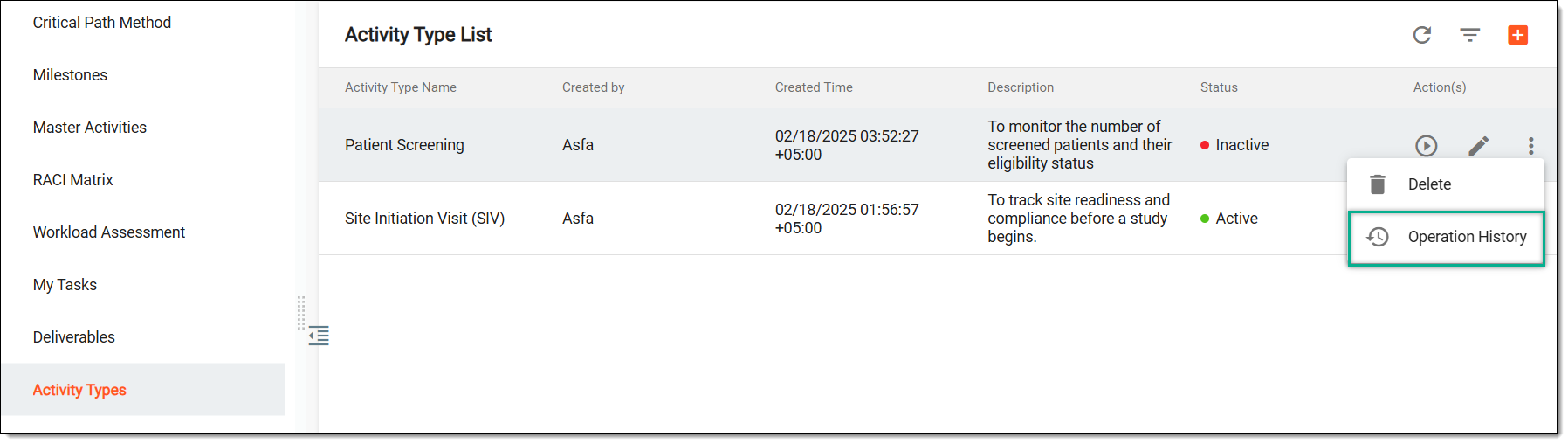 Figure 3. Accessing operation history of activity type
-
In the Operation History dialog that opens, view the list of user actions that have been performed with the selected activity type.
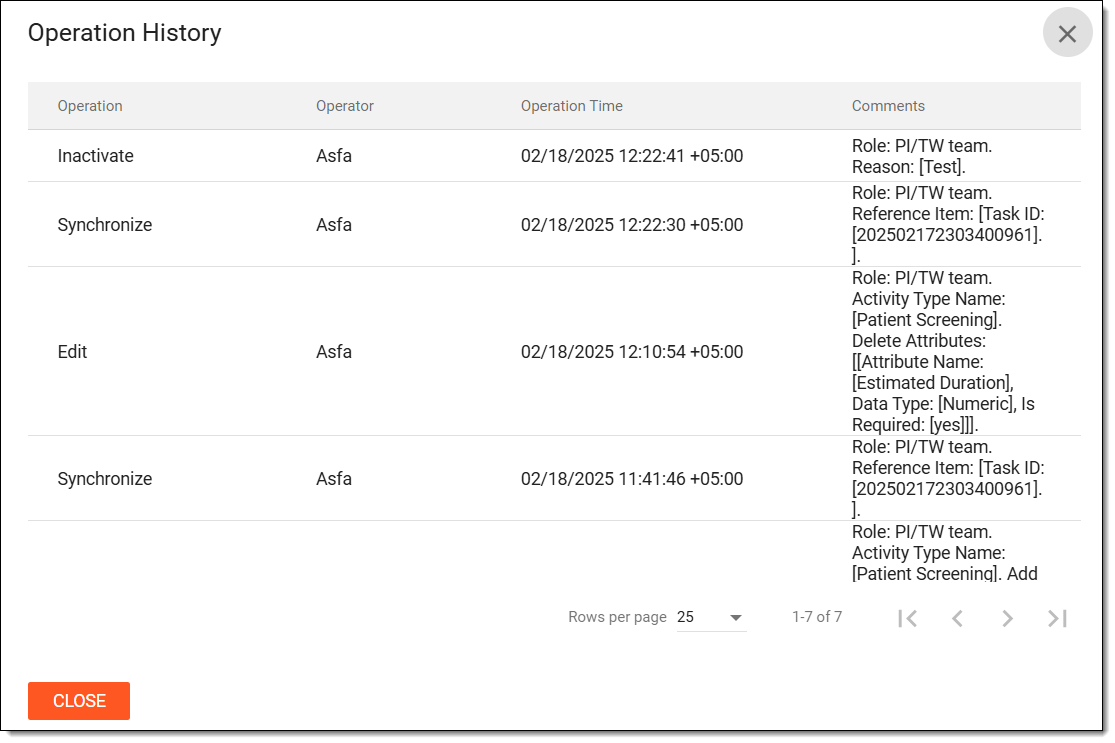 Figure 4. Viewing operation history of activity type
Once viewed, select CLOSE to return to the Activity Type List table.