Deliverables
The Deliverables feature provides a centralized repository for managing and tracking files linked to activities or tasks. It displays files that were uploaded through the My Tasks feature, ensuring proper documentation and traceability. Each deliverable is associated with a specific task, helping users access relevant study materials efficiently. This feature ensures that all required files are available for review and compliance with study requirements.
The following sections explain how you can view and download the deliverables uploaded with the tasks.
Viewing a deliverable provides access to files associated with specific tasks related to a study, site, and country or region. These files, uploaded through the My Tasks feature, are stored in a centralized location for easy retrieval and reference. This feature helps users track task-related documents, ensure proper documentation, and maintain compliance with study requirements.
-
Access the study management page in one of the following ways:
-
In the CTMS application header, select the DASHBOARD tab and then select the study dashboard of your interest.
 Figure 1. Accessing study management from dashboard
-
In the CTMS application header, select the STUDY MANAGEMENT tab. Then from the Study Data List table, select the study name of your interest.
 Figure 2. Accessing study management from study data list
-
-
In the left pane, select Project Management > Deliverables.
-
On the page that opens, from the left pane that groups tasks under study, site, or, country, expand and select the needed node.
-
In the Deliverables List table, view the tasks that exist in the selected node. In the Related Task ID column, you can also select the hyperlink to instantly navigate to the task with which the deliverable is uploaded.
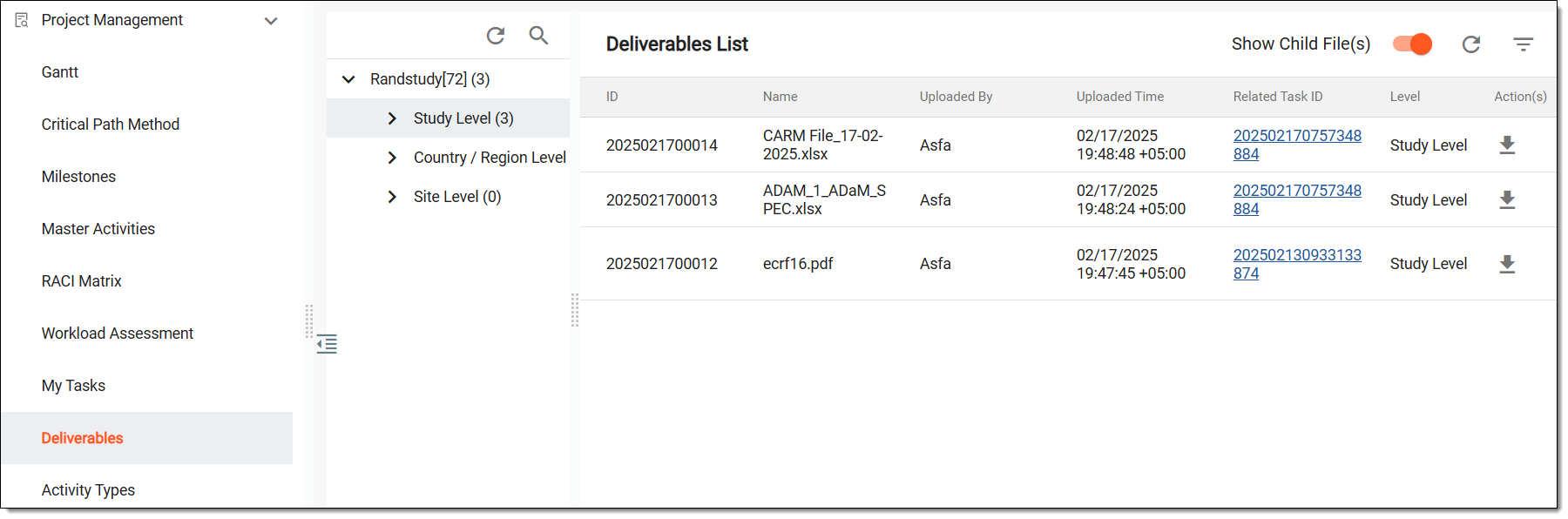 Figure 3. Viewing deliverables
Tip
If you do not see your required file, or if you are not sure in which node the needed file exists, then simply select the main node, and from the workspace toolbar of the Deliverables List table, turn the Show Child File(s) toggle on to see all the files that exist in the main node.
After you have viewed the deliverables, if needed, you can also download them.
In Deliverables, you can access files associated with specific tasks related to a study, site, and country or region. These files, uploaded through the My Tasks feature, are stored in a centralized location for easy retrieval and reference. If required, you can download an uploaded deliverable to your computer to use it offline.
-
Access the study management page in one of the following ways:
-
In the CTMS application header, select the DASHBOARD tab and then select the study dashboard of your interest.
Figure 1. Accessing study management from dashboard
-
In the CTMS application header, select the STUDY MANAGEMENT tab. Then from the Study Data List table, select the study name of your interest.
Figure 2. Accessing study management from study data list
-
-
In the left pane, select Project Management > Deliverables.
-
On the page that opens, from the left pane that groups tasks under study, site, or, country, expand and select the needed node.
-
In the Deliverables List table, next to the required deliverable, from the Action(s) column, select Download
 .
.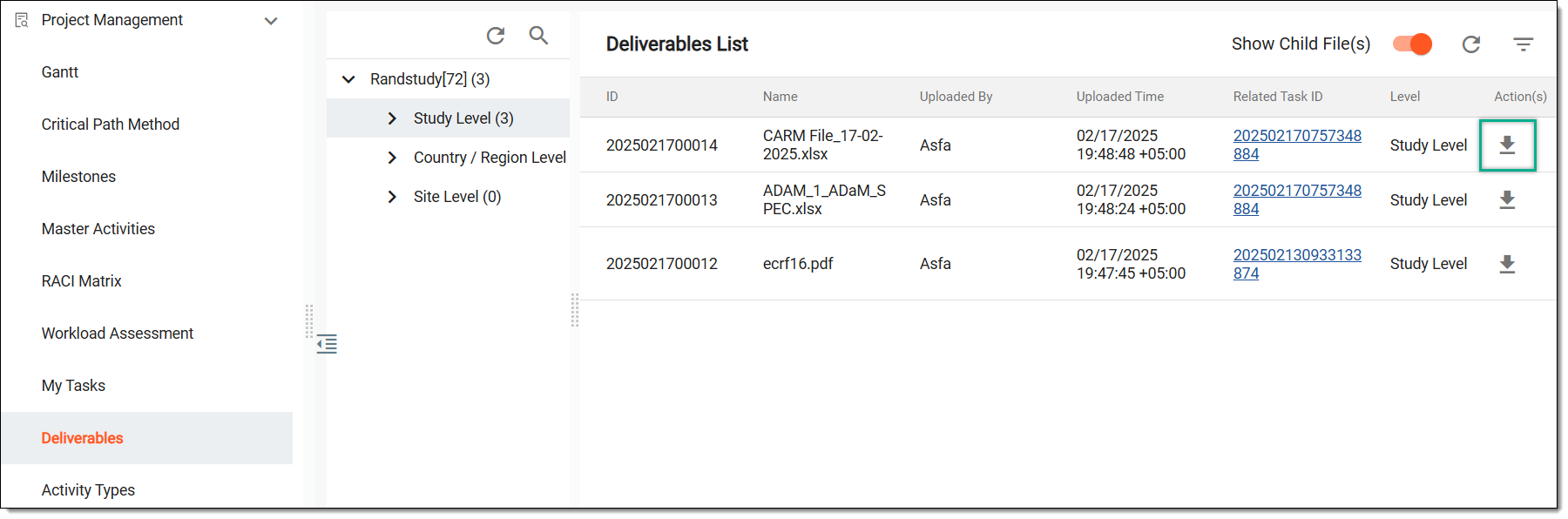 Figure 3. Downloading file
Tip
If you do not see your required file, or if you are not sure in which node the needed file exists, then simply select the main node, and from the workspace toolbar of the Deliverables List table, turn the Show Child File(s) toggle on to see all the files that exist in the main node.
Once selected, the deliverable is downloaded to your computer.