Categories to manage activities
An activity in a clinical trial refers to a specific task, process, or event that must be completed as part of the study workflow.
In CTMS, you can create categories to organize and classify activities based on their purpose, function, or study phase. Categorizing activities ensures a structured workflow, making it easier to manage, track, and assign tasks efficiently. By grouping activities under relevant categories, study teams can enhance execution, improve oversight, and maintain consistency throughout the clinical trial.
In the following sections, you can learn how to create and manage the categories as well as manage activities within these categories.
In CTMS, you can define categories to group related activities under a structured classification, making it easier to manage and track tasks within a study. Categories help organize activities based on their function, such as screening, data collection, regulatory compliance, or monitoring.
-
Access the study management page in one of the following ways:
-
In the CTMS application header, select the DASHBOARD tab and then select the study dashboard of your interest.
 Figure 1. Accessing study management from dashboard
-
In the CTMS application header, select the STUDY MANAGEMENT tab. Then from the Study Data List table, select the study name of your interest.
 Figure 2. Accessing study management from study data list
-
-
In the left pane, select Project Management > Master Activities.
-
In the Master Activity List table, from above the workspace toolbar, select Setting
 .
.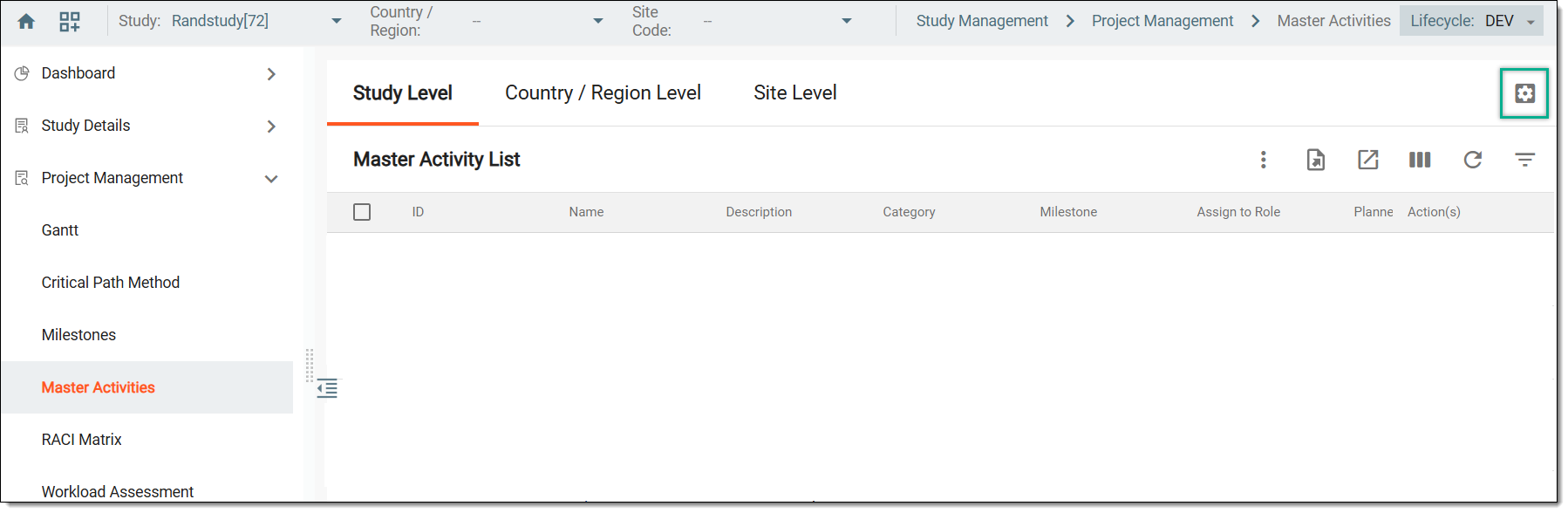 Figure 3. Accessing master activity settings
-
On the page that opens, select the Business Category tab.
-
From the left pane, right-click Activity Category and then choose one of the following options.
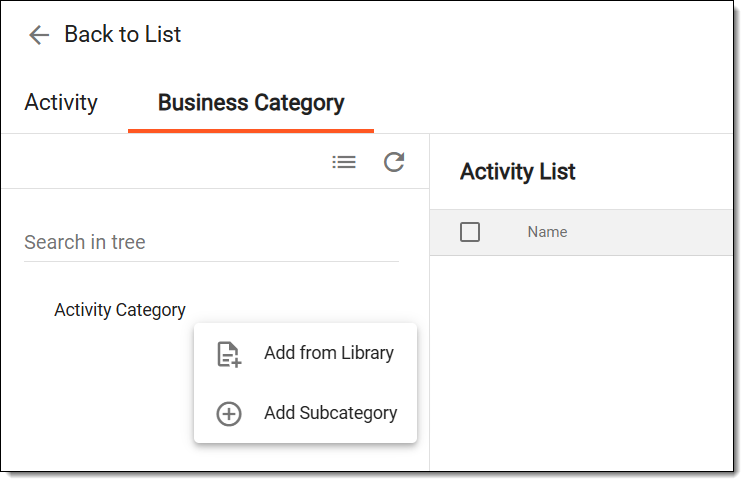 Figure 4. Selecting option to add category
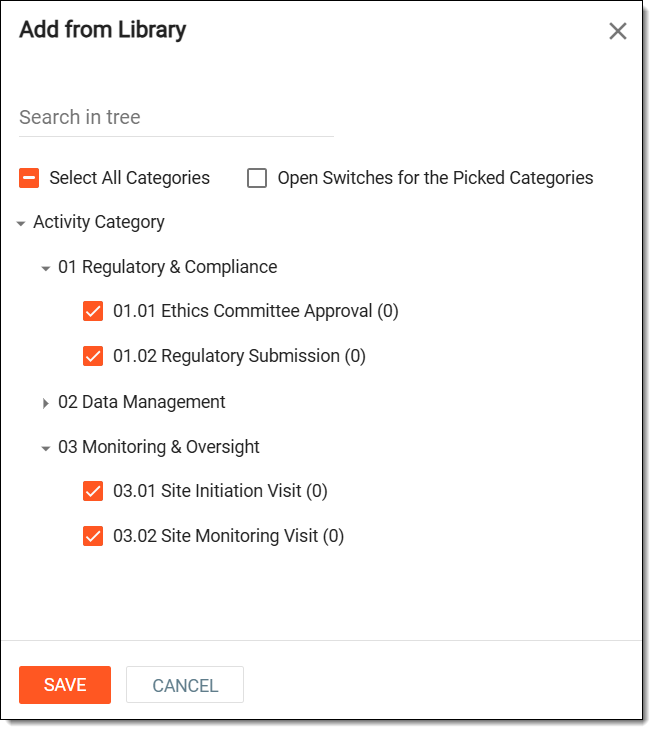
In the Add from Library dialog that appears, add predefined categories to your study from the CTMS Library > Activity Template feature by entering the details as explained in the following table.
Element
Details
Search in tree
Enter the name of the specific category you are looking for in the list. Then select it from the Activity Category block.
Select All Categories
Select to instantly choose all the predefined categories to add.
Open Switches for the Picked Categories
Select this checkbox to retain the association between activities and the newly added category. When defining a category in the library, if activities are already linked to it, selecting this checkbox ensures that their association is maintained. Otherwise, you can manually choose whether to keep or remove the association.
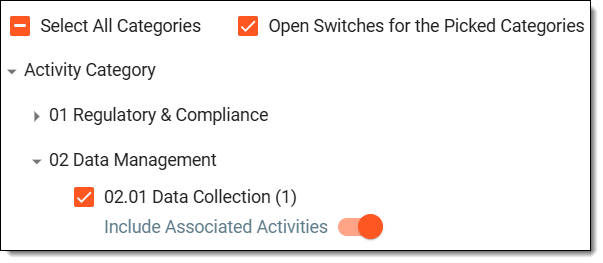 Figure 6. Keeping activities association with categories
Activity Category
Select the checkbox next to the categories you want to add.
SAVE
Select
 to implement your changes and add the categories.
CANCEL
Select
 to dismiss your changes without saving.Figure 5. Adding activities from library
In the New dialog that appears, enter the name of the category you want to add. Then select SAVE.
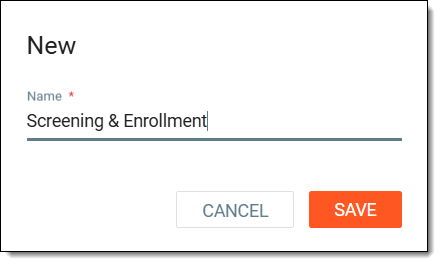 Figure 7. Adding subcategory
Tip
Once saved, you can right-click the added category and select Add subcategory to proceed with adding further subcategories to the one you have just added.
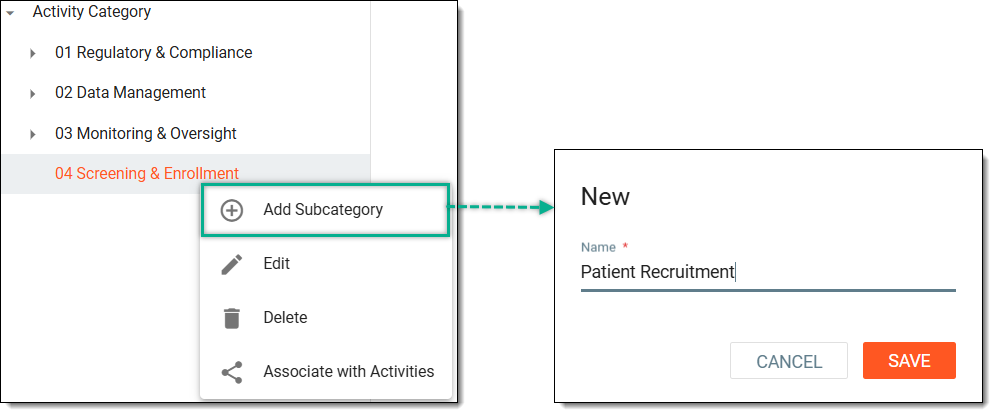 Figure 8. Adding additional subcategories
Once saved, the new categories are added. You can now proceed with associating activities to the categories.
Tip
You can also drag and move the added category to your desired position in the category list.
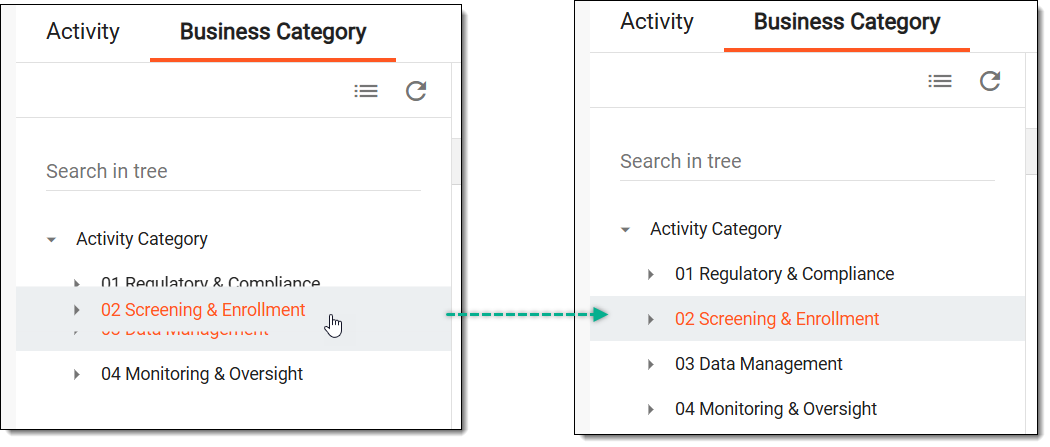
In CTMS, you can define categories to group related activities under a structured classification, making it easier to manage and track tasks within a study. Categories help organize activities based on their function, such as screening, data collection, regulatory compliance, or monitoring. Once you have defined the needed categories, you can now start associating or adding activities to these categories.
-
Access the study management page in one of the following ways:
-
In the CTMS application header, select the DASHBOARD tab and then select the study dashboard of your interest.
Figure 1. Accessing study management from dashboard
-
In the CTMS application header, select the STUDY MANAGEMENT tab. Then from the Study Data List table, select the study name of your interest.
Figure 2. Accessing study management from study data list
-
-
In the left pane, select Project Management > Master Activities.
-
In the Master Activity List table, from above the workspace toolbar, select Setting
.Figure 3. Accessing master activity settings
-
On the page that opens, select the Business Category tab.
-
From the left pane, locate the required category, and its subcategory (if exists), then right-click it.
-
From the dropdown menu that appears, select Associate with Activities
 .
.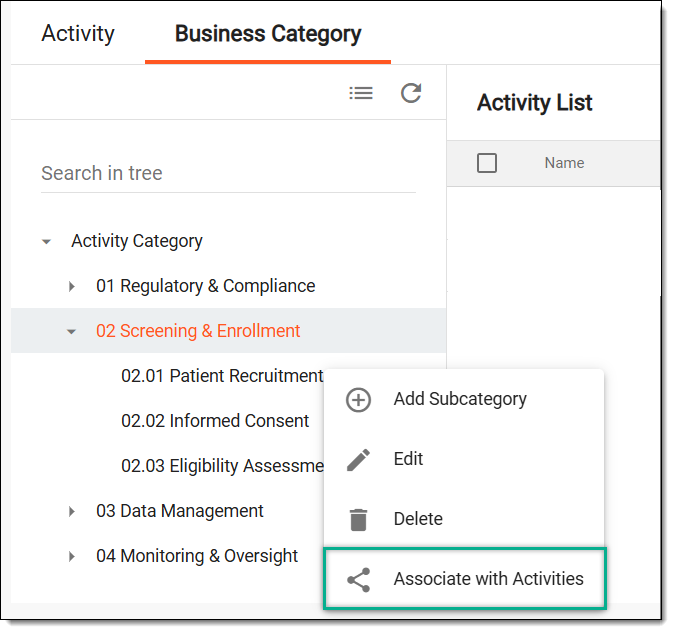 Figure 4. Selecting option to associate activities
-
In the Associate with Activities dialog that opens, select the activities you want to associate with the category.
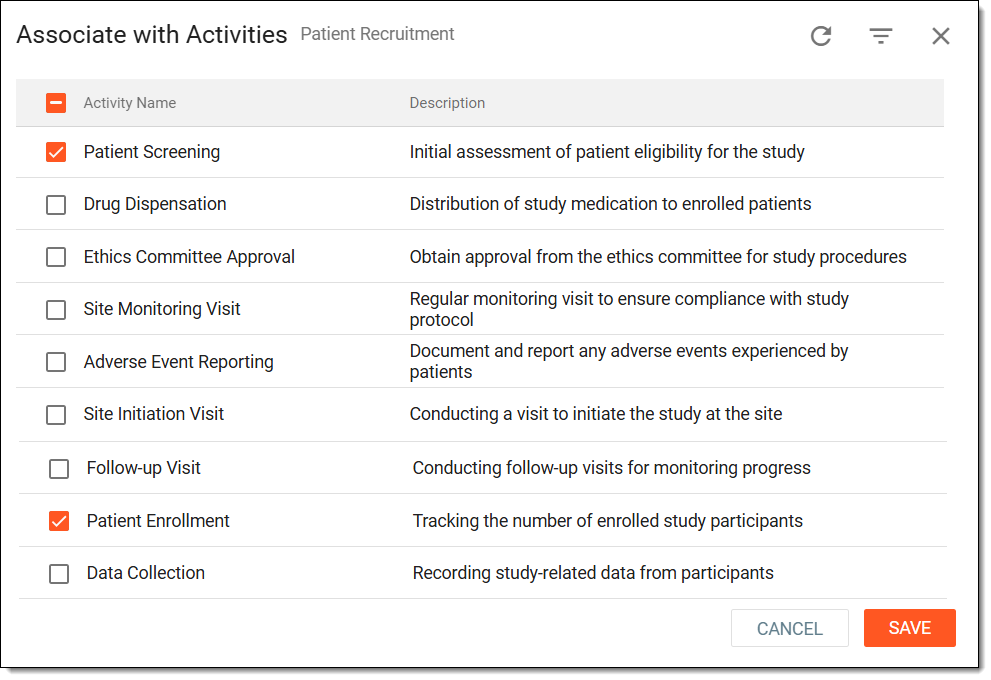 Figure 5. Associating activities with category
-
Select SAVE.
Once saved, the activities are associated with the category.
Categories organize related activities under a structured classification, simplifying task management and tracking within a study. If needed, you can disassociate activities from a category. For instance, some activities may be preassigned to a category, but if you need to move them to a different one, you must first remove them from their current category.
-
Access the study management page in one of the following ways:
-
In the CTMS application header, select the DASHBOARD tab and then select the study dashboard of your interest.
Figure 1. Accessing study management from dashboard
-
In the CTMS application header, select the STUDY MANAGEMENT tab. Then from the Study Data List table, select the study name of your interest.
Figure 2. Accessing study management from study data list
-
-
In the left pane, select Project Management > Master Activities.
-
In the Master Activity List table, from above the workspace toolbar, select Setting
.Figure 3. Accessing master activity settings
-
On the page that opens, select the Business Category tab and do one of the following:
-
From the left pane, locate the category or subcategory in which the required activities exist.
-
From the left pane, select Activity Category to access all the activities that are currently associated with different categories.
Tip
If you do not see your required activity, or if you are not sure in which subcategory the needed activity exists, then simply select the main category, and from the workspace toolbar of the Activity List table, turn the Show Child Activities toggle on to see the activities that belong to all the subcategories of the main category selected.
-
-
In the Activity List table, next to the required activity you want to disassociate, from the Action(s) column, select Associate with Activities
.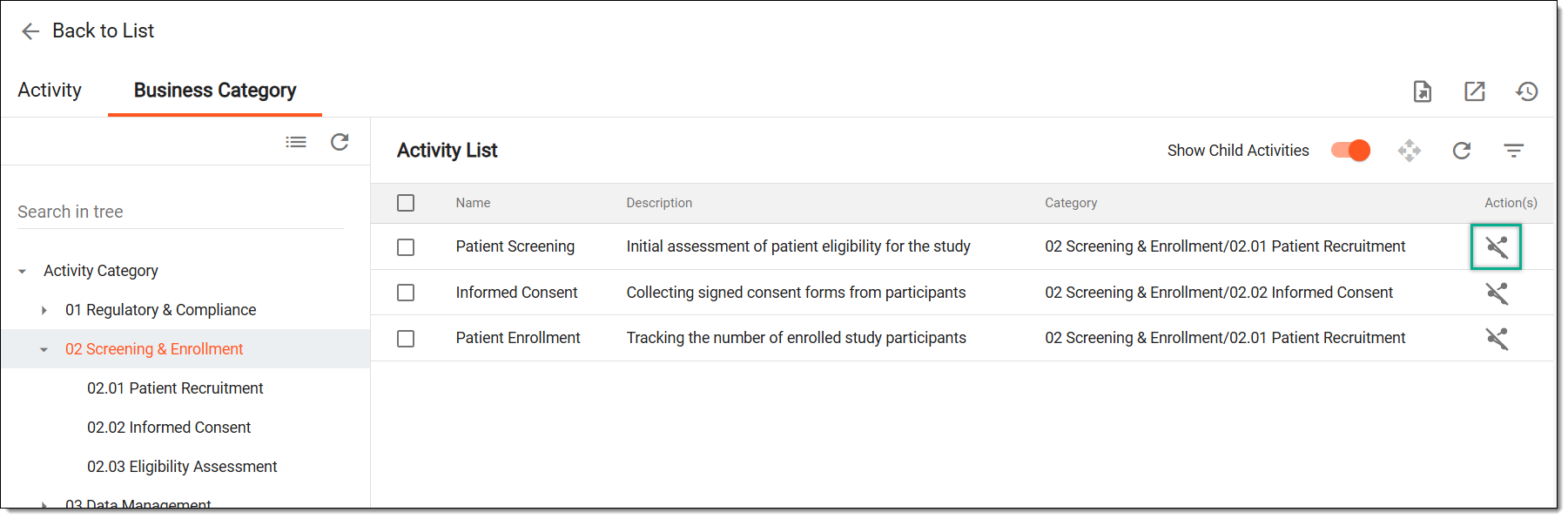 Figure 4. Disassociating activity from category
Once selected, the activities are disassociated from the category.
In CTMS, you can define categories to group related activities under a structured classification, making it easier to manage and track tasks within a study. After you have associated certain activities with a category, you may want to modify how activities are grouped within a structured classification. This process is useful when reassigning activities to different categories based on evolving study requirements. Whether adjusting preassigned associations or reorganizing activities for better management, updating these links ensures accurate categorization and streamlined tracking.
-
Access the study management page in one of the following ways:
-
In the CTMS application header, select the DASHBOARD tab and then select the study dashboard of your interest.
Figure 1. Accessing study management from dashboard
-
In the CTMS application header, select the STUDY MANAGEMENT tab. Then from the Study Data List table, select the study name of your interest.
Figure 2. Accessing study management from study data list
-
-
In the left pane, select Project Management > Master Activities.
-
In the Master Activity List table, from above the workspace toolbar, select Setting
.Figure 3. Accessing master activity settings
-
On the page that opens, select the Business Category tab and do one of the following:
-
From the left pane, locate the category or subcategory in which the required activities exist.
-
From the left pane, select Activity Category to access all the activities that are currently associated with different categories.
Tip
If you do not see your required activity, or if you are not sure in which subcategory the needed activity exists, then simply select the main category. From the workspace toolbar of the Activity List table, turn the Show Child Activities toggle on to see the activities that belong to all the subcategories of the main category selected.
-
-
In the Activity List table, select the activities for which you want to update the categories. Then, from the workspace toolbar, select Move
 .
.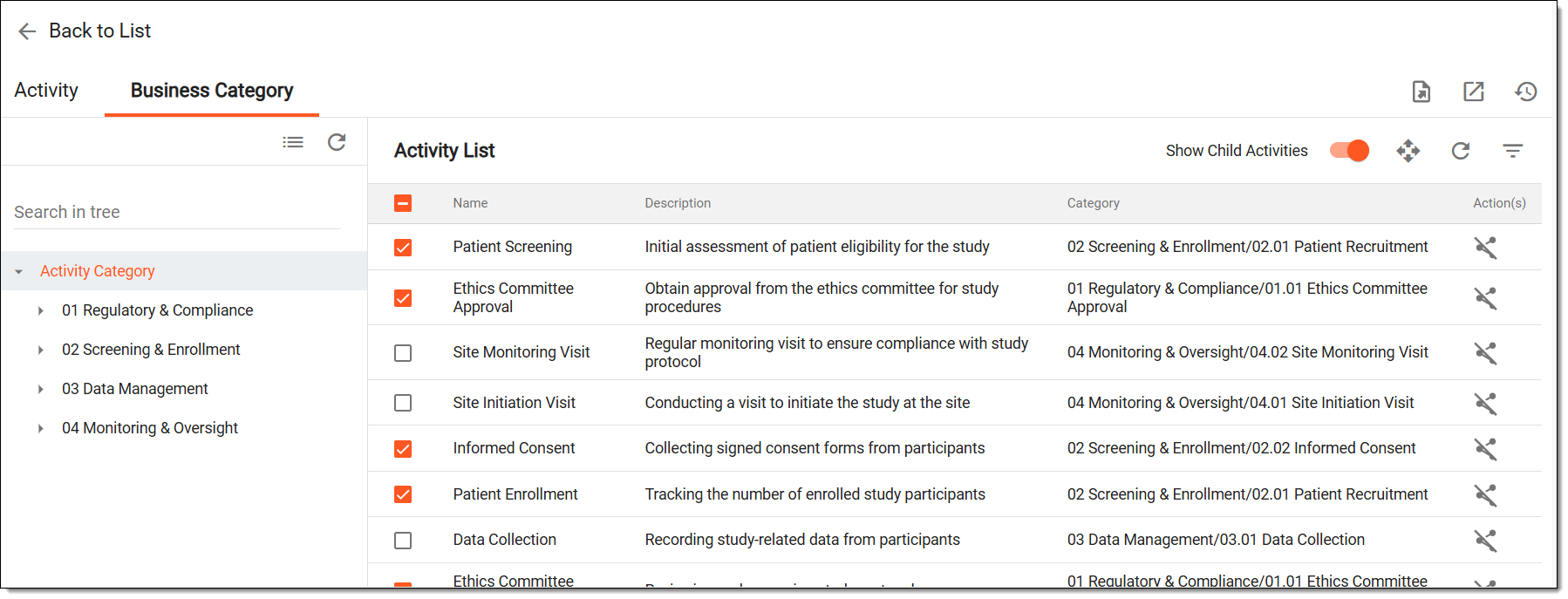 Figure 4. Selecting activities to update category
-
In the Move dialog that opens, from the left pane, select the needed activities, and then, from the middle pane, choose the category to which you want to associate the selected activities.
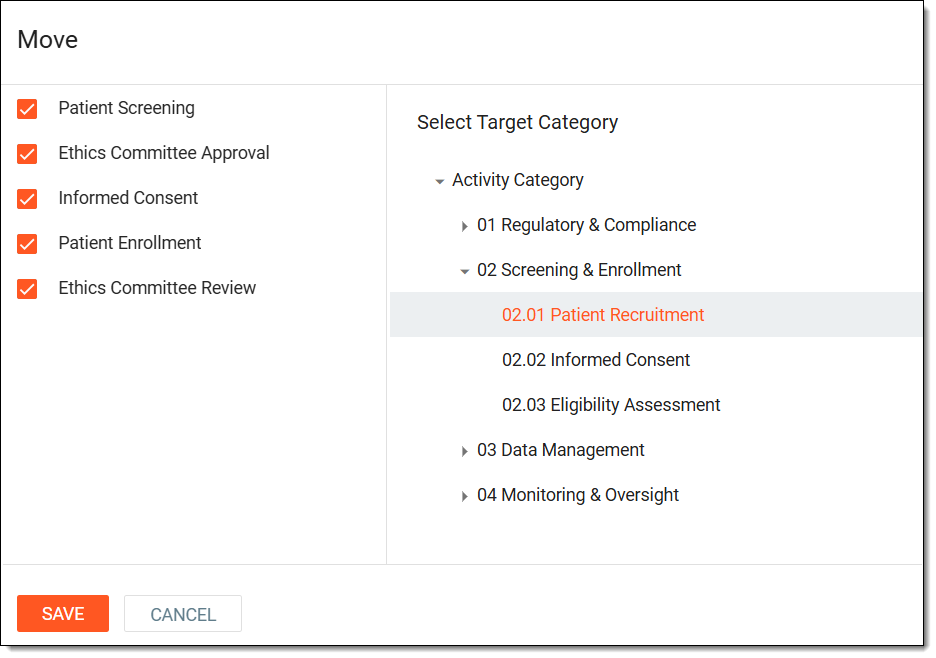 Figure 5. Associating activities with category
-
Select SAVE.
Once saved, the association between activity and category is updated.
An activity and category association defines the relationship between an activity and its assigned category, helping to organize and track tasks effectively. Viewing the operation history of these associations helps you track changes over time, such as when activities were assigned, reassigned, or removed from categories. This helps maintain transparency, audit modifications, and ensure accurate recordkeeping.
-
Access the study management page in one of the following ways:
-
In the CTMS application header, select the DASHBOARD tab and then select the study dashboard of your interest.
Figure 1. Accessing study management from dashboard
-
In the CTMS application header, select the STUDY MANAGEMENT tab. Then from the Study Data List table, select the study name of your interest.
Figure 2. Accessing study management from study data list
-
-
In the left pane, select Project Management > Master Activities.
-
In the Master Activity List table, from above the workspace toolbar, select Setting
.Figure 3. Accessing master activity settings
-
On the page that opens, select the Business Category tab and do one of the following:
-
From the left pane, locate the category or subcategory in which the required activities exist.
-
From the left pane, select Activity Category to access all the activities that are currently associated with different categories.
Tip
If you do not see your required activity, or if you are not sure in which subcategory the needed activity exists, then simply select the main category, and from the workspace toolbar of the Activity List table, turn the Show Child Activities toggle on to see the activities that belong to all the subcategories of the main category selected.
-
-
In the Activity List table, from the workspace toolbar, select Operation History
 .
.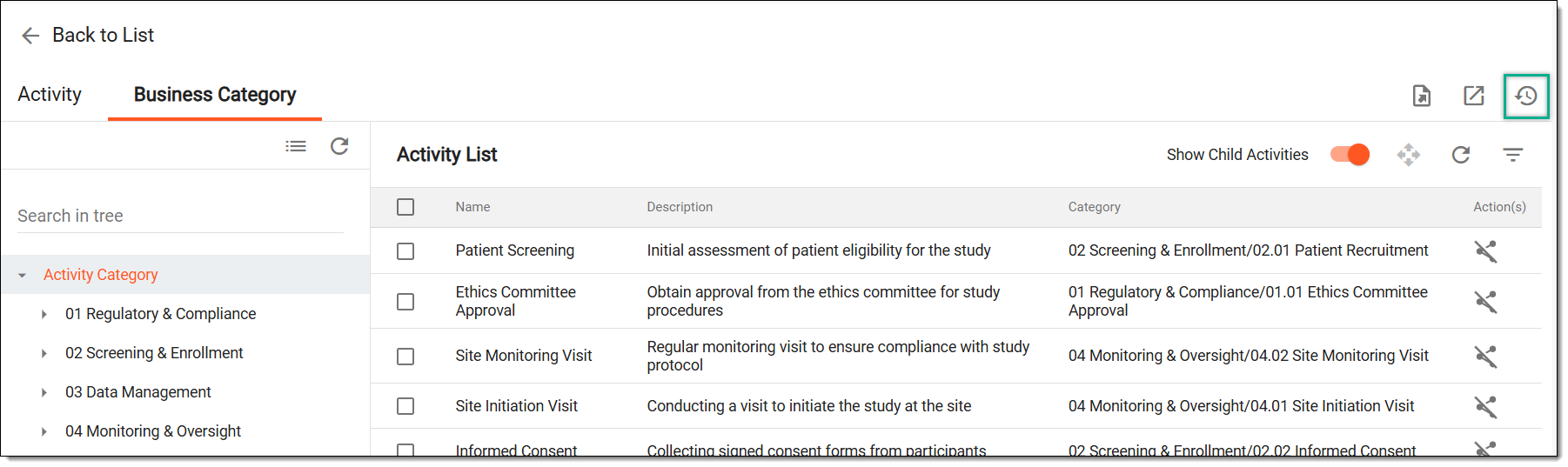 Figure 4. Accessing operation history of activity-category association
-
In the Operation History dialog that opens, view the actions and modifications performed to the activity-category association.
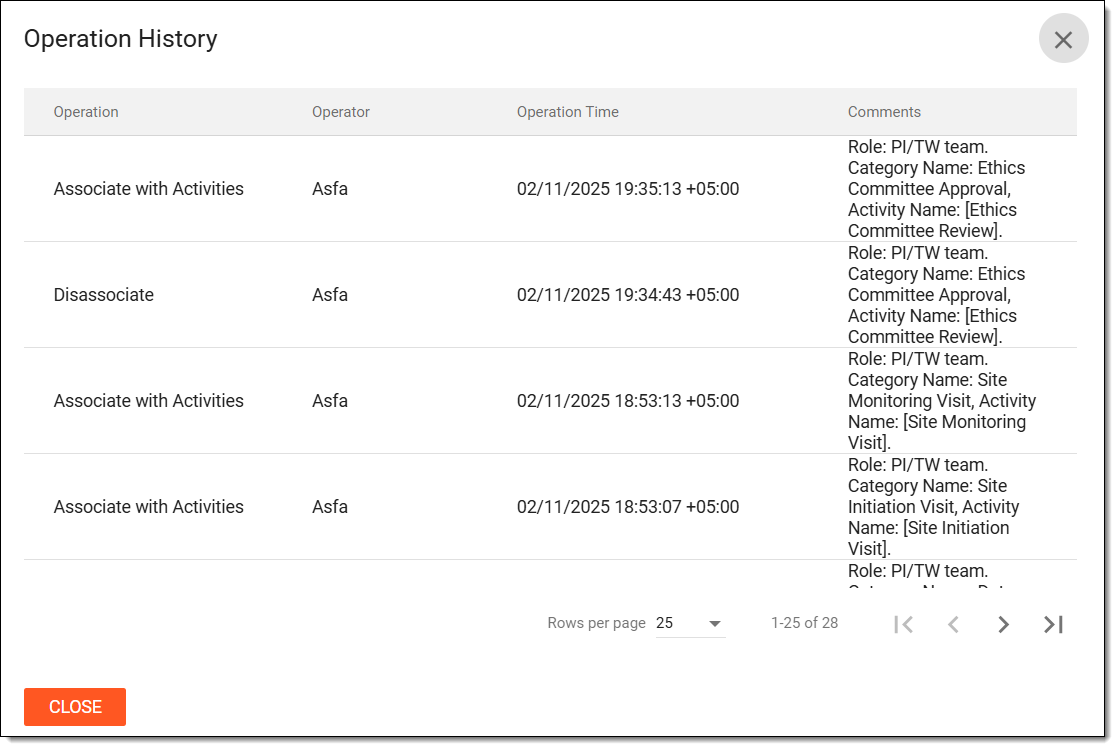 Figure 5. Viewing operation history of activity-category association
Once viewed, select CLOSE to return to the Activity List table.
An activity and category association defines the relationship between an activity and its assigned category, helping to organize and track tasks effectively. Exporting activities and their associated category details generate a structured dataset for external analysis, reporting, or record-keeping. This process ensures that activity classifications remain accessible, shareable, and usable outside the system for further review or integration with other workflows.
-
Access the study management page in one of the following ways:
-
In the CTMS application header, select the DASHBOARD tab and then select the study dashboard of your interest.
Figure 1. Accessing study management from dashboard
-
In the CTMS application header, select the STUDY MANAGEMENT tab. Then from the Study Data List table, select the study name of your interest.
Figure 2. Accessing study management from study data list
-
-
In the left pane, select Project Management > Master Activities.
-
In the Master Activity List table, from above the workspace toolbar, select Setting
.Figure 3. Accessing master activity settings
-
On the page that opens, select the Business Category tab and do one of the following:
-
From the left pane, locate the category or subcategory in which the required activities exist.
-
From the left pane, select Activity Category to access all the activities that are currently associated with different categories.
Tip
If you do not see your required activity, or if you are not sure in which subcategory the needed activity exists, then simply select the main category. From the workspace toolbar of the Activity List table, turn the Show Child Activities toggle on to see the activities that belong to all the subcategories of the main category selected.
-
-
In the Activity List table, from the workspace toolbar, select Export
 .
.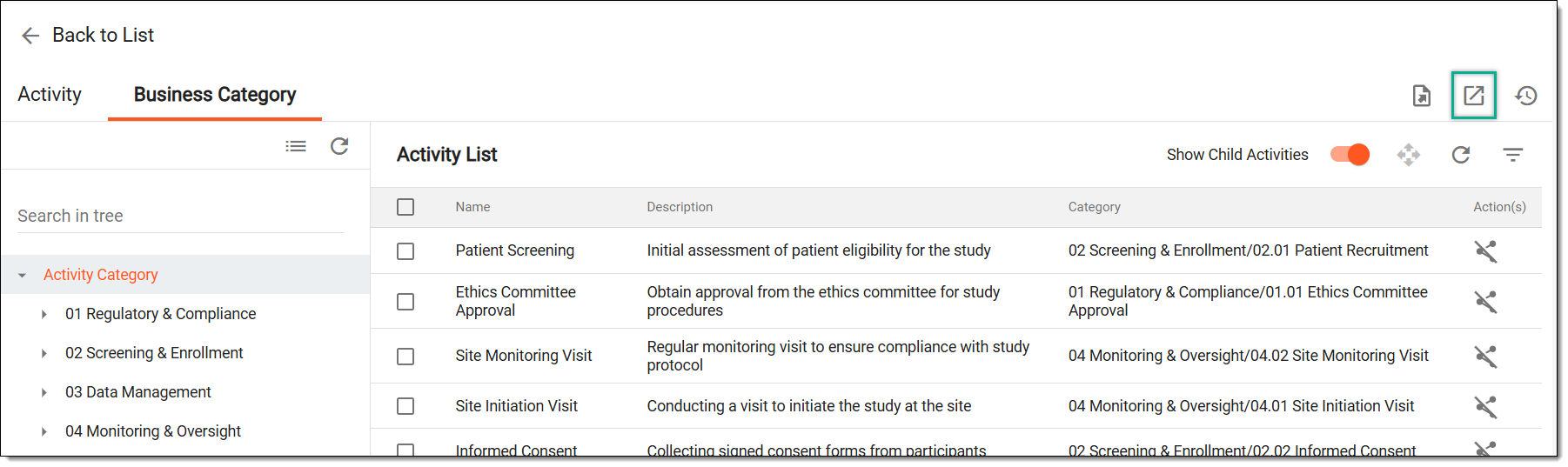 Figure 4. Selecting option to export activity-category association
-
The downloads widget appears showing the export progress. Select the widget to access exported files.
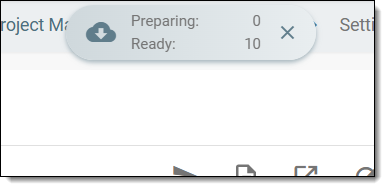 Figure 5. Downloads widget showing milestones being exported
-
In the My Downloads dialog that appears, in the Download is Ready tab, select
 next to the required exported file.
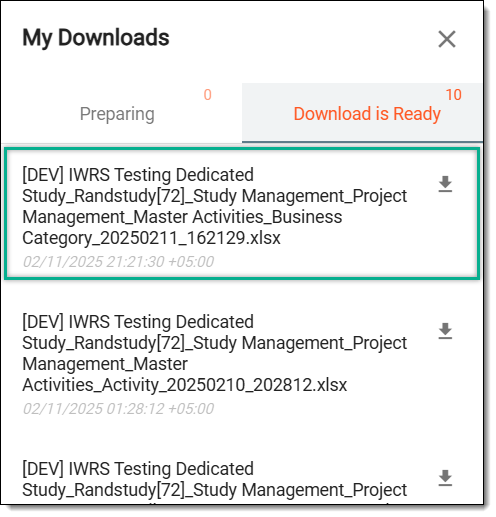 Figure 6. Downloading activity and category association details
Once selected, the activity and category association details are downloaded as an XLSX file to your computer.
A category is a structured classification used to group related activities for better organization and tracking. Editing the category involves updating its details, such as its name or description, to ensure accurate classification and alignment with study requirements.
-
Access the study management page in one of the following ways:
-
In the CTMS application header, select the DASHBOARD tab and then select the study dashboard of your interest.
Figure 1. Accessing study management from dashboard
-
In the CTMS application header, select the STUDY MANAGEMENT tab. Then from the Study Data List table, select the study name of your interest.
Figure 2. Accessing study management from study data list
-
-
In the left pane, select Project Management > Master Activities.
-
In the Master Activity List table, from above the workspace toolbar, select Setting
.Figure 3. Accessing master activity settings
-
On the page that opens, select the Business Category tab, and from the left pane, locate the category or subcategory you want to edit.
-
Right-click the required category and then select Edit
 .
.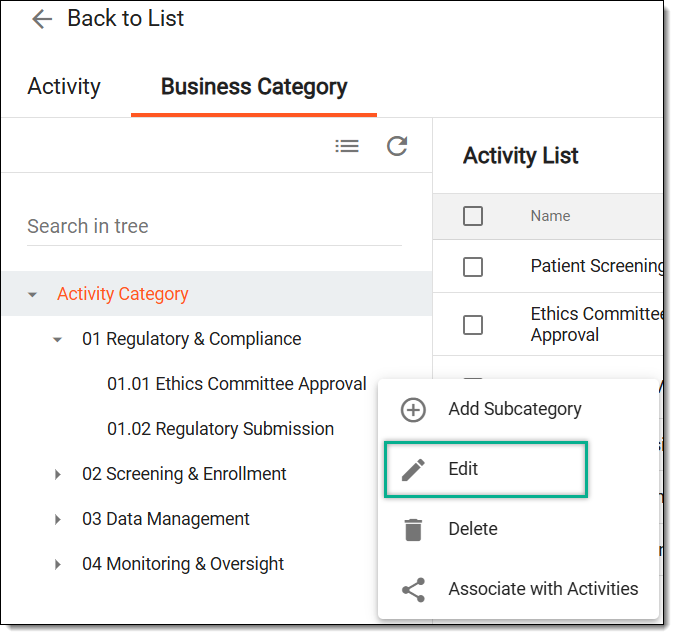 Figure 4. Selecting option to edit category
-
In the Edit dialog that appears, update the name of the category as needed and select SAVE.
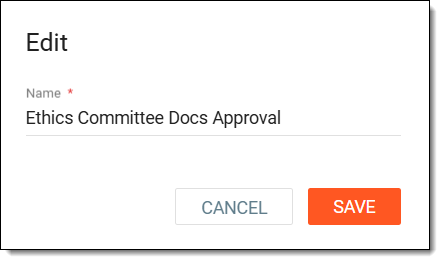 Figure 5. Editing category
Once saved, the category is updated.
A category is a structured classification used to group related activities for better organization and tracking. Deleting the category deletes its association with activities helping maintain an organized structure by eliminating outdated or unnecessary categories.
-
Access the study management page in one of the following ways:
-
In the CTMS application header, select the DASHBOARD tab and then select the study dashboard of your interest.
Figure 1. Accessing study management from dashboard
-
In the CTMS application header, select the STUDY MANAGEMENT tab. Then from the Study Data List table, select the study name of your interest.
Figure 2. Accessing study management from study data list
-
-
In the left pane, select Project Management > Master Activities.
-
In the Master Activity List table, from above the workspace toolbar, select Setting
.Figure 3. Accessing master activity settings
-
On the page that opens, select the Business Category tab, and from the left pane, locate the category or subcategory you want to remove.
-
Right-click the required category and then select Delete
 .
.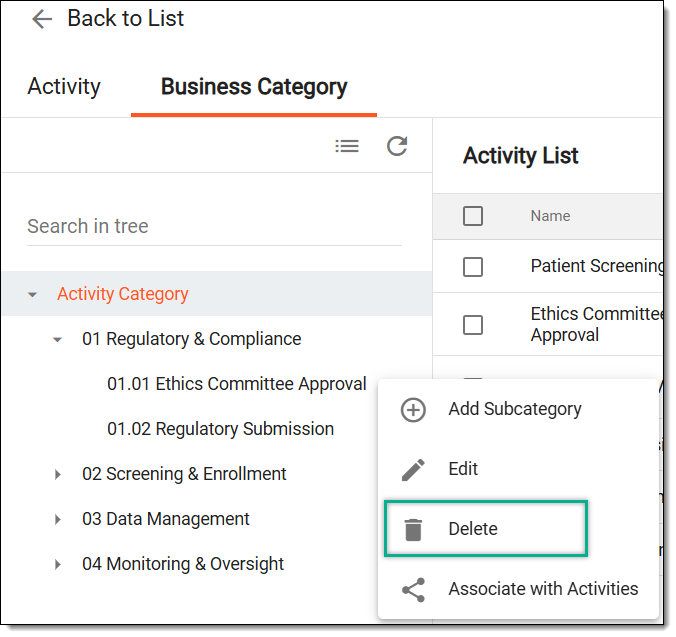 Figure 4. Selecting option to delete category
-
In the Reason dialog that appears, review the warning message stating that any subcategories will be deleted and activity associations will also be removed. If you agree, select SAVE.
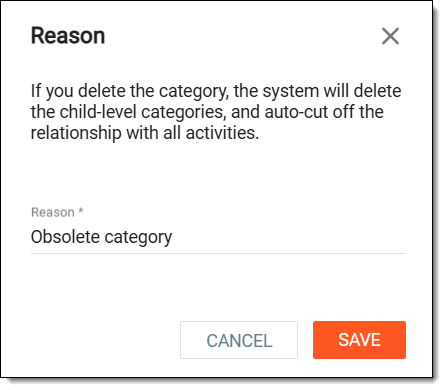 Figure 5. Entering reason to delete category
Once saved, the category is deleted.