Activity management before execution
An activity in a clinical trial refers to a specific task, process, or event that must be completed as part of the study workflow. Activities play a crucial role in study execution, tracking, and compliance, ensuring that each phase progresses according to the protocol and regulatory requirements.
Executing the activity integrates it into the study, allowing it to be tracked and managed as part of the study workflow. Before execution, activities must be properly defined, reviewed, and configured to align with study requirements. Managing activities ensures accuracy, proper sequencing, and smooth execution within the study timeline.
In the following sections, you can learn about various features available to define and manage the activities before pushing them to a study.
Any project manager involved in a clinical trial must create a realistic list of activities that are to be done before or during the conduct of a clinical trial. These activities vary widely, starting from establishing a plan or protocol, recruiting and screening subjects to conducting laboratory tests, obtaining regulatory approvals, and so on.
After the activities have been created, you can cross-check your study against these activities from time to time to ensure that the trial project is conducted promptly and according to the defined scope and requirements.
-
Access the study management page in one of the following ways:
-
In the CTMS application header, select the DASHBOARD tab and then select the study dashboard of your interest.
 Figure 1. Accessing study management from dashboard
-
In the CTMS application header, select the STUDY MANAGEMENT tab. Then from the Study Data List table, select the study name of your interest.
 Figure 2. Accessing study management from study data list
-
-
In the left pane, select Project Management > Master Activities.
-
In the Master Activity List table, from above the workspace toolbar, select Setting
 .
.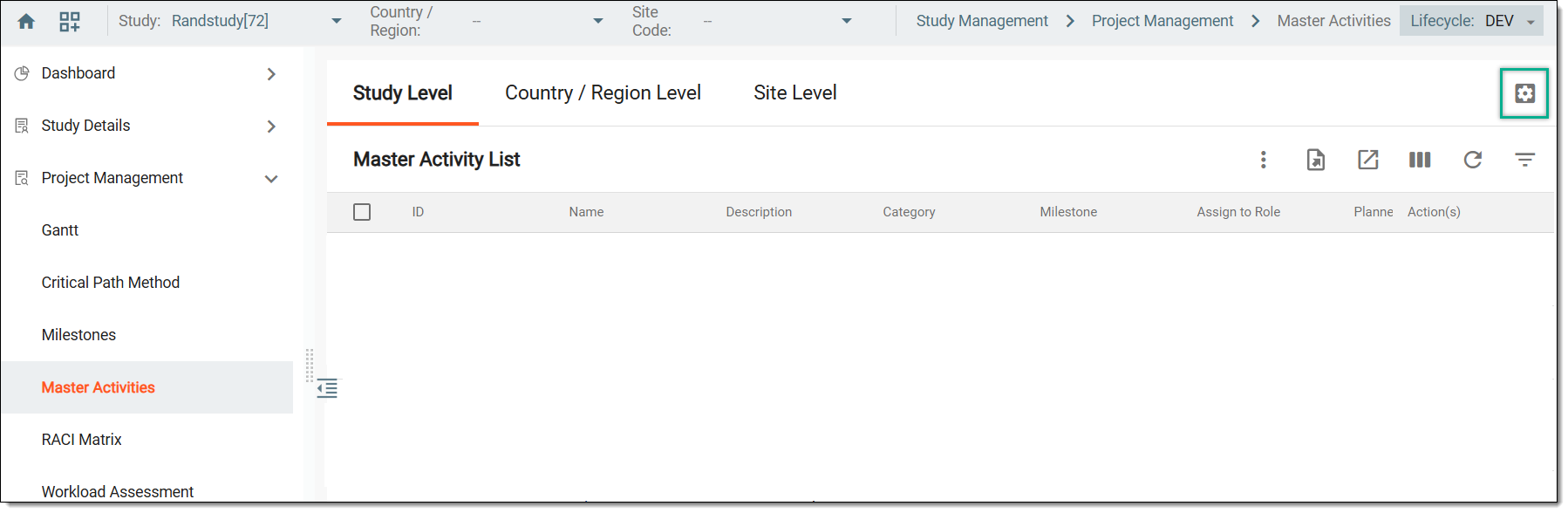 Figure 3. Accessing master activity settings
-
On the page that opens, in the Activity tab, from the workspace toolbar, select New Item
 and then choose one of the following options.
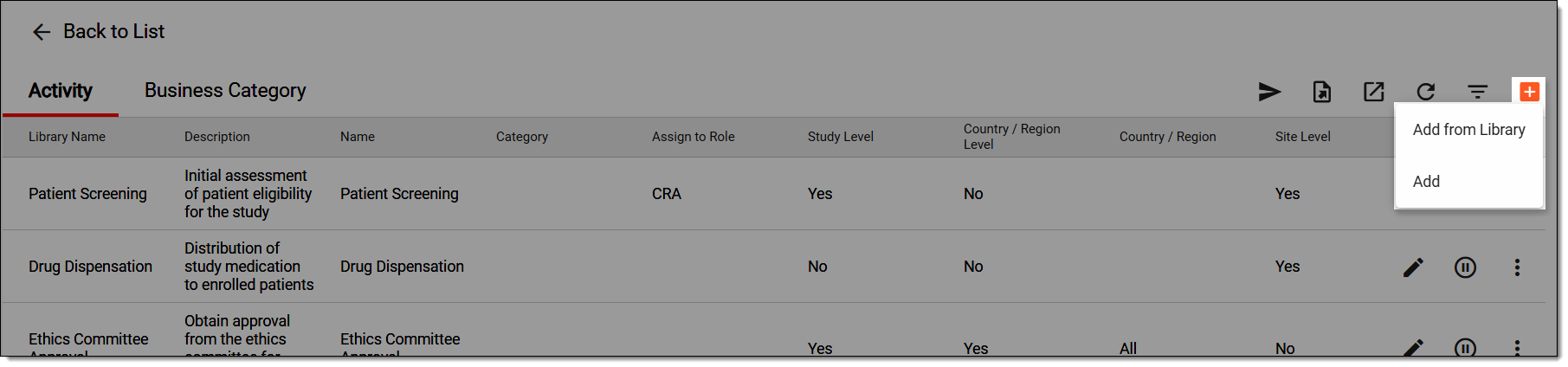 Figure 4. Selecting option to add activity
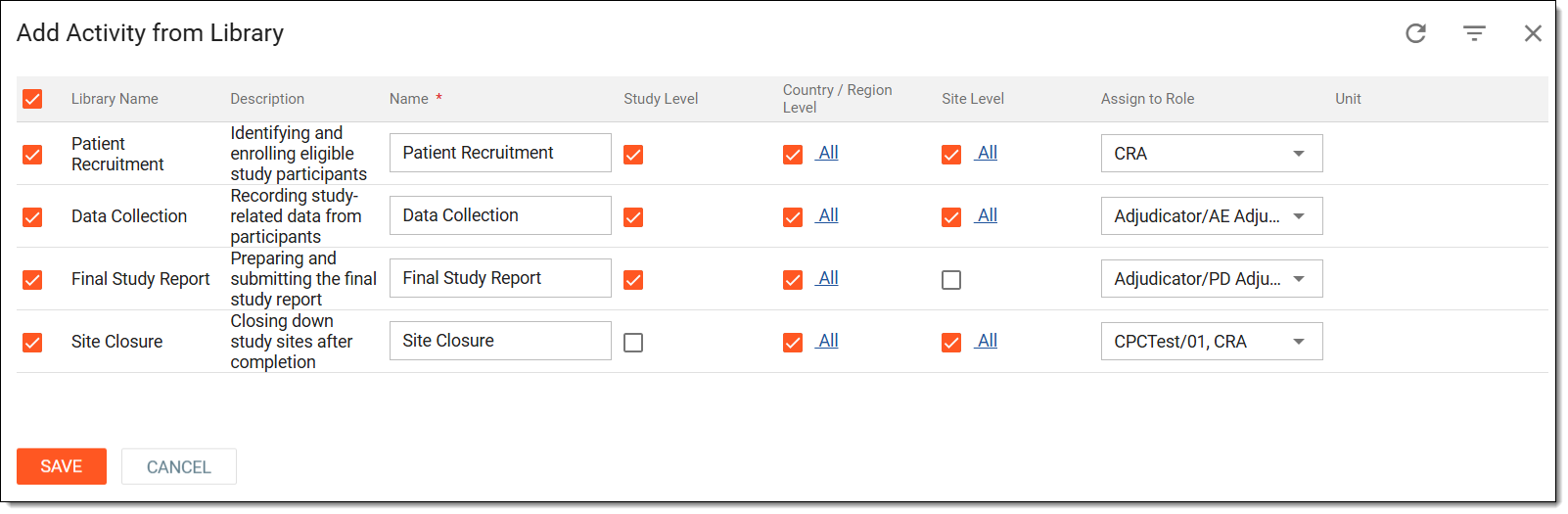
In the Add Activity from Library dialog that appears, add predefined activities to your study from the CTMS Library > Activity Template feature by entering the details as explained in the following table.
Tip
In the following table, mandatory elements are marked with an asterisk (*).
Element
Details
Library Name
Represents the name of the activity as defined in the CTMS Library > Activity Template feature.
Description
Represents the activity's description, which was defined during its creation in the library, providing relevant details to system users.
Name*
Enter a custom name for the activty. By default, this field shows the name of the activity as defined in the CTMS Library > Activity Template feature.
Study Level
Select the checkbox if you want to create the activity for your current study in which you are working.
Country/Region Level
Select the checkbox to add the activity in all the countries and regions where the study is held and which are referenced in the system.
Upon selecting the checkbox, you can click All to open a dialog, in which you can turn the Apply to All toggle on or off. When off, you can choose a specific country or region to which you want to add the activity. Then select SAVE.
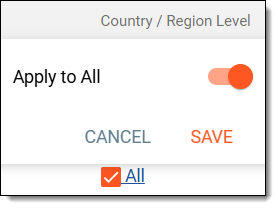 Figure 6. Choosing countries to add activity
Site Level
Select the checkbox to add the activity in all the sites of the study.
Upon selecting the checkbox, you can click All to open a dialog, in which you can turn the Apply to All toggle on or off. When off, you can choose a specific site to which you want to add the activity. Then select SAVE.
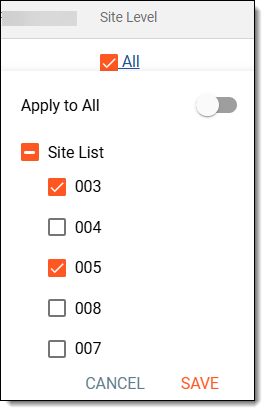 Figure 7. Choosing countries to add activity
Assigned to Role
Select the user role to which you want to assign the activity, such as an investigator, coordinator, and others.
Unit
Specifies the measurement unit for the activity, if defined in the library, such as study, panel, page, and others.
SAVE
Select
 to implement your changes and add the activity.
CANCEL
Select
 to dismiss your changes without saving.Figure 5. Adding activities from library
Select Add and in the Add Activity dialog that appears, create activities from scratch by entering the details as explained in the following table.
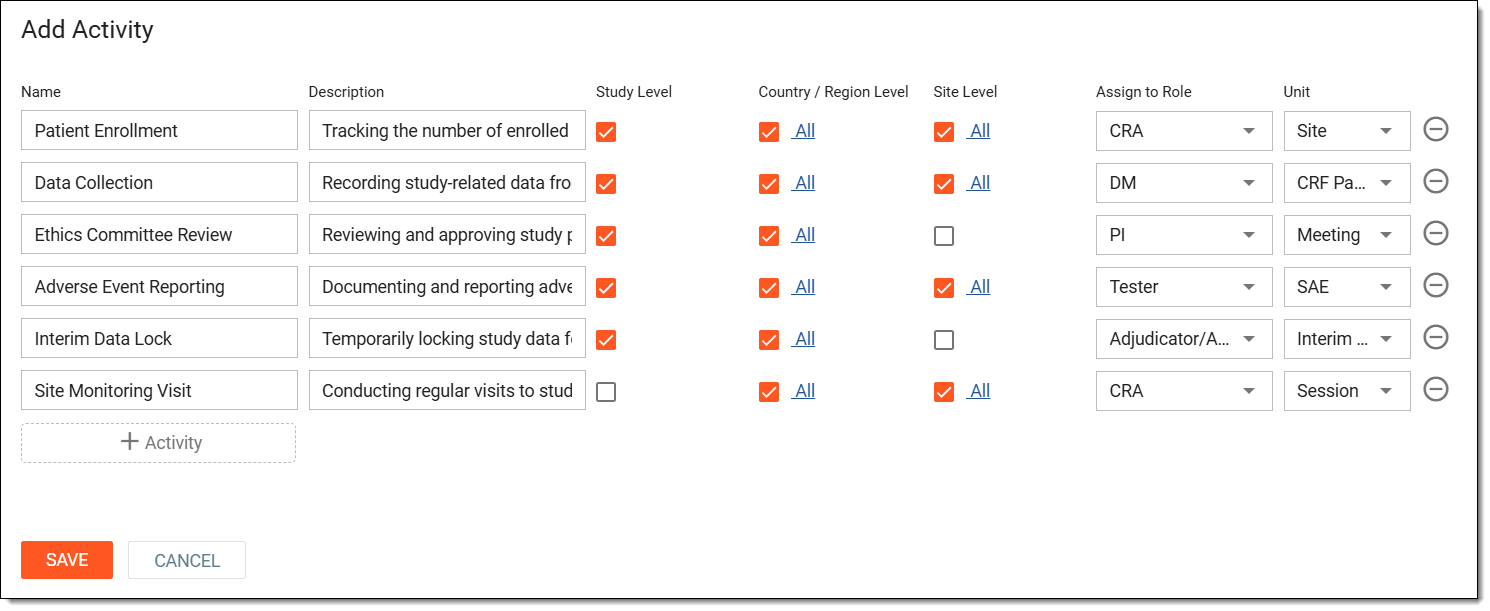 Figure 8. Adding activities
Element
Details
Name
Enter a unique name for the activity.
Description
Enter the activity's description providing additional details or clarification to the system users.
Study Level
Select the checkbox if you want to add the activity to your current study in which you are working.
Country/Region Level
Select the checkbox to add the activity in all the countries and regions where the study is held and which are referenced in the system.
Upon selecting the checkbox, you can click All to open a dialog, in which you can turn the Apply to All toggle on or off. When off, you can choose a specific country or region to which you want to add the activity. Then select SAVE.
Figure 9. Choosing countries to add activity
Site Level
Select the checkbox to add the activity in all the sites of the study.
Upon selecting the checkbox, you can click All to open a dialog, in which you can turn the Apply to All toggle on or off. When off, you can choose a specific site to which you want to add the activity. Then, select SAVE.
Figure 10. Choosing countries to add activity
Assign to Role
Select the user role to which you want to assign the activity, such as an investigator, coordinator, and others.
Unit
Select the measurement unit for the activity, such as study, panel, page, and others.
Add activity
Select
 to add an additional row where you can define a new activity. This way, you can define multiple activities and then add them all at
once.
to add an additional row where you can define a new activity. This way, you can define multiple activities and then add them all at
once.Remove
Select
 to remove an activity you have accidentally added.
SAVE
Select
to implement your changes and add the activities.CANCEL
Select
to dismiss your changes without saving.
Once saved, the new activities are defined. You can now proceed with defining the priority for executing the activities, specifying pre-activities, or simply execute the activity to add it to your study and begin using it to optimize the project timeline.
After defining an activity, you can specify the order or sequence in which the activity can be performed. For instance, first on the site, then study, and lastly across the whole country or region. Defining this priority ensures that an activity is managed and analyzed from the ground up, starting at the most specific level (such as individual sites) before moving to higher levels for broader oversight and reporting.
-
Access the study management page in one of the following ways:
-
In the CTMS application header, select the DASHBOARD tab and then select the study dashboard of your interest.
Figure 1. Accessing study management from dashboard
-
In the CTMS application header, select the STUDY MANAGEMENT tab. Then from the Study Data List table, select the study name of your interest.
Figure 2. Accessing study management from study data list
-
-
In the left pane, select Project Management > Master Activities.
-
In the Master Activity List table, from above the workspace toolbar, select Setting
.Figure 3. Accessing master activity settings
-
On the page that opens, in the Activity tab, in the table where activities are listed, locate the required activity. Then, scroll to the right to the Levels Order column and select the hyperlink.
-
In the dialog that appears, turn the Not Applicable toggle off to define the sequence. Then, drag and move the study, site, and country or region in the specific sequence in which you want the activity to be performed.
For instance, the following figure shows that the patient screening activity happens first at individual sites, then the data is grouped at the study level, and finally, patient screening is reviewed at a regional or country level.
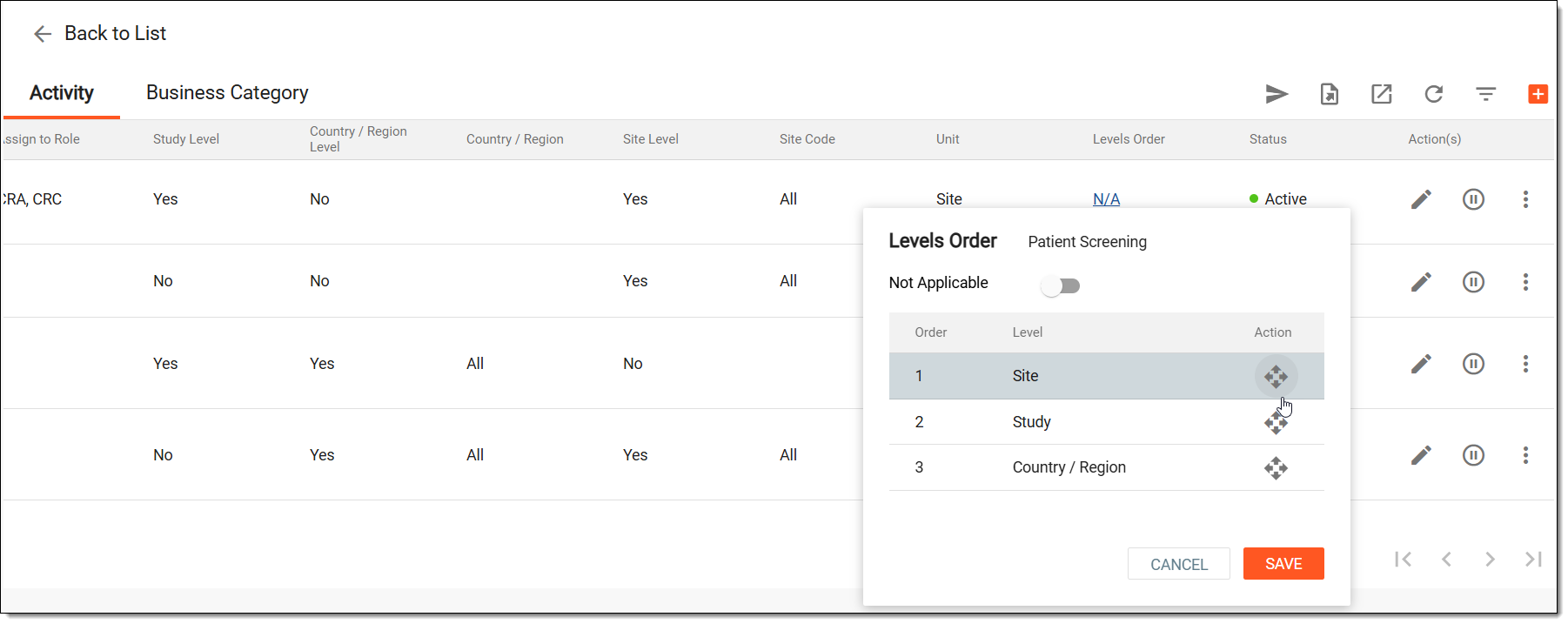 Figure 4. Updating activity execution sequence
-
Select SAVE.
Once saved, the activity is performed and managed based on the specified order.
An activity in a clinical trial represents a specific task or process that must be completed as part of the study workflow. Activities can include tasks like patient screening, drug dispensation, data collection, site monitoring, and so on. Once an activity is defined, then before executing it to your study, you can define dependencies between activities by specifying pre-activities and their timing prior to pushing the main activity to the study.
-
Access the study management page in one of the following ways:
-
In the CTMS application header, select the DASHBOARD tab and then select the study dashboard of your interest.
Figure 1. Accessing study management from dashboard
-
In the CTMS application header, select the STUDY MANAGEMENT tab. Then from the Study Data List table, select the study name of your interest.
Figure 2. Accessing study management from study data list
-
-
In the left pane, select Project Management > Master Activities.
-
In the Master Activity List table, from above the workspace toolbar, select Setting
.Figure 3. Accessing master activity settings
-
On the page that opens, in the Activity tab, next to the required activity, from the Action(s) column, select More
 > Pre-activities
  .
.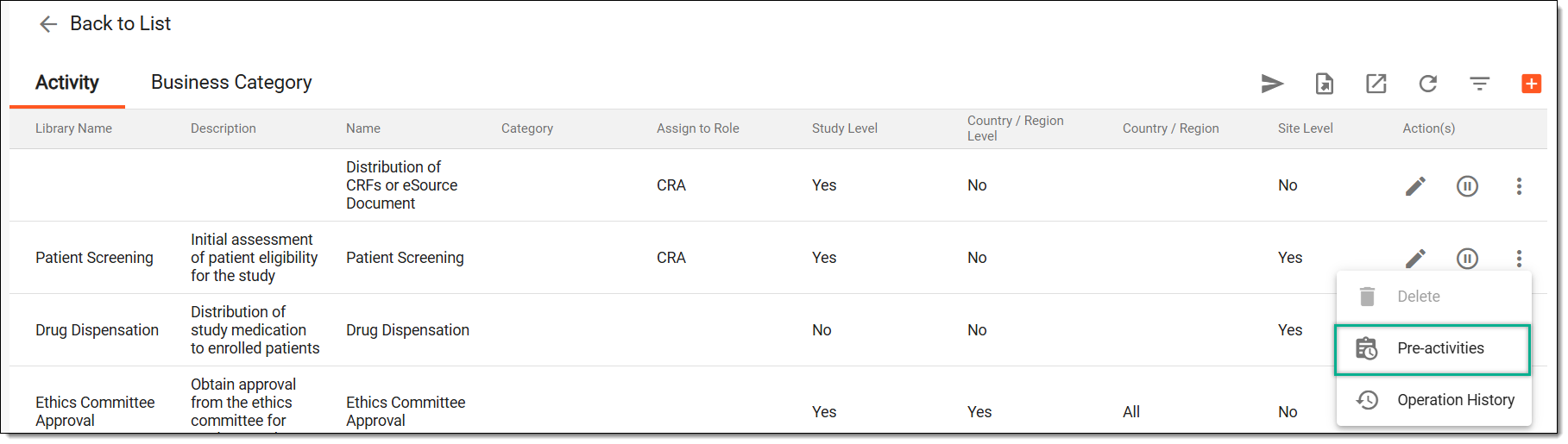 Figure 4. Accessing pre-activities
-
In the Pre-activities dialog that opens, enter the details as explained in the following table.
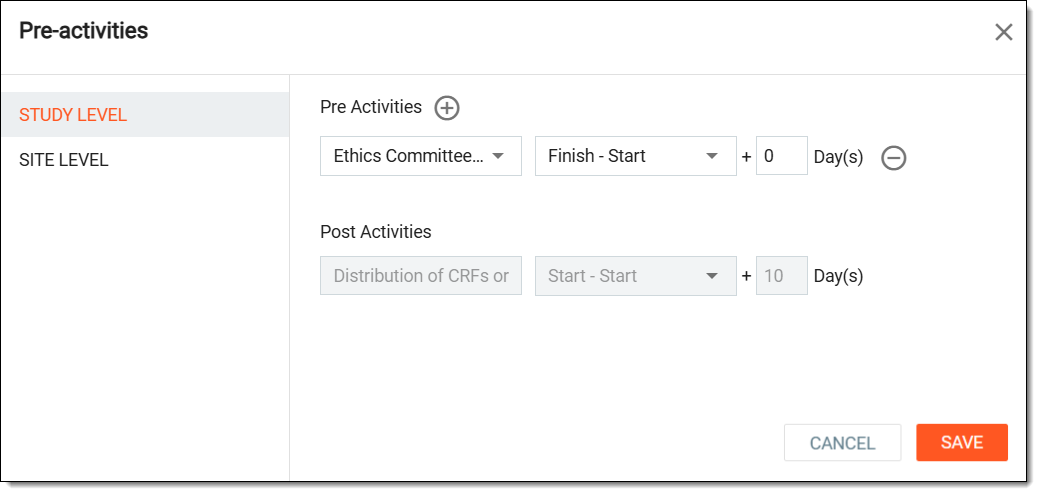 Figure 5. Adding pre-activity
Element
Details
STUDY LEVEL
Select to add a pre-activity at the study-wide level to ensure that certain prerequisites are met before proceeding with dependent activities, such as Regulatory Approval must be completed before First Subject Screening begins across all sites.
This level is displayed only if the selected activity is added to your current study in which you are working.COUNTRY/ REGION LEVEL
Select to add a pre-activity for country or region-specific regulatory requirements or operational dependencies. For instance, Local Ethics Committee Approval must be completed before screening patients in a specific country.
This level is displayed only if the selected activity is added in all the countries and regions where the study is held and which are referenced in the system.SITE LEVEL
Select to add a pre-activity at the site-level to ensure site-specific readiness before executing key activities, such as Site Initiation Visit must be conducted before Patient Enrollment starts at a particular site.
This level is displayed only if the selected activity is added in all the sites of the study.Pre Activities
Select Add Content
 to start defining a pre-activity as follows:
-
In the first field that appears, from the dropdown list, select an activity existing at the selected level—study, country or region, or site—as a prerequisite.
-
Then, select the type of relationship between activities, such as Start - Start means that the pre-activity starts as soon as the main activity starts.
-
Lastly, specify the number of days before the main activity should start after the pre-activity is completed.
Remove
Select
to remove a pre-activity you have accidentally added.Post Activities
Displays any post-activities associated with the activity. These activities occur after a primary trial activity is completed, such as Distribution of CRFs or eSource Document occurs after data collection or an investigative procedure is completed.
SAVE
Select
to implement your changes and add the pre-activities.CANCEL
Select
to dismiss your changes without saving. -
Once saved, the pre-activities are associated with your study and must be carried out before the main activity is performed.
An activity in a clinical trial represents a specific task or process that must be completed as part of the study workflow. Activities can include tasks like patient screening, drug dispensation, data collection, site monitoring, and so on. When you execute an activity, you can then start using it in your study. However, before executing, if required, you can update the activity details to ensure that activity information remains accurate and aligned with study progress.
-
Access the study management page in one of the following ways:
-
In the CTMS application header, select the DASHBOARD tab and then select the study dashboard of your interest.
Figure 1. Accessing study management from dashboard
-
In the CTMS application header, select the STUDY MANAGEMENT tab. Then from the Study Data List table, select the study name of your interest.
Figure 2. Accessing study management from study data list
-
-
In the left pane, select Project Management > Master Activities.
-
In the Master Activity List table, from above the workspace toolbar, select Setting
.Figure 3. Accessing master activity settings
-
On the page that opens, in the Activity tab, next to the required activity, from the Action(s) column, select Edit
 .
.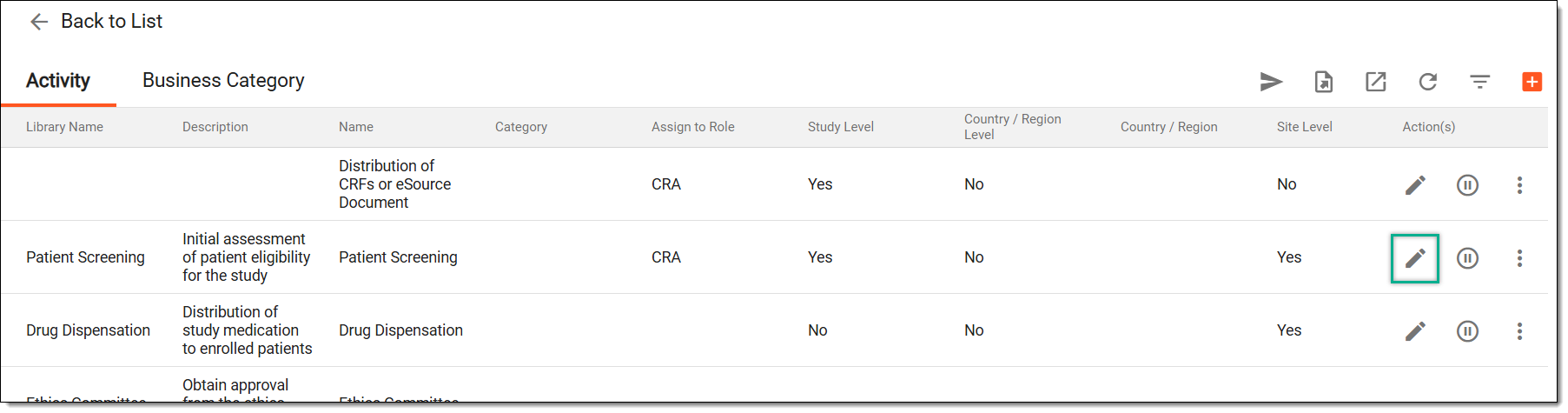 Figure 4. Accessing option to edit activity
-
In the Edit Activity dialog that opens, update the activity details as explained in the following table.
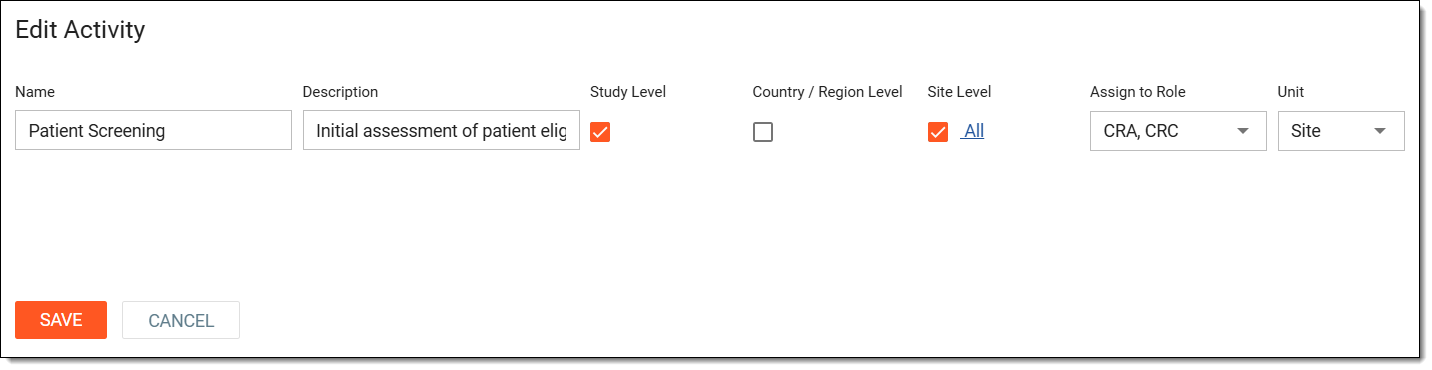 Figure 5. Editing activity
Element
Details
Name
Enter a unique name for the activity.
Description
Enter the activity's description providing additional details or clarification to the system users.
Study Level
Select the checkbox if you want to add the activity to your current study in which you are working.
Country/Region Level
Select the checkbox to add the activity in all the countries and regions where the study is held and which are referenced in the system.
Upon selecting the checkbox, you can click All to open a dialog, in which you can turn the Apply to All toggle on or off. When off, you can choose a specific country or region to which you want to add the activity. Then select SAVE.
Figure 6. Choosing countries to add activity
Site Level
Select the checkbox to add the activity in all the sites of the study.
Upon selecting the checkbox, you can click All to open a dialog, in which you can turn the Apply to All toggle on or off. When off, you can choose a specific site to which you want to add the activity. Then select SAVE.
Figure 7. Choosing countries to add activity
Assign to Role
Select the user role to which you want to assign the activity, such as an investigator, coordinator, and others.
Unit
Select the measurement unit for the activity, such as study, panel, page, and others.
SAVE
Select
to implement your changes and update the activity.CANCEL
Select
to dismiss your changes without saving.
Once saved, the activity is updated. You can now proceed with executing your recently introduced updates to start using in the study.
An activity in a clinical trial represents a specific task or process that must be completed as part of the study workflow. Activities can include tasks like patient screening, drug dispensation, data collection, site monitoring, and so on. When you execute an activity, you can then start using it in your study. However, before executing, if required, you can activate or inactivate an activity to control its availability within the study. An active task or activity is part of the study workflow and can be tracked and executed, while an inactive task or activity is temporarily disabled without being deleted. This helps manage study tasks by enabling or pausing activities as needed.
-
Access the study management page in one of the following ways:
-
In the CTMS application header, select the DASHBOARD tab and then select the study dashboard of your interest.
Figure 1. Accessing study management from dashboard
-
In the CTMS application header, select the STUDY MANAGEMENT tab. Then from the Study Data List table, select the study name of your interest.
Figure 2. Accessing study management from study data list
-
-
In the left pane, select Project Management > Master Activities.
-
In the Master Activity List table, from above the workspace toolbar, select Setting
.Figure 3. Accessing master activity settings
-
On the page that opens, in the Activity tab, next to the required activity, from the Action(s) column, select Activate
 to reactivate an inactive task or activity. Or, select Inactivate
  to disable the activity.
 Figure 4. Accessing option to activate or inactivate activity
-
In the Reason dialog that appears, enter the reason for activation or deactivation. Then select SAVE.
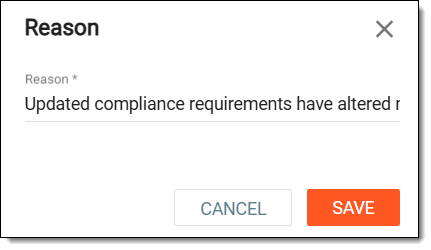 Figure 5. Entering reason to inactivate activity
Once saved, the activity is activated or inactivated. The inactive instance cannot be executed and pushed to a study.
An activity in a clinical trial represents a specific task or process that must be completed as part of the study workflow. Activities can include tasks like patient screening, drug dispensation, data collection, site monitoring, and so on. When you execute an activity, you can then start using it in your study. However, if required, you can remove the activity if it is no longer needed ensuring that unnecessary or incorrectly created activities do not proceed to execution. However, the activity must first be inactivated before it can be deleted, preventing unintended data loss.
-
Access the study management page in one of the following ways:
-
In the CTMS application header, select the DASHBOARD tab and then select the study dashboard of your interest.
Figure 1. Accessing study management from dashboard
-
In the CTMS application header, select the STUDY MANAGEMENT tab. Then from the Study Data List table, select the study name of your interest.
Figure 2. Accessing study management from study data list
-
-
In the left pane, select Project Management > Master Activities.
-
In the Master Activity List table, from above the workspace toolbar, select Setting
.Figure 3. Accessing master activity settings
-
On the page that opens, in the Activity tab, next to the required activity, from the Action(s) column, select More
> Delete  .
.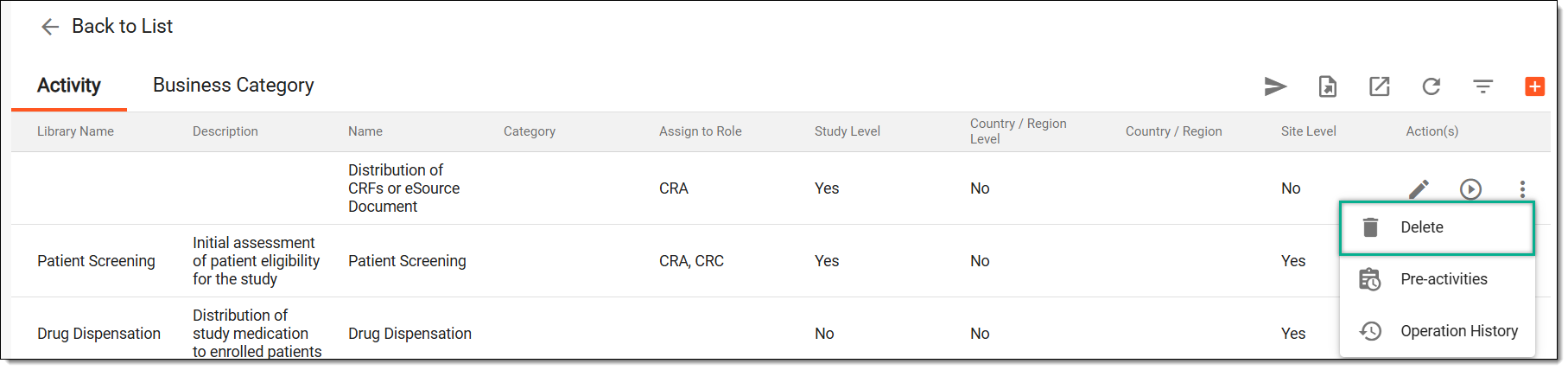 Figure 4. Deleting activity
-
In the Reason dialog that appears, enter the reason for deleting the activity. Then select SAVE.
Figure 5. Entering reason to delete activity
Once saved, the activity is deleted.
An activity in a clinical trial represents a specific task or process that must be completed as part of the study workflow. Activities can include tasks like patient screening, drug dispensation, data collection, site monitoring, and so on. If needed, you can view a detailed log of all actions performed on an activity that ensures transparency and helps you track changes over time. By reviewing the operation history, you can verify what modifications were introduced, by whom, and when, helping with compliance, auditing, and troubleshooting.
-
Access the study management page in one of the following ways:
-
In the CTMS application header, select the DASHBOARD tab and then select the study dashboard of your interest.
Figure 1. Accessing study management from dashboard
-
In the CTMS application header, select the STUDY MANAGEMENT tab. Then from the Study Data List table, select the study name of your interest.
Figure 2. Accessing study management from study data list
-
-
In the left pane, select Project Management > Master Activities.
-
In the Master Activity List table, from above the workspace toolbar, select Setting
.Figure 3. Accessing master activity settings
-
On the page that opens, in the Activity tab, next to the required activity, from the Action(s) column, select More
> Operation History  .
.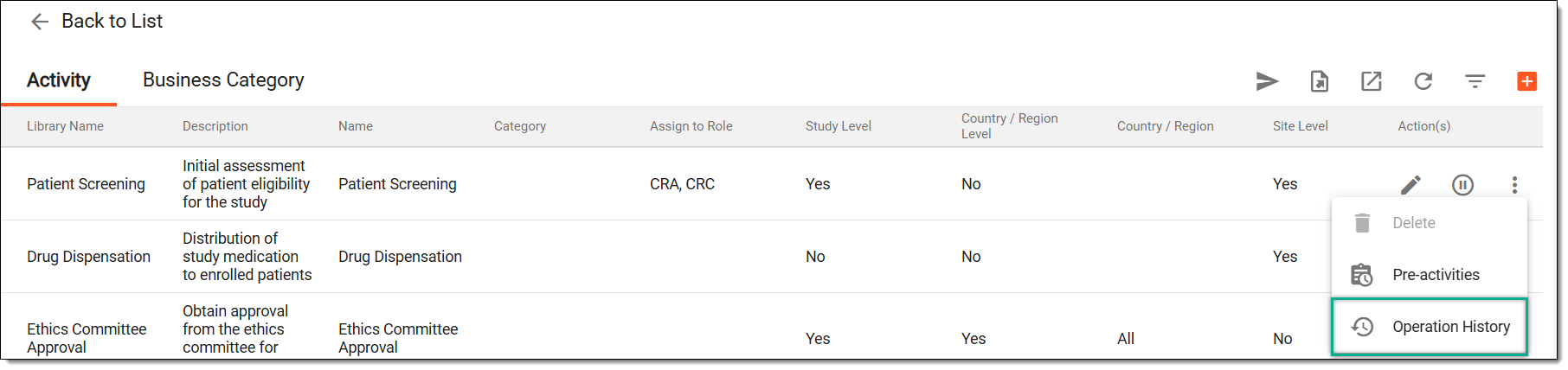 Figure 4. Accessing operation history of activity
-
In the Operation History dialog that opens, view the list of user actions that have been performed with the selected activity.
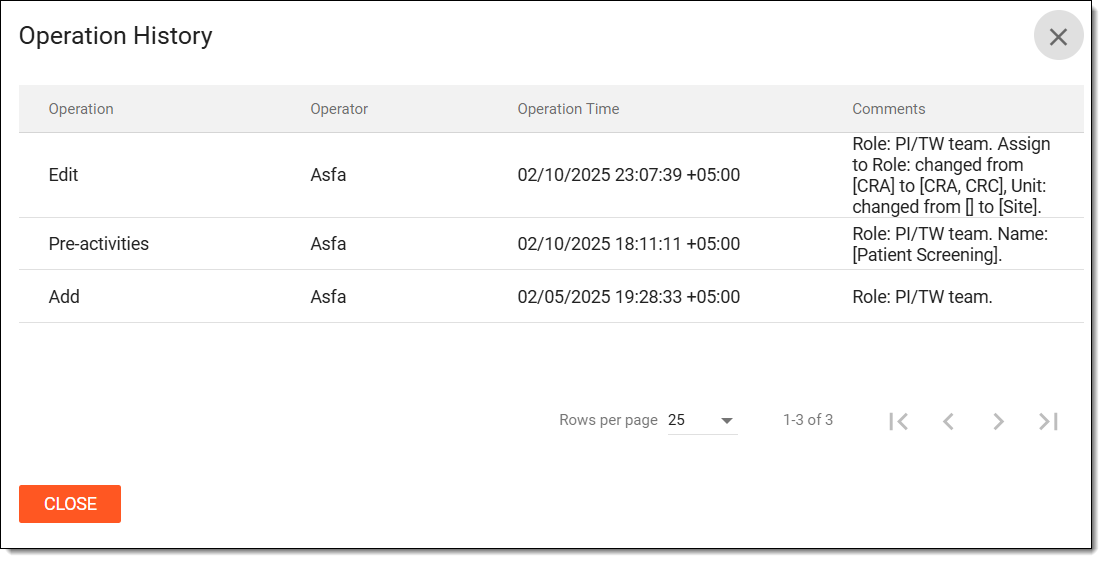 Figure 5. Viewing operation history of activity
Once viewed, select CLOSE to return to the table displaying activities.
An activity in a clinical trial represents a specific task or process that must be completed as part of the study workflow. Activities can include tasks like patient screening, drug dispensation, data collection, site monitoring, and so on. If required, you can export the activities to generate and download activity data for reporting, analysis, or documentation purposes.
-
Access the study management page in one of the following ways:
-
In the CTMS application header, select the DASHBOARD tab and then select the study dashboard of your interest.
Figure 1. Accessing study management from dashboard
-
In the CTMS application header, select the STUDY MANAGEMENT tab. Then from the Study Data List table, select the study name of your interest.
Figure 2. Accessing study management from study data list
-
-
In the left pane, select Project Management > Master Activities.
-
In the Master Activity List table, from above the workspace toolbar, select Setting
.Figure 3. Accessing master activity settings
-
On the page that opens, in the Activity tab, from the workspace toolbar, select Export
 .
.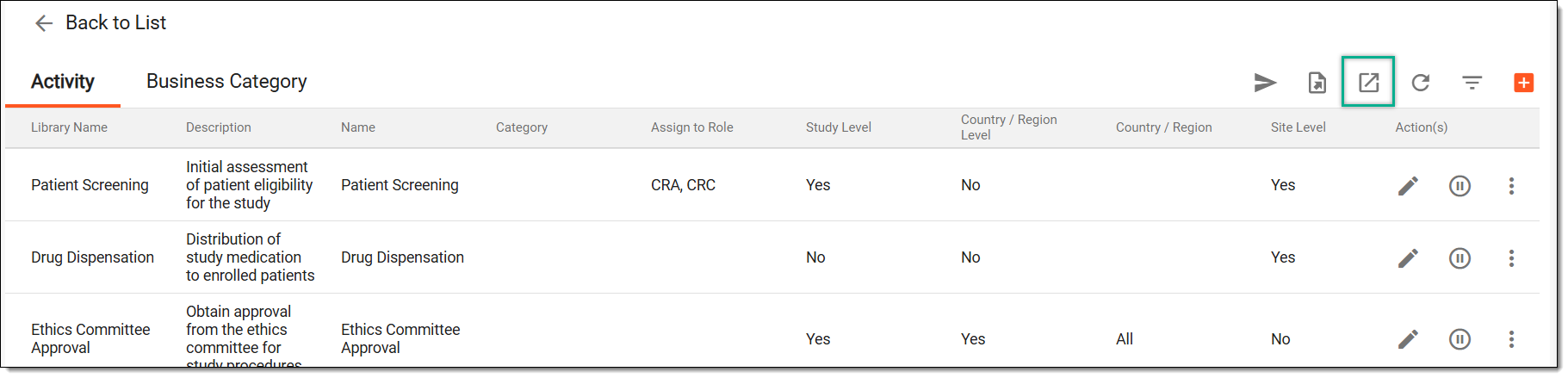 Figure 4. Accessing option to export activities
-
The downloads widget appears showing the export progress. Select the widget to access exported files.
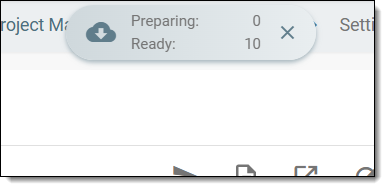 Figure 5. Downloads widget showing activities being exported
-
In the My Downloads dialog that appears, in the Download is Ready tab, select
 next to the required exported file.
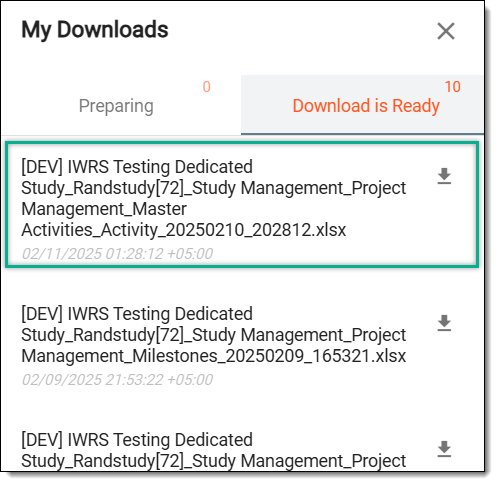 Figure 6. Downloading activities list
Once selected, the list of activities is downloaded as an XLSX file to your computer.
An activity in a clinical trial is a defined task or process that must be completed as part of the study workflow. Activities encompass various essential tasks such as patient screening, drug dispensation, data collection, and site monitoring, ensuring the structured execution of the study. Executing activities moves them from the Activity tab to Master Activity List, making them active for tracking and management within the study. This step ensures that activities can be seamlessly used in a study helping you track and monitor the study's progress.
-
Access the study management page in one of the following ways:
-
In the CTMS application header, select the DASHBOARD tab and then select the study dashboard of your interest.
Figure 1. Accessing study management from dashboard
-
In the CTMS application header, select the STUDY MANAGEMENT tab. Then from the Study Data List table, select the study name of your interest.
Figure 2. Accessing study management from study data list
-
-
In the left pane, select Project Management > Master Activities.
-
In the Master Activity List table, from above the workspace toolbar, select Setting
.Figure 3. Accessing master activity settings
-
On the page that opens, in the Activity tab, from the workspace toolbar, select Execute
 .
.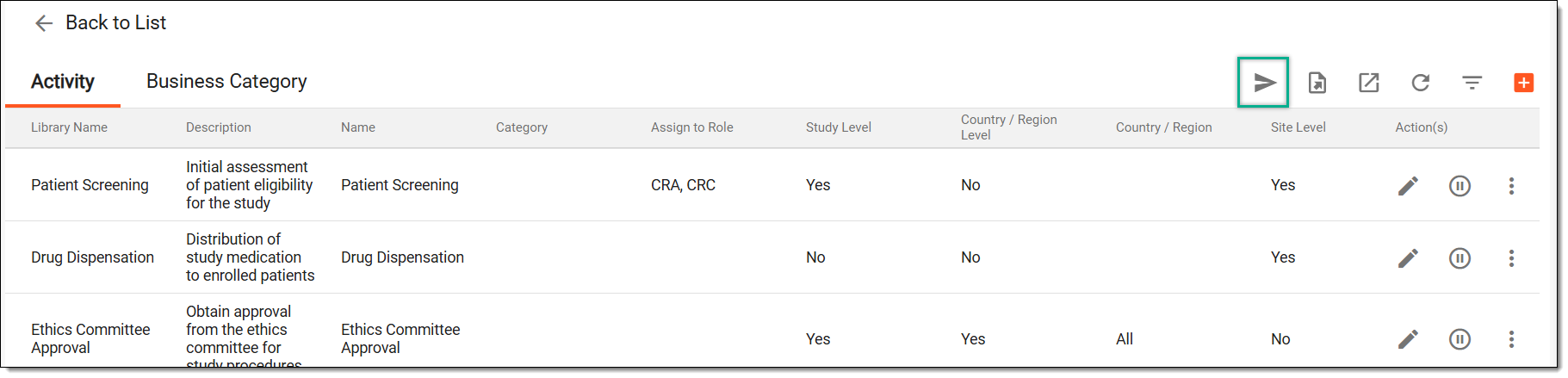 Figure 4. Executing activities to study
Once the action is confirmed, the activites are executed and sent to your study to ensure your study stays on track. The executed activities appear in the Master Activity List table where you can manage them for your study as needed.