Export dispensing window list
In IWRS, you can configure dispensation windows to outline specific time frames for each dispensation. All the dispensing windows previously configured in the IWRS application are displayed under the Dispensing Window subtab. If needed, you can export the dispensing window list to your computer as an XLSX file and use it offline or share it with third parties that have no access to the IWRS system.
Since the dispensing window configuration is version-bound, meaning that once a new configuration is required, a new dedicated version is created, you can export the list of visits pertaining to any of the previously existing versions in the system.
-
In the IWRS application header, select the TREATMENT DESIGN tab.
-
From the left pane, select Visit Dispensing and Window.
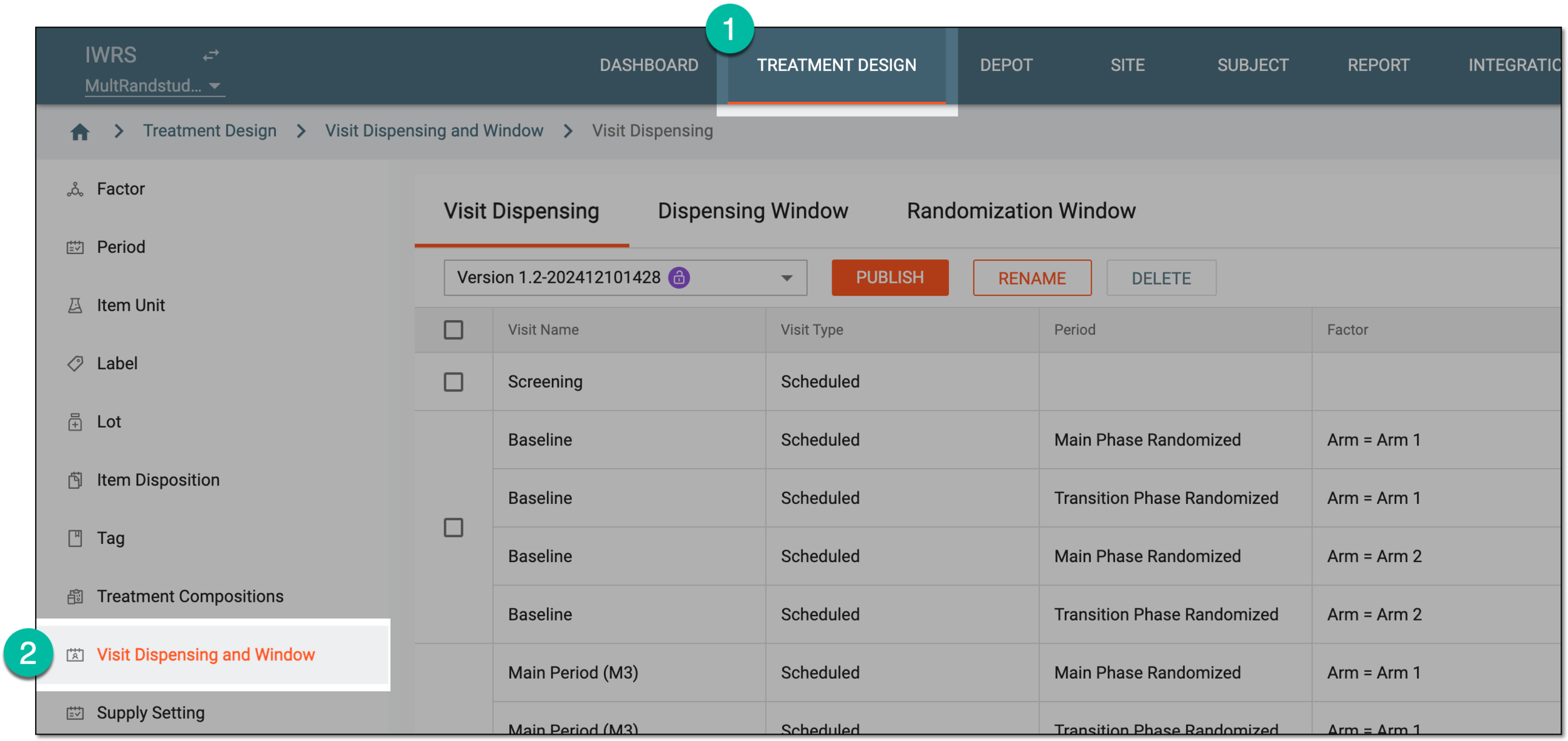 Figure 1. Accessing visit dispensing and window configuration
-
From the contents panel, select the Dispensing Window tab.
-
Under the Dispensing Window tab that opens, from the version menu, select the needed unlocked
 or locked
 setting version from which you want to export the visit list.
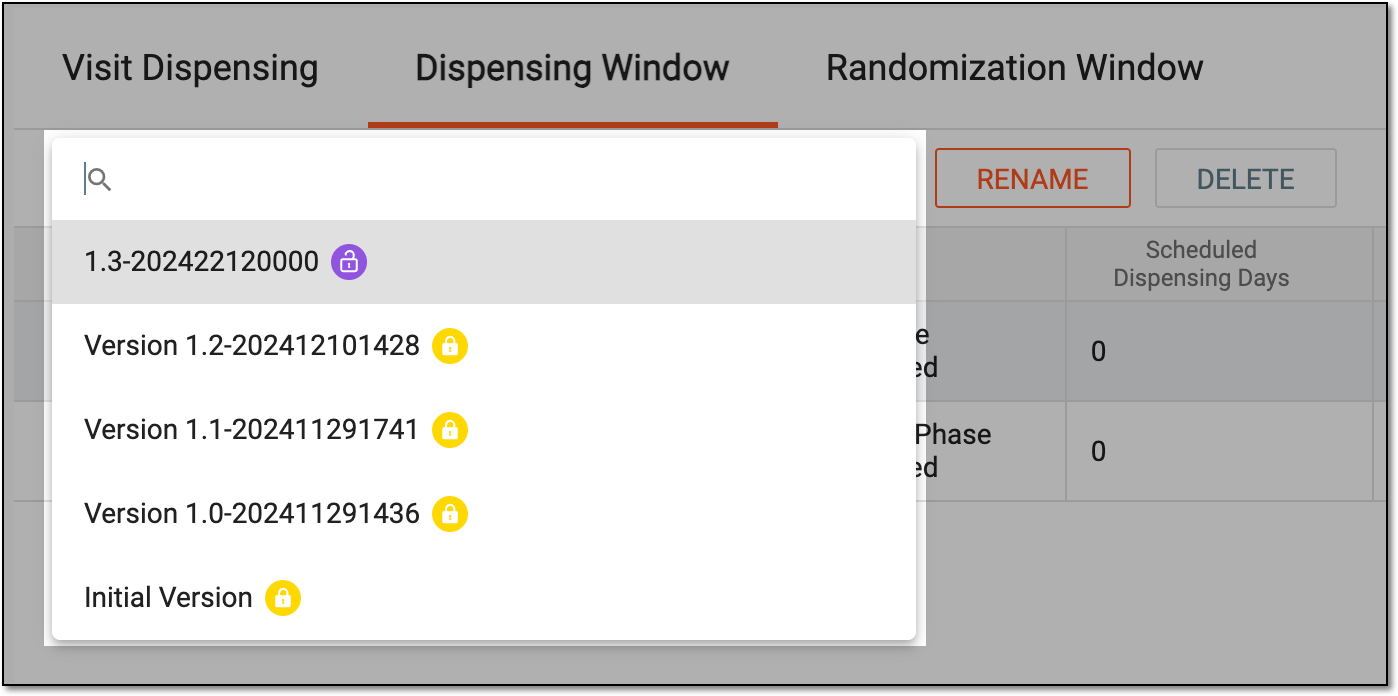 Figure 2. Selecting dispensing visit setting version
-
From the workspace toolbar, select Export
 .
. Figure 3. Exporting dispensing window list
-
Once selected, the widget appears displaying your download progress. Select the widget to open the My Downloads dialog.
 Figure 4. Dispensing window list export progress
-
In the My Downloads dialog that opens, you can find the following tabs:
-
Preparing: under this tab, you can find all the files whose export is in progress, and they are not yet ready for download.
-
Download is Ready: under this tab, you can find all the files whose export is complete, and they can be downloaded to your computer.
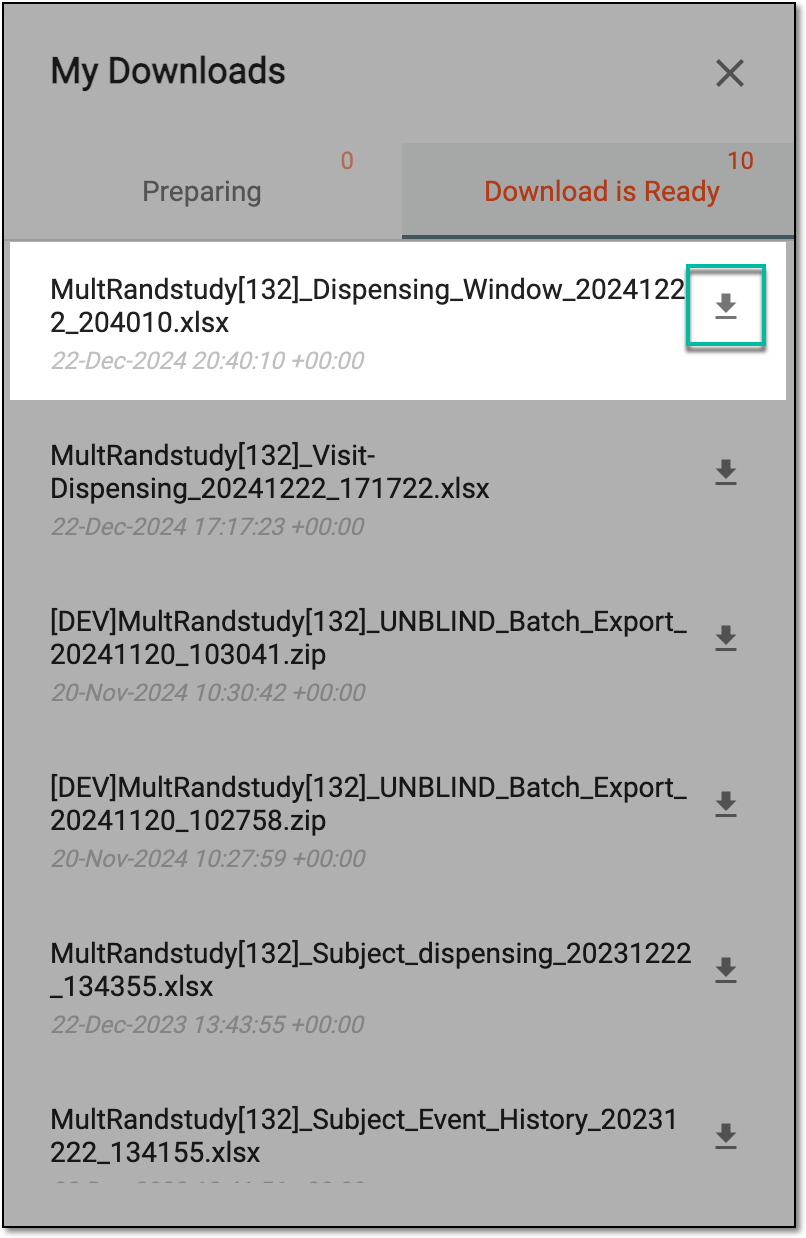 Figure 5. Downloading exported dispensing window list
-
-
Under the Download is Ready tab, next to the file that you want to download, select
 .
.
Upon saving the XLSX file on your computer, you can work with it offline as needed.