Download extracted file from execution history
Jobs are automated processes that can be set up in EDC to perform various tasks, triggering them by schedule or manually.
After the job execution, whether scheduled or real-time, you can download the extracted files. This process ensures you can view and work on the extracted data whenever you need to.
Important
To download the extracted data file, you must have the Download permission for the respective job category granted to your user role via ADMIN. Otherwise, you can only view the execution history list but not download the files.
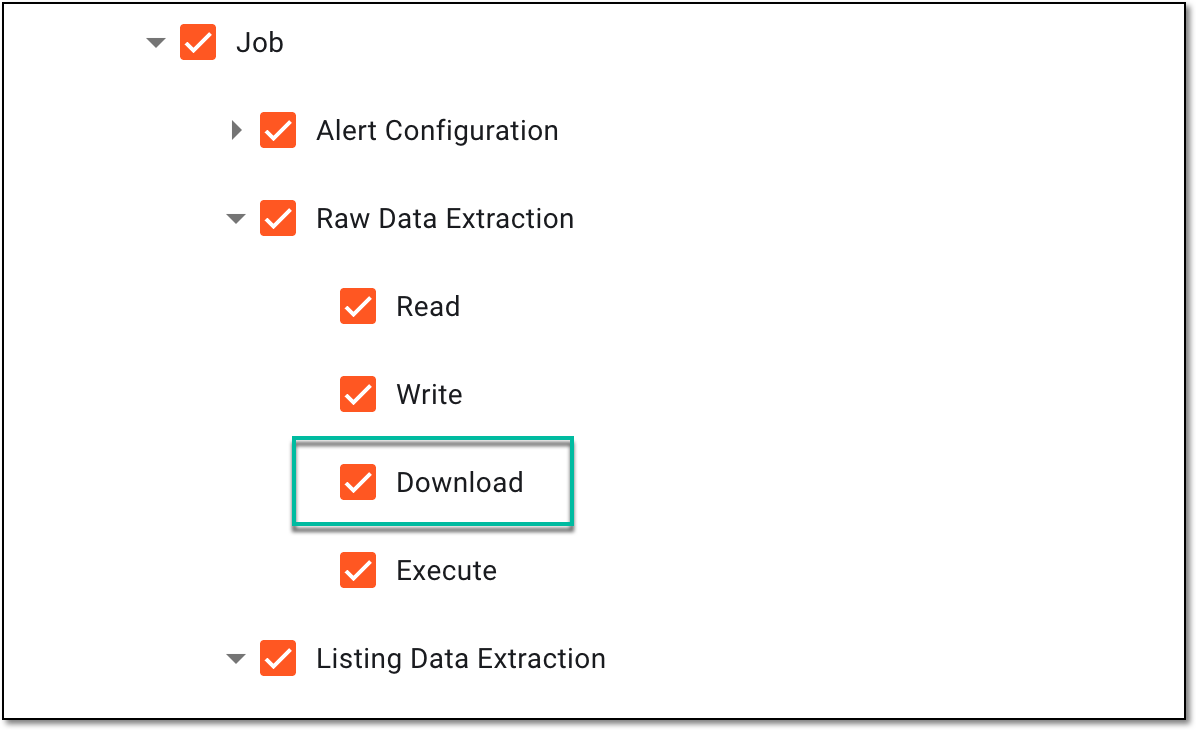 |
-
In the EDC application header, select the JOB tab.
-
In the left pane of the page that opens, select the tab representing the needed data extraction category.
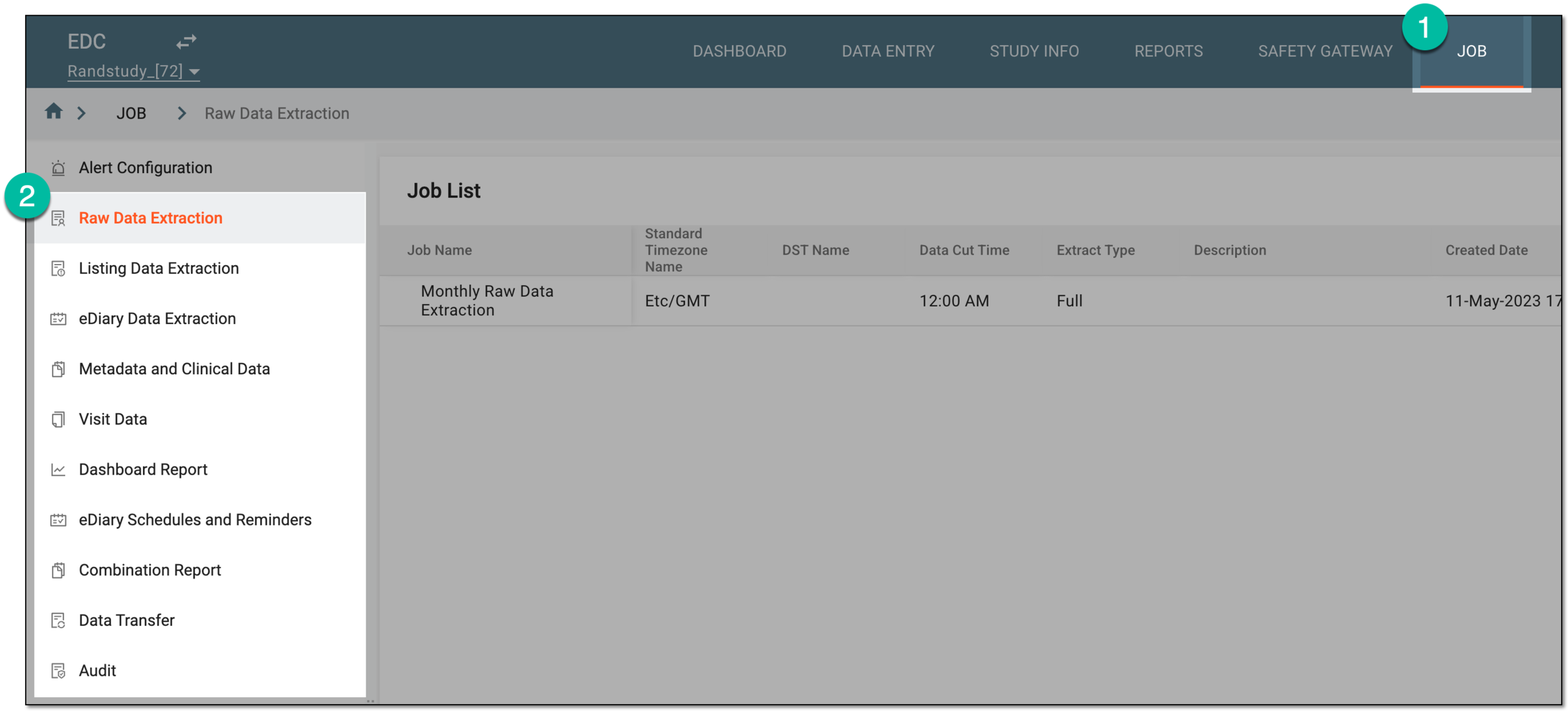 Figure 2. Accessing data extraction job configuration
-
On the page that opens, in the Job List table, locate the job of your interest and in the Actions column next to it, select More
 > Execution History
  .
.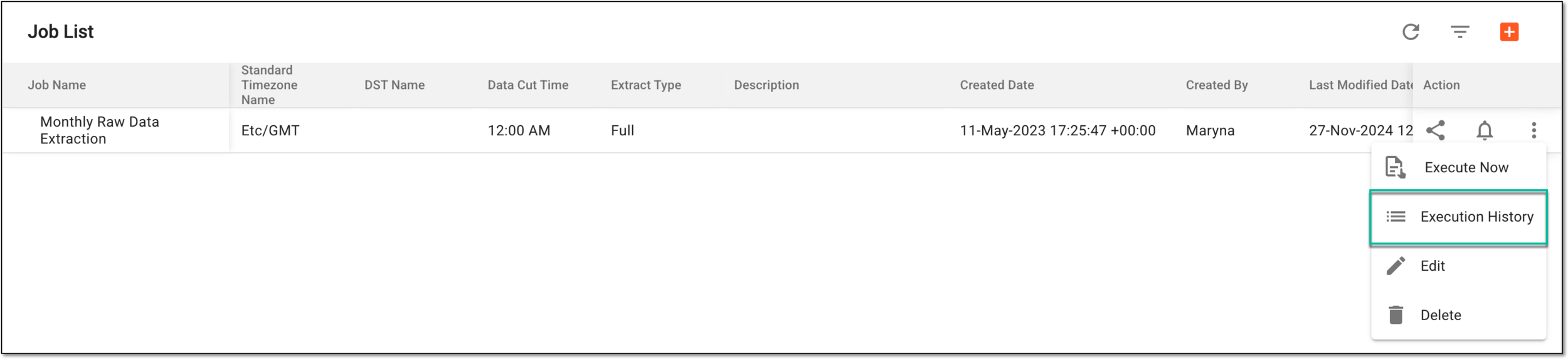 Figure 3. Accessing job execution history
-
On the page that opens, in the Action column, select Download
 for the extracted
files that you want to download.
for the extracted
files that you want to download.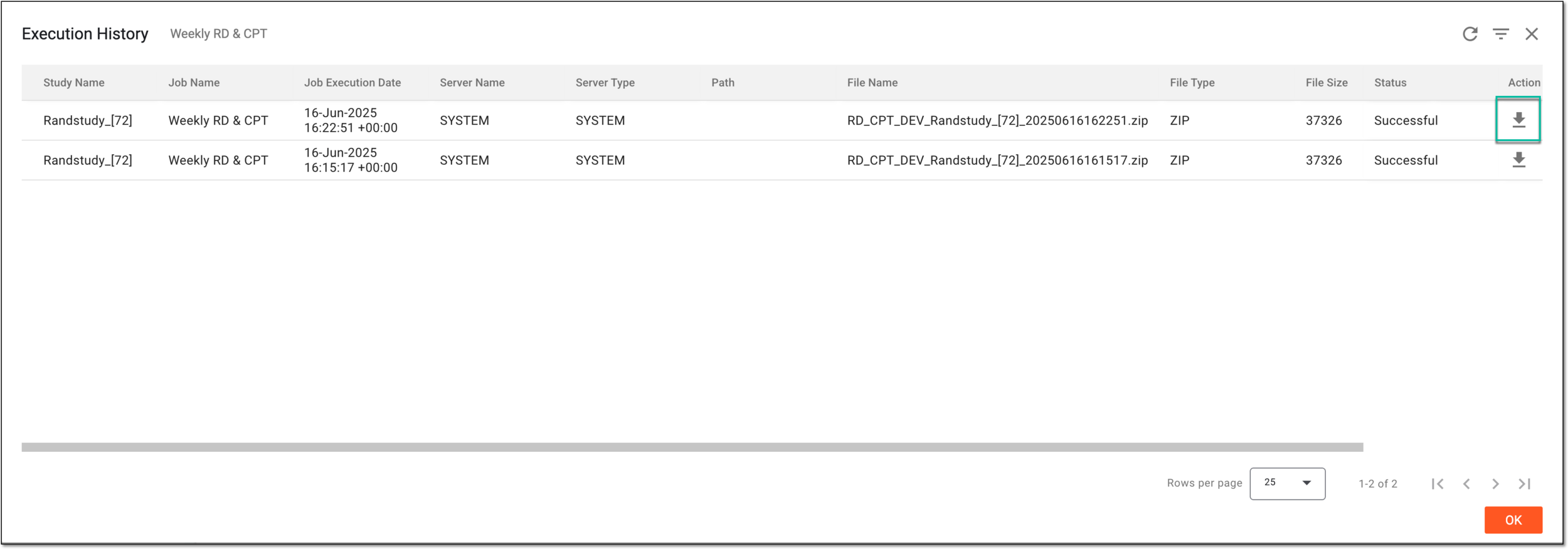 Figure 4. Downloading files extracted by executed jobs
Once executed, the file is available on your computer as a ZIP folder. Select  to close the dialog.