Edit data extraction jobs
Jobs are automated processes that can be set up in EDC to perform various tasks on your behalf by schedule or triggering them manually.
If your business needs or the requirements for the job change, you can edit the existing job to amend its details, schedule, or activation status.
For example, a job is set to extract data twice a month, however, this data extraction is not required, you can deactivate the job upon editing.
Important
To configure the job—upon adding or editing—you must have the Write permission for the respective job category granted to your user role via ADMIN.
 |
-
In the EDC application header, select the JOB tab.
-
In the left pane of the page that opens, select the tab representing the needed data extraction category.
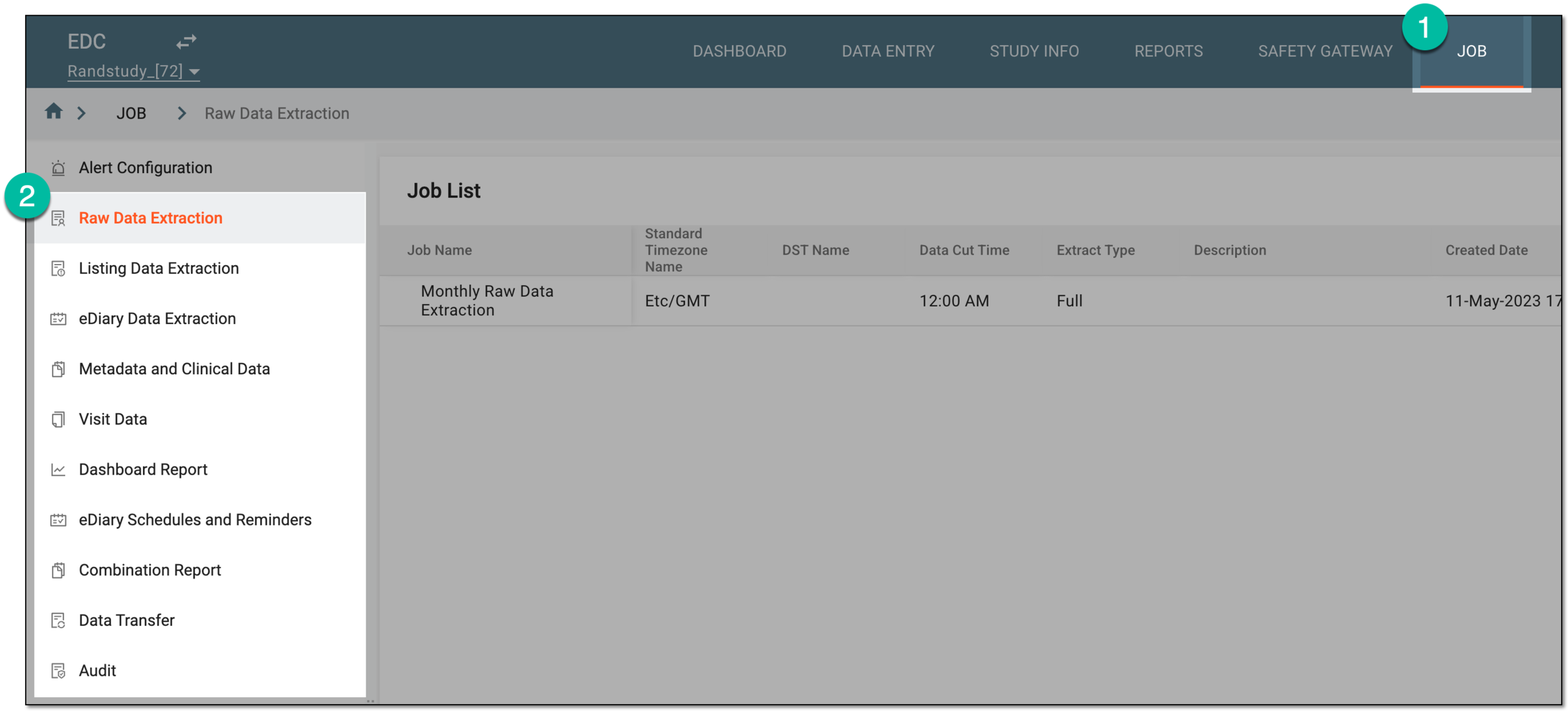 Figure 2. Accessing data extraction job configuration
-
On the page that opens, in the Job List table, locate the job you want to edit. Then in the Actions column next to it, select More
 > Edit
  .
.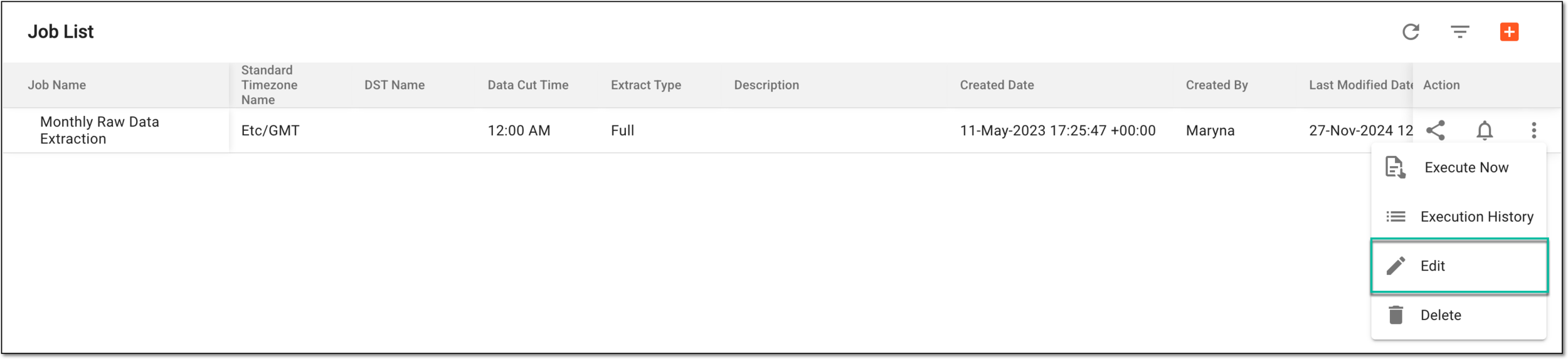 Figure 3. Selecting option to edit data extraction job
-
In the Edit dialog that opens, update the fields as needed. The fields here are identical to the ones explained in the respective instructions of the Adding data extraction jobs section. Address the needed instruction as follows:
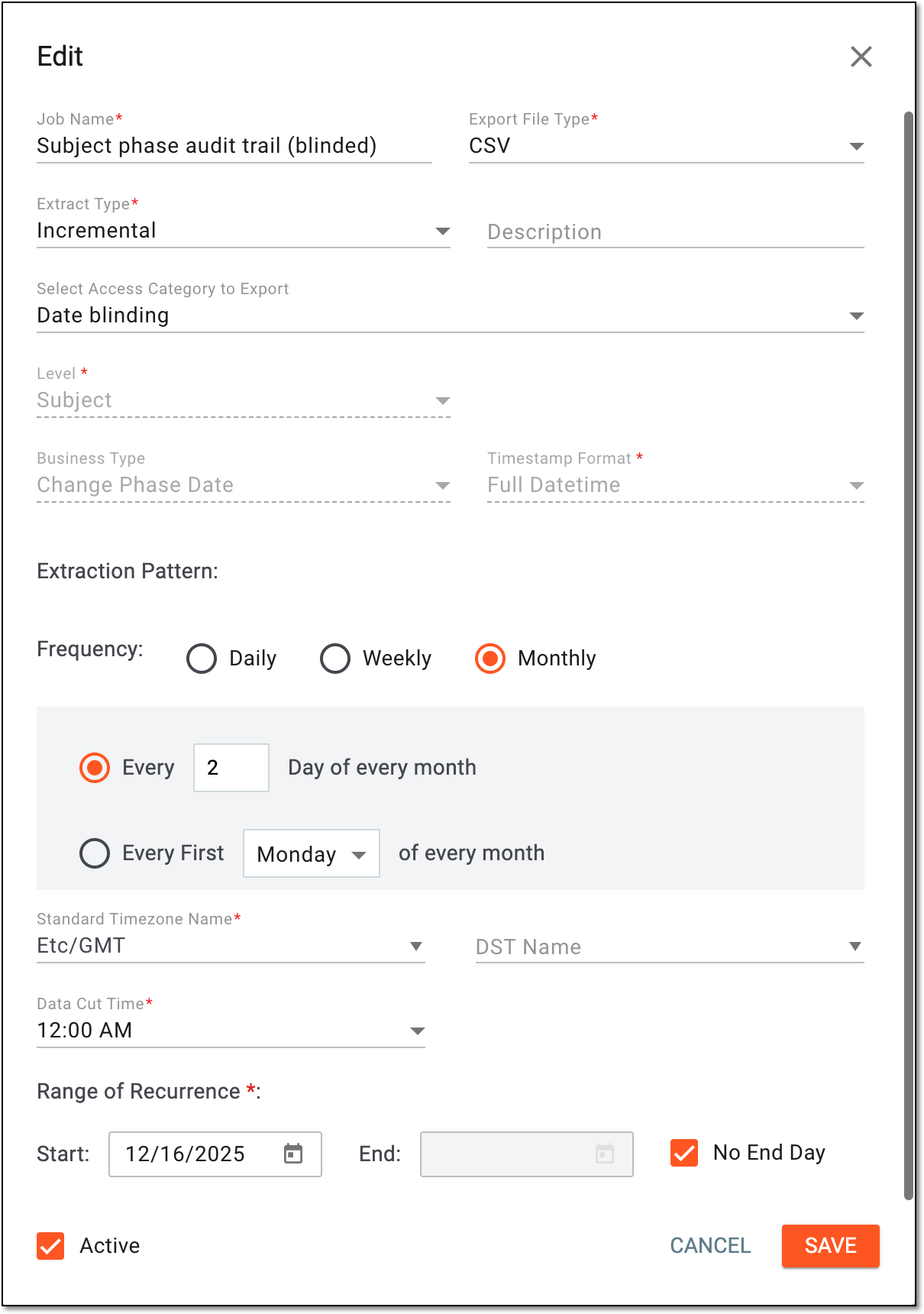 Figure 4. Example of editing data extraction job
-
Select
 to apply the changes.
Upon saving, the data extraction job is updated.