Go to question in dataset
The Study Designer application enables study teams to configure CRFs for clinical trial visits with a variety of tools. There are various form field options such as text fields, checkboxes, dropdown menus, date pickers, and more. You can place these fields on the form canvas, arrange them as needed, and make sure they are associated with the corresponding variables.
When maintaining a form, you have the possibility to view any question associated with the variable in the dataset. The question preview enables you to review how the potentially captured data will look in the output dataset upon data entry in the EDC system. It helps identify any missing or incomplete questions, outliers, or inconsistencies. Through the preview, you can ensure the quality and integrity of the potentially collected data.
-
In the Study Designer application header, select the CRF DESIGN tab.
-
In the toolbar, select the CRF version where you want to preview the question in the dataset.
 Figure 1. Selecting unlocked CRF version
-
In the left pane that appears, select the needed form.
Tip
To locate the needed forms faster, use Search
 on the workspace toolbar of the
left pane.
on the workspace toolbar of the
left pane.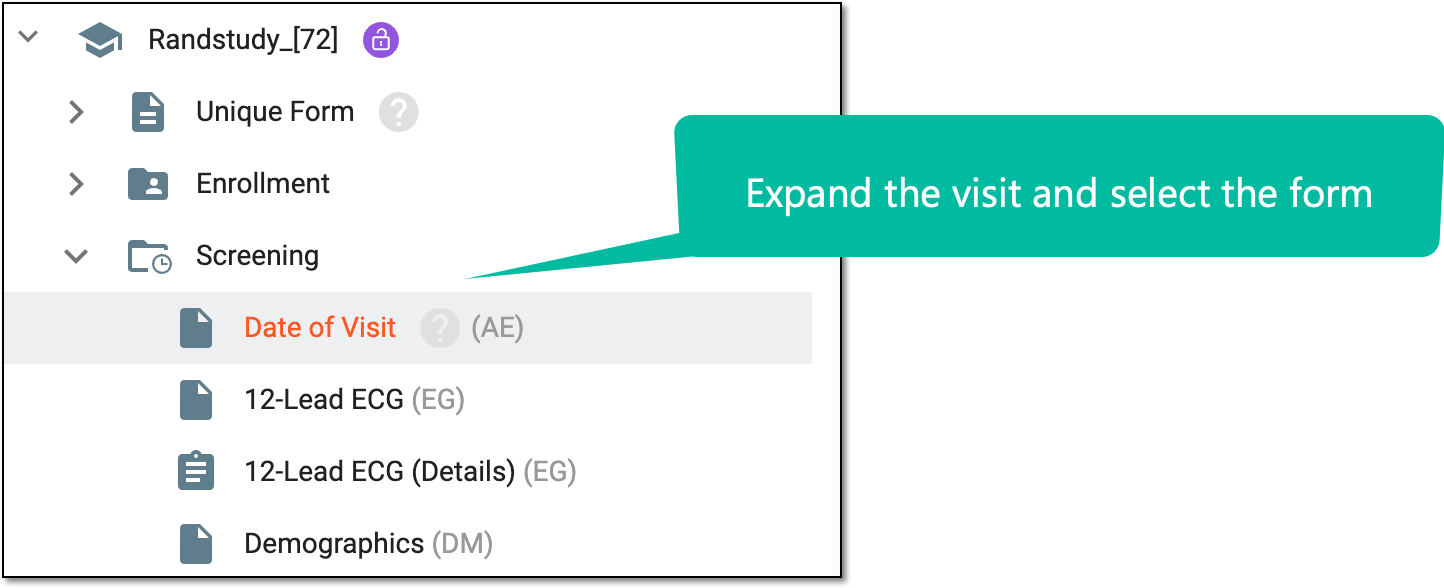 Figure 2. Accessing form to configure
-
On the form content page that appears, next to the needed question, select More
 > Go
to Dataset
> Go
to Dataset  . Note that this option is not available for question columns in grid forms.
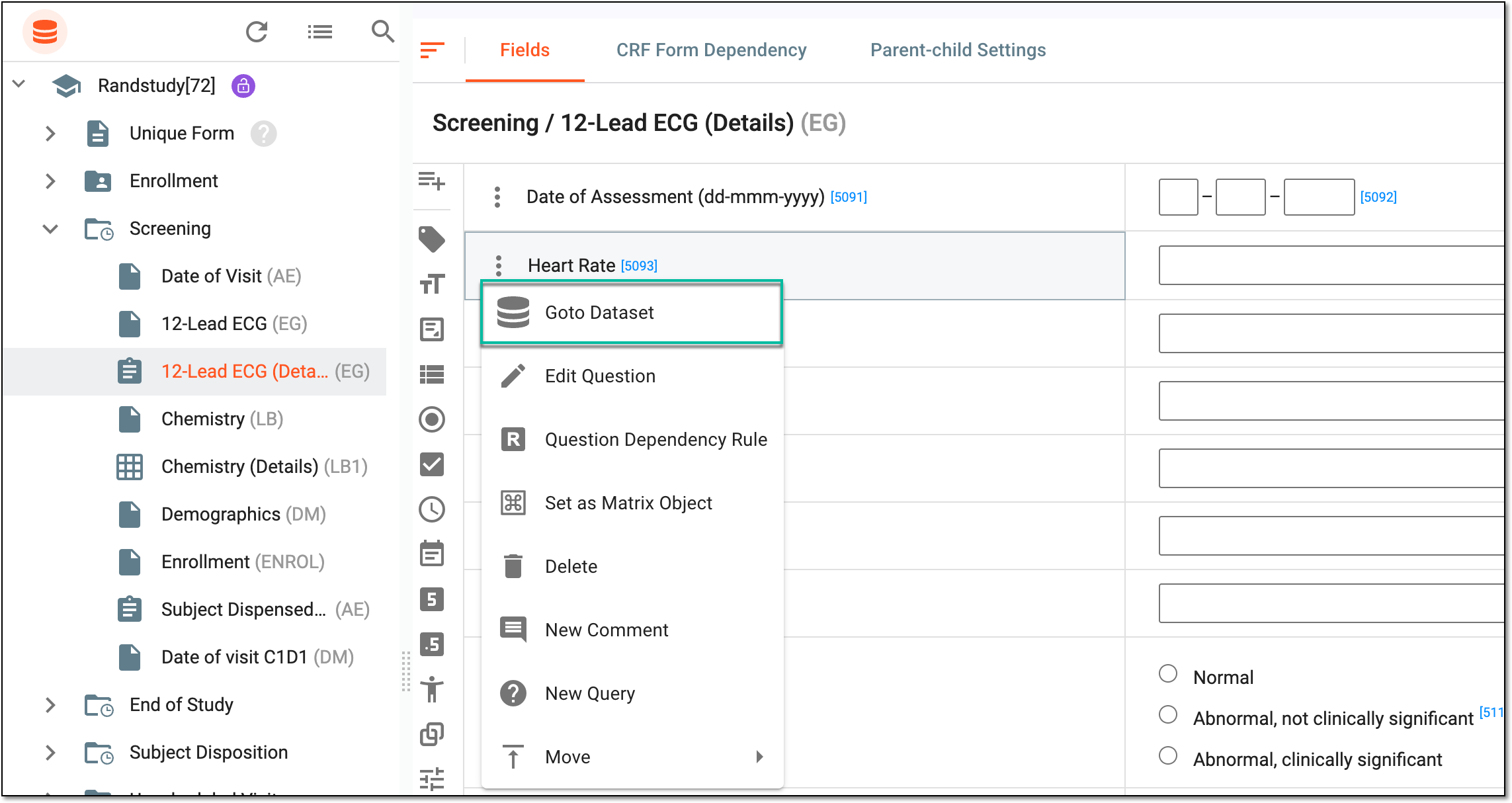 Figure 3. Selecting option to go to dataset
Tip
You can also select the floating icon
 to expand and view the entire form dataset or select
  to hide it.
 -
In the panel that expands, view how the question associated with a variable will look in the output dataset upon data entry in EDC.
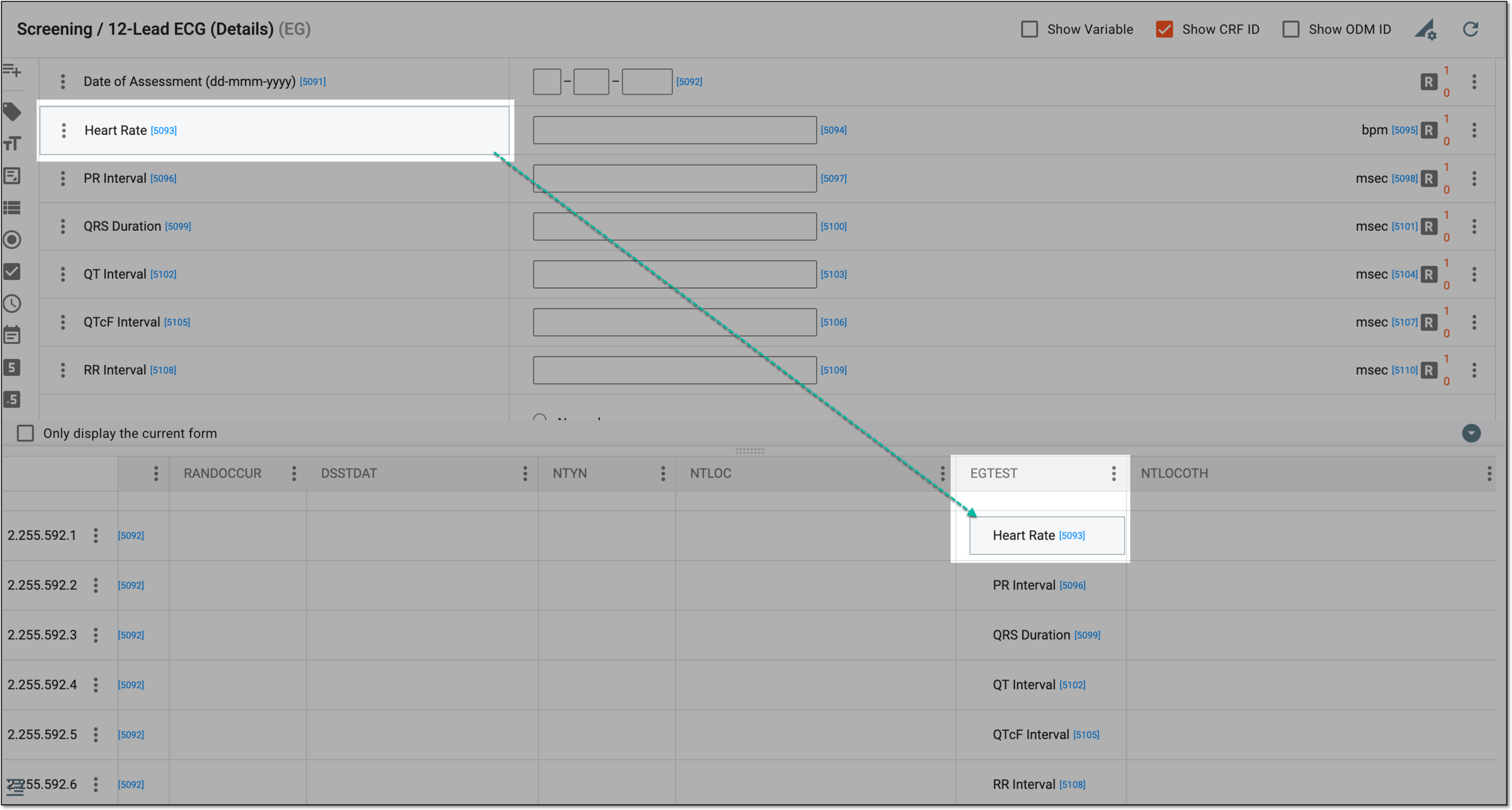 Figure 4. Viewing question in dataset
Tip
You can move columns within the dataset or update the variable details. To access these options, open More
in the needed column header to see the available actions. The position of columns and rows can also be changed by the select and drag action. Bear in mind, the applied updates will impact the final structure of the output dataset.
Once viewed, you can now continue to maintain forms with available actions.