Filter lab test analytics dashboard data
EDC's Lab Test Analytics dashboard offers an advanced filtering capability that helps you customize the data displayed in the dashboard according to your specific parameters. This ensures that you can focus on relevant information pertinent to your analysis.
In EDC, the Lab Test Analytics Settings option is a core feature that resides on the Lab Test Analytics dashboard toolbar. Using this feature, you can filter data by various criteria, such as countries, age ranges, result units, visit types, and so on. Additionally, the functionality offers multiselect options to choose multiple criteria simultaneously. This eventually enhances granularity and aids in identifying trends, outliers, or specific issues.
-
In the EDC application header, select the DASHBOARD tab.
-
On the page that opens, go to the Lab Test Analytics tab and from the workspace toolbar, select Lab Test Analytics Setting
 .
.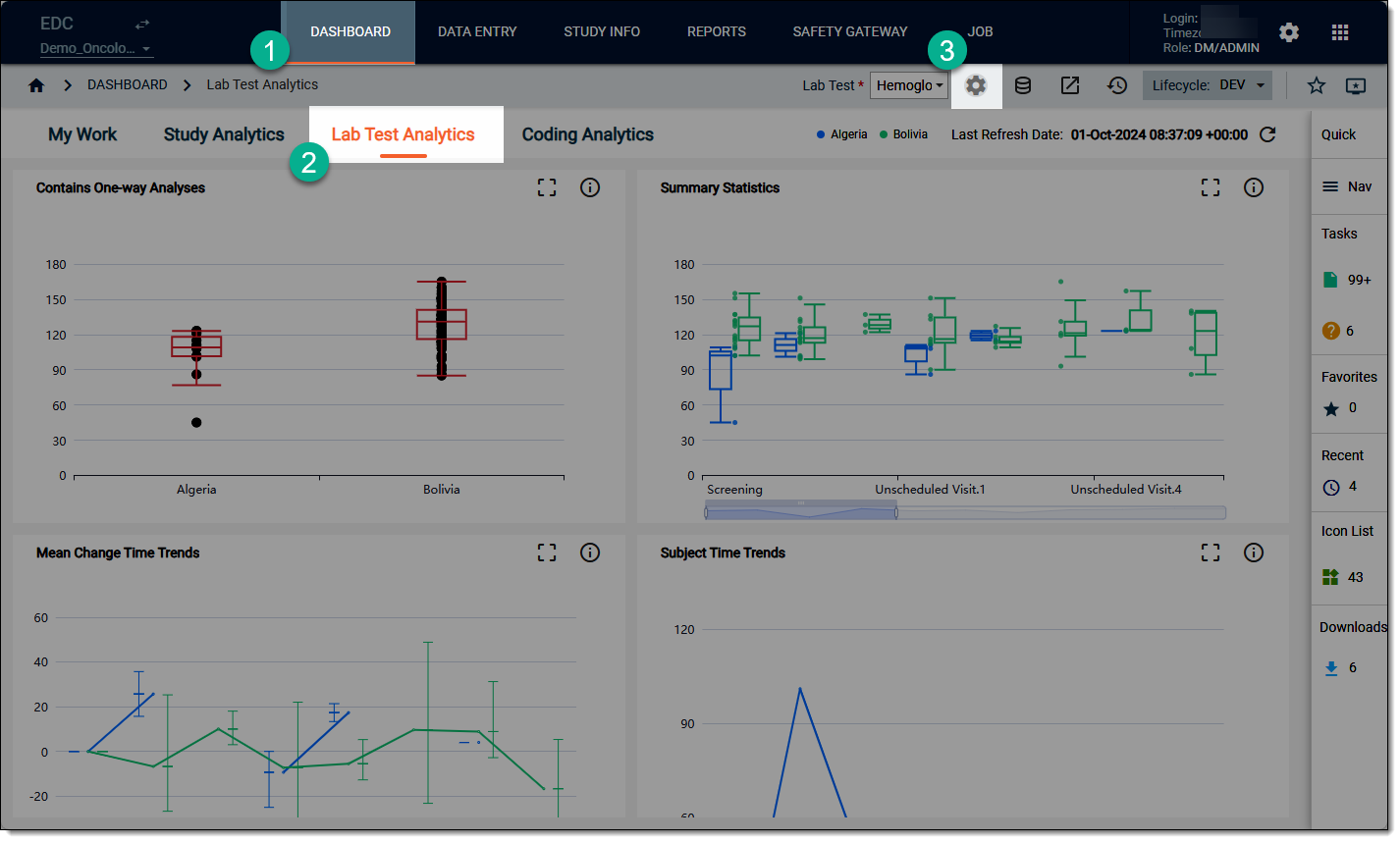 Figure 1. Accessing lab test analytics settings
-
On the Lab Test Analytics Settings dialog that opens, filter the data as explained in the following table.
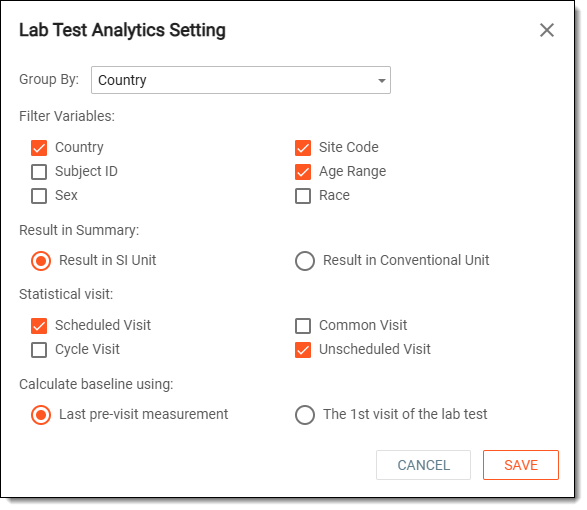 Figure 2. Filtering lab test analytics data
Element
Details
Group By
From the dropdown menu, select a global variable by which you want to group the dashboard data, for example, the country, age, sex, and so on.
Filter Variables
Select any of the following variables to display a separate filter dropdown on the Lab Test Analytics workspace toolbar.
 Figure 3. Toolbar filter variables
Country
Select this checkbox to filter the lab test results by choosing a country.
Subject ID
Select this checkbox to filter the lab test results by choosing a subject ID.
Sex
Select this checkbox to filter the lab test results by choosing a sex.
The default values for this variable are Male and Female.
Site Code
Select this checkbox to filter the lab test results by choosing a site code.
Age Range
Select this checkbox to filter the lab test results by choosing an age range.
Race
Select this check box to filter the lab test results by choosing a race.
Result in Summary
Result in SI Unit
Select this option to filter the lab test results in the International System of Units (SI), such as milligrams per liter (mg/L), millimoles per liter (mmol/L), which is the globally accepted measurement system in healthcare.
Result in Conventional Unit
Select this option to filter the lab test results in the traditional units, such as grams per deciliter (g/dL) or parts per million (ppm), which may vary based on regional practices.
Statistical Visit
Scheduled Visit
Select this option to filter the lab test results associated with the appointments that were prearranged.
Cycle Visit
Select this option to filter the lab test results that occur within a defined cycle, such as fertility treatment cycles or other repetitive health assessments.
Common Visit
Select this option to filter the lab test results from common or routine visits utilized for general heath assessments or checkups.
Unscheduled Visit
Select this option to filter the lab test results associated with visits that happen outside regular scheduled visits, providing data on acute health conditions.
Calculate baseline using
Last pre-visit measurement
Select this option to filter the lab test results obtained before the scheduled visit to establish a baseline for comparison.
This parameter is the reference point for analyzing subsequent test results, enabling healthcare providers to observe changes or trends from the last known values.
The 1st visit of the lab test
Select this option to filter lab test results based on the first recorded measurement of the lab test for a subject.
This parameter serves as the initial reference point for monitoring over time—helpful to understand how a subject's lab results evolve from their very first interaction with a testing procedure.
SAVE
Select
 to update your filter preferences. Based on the set filters, the system accommodates the lab test results on each chart
accordingly.
to update your filter preferences. Based on the set filters, the system accommodates the lab test results on each chart
accordingly.CANCEL
Select
 to close the dialog without saving your filters.
 -
After saving, you are redirected back to the Lab Test Analytics dashboard that displays multiple charts based on your applied summary, statistical visits, and baseline filters. Now, on the workspace toolbar, from each variable dropdown list that you have selected in the Filter variables block, choose the desired value that you want to filter in your test results charts.
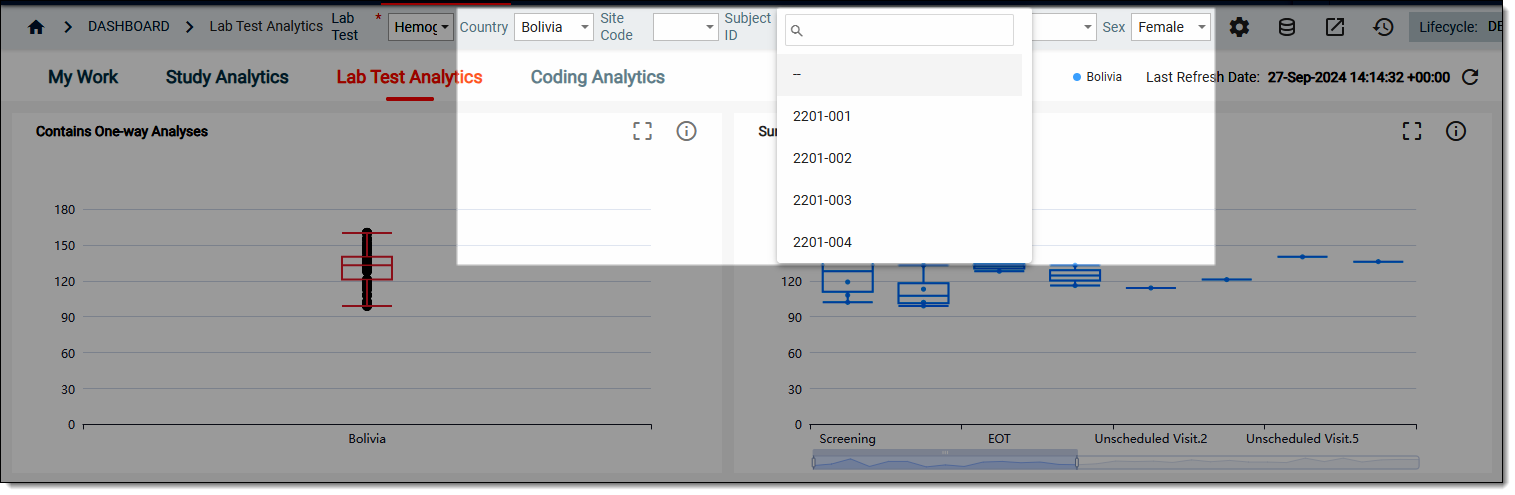 Figure 4. Filtering variables
Once done, the test results are displayed as per your applied filters. You can now review the chart data and make your decisions accordingly.