Export lab test analytics dashboard data
Exporting the Lab Test Analytics dashboard data in EDC refers to the process of transferring and saving the chart data into a different format (such as CSV, XLSX, PDF, and so on) for external use or further analysis. This functionality is crucial for ensuring data accessibility, supporting collaboration, enabling in-depth analysis, and maintaining compliance with regulatory requirements in clinical research settings.
In EDC's Lab Test Analytics dashboard, with the Export option, you can export various lab test reports, allowing for structured documentation of findings and outcomes that can be shared with stakeholders, management, or regulatory authorities.
-
In the EDC application header, select the DASHBOARD tab.
-
On the page that opens, go to the Lab Test Analytics tab and on the workspace toolbar, from the Lab Test dropdown menu, select the test that you want to export.
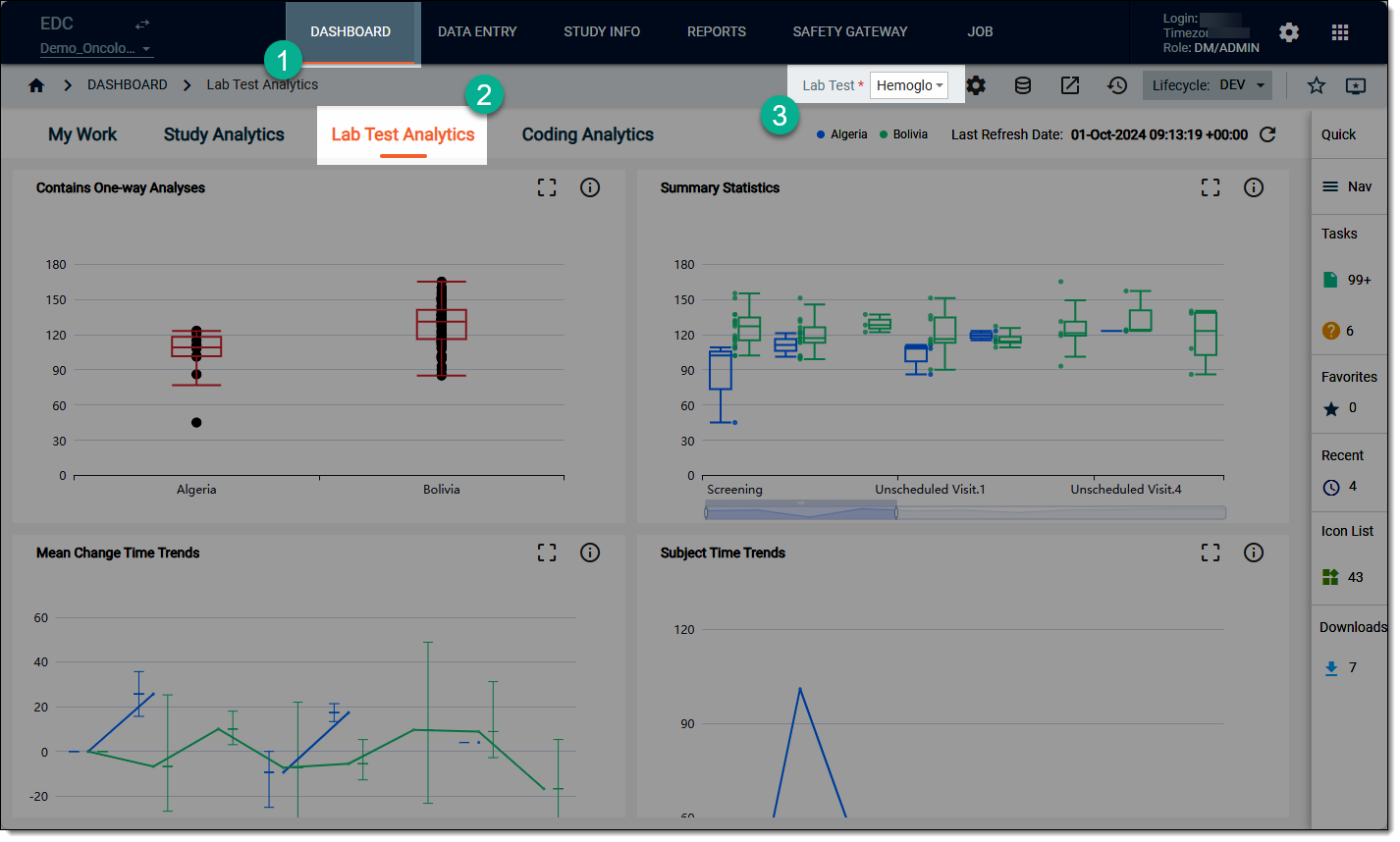 Figure 1. Accessing lab test analytics settings
-
Now, on the workspace toolbar, select Export
 . In the dropdown menu that appears, proceed as follows.
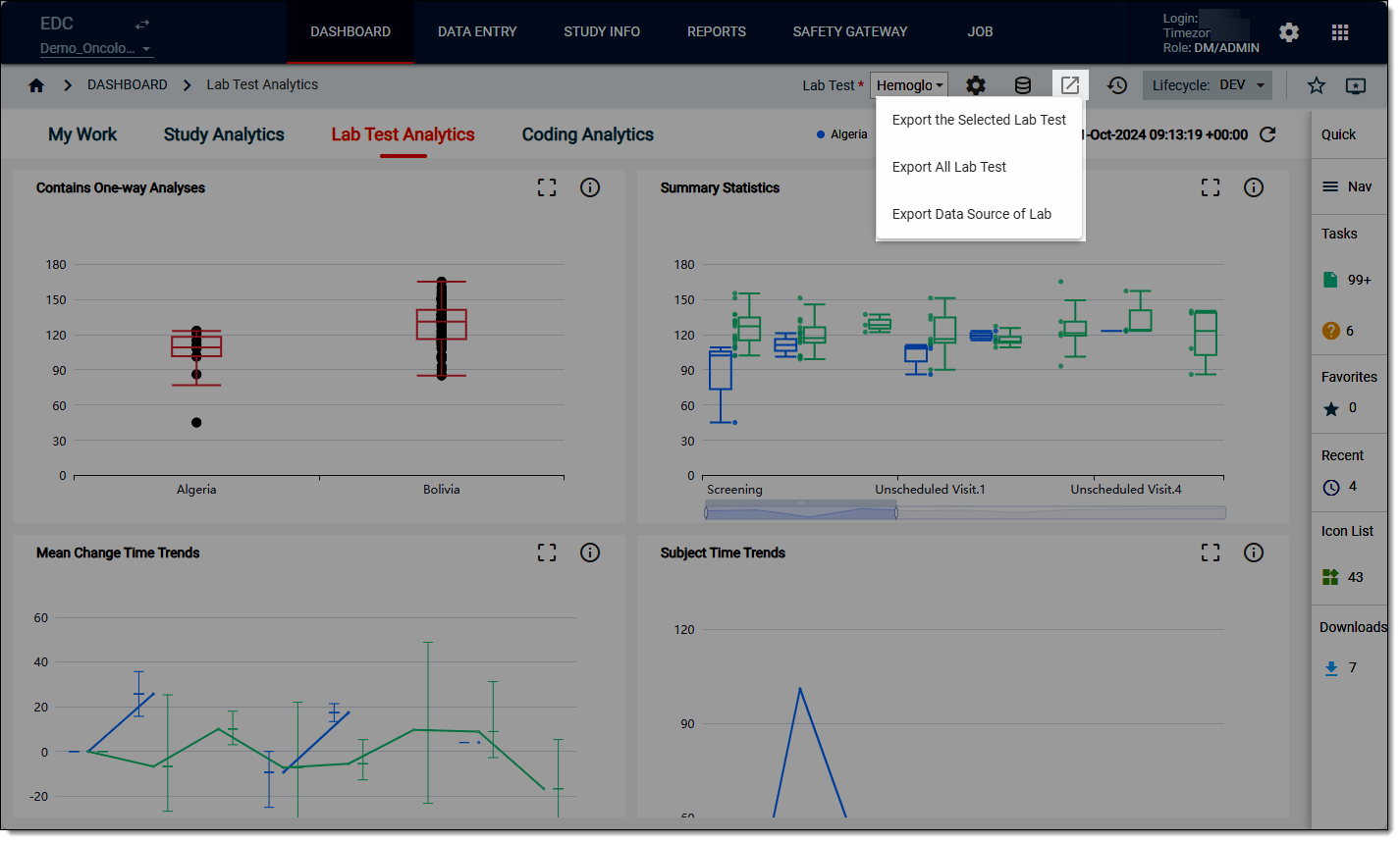 Figure 2. Selecting data to export
-
Export the Selected Lab Test: select this option to export the lab test that you have selected previously from the Lab Test dropdown menu.
-
Export All Lab Test: select this option if you want to export the entire lab test data.
-
Export Data Source of Lab: select this option if you want to export the data source of the lab tests.
-
-
Based on your selection, the system prepares the file for download and displays a download widget on the workspace toolbar. Once the file is ready, select
 .
.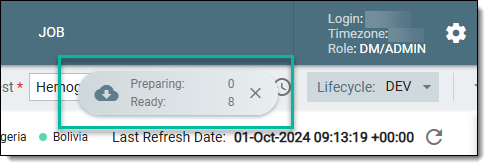 Figure 3. Download progression
-
In the My Downloads dialog that appears, select the Download is Ready tab, and then next to the file that you want to export, select
 .
.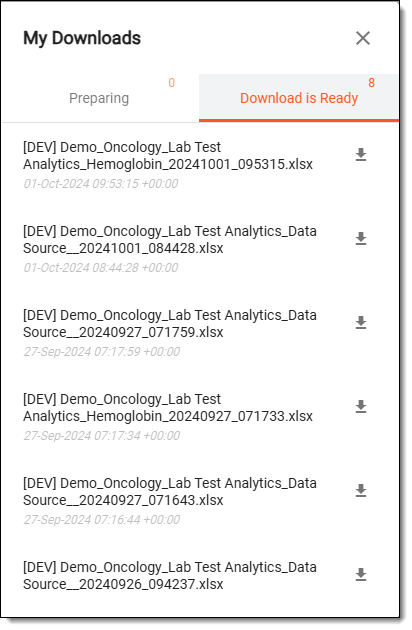 Figure 4. Exporting lab test data
Tip
You can also export the file using the Export History
 option. In the Export History dialog, you can keep track of all previous exports of data generated from the dashboard. This is useful for audit trails and for the users who need to revisit past analyses.
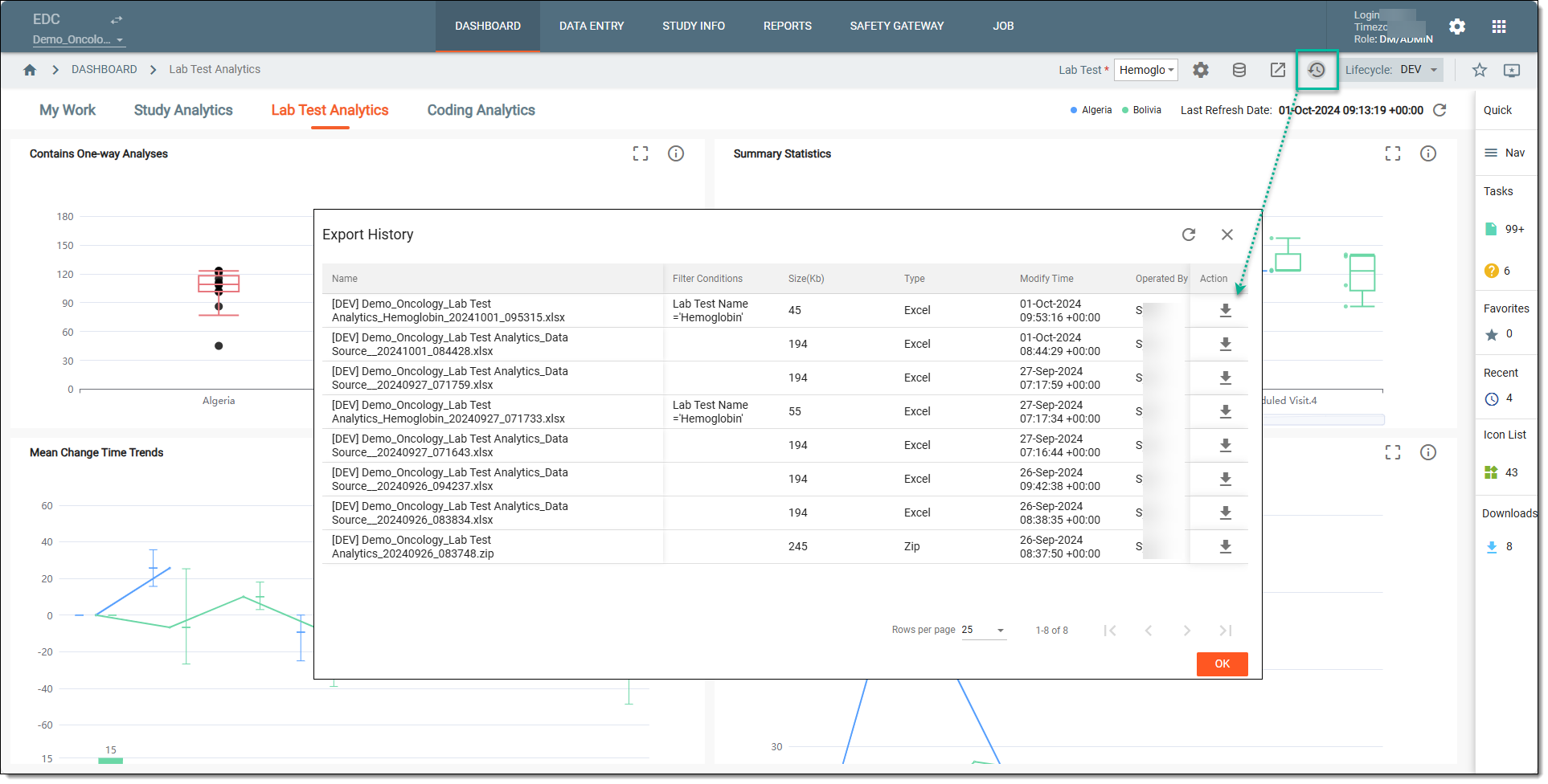 Figure 5. Exporting via download history
Once the file is exported and saved to your computer, you can now use it for data analysis purposes or share it with the external partners and colleagues, fostering collaboration across teams.