Analyze range indicator counts
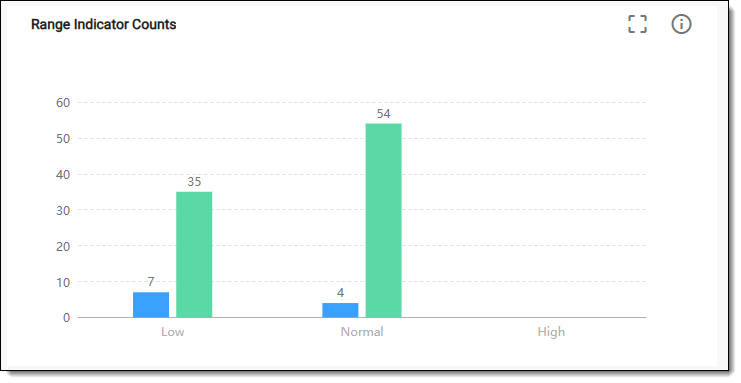
The range indicator counts chart displays the quantity of lab test results falling within, below, or above the accepted normal ranges. This immediate visual representation helps in assessing the prevalence of abnormal results across subjects, enabling efficient identification of cases that may require further evaluation or intervention.
In EDC, the Range Indicator Counts chart is represented with a bar char. The bar chart is a graphical representation of data using rectangular bars to show the magnitude of different categories or groups. In the Range Indicator Counts chart, the bar displays the distribution of test results within predefined ranges (normal, borderline, abnormal) or categories. The height of each bar indicates the number of test results that fall within that range.
-
In the EDC application header, select the DASHBOARD tab.
-
On the page that opens, select the Lab Test Analytics tab.
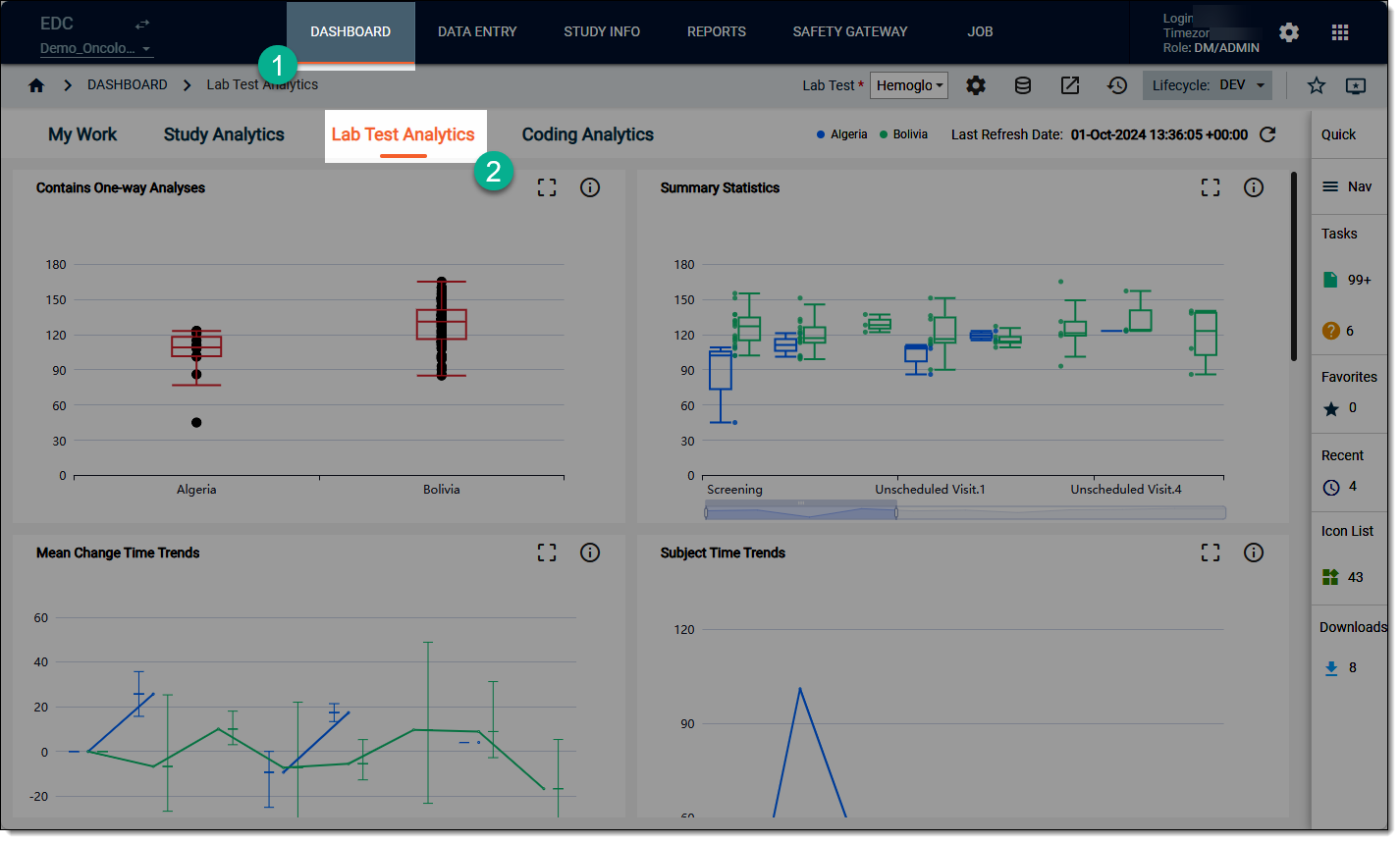 Figure 2. Accessing lab test analytics dashboard
-
On the workspace toolbar, from the Lab Test dropdown menu, select the lab test that you want to review.
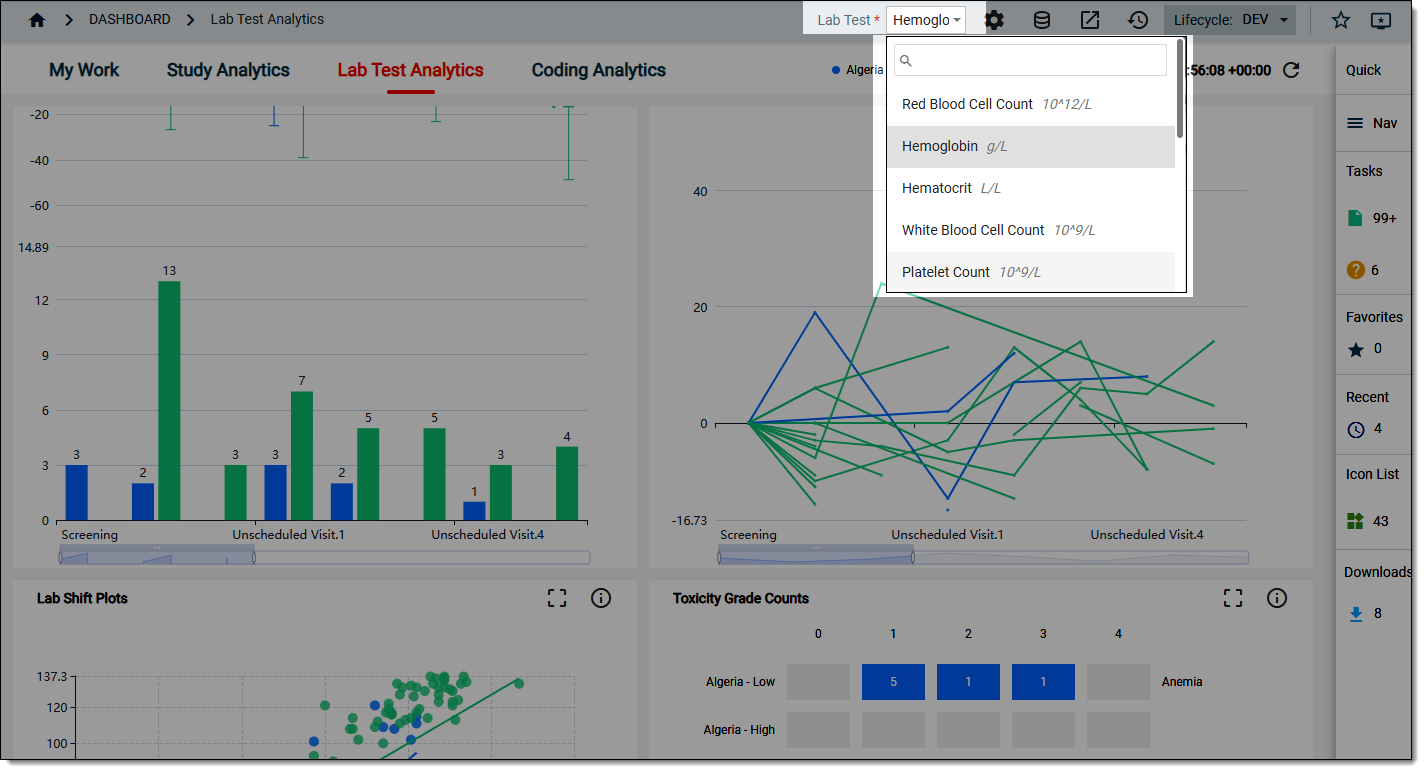 Figure 3. Selecting lab test to review
-
On the Lab Test Analytics dashboard that opens, start analyzing the Range Indicator Counts data. For this, hover over the bars to view the tooltips and comparing different values for different categories of data where relevant.
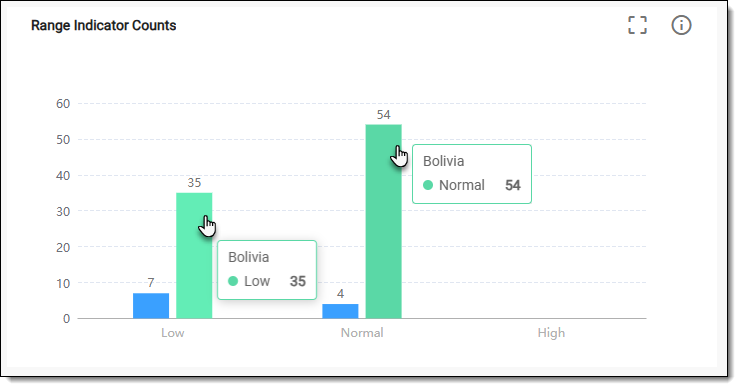 Figure 4. Reviewing range indicator counts chart data
-
Now from the chart, select Detail
 . In the table that opens, analyze the range indicator counts details as explained in the following table.
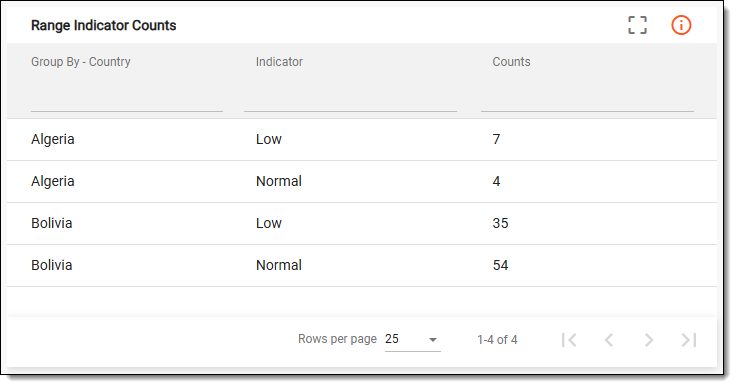 Figure 5. Reviewing lab shift plot details
Tip
To enlarge the table view, from the chart, switch to the Full Screen
 mode.
mode.Column
Details
Group By - Country
Represents the grouping variable for the analysis, which in this case, is country. This parameter categorizes the data based on different countries, allowing for comparative analysis of outcomes, behaviors, or characteristics across the geographic regions.
Indicator
Represents the specific test condition or a measured variable that is being analyzed, for example, Low, Normal, and so on.
Counts
Represents the total number of subjects that are involved in the lab test.
Once you have analyzed the details of the Range Indicator Counts chart, select  to close the table and return to
the chart view.
to close the table and return to
the chart view.