Download exported email report from history
In EDC, workflows are intended to dictate the procedure of the source document and payment request handling, introducing an additional tier of scrutiny and the approval or rejection mechanism to reduce the risk of unintended impact on sensitive resources and financial operations.
When creating a new workflow, you add all the relevant stages of the process and assign users responsible for completing each stage. To notify the user of the required workflow stage completion, the system sends out notification emails.
For traceability, you can review the complete history of emails sent by workflows via one comprehensive report or you can export this report data as an XLSX file to your computer and use it according to your business needs.
The log of all downloaded versions is tracked by the system providing you with an option to download any of the previously generated report versions from the export history.
-
In the EDC application header, select the STUDY INFO tab.
-
On the page that opens, from the left pane, select Workflow > Sent Emails by Workflow.
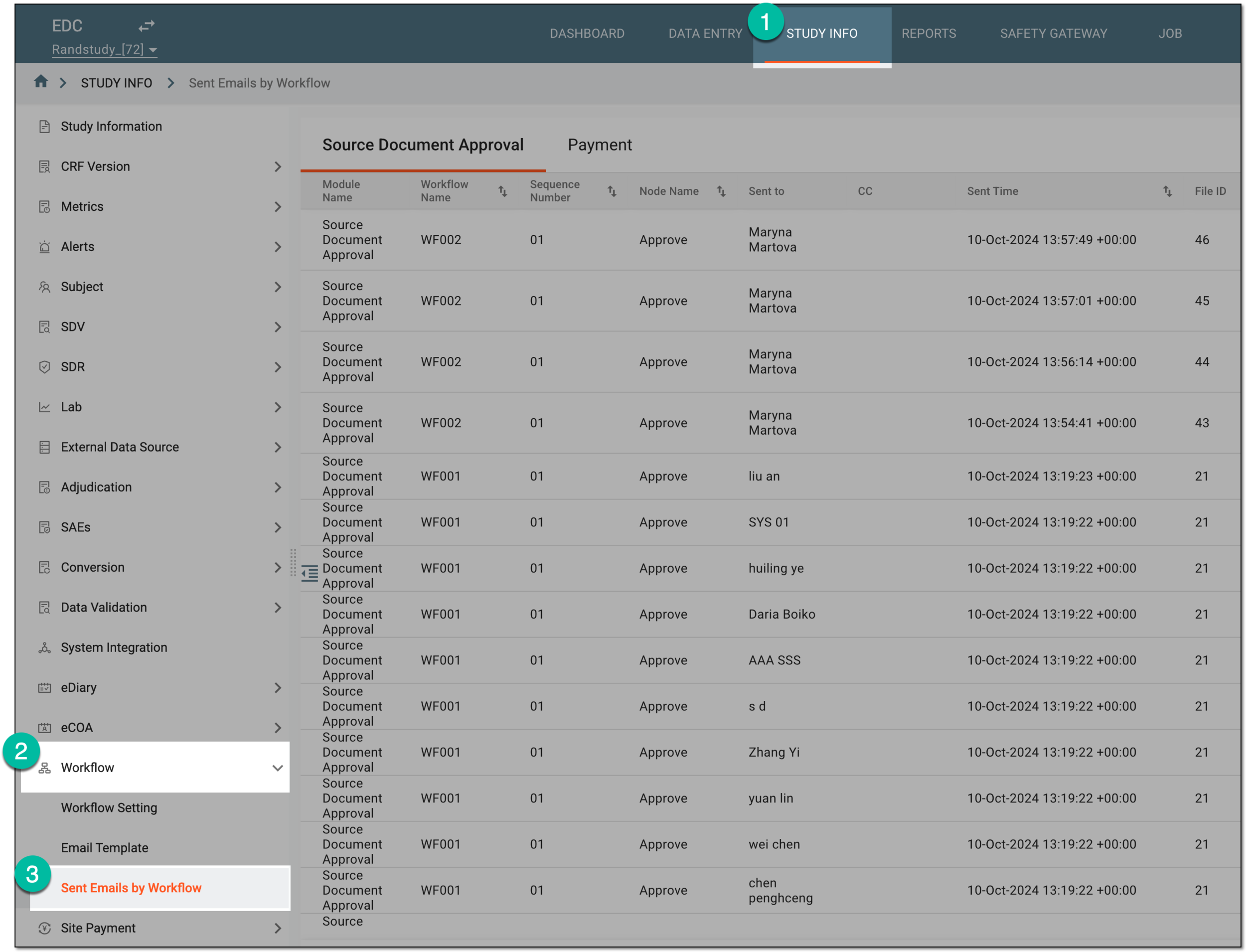 Figure 1. Accessing workflow-sent email list
-
On the page that opens, select one of the following tabs:
-
Source Document Approval: to access emails sent according to the source document-related workflows.
-
Payment: to access emails sent according to the payment request-related workflows.
-
-
From the workspace toolbar, select Export History
 .
. Figure 2. Accessing export history for workflow-sent email report
-
In the My Downloads dialog that opens, once the file is ready, it appears under the Download is Ready tab. Select the download option
 next to your file to save it to your computer.
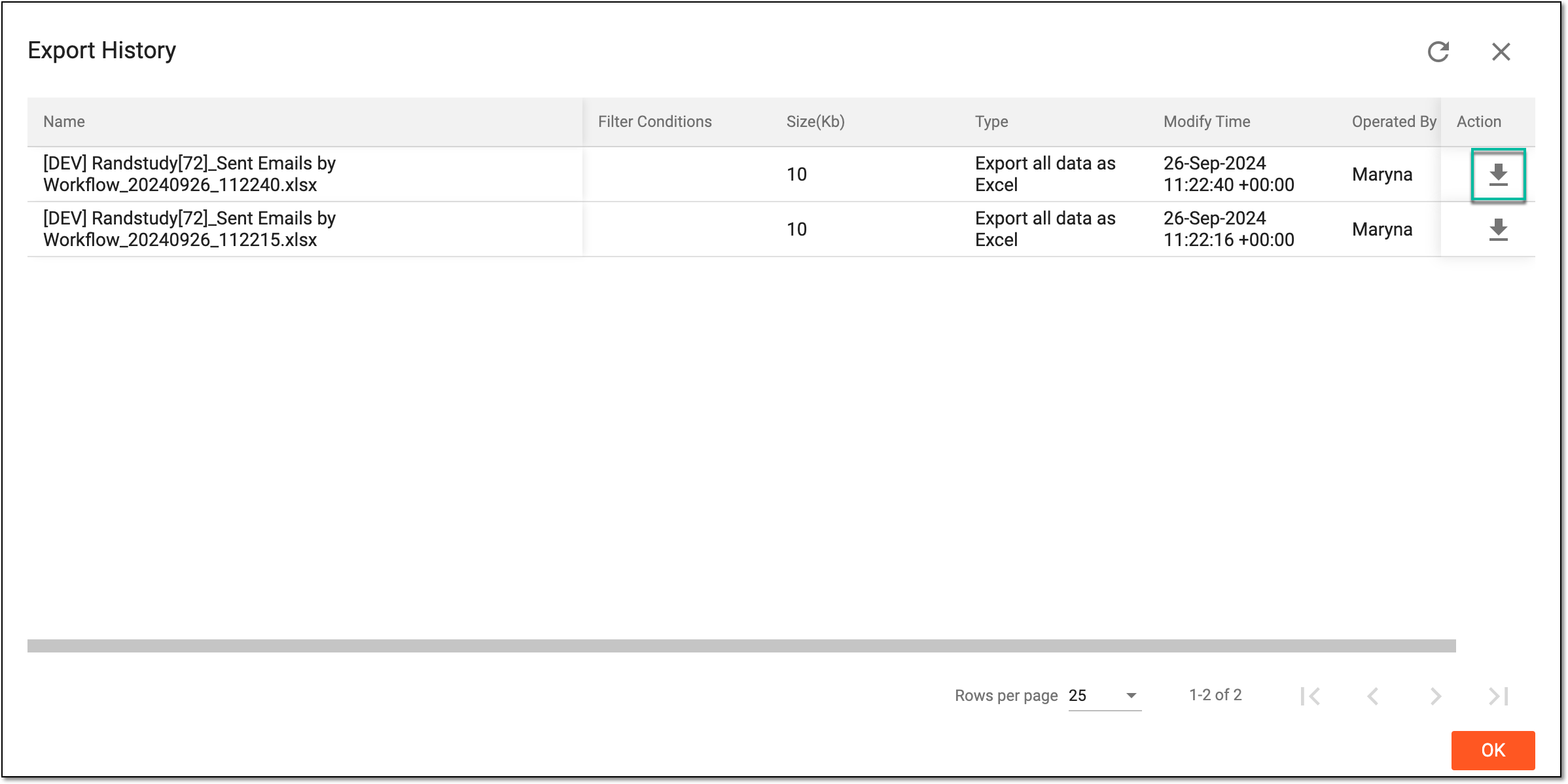 Figure 3. Downloading exported workflow-sent email report
Once downloaded, the XLSX file with the respective version of the workflow-sent email report becomes available on your computer. Select  to close the
dialog.
to close the
dialog.
A schema, each step of which represents a stage of a specific entity lifecycle in the system.
A workflow can be considered an instrument to help control various actions on system entities for the sake of accountability, as it limits the actions that can be performed on the entity associated with a workflow. This provides an additional tier of scrutiny, and the approval/rejection mechanism reduces the risk of unintended impact on sensitive resources and important information.
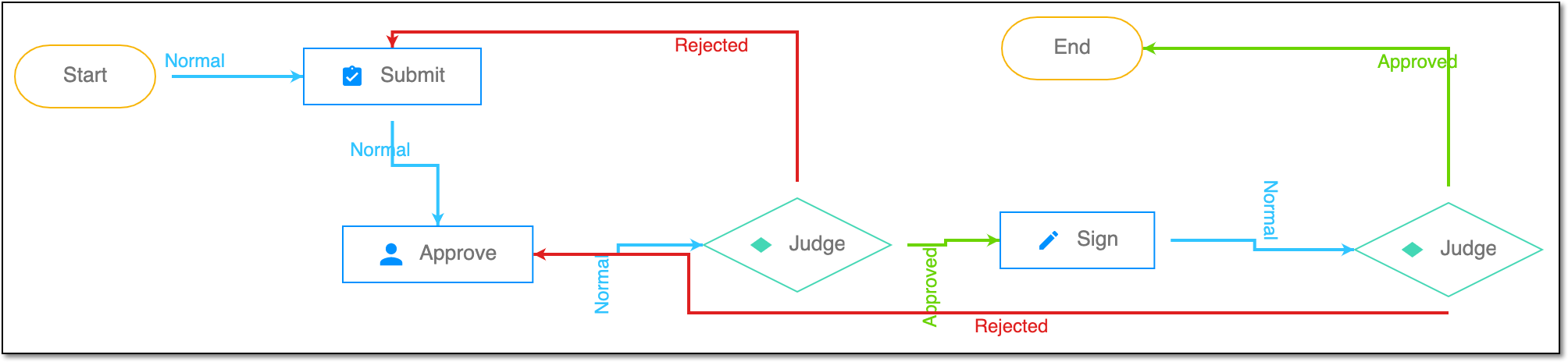 |
For instance, in eTMF, the workflow dictates the procedure of file and folder management from the moment of upload to the approval stage; in CTMS, the workflow controls the process of creation, completion, and approval of a trip report; in EDC, the workflow covers the process of source document handling.