Open comment on data item in CRF
A comment in a case report forms (CRFs) is a useful tool for EDC users to have traceable and transparent communication on data elements in the form of notes.
Tip
The comments are added and saved in the system, however, you cannot address them to any user in particular. If you need assistance regarding the data element in a CRF, consider opening a query instead of adding a comment.
-
In the EDC application header, select the DATA ENTRY tab.
-
On the site list page that opens, select the tile representing the site with which you want to work.
 Figure 1. Accessing site
-
In the Subject ID column, next to the needed subject, select the link representing the subject for whose data you want to open a comment.
 Figure 2. Locating your subject
-
On the Subject Visit Overview page that opens, on the left a panel with all subject visits is displayed. Expand the needed visit and locate and select the form of your interest in the resulting list.
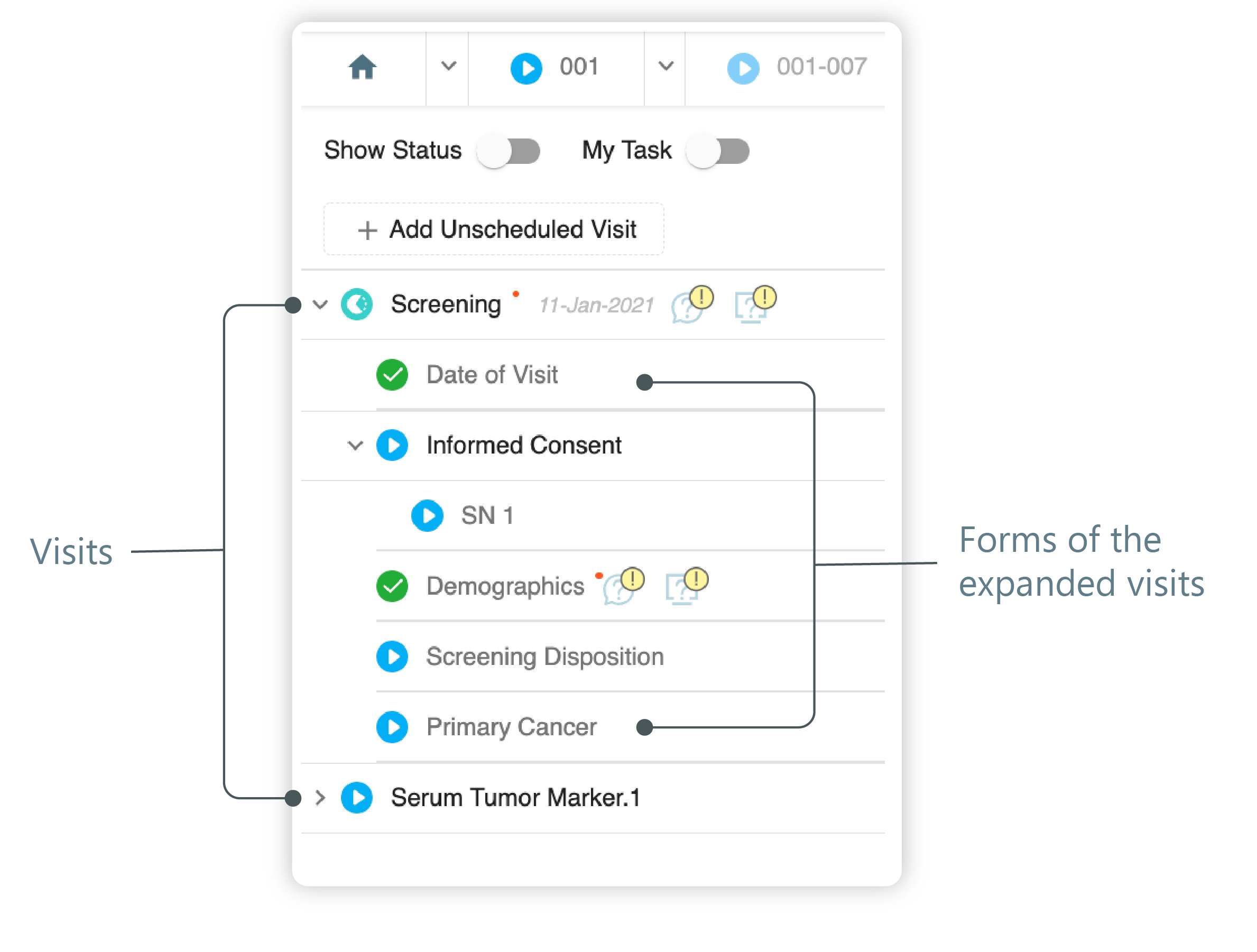 Figure 3. Left panel. Visits and their forms
-
On the form page that opens, next to the needed item, select the gear symbol
 . In the resulting menu, select Open Comment
 .
.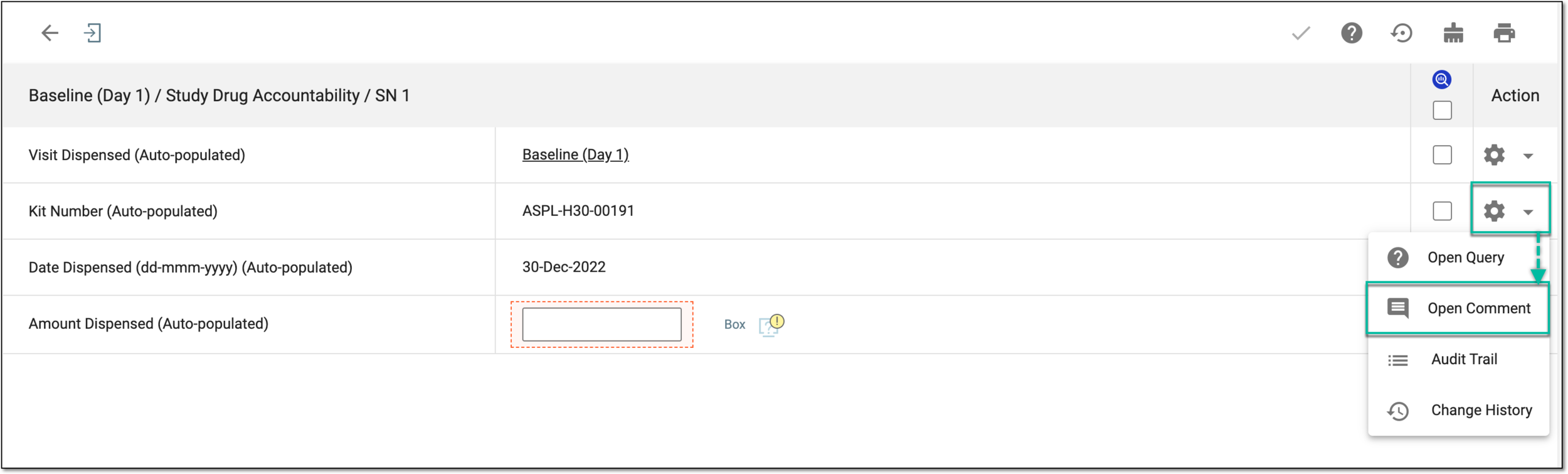 Figure 4. Accessing comment functionality
-
In the Comments List panel that opens, fill in the comment field with the needed text and select the red checkmark symbol
 to save your changes.
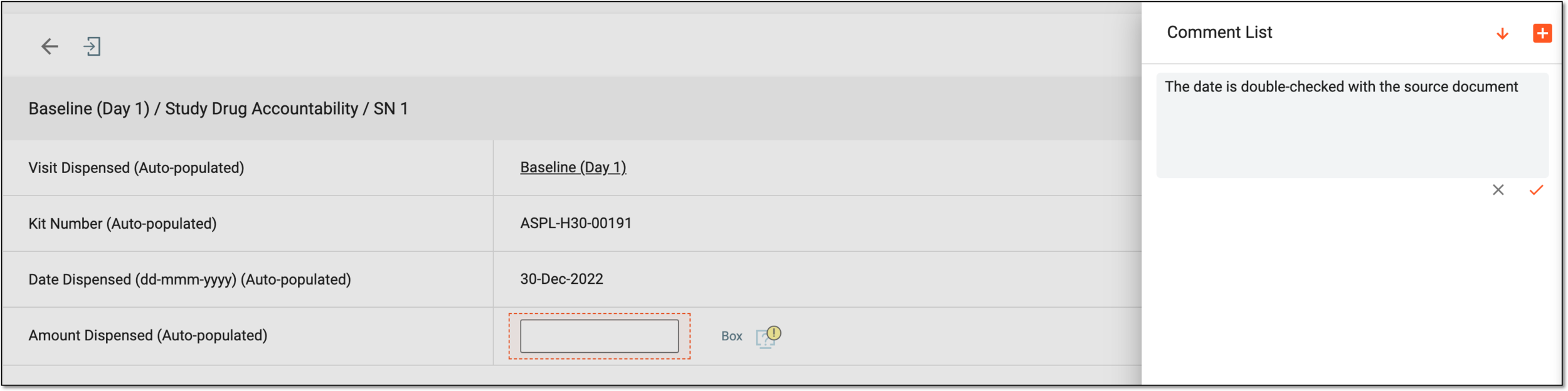 Figure 5. Adding comment
Tip
If there already are comments added to the item, they are chronologically displayed on the Comments List panel. Switch the order of comments in the list from newest to oldest and vice versa using Ascending
 /Descending
  options.
Add more comments by selecting the plus symbol
 .
.
Once the comment is saved, it becomes available for other users' view in the CRF. Next to the data item with comments, the Open Comment symbol appears and you can access the item's comments list by selecting it.