Edit general SDV setting record
Source Data Verification (SDV) involves the review and comparison of data recorded in the source documents such as laboratory results, medical history, adverse event records, and so on against the data captured on the case report forms (CRFs). During SDV, a trained monitor or clinical research associate (CRA) compares the source data to the CRFs to identify any discrepancies or errors.
For the General SDV type, after configuring various SDV setting records, some configurations may be incorrect or require updating due to new sponsor requirements. In this case, the needed SDV setting records can be edited.
Important
Once any setting is edited, make sure to execute the SDV setting to apply the modified configuration to the corresponding forms.
-
In the EDC application header, select the STUDY INFO tab.
-
In the left pane of the page that opens, expand SDV and select the SDV Setting tab.
-
On the SDV Setting - General SDV page that opens, select one of the following tabs:
-
By Form: to edit the percentage of data fields in the specific form that needs to undergo SDV.
-
By Visit: to edit the percentage of forms in certain visits that need to undergo SDV.
-
By Subject: to edit the percentage of form data collected for a certain subject that needs to undergo SDV.
-
-
In the table that appears, next to the needed SDV setting record, select Edit
 .
. Figure 1. Selecting to edit SDV setting record
-
In the Edit dialog that appears, the first field is read-only as it represents the form, visit, or subject name. You can edit other fields depending on whether you are updating the SDV setting record by form, by visit, or by subject.
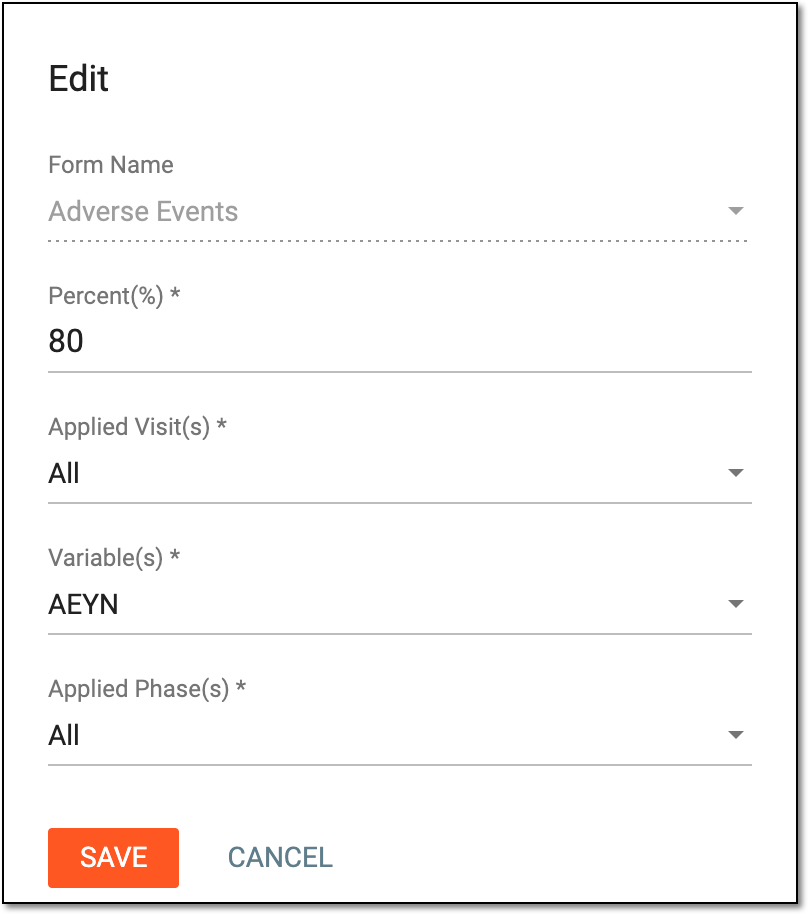 Figure 2. Editing SDV setting record by form
-
Select
 to save the implemented changes.
Once saved, the SDV setting record is updated. You can now execute the SDV setting to apply the modified configuration to the corresponding forms.