Delete SDR setting record
Source Data Review (SDR) refers to a comprehensive review of the collected data to evaluate its quality, consistency, and compliance with the study protocol, standard operating procedure, and regulatory requirements. During SDR, the CRA or data management team examines the data for completeness, accuracy, and compliance with the study protocol and regulatory requirements.
After adding various SDR setting records, it may occur that some configurations are incorrect or have become irrelevant to the study due to new sponsor requirements. In this case, the needed SDR setting records can be deleted. Once removed, make sure to execute the SDR setting to apply the updated configuration to the corresponding visits and subjects.
-
In the EDC application header, select the STUDY INFO tab.
-
In the left pane of the page that opens, expand SDR and select the SDR Setting tab.
-
At the SDR Setting page that opens, select one of the following tabs:
-
By Visit: to delete the SDR setting record for a certain visit.
-
By Subject: to delete the SDR setting record for a certain subject.
-
-
In the table that appears, next to the needed SDR setting record, select Delete
 .
.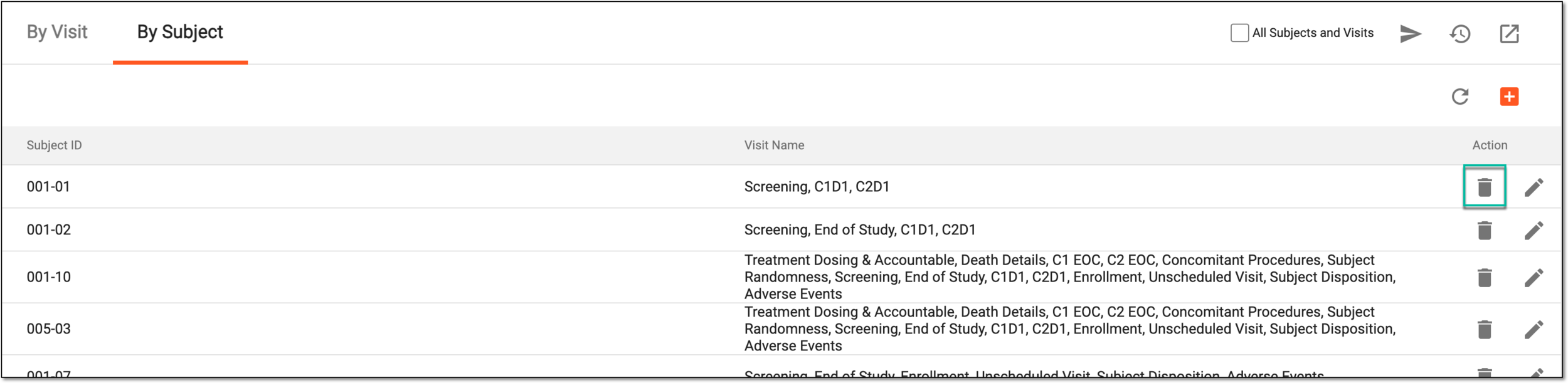 Figure 1. Deleting SDR setting record
-
In the Delete Item confirmation dialog that appears, select
 to remove the SDR setting record from the list.
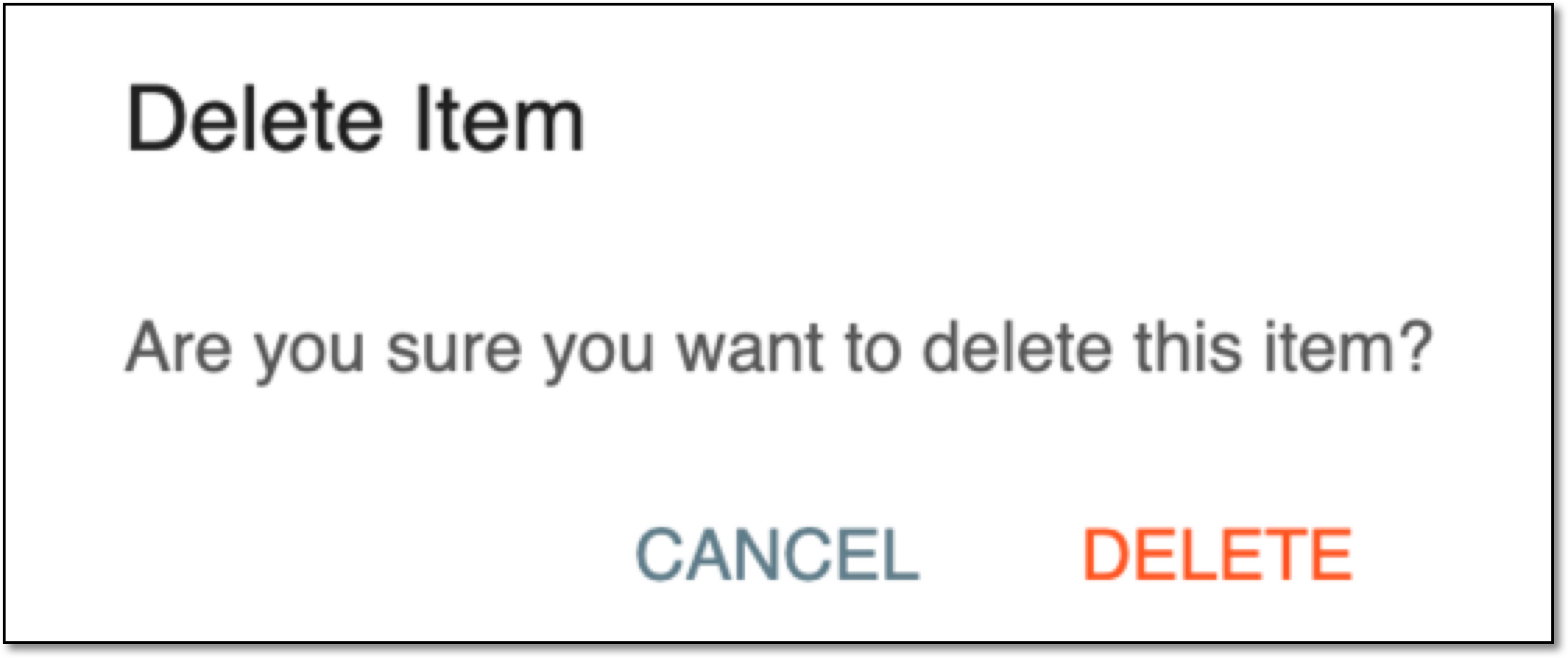 Figure 2. Confirming SDR setting record deletion
Once confirmed, the SDR setting record is deleted.