View eLearning result report
The eLearning courses are electronic courses designed to educate personnel on how to use the eClinical systems according to the role assigned to them. From the eLearning Result report, you can track the details of eLearning courses assigned to different users. This helps you in analyzing the status of a course assigned to a user, such as the course name, its completion date, the user name who is taking the course, and so on.
-
In the ADMIN application header, select the REPORT tab.
-
On the page that opens, in the left pane, select eLearning Result.
 Figure 1. Accessing eLearning result
-
In the eLearning Result table that appears, view the list of courses assigned to various users as explained in the following table.
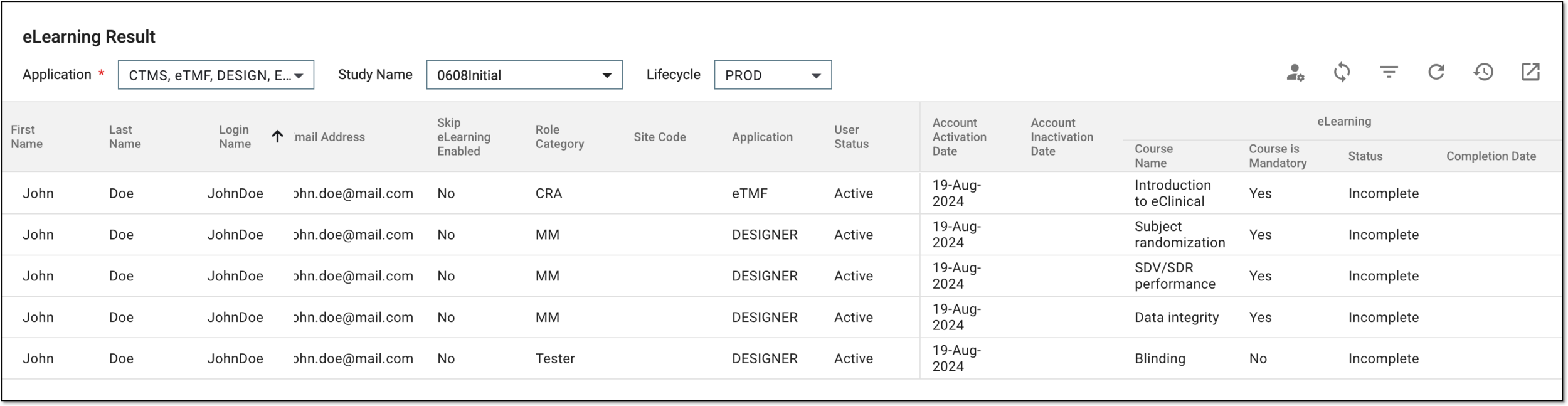 Figure 2. Utilizing eLearning result report
Tip
In the following table, mandatory elements are marked with an asterisk (*).
Element
Details
Report filtering options
Application*
Expand the dropdown menu and select the eClinical applications for which you want to see the report on eLearning courses completion.
Study Name
Select the study for which you want to see the report on eLearning courses completion.
Lifecycle
Select the lifecycle—DEV, UAT, or PROD—for which you want to see the report on eLearning courses completion.
Report table columns
First Name
Represents the first name of the user assigned to the eLearning course.
Last Name
Represents the last name of the user assigned to the eLearning course.
Login Name
Represents the name with which the user assigned to the eLearning course logs in to the system.
Email Address
Represents the email address of the user assigned to the eLearning course. This email is used for all system notifications.
Skip eLearning Enabled
Represents whether an exception is set for the user to skip the eLearning course (Yes) or not (No).
Role Category
Represents the role of the user assigned to the eLearning course, for instance, PI, DM, and so on.
Site Code
Represents the code of the site to which the user has access.
Application
Represents the application, such as IWRS, EDC, and so on for which the eLearning course has been assigned to the user.
User Status
Represents whether the user enrolled in the eLearning course is active or not.
Account Activation Date
Represents the date when the eClinical system account has been activated for the user assigned to the eLearning course. This field remains blank if not yet activated.
Account Inactivation Date
Represents the date when the eClinical system account has been deactivated for the user assigned to the eLearning course. This field remains blank if not yet deactivated.
eLearning
Course Name
Represents the name of the eLearning course the user must take.
Course is Mandatory
Represents whether the course is mandatory for completion (Yes) or not (No). If mandatory, the user cannot access the system unless they have completed the course.
Status
Represents whether the user has finished the eLearning course (Complete) or not (Incomplete).
Completion Date
Represents the date when the user completed the eLearning course. This field remains blank if the user has not yet completed the eLearning course.
You have viewed the eLearning result report. You can also export this report to work with it offline.