Configure two-factor authentication setting
The two-factor authentication (2FA) is defined as a security configuration where a user has to complete two authentication processes to successfully access the application.
In this section, you can learn how to configure two-factor authentication for eClinical system users.
-
In the ADMIN application header, select the CONFIGURATION tab.
-
On the page that appears, from the left pane, select, 2-Factor Authentication > 2FA Setting.
-
On the 2FA Setting page that appears, perform the changes as explained in the following table.
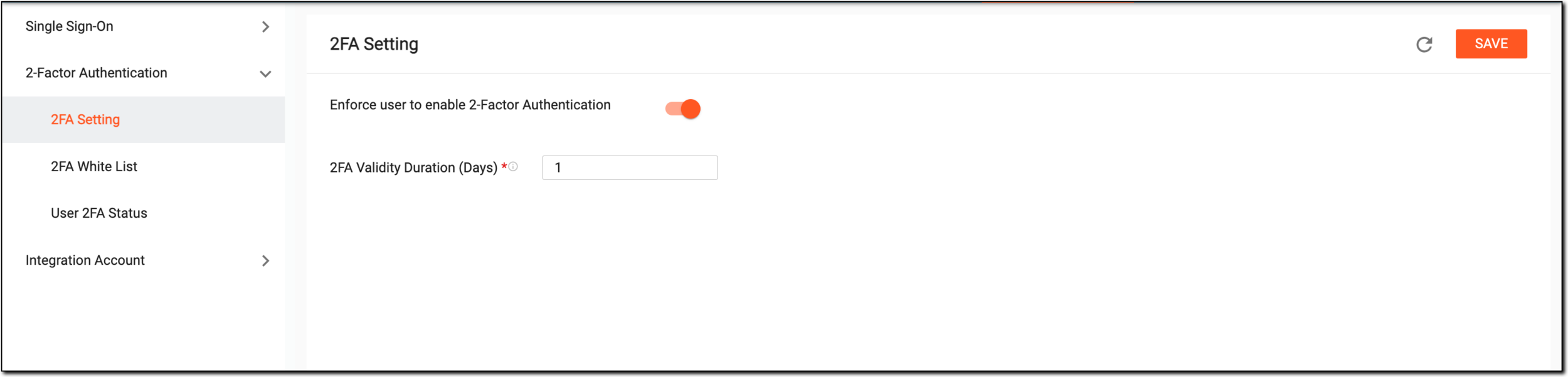 Figure 1. Configuring two-factor authentication
Tip
In the following table, mandatory elements are marked with an asterisk (*).
Element
Details
Enforce user to enable 2-Factor Authentication
Turn on this toggle if you want to authenticate the users through the two-factor authentication method.
2FA Validity Duration (Days)*
Enter the number of days till when the authentication is valid. During this period, the user does not need to perform authentication when logging in.
SAVE
Select
 to save the implemented changes.
Upon saving, the two-factor authentication setting is configured for the eClinical system users.