Export randomization result
Randomization is a process during which subjects receive their random numbers and are assigned to different arms based on the configured randomization scheme for dynamic or permuted block randomization methods.
Each time randomization occurs, its result is tracked and stored by the IWRS system. For your convenience, you can export the randomization result details in XLSX format and use it offline as needed. There are two export variations available:
-
Export Clean Randomization Plan: the resulting file contains a basic randomization plan for your study providing only generic details—serial numbers, arms, randomization numbers, and such.
-
Export Randomization Results: the resulting file contains complete details of your study randomization including randomization and serial numbers, site details, stratification factors, and such.
-
In the IWRS application header, select the TREATMENT DESIGN tab.
-
On the page that opens, in the left pane, select the Period subtab.
-
In the Period List table that appears, locate the period of your interest. Then in the Period Name column, select the value to open the period configurator.
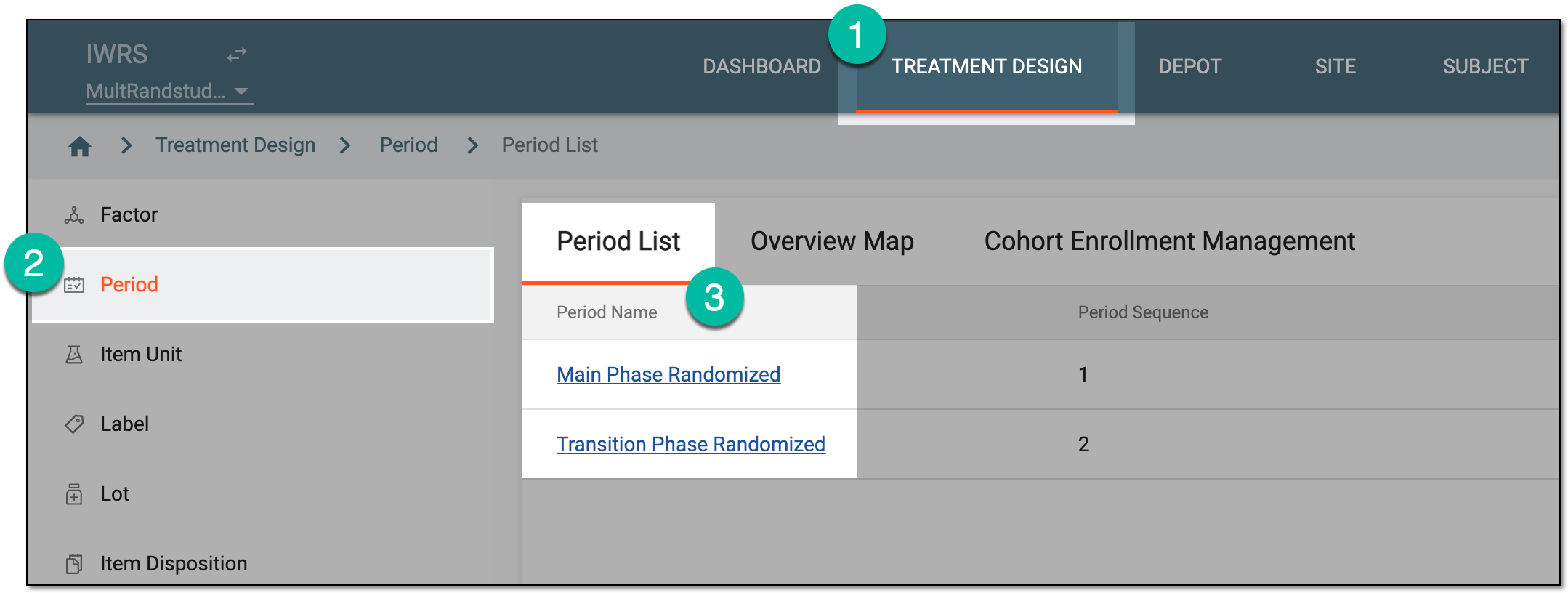 Figure 1. Selecting period
-
In the period configurator, drill down the explorer tree and select Result
 .
. -
On the Result page that opens, from the workspace toolbar, select Export
 and from the
resulting menu, select Export Clean Randomization Plan or Export Randomization Results.
and from the
resulting menu, select Export Clean Randomization Plan or Export Randomization Results. Figure 2. Exporting randomization result
-
Once selected, the widget appears displaying your download progress. Select the widget to open the My Downloads dialog.
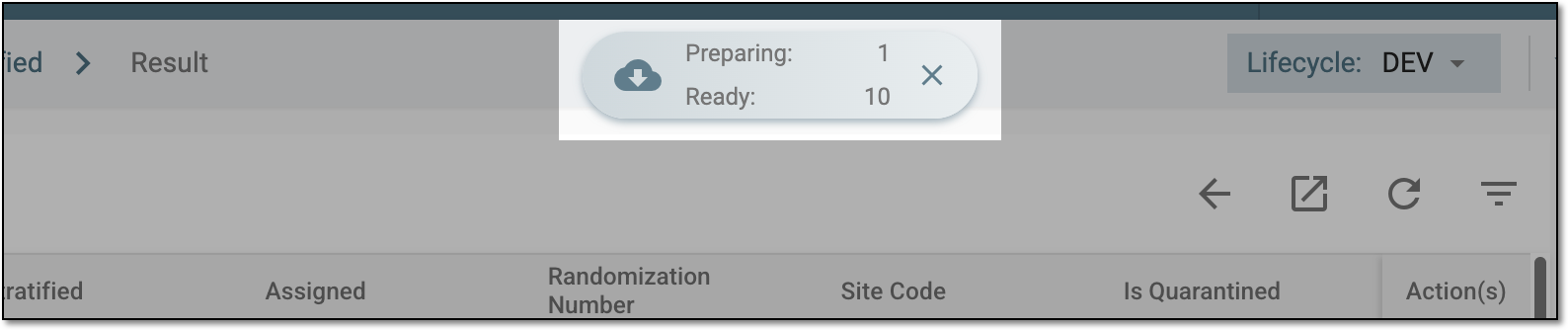 Figure 3. Downloads widget for randomization result
-
In the My Downloads dialog that opens, you can find the following tabs:
-
Preparing: under this tab, you can find all the files whose export is in progress, and they are not yet ready for download.
-
Download is Ready: under this tab, you can find all the files whose export is complete, and they can be downloaded to your computer.
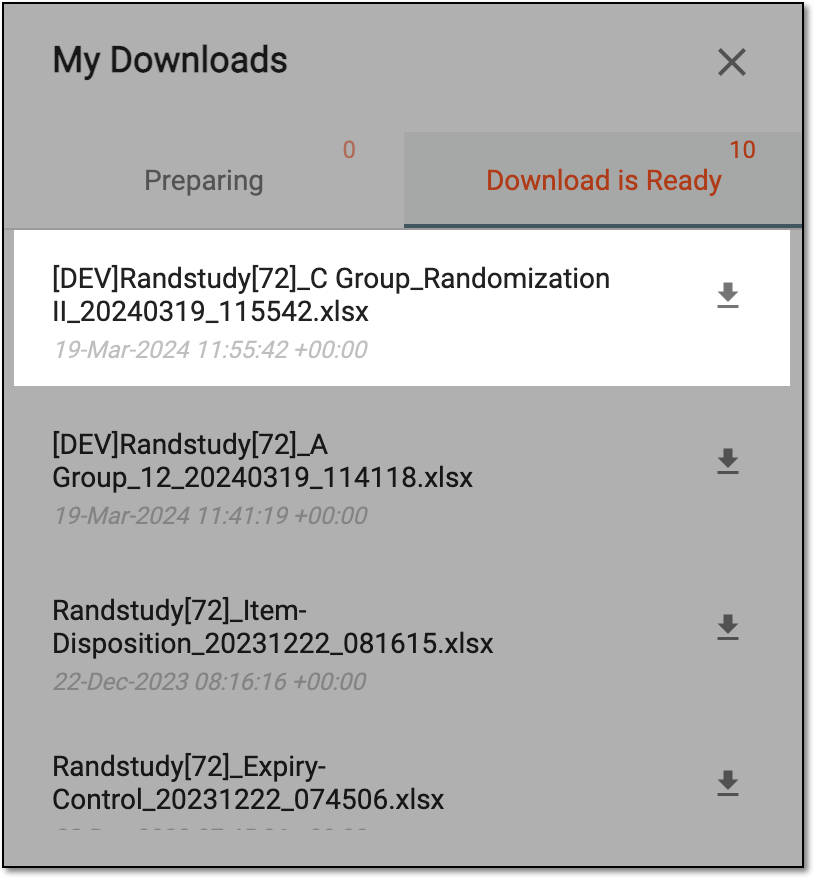 Figure 4. Viewing downloads
-
-
Under the Download is Ready tab, next to the file that you want to download, select
 .
.
The selected version of the randomization result—clean plan or complete result details—is downloaded in XLSX format to your computer.