Edit script-generated report configuration
Script-generated reports are configured to extract data from eTMF files and provide a convenient table-view data representation in CTMS. The data extraction is performed according to your configurations from the respective uploaded R script, hence the name—script-generated reports. This functionality might become useful for sponsors who use an external EDC system and want to extract the data from there and review it via eClinical CTMS.
Once the report is configured, you can always update it—change the root path for the source file, update the R script, or else.
-
Access the study management page in one of the following ways:
-
In the CTMS application header, select the DASHBOARD tab and then select the study dashboard of your interest.
 Figure 1. Accessing study management from dashboard
-
In the CTMS application header, select the STUDY MANAGEMENT tab. Then from the Study Data List table, select the study name of your interest.
 Figure 2. Accessing study management from study data list
-
-
On the page that opens, from the left pane, select Script-generated Reports > Report Setting.
-
In the Report Setting List table that appears, locate the report configuration that you want to update. Then from the Action(s) column next to it, select Edit
 .
. Figure 3. Selecting to edit report configuration
-
In the form that opens, update the needed configurations as suggested in the following table.
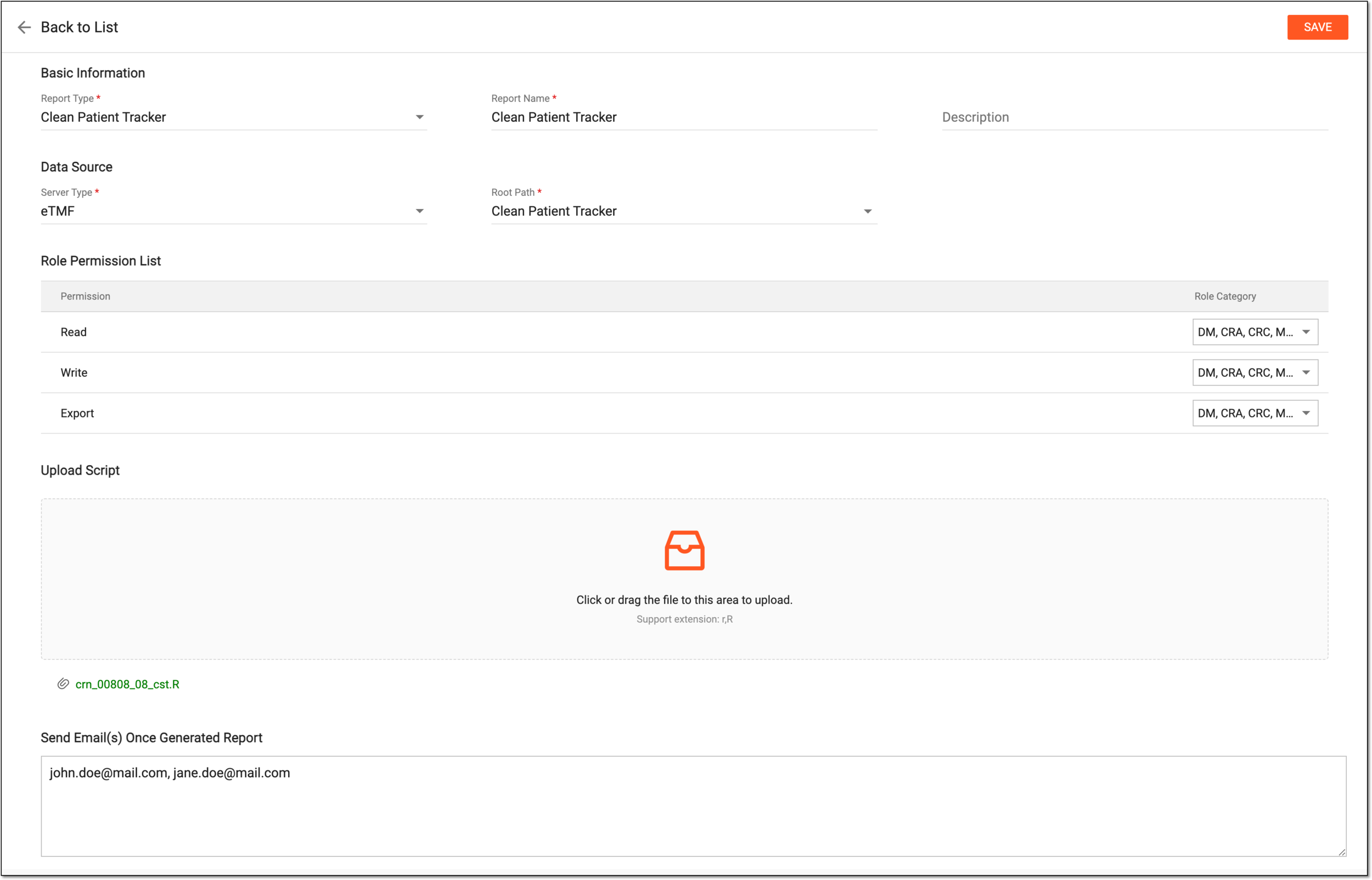 Figure 4. Updating script-generated report configuration
Tip
In the following table, mandatory elements are marked with an asterisk (*).
Element
Details
Basic Information
Report Type*
Select the type of report you want to create, such as Clean Patient Tracker, Key Risk Indicators (KRI), Raw Data Validation, or others.
The report types available here must be preconfigured under the LIBRARY tab via the reference data
                                  functionality.
Report Name*
Enter the descriptive name of the report to make it distinguishable in the system.
Description
Enter more details to describe the report's purpose or specifics.
Data Source
Server Type*
Select the server from which the system extracts the data for the configured report.
Currently, only the eTMF server type is available in the system.Root Path*
Expand the dropdown menu and drill down the explorer tree to select the eTMF directory to associate it with the configured report. Once the report is configured and active, the system runs the R script and extracts data every time files are uploaded to the selected directory.
Role Permission List
Permission
Represents the Read, Write, and Export actions to which you can grant permissions for specific roles in CTMS.
Role Category
Select user roles next to respective permissions to allow them to read, write, or export the configured report.
Upload Script
Upload the preconfigured R script file that must be run to extract the data from eTMF.
Send Email(s) Once Generated Report
Enter the email addresses of the assignees who must be notified each time the report is generated in CTMS.
SAVE
Select
 to save the implemented changes.
Once saved, all the changes are implemented and the report configuration is updated.