Activate/Inactivate script-generated report configuration
Script-generated reports are configured to extract data from eTMF files and provide a convenient table-view data representation in CTMS. The data extraction is performed according to your configurations from the respective uploaded R script, hence the name—script-generated reports. This functionality might become useful for sponsors who use an external EDC system and want to extract the data from there and review it via eClinical CTMS.
Once the report is configured, it must be active for the system to run the R script and extract data. If you need to stop generating the reports of a certain configuration temporarily, you can inactivate it until required again.
-
Access the study management page in one of the following ways:
-
In the CTMS application header, select the DASHBOARD tab and then select the study dashboard of your interest.
 Figure 1. Accessing study management from dashboard
-
In the CTMS application header, select the STUDY MANAGEMENT tab. Then from the Study Data List table, select the study name of your interest.
 Figure 2. Accessing study management from study data list
-
-
On the page that opens, from the left pane, select Script-generated Reports > Report Setting.
-
In the Report Setting List table that appears, locate the report configuration that you want to activate/inactivate. Then from the Action(s) column next to an inactive report configuration, select Activate
 to make it active and run the script; or next to an active configuration, select Inactivate
  to stop generating reports based on this script.
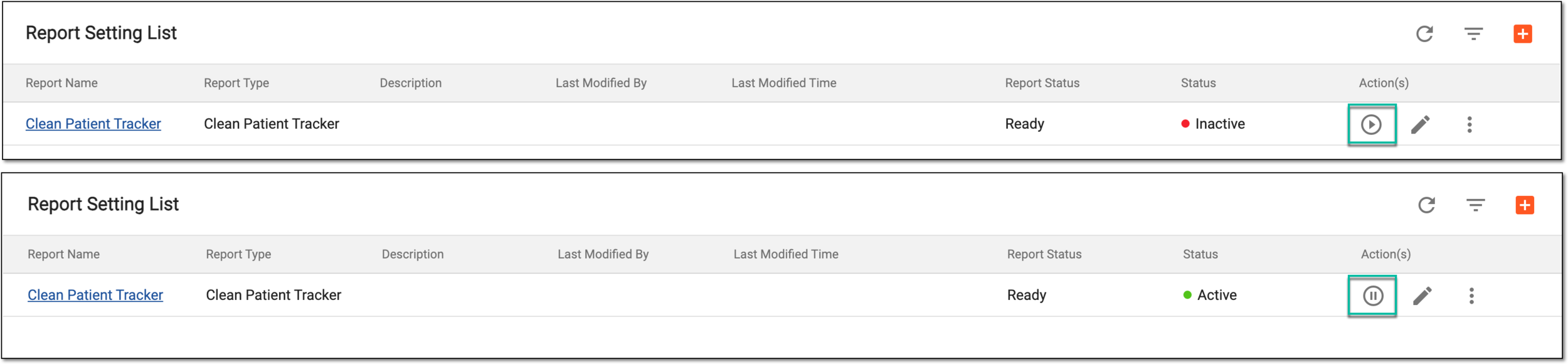 Figure 3. Activating/Inactivating report configuration
-
In the Reason dialog that opens, enter the reason for your action and select
 .
.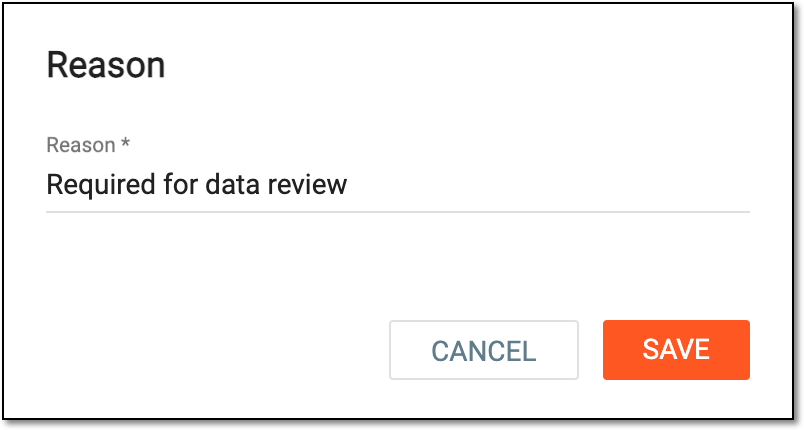 Figure 4. Entering reason for activation/inactivation
Once done, the report is either activated or inactivated based on your performed action.