Dashboard actions
In IWRS, the DASHBOARD tab provides you with a comprehensive representation of your system tasks and shipment and inventory details in various pie charts and bar charts.
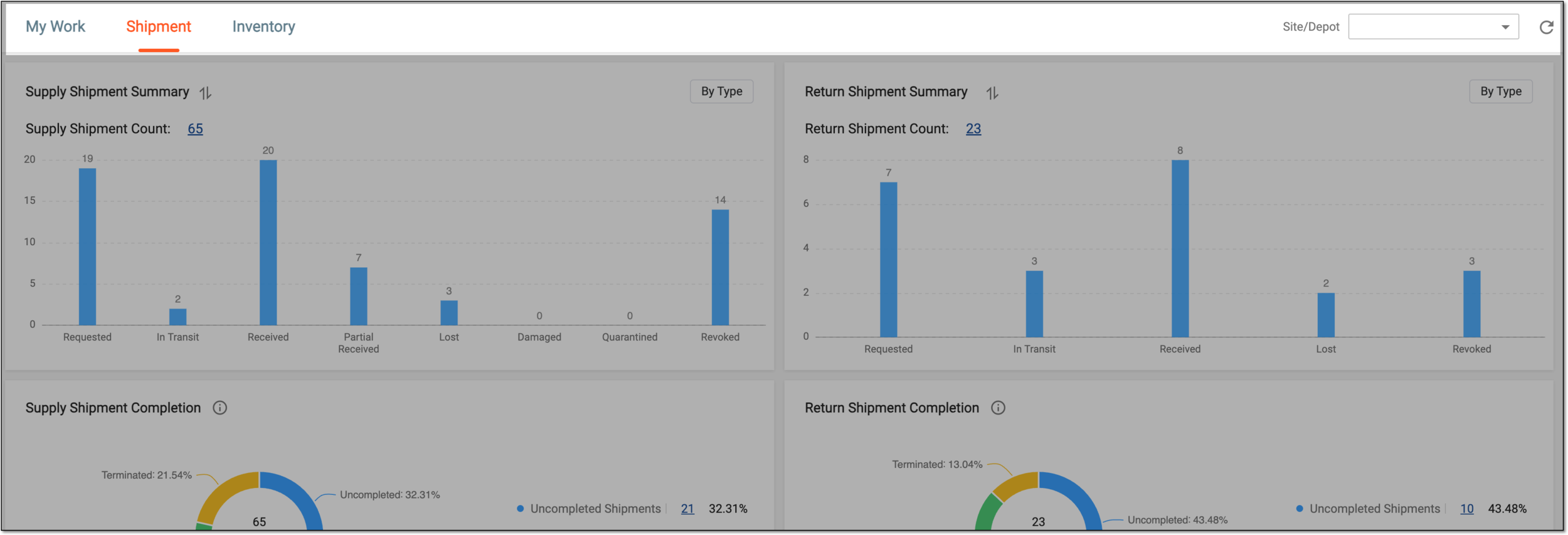
To display the required information, you can use the available dashboard actions as explained in the following sections.
In IWRS, under the DASHBOARD tab, you can view the summary of a selected site or depot. Using the site or depot filtering, you can view the focused data on the dashboard charts that belong to the selected instance.
-
In the IWRS application header, select the DASHBOARD tab.
-
On the page that opens, depending on your desired destination, select the Shipment or Inventory tab.
-
From the workspace toolbar, expand the Site/Depot dropdown list and select the required site or depot.
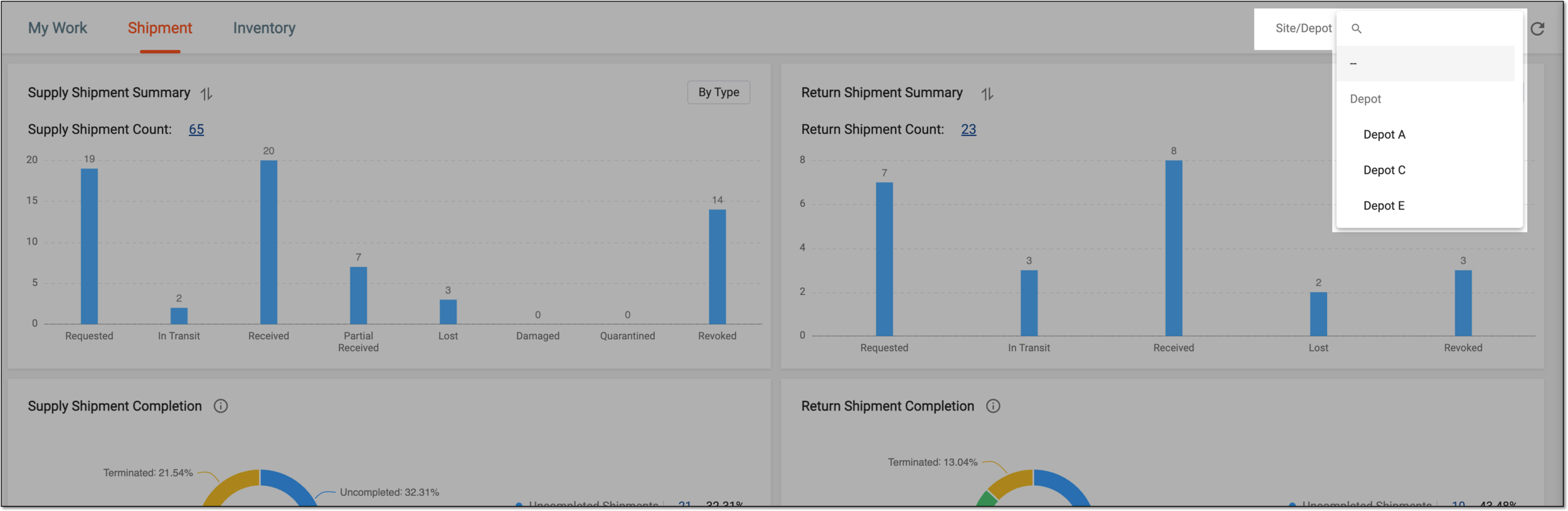 Figure 1. Selecting site/depot
Important
If no site/depot is selected, the dashboard accumulates the record of all shipments or inventory details.
Once the site/depot is selected, the dashboard charts are rearranged to only display the data of the selected instance.
In IWRS, the DASHBOARD tab provides you with an insight into the shipments and inventory details of your study. The data is presented in the form of different charts that aid understanding and analysis.
The data displayed in the charts of the DASHBOARD page is fetched from across the whole IWRS.
Due to a large amount of data processed with these charts in the dashboard, constant auto updates require significant resources. You can use the Refresh feature to ensure that you have the latest data for all the charts. Simply select Refresh  from the workspace toolbar, and the data in the charts is reloaded to display the updated information.
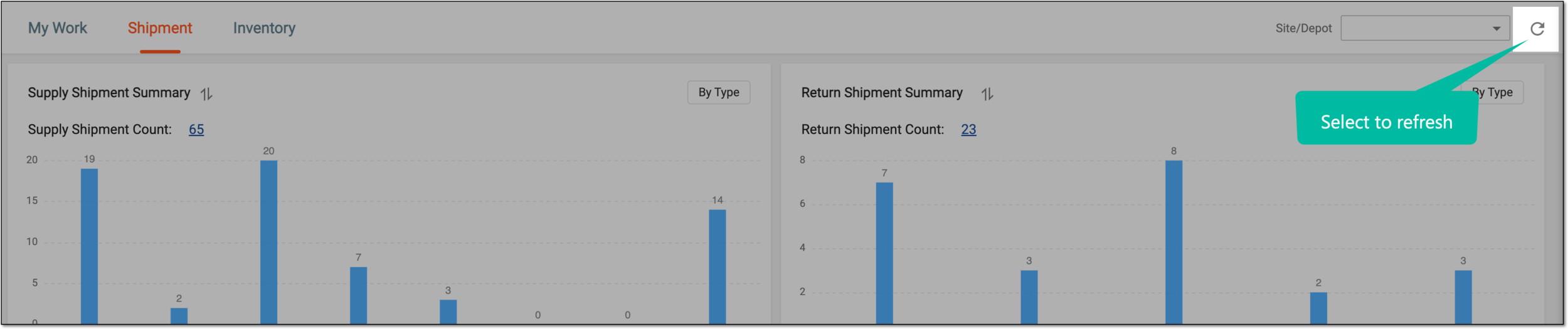
For example, to show the latest data on items put into quarantine, select Refresh to update Quarantine Status Chart.