View safety data change history
All the changes in the safety data are of vital importance as they reflect updates about the subject's AE/SAE. In PV, the changes applied to the safety data are saved and trackable via the Change History feature.
-
In the PV application header, select the INTAKE tab.
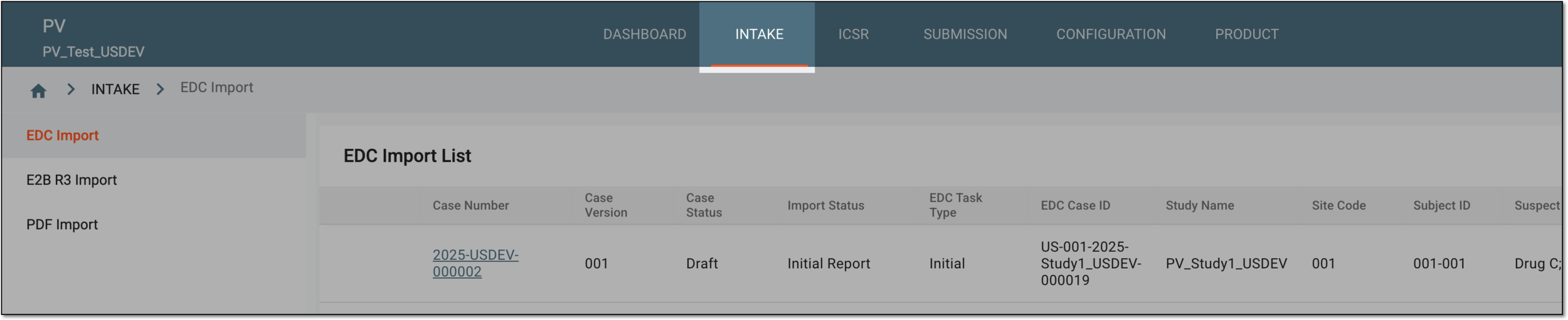 Figure 1. Accessing intake management
-
On the page that opens, in the left pane, select the EDC Import subtab.
-
In the EDC Import List that appears, locate the safety data for which you need to view the change history. Then in the Actions column next to it, select More
 > Change History
  .
.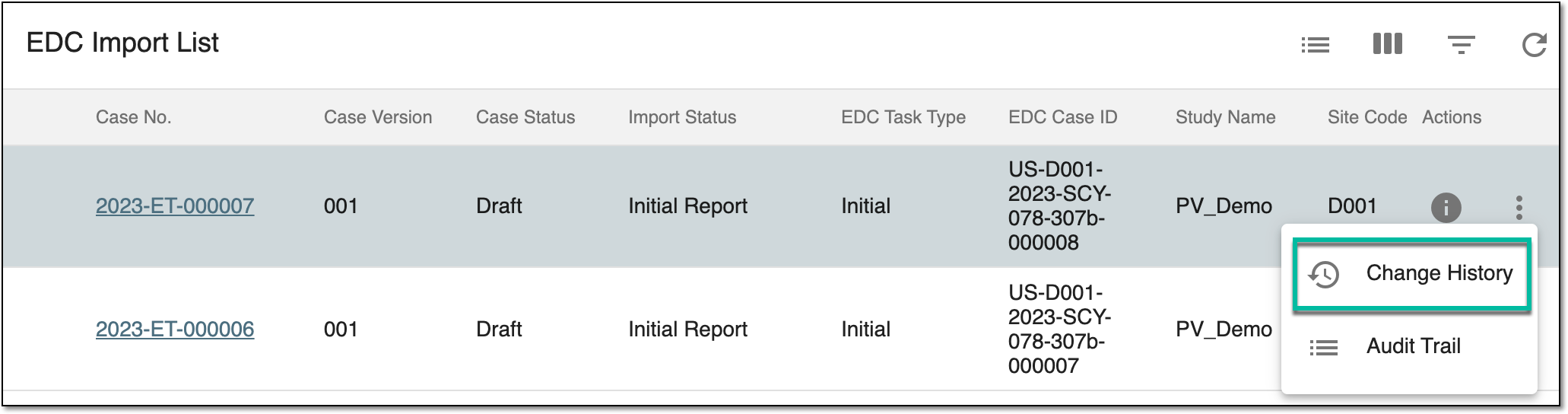 Figure 2. Selecting to view safety data change history
-
In the Change History dialog that opens, you can find the log of all the changes made to the safety data, what kind of change it was (for instance, new data was added), who performed the action and when, and more.
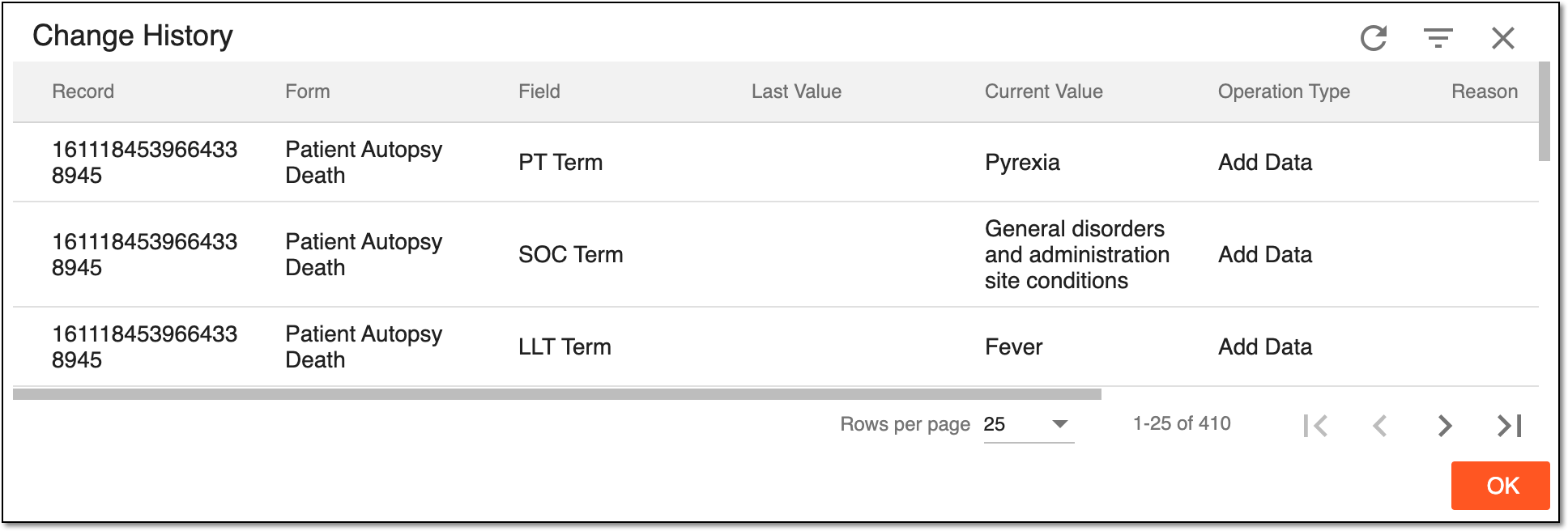 Figure 3. Safety data history of changes
-
Select
 to close the dialog.
You have viewed the safety data change history. Upon closing the dialog, you return to the EDC Import List table. You can also select to view the safety data audit trail.