Autoderive subject discontinuation
In clinical trials, a subject phase constitutes a pathway marking the progression of participants through various stages of the study. Each phase serves as a milestone that captures the subject's journey and is integral to the overall trial design and scientific integrity.
The Study Designer application provides various tools to configure the subject phase flow. One such tool enables the configuration of the subject discontinuation rule. By setting up this rule, the system can automatically update a subject's phase to Discontinued in response to certain triggers or criteria met. The automation ensures that subjects are discontinued from the study without manual intervention.
For example, the rule can be configured so that if the response to the question "Did the subject complete the study as defined in the protocol?" on the Study Completion form is "No", the subject's phase is automatically changed to Discontinued.
-
In the Study Designer application header, select the SUBJECT PHASE tab.
 Figure 1. Accessing subject phase configuration
-
From the toolbar, select the latest unlocked CRF version, otherwise, you cannot work with subject phases.
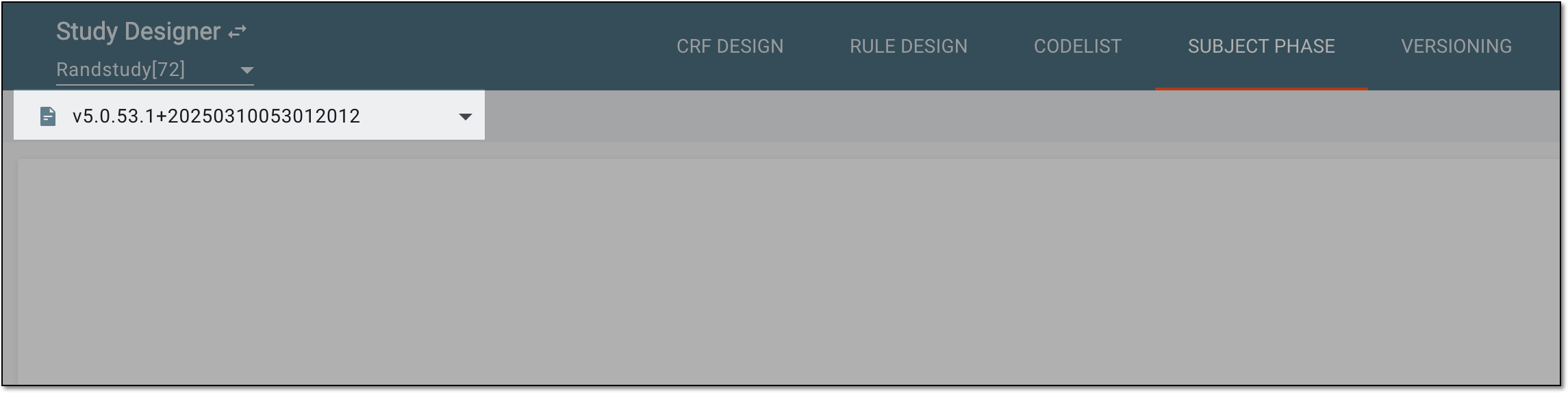 Figure 2. Selecting unlocked CRF version
-
From the same toolbar, select Auto-derive Discontinue
 .
.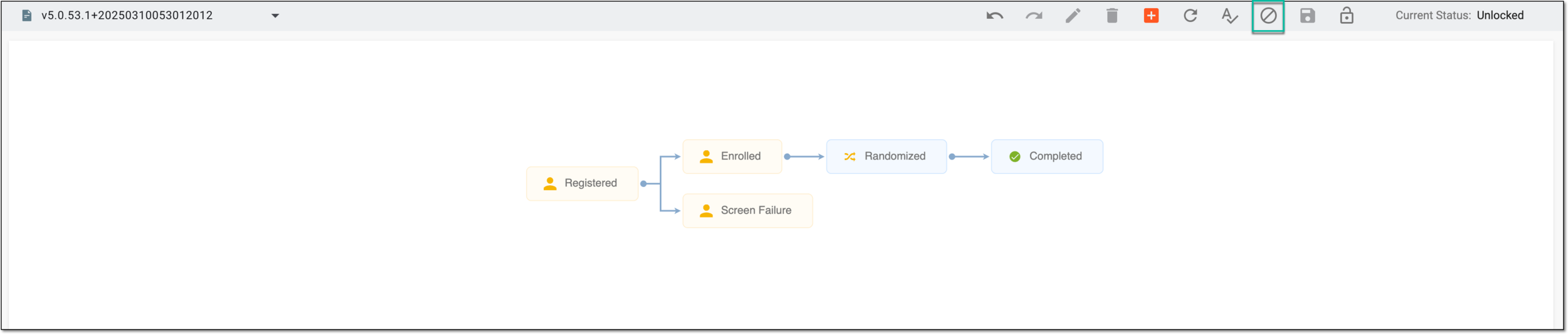 Figure 3. Selecting option to autoderive discontinuation
-
In the Auto-derive Discontinue dialog that appears, under the Expression block, configure the rule to derive subject discontinuation automatically. You can use the visits tree to navigate between various forms to select variables necessary for defining the rule.
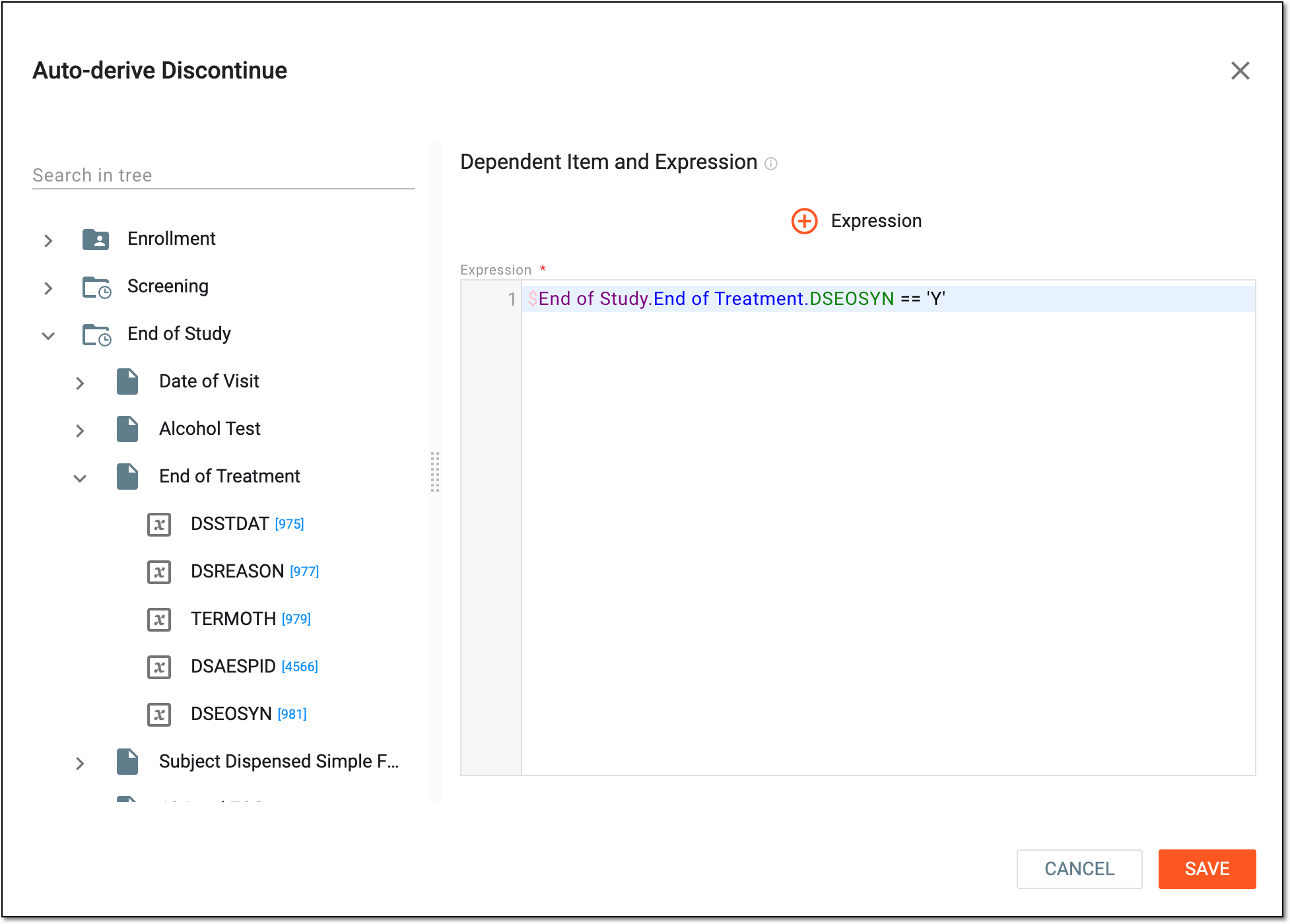 Figure 4. Autoderiving subject discontinuation
Tip
Select
 to add an expression placeholder that you may use for organization purposes. You can also use the following entry options
when designing an expression:
to add an expression placeholder that you may use for organization purposes. You can also use the following entry options
when designing an expression:-
Press Shift + @ to automatically prompt functions.
-
Press Shift + # to automatically prompt conditions.
-
Press Shift + $ to automatically prompt the list of visits, then forms, and then variables to select for the expression.
-
Press ` to automatically prompt the list of global expressions to reference.
-
-
Select
 to apply the rule.
Once saved, the autoderive subject discontinuation rule is applied. If during data entry in EDC, the condition is met, a corresponding subject automatically enters the Discontinued phase.