Delete automation event
The Study Designer application provides the ability to configure automation events that intend to show forms or visits in EDC for data entry when specific conditions are met. The purpose of automation events is to streamline the assessment process by omitting irrelevant forms or visits based on the respondent's initial response. It helps ensure that the assessment focuses on gathering only pertinent information.
You can create as many automation events as needed after the CRF design phase is completed. These automation events can be deleted any time new study requirements or data collection processes are introduced or if some automation events are no longer required.
-
In the Study Designer application header, select the RULE DESIGN tab.
-
In the left pane of the page that opens, select Automation Event.
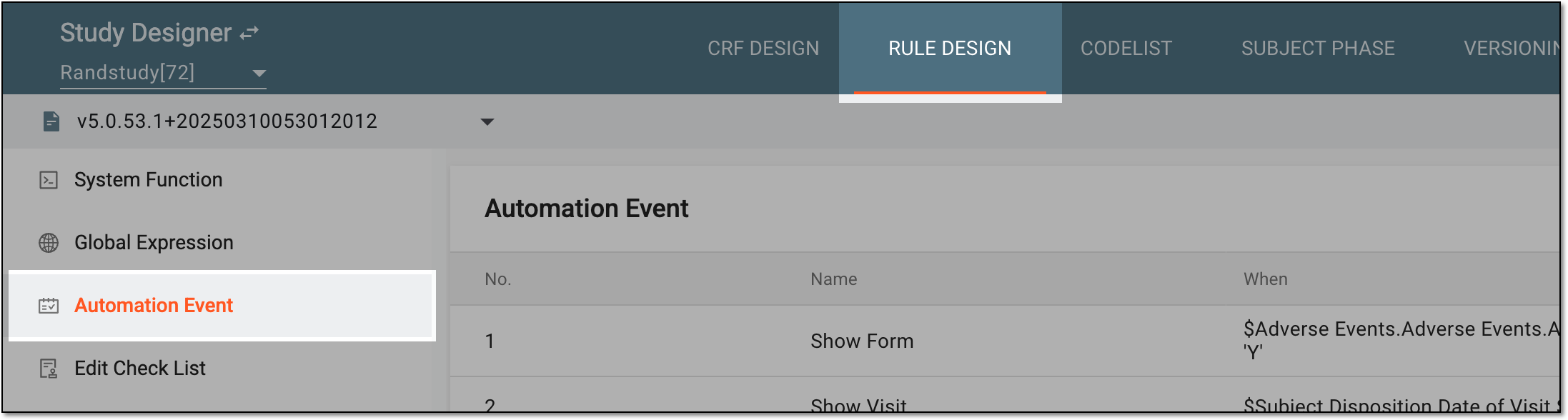 Figure 1. Accessing automation events
-
In the toolbar, select the latest unlocked CRF version, otherwise, you cannot work with automation events.
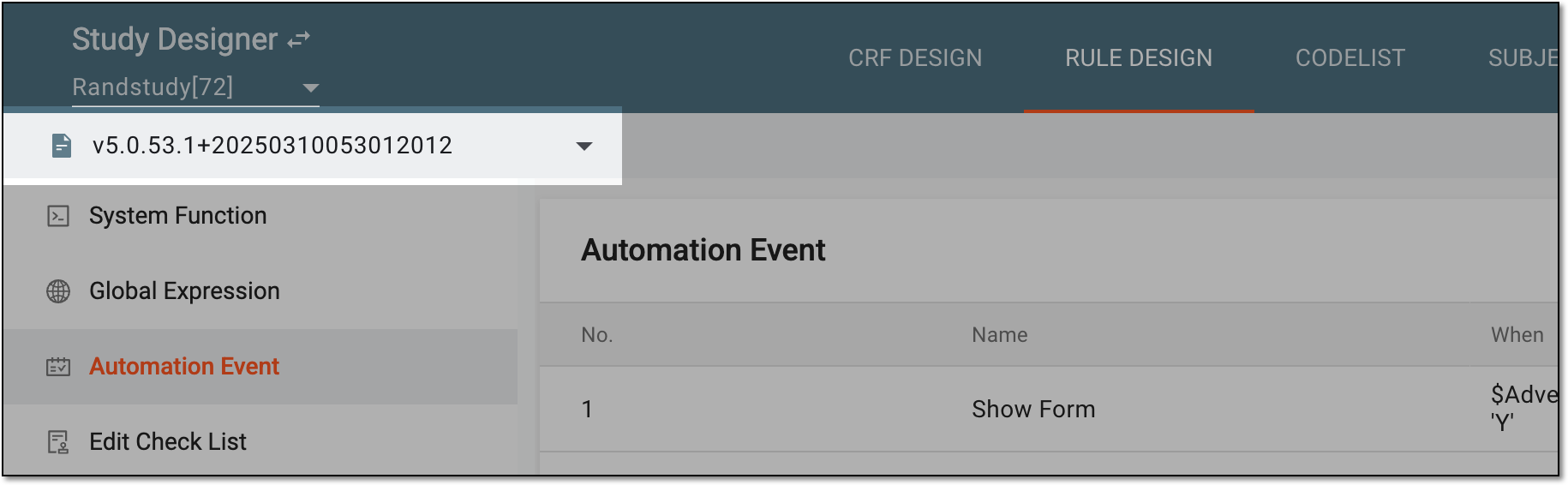 Figure 2. Selecting unlocked CRF version
-
In the Automation Event table, select Delete
 next to the needed automation
event.
next to the needed automation
event. Figure 3. Selecting option to delete automation event
-
In the confirmation dialog that appears, select
 .
.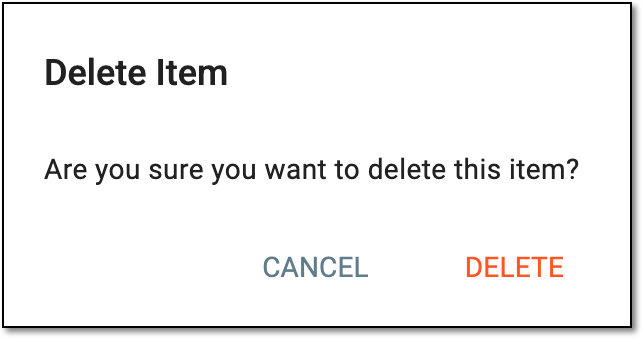 Figure 4. Deleting automation event
Once confirmed, the automation event is deleted.