Lock/Unlock protocol deviation record
In CTMS, whenever a protocol deviation occurs, you can record it by using a protocol deviation template. Recording a deviation is necessary for avoiding such deviation from occurring in the future, or it can be a requirement of the sponsor as well.
In case you have a record added that for any reason must not be amended or otherwise interacted with by other system users, then you can lock a record and prevent it from alterations. Later, whenever required, you can unlock the record to allow the system users to update it.
-
Access the study management page in one of the following ways:
-
In the CTMS application header, select the DASHBOARD tab and then select the study dashboard of your interest.
 Figure 1. Accessing study management from dashboard
-
In the CTMS application header, select the STUDY MANAGEMENT tab. Then from the Study Data List table, select the study name of your interest.
 Figure 2. Accessing study management from study data list
-
-
On the study page, in the left pane, expand Protocol Deviation and select Protocol Deviation Record.
-
On the page that opens, from the content panel, select the needed tab.
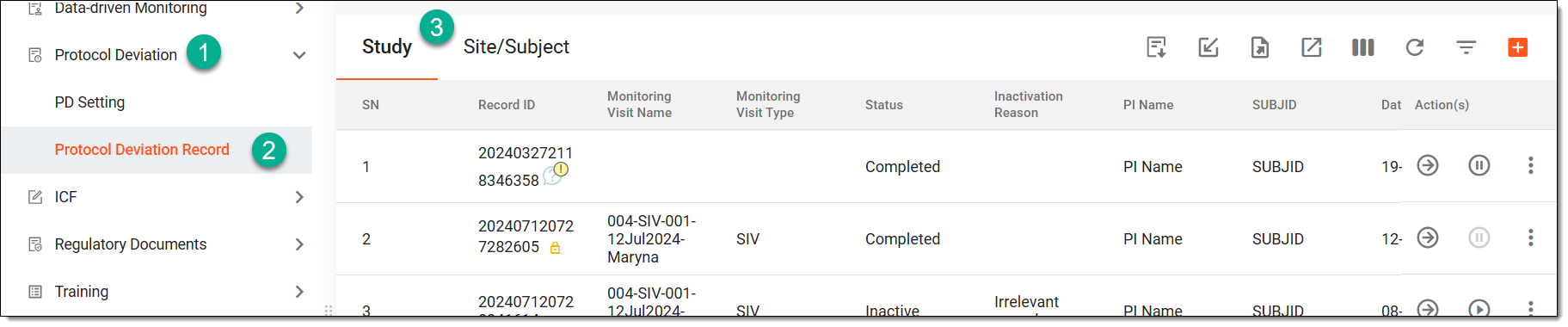 Figure 3. Accessing protocol deviation records
Tip
If the same protocol deviation template is associated with two or more entities—study, site, or subject—they are displayed in a single tab named through a slash, such as Study/Site, Study/Site/Subject, or else. Whereas, the entities associated with unique template forms are displayed in separate tabs, such as Study, Site, or Subject.
-
In the table, locate the record you want to lock or unlock and then perform any of the following actions:
-
Next to the record you want to lock, select More
 > Lock
  .
. -
Next to the locked record you want to unlock, select More
> Unlock  .
.
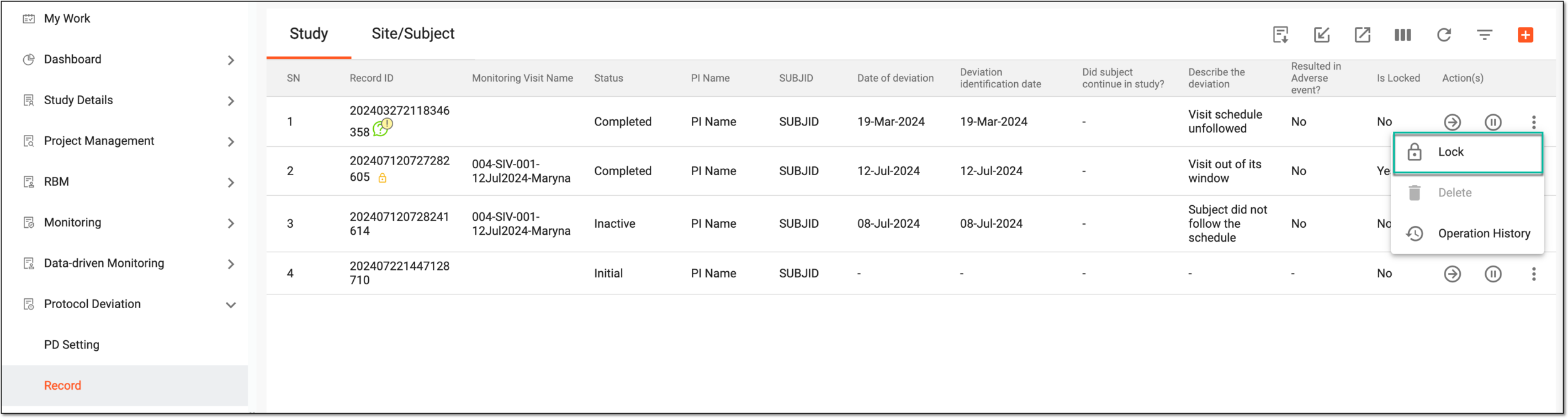 Figure 4. Locing PD record
-
Once the needed option is selected, the record is locked or unlocked.