View protocol deviation record operation history
In CTMS, when you perform any action with a protocol deviation record, such as activate/inactivate, lock/unlock, or otherwise manage the record, the action is recorded in the history of operations for traceability and compliance.
The history of operations can be viewed for each record individually.
-
Access the study management page in one of the following ways:
-
In the CTMS application header, select the DASHBOARD tab and then select the study dashboard of your interest.
 Figure 1. Accessing study management from dashboard
-
In the CTMS application header, select the STUDY MANAGEMENT tab. Then from the Study Data List table, select the study name of your interest.
 Figure 2. Accessing study management from study data list
-
-
On the study page, in the left pane, expand Protocol Deviation and select Protocol Deviation Record.
-
On the page that opens, from the content panel, select the needed tab.
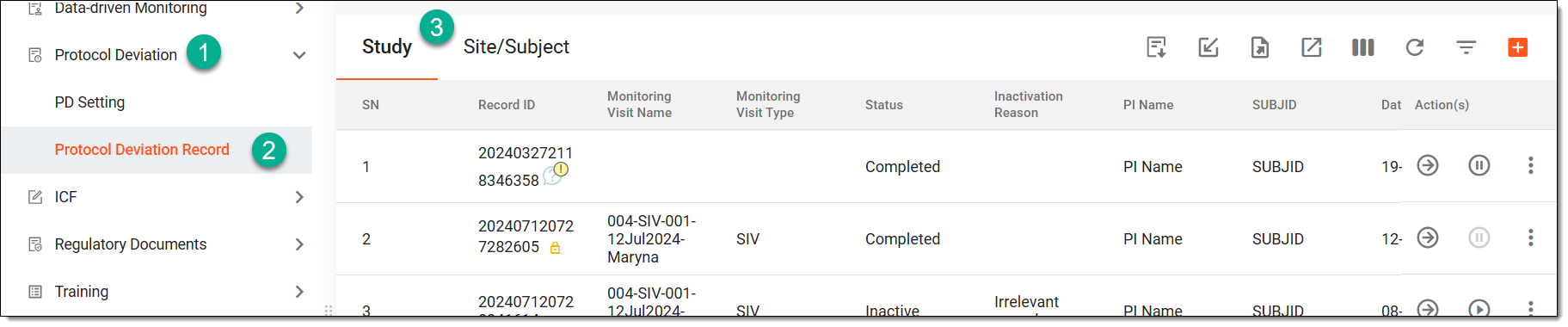 Figure 3. Accessing protocol deviation records
Tip
If the same protocol deviation template is associated with two or more entities—study, site, or subject—they are displayed in a single tab named through a slash, such as Study/Site, Study/Site/Subject, or else. Whereas, the entities associated with unique template forms are displayed in separate tabs, such as Study, Site, or Subject.
-
In the table, locate the record for which you want to view the operation history.
-
From the Actions column next to the needed record, select More
 >
Operation History
>
Operation History  .
.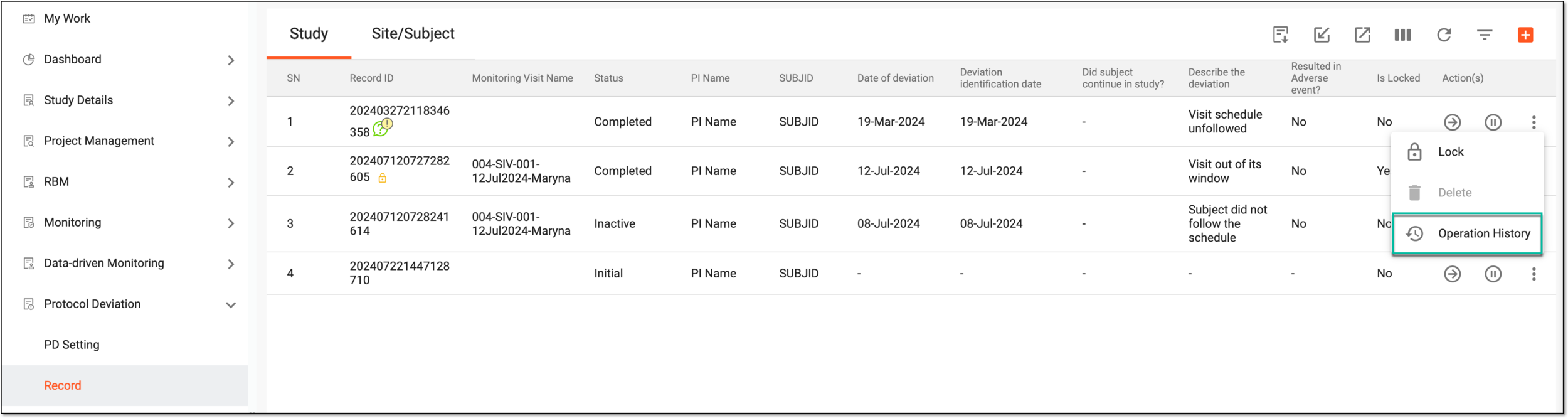 Figure 4. Selecting to view operation history
-
In the Operation History dialog that appears, view the log of all actions performed with the protocol deviation record.
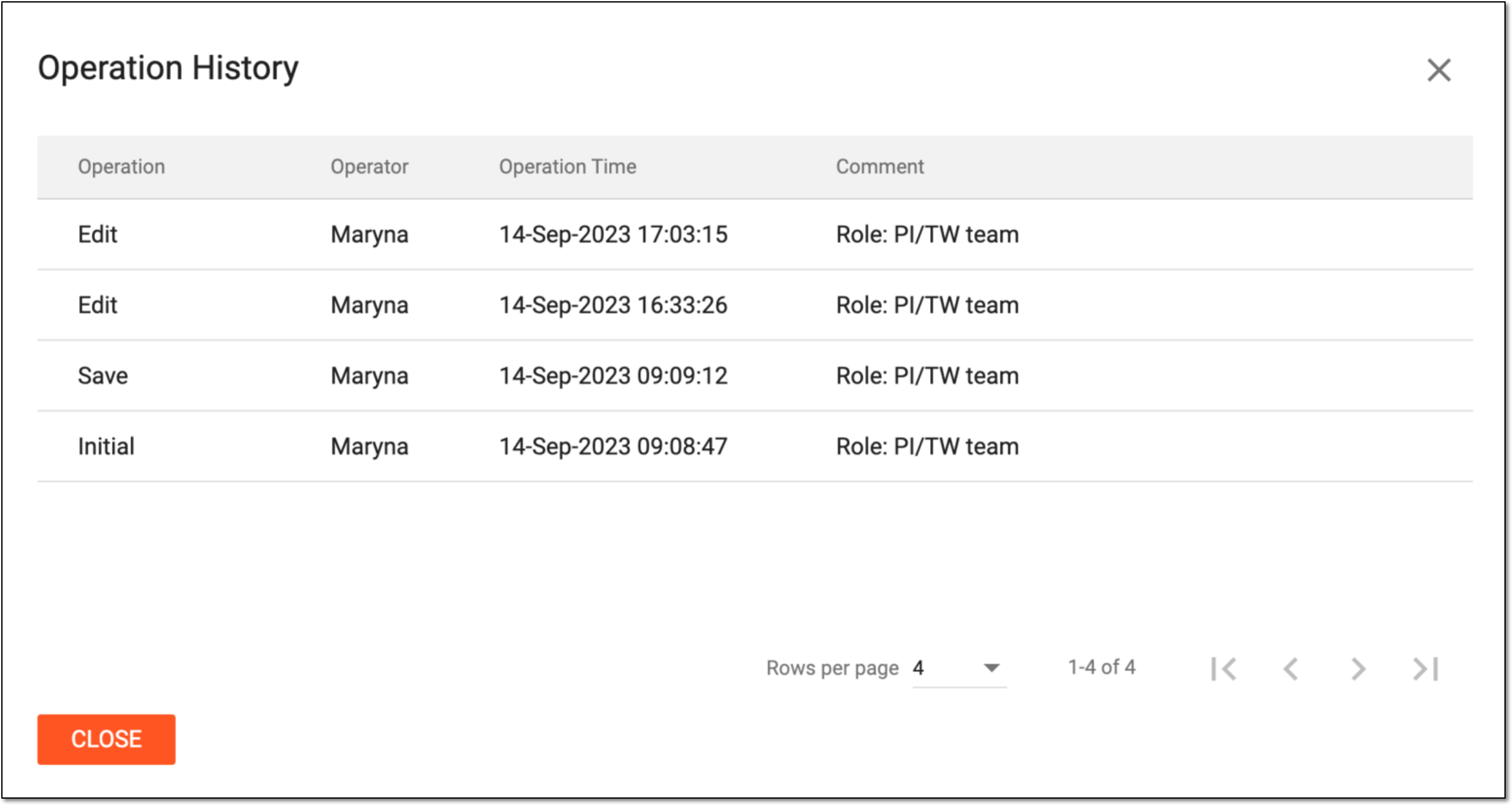 Figure 5. Viewing operation history
-
Select
 .
.
Once selected, the Operation History dialog is closed.