On-demand report
In CTMS, with the On-Demand Report feature, you can create custom reports to include only the data you need for your statistical analysis or other business needs.
For instance, you can configure reports to track selective data on monitoring visits, site details, or others.
Multiple ways are available for on-demand report configuration as discussed in the following sections.
In CTMS, with the On-Demand Report feature, you can create custom reports to include only the data you need for your statistical analysis or other business needs.
For instance, you can configure reports to track selective data on monitoring visits, site details, or else.
-
In the CTMS application header, select the REPORT tab.
-
On the page that opens, from the left pane, select On-Demand Report > Report Setting.
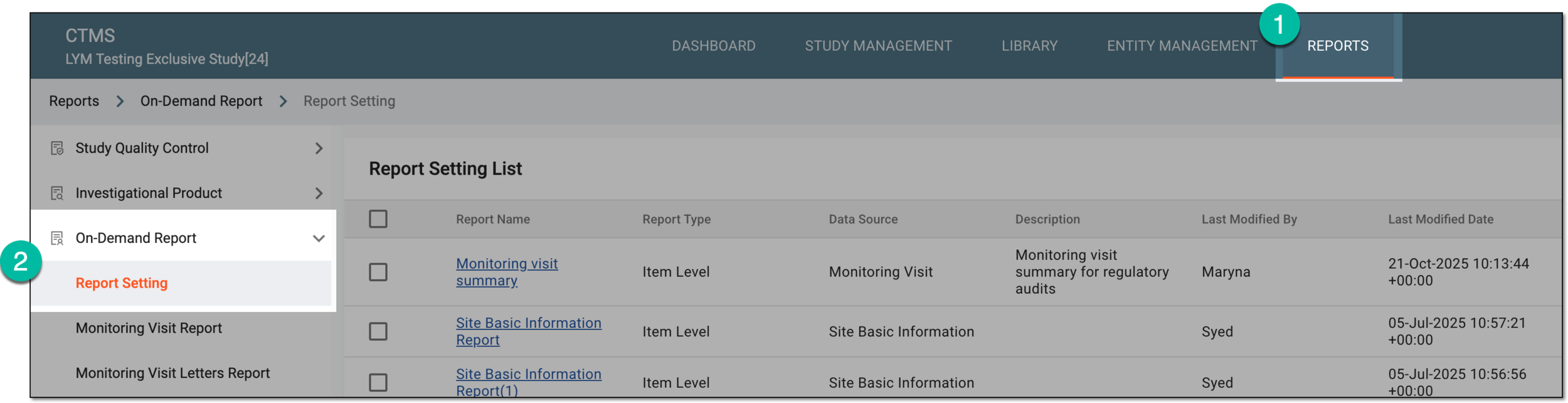 Figure 1. Accessing on-demand report setting
-
On the Report Setting List page that opens, from the workspace toolbar, select New Item
 . Then from the expanded menu, select the report level you need. Currently, only Item Level is available here.
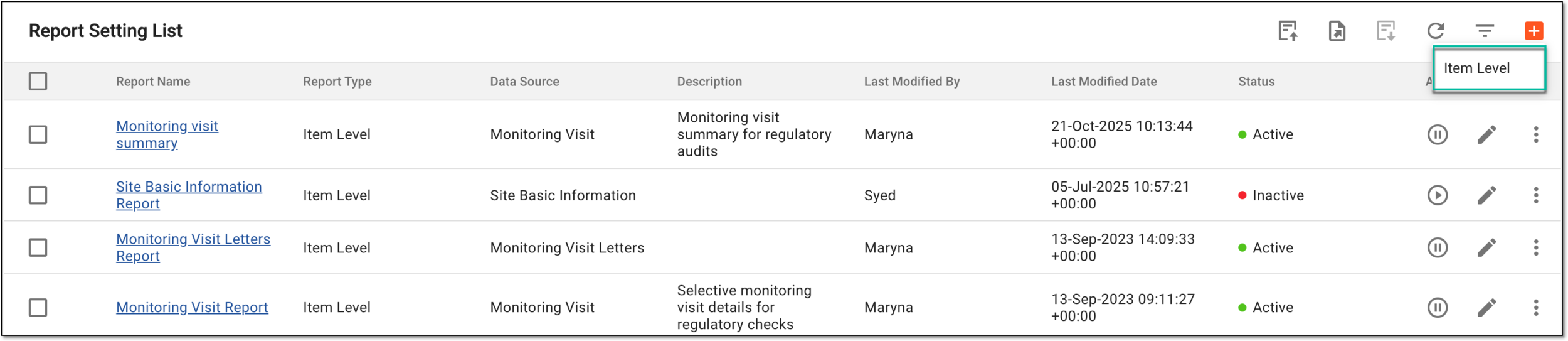 Figure 2. Selecting option to create on-demand report setting
-
In the form that opens, configure the report as explained in the following table.
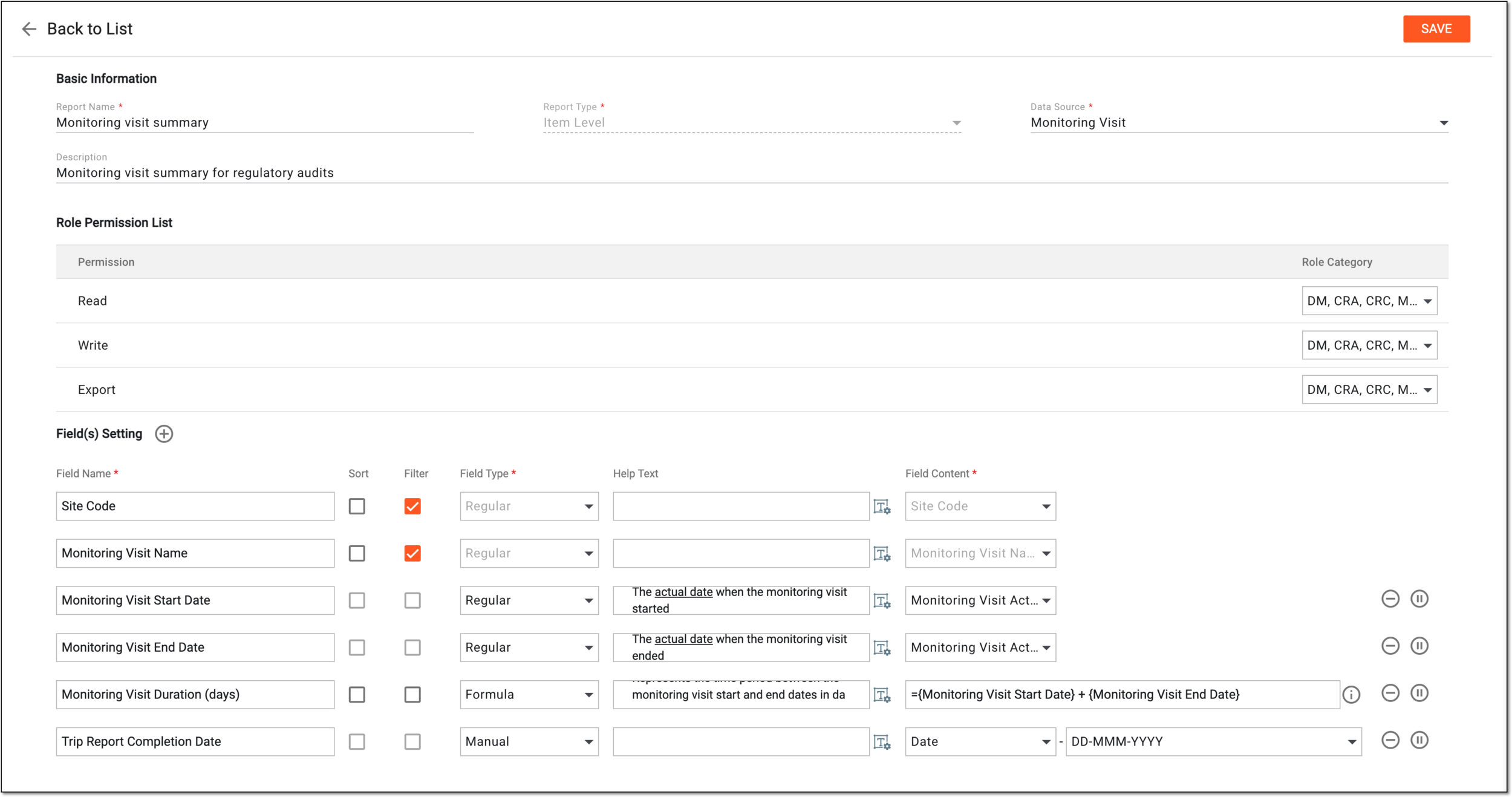 Figure 3. Configuring on-demand report
Tip
In the following table, mandatory elements are marked with an asterisk (*).
Element
Details
Basic Information
Report Name*
Enter the unique descriptive name of your report.
Report Type*
Represents the level of the report selected upon creation. Currently, only the item level is available. The selection cannot be changed here, the field is read-only.
Data Source*
Select the source of data for your report, such as Site Basic Information, Monitoring Visit, or else.
Depending on the source of data selected here, different fields are preconfigured for the Field(s) Setting block.
For instance, for the Monitoring Visit data source, the Site Code and Monitoring Visit Name fields are added by default, but for Site Basic Information, only the Site Code field is preconfigured.
Description
Enter a description to provide more details about the report, its purpose, specific data collection, or else.
Role Permission List
Permission
Represents the actions—Read, Write, and Export—for the execution of which you can grant permission to the specific role(s) in the CTMS system.
Role Category
Select the user role(s) to permit them to execute each action with the on-demand report, such as reading, writing, and exporting.
Field(s) Setting
New Item
Select New Item
 to add more fields to your report.
Field Name*
Enter the name of the field you want to add to the report. In the resulting report, this is the name of the column in the table.
Sort
Select/Clear the checkbox if you want to allow/restrict the sorting option for the column you are adding to the report.
Filter
Select/Clear the checkbox if you want to allow/restrict the filtering option for the column you are adding to the report.
Field Type*
Select the type of field you add to the report, as follows:
-
Manual: in the resulting report field, the data is entered manually. The type of data entry (date, number, text, or else) can be selected via the Field Content field.
You can also set the default value for your manual field.
For instance, you want the report user to have the option to select the actual trip report completion date manually, so here, you set the default format for the date to be consistent with requirements.
-
Regular: in the resulting report field, the data is populated automatically by the system according to the parameters set via the Field Content field.
-
Formula: in the resulting report field, the data is calculated according to the formula set via the Field Content field.
Help Text
Select the field or Rich Text
 to enter the auxiliary text to explain the field name or give
useful details to the user interacting with the report.
to enter the auxiliary text to explain the field name or give
useful details to the user interacting with the report.This text is available in the final report version upon selecting Help Text next to the column name.
Field Content*
Select the field contents, as follows:
-
For the Manual field type, select the data type of the field value—date, number, text, or else.
-
For the Regular field type, select the value that the system adds to the resulting report field, for instance, study name, monitoring visit actual start date, and so on.
-
For the Formula field type, use the field names (already added to the report) as formula components in braces ({ }) to write the expression outlining the data and how it must be populated to the resulting report field. If the resulting value is a date, it follows the date format set via preferences. To help with writing the formula, select
next to the field and in the Help dialog, refer to the acceptable formulas and their significance.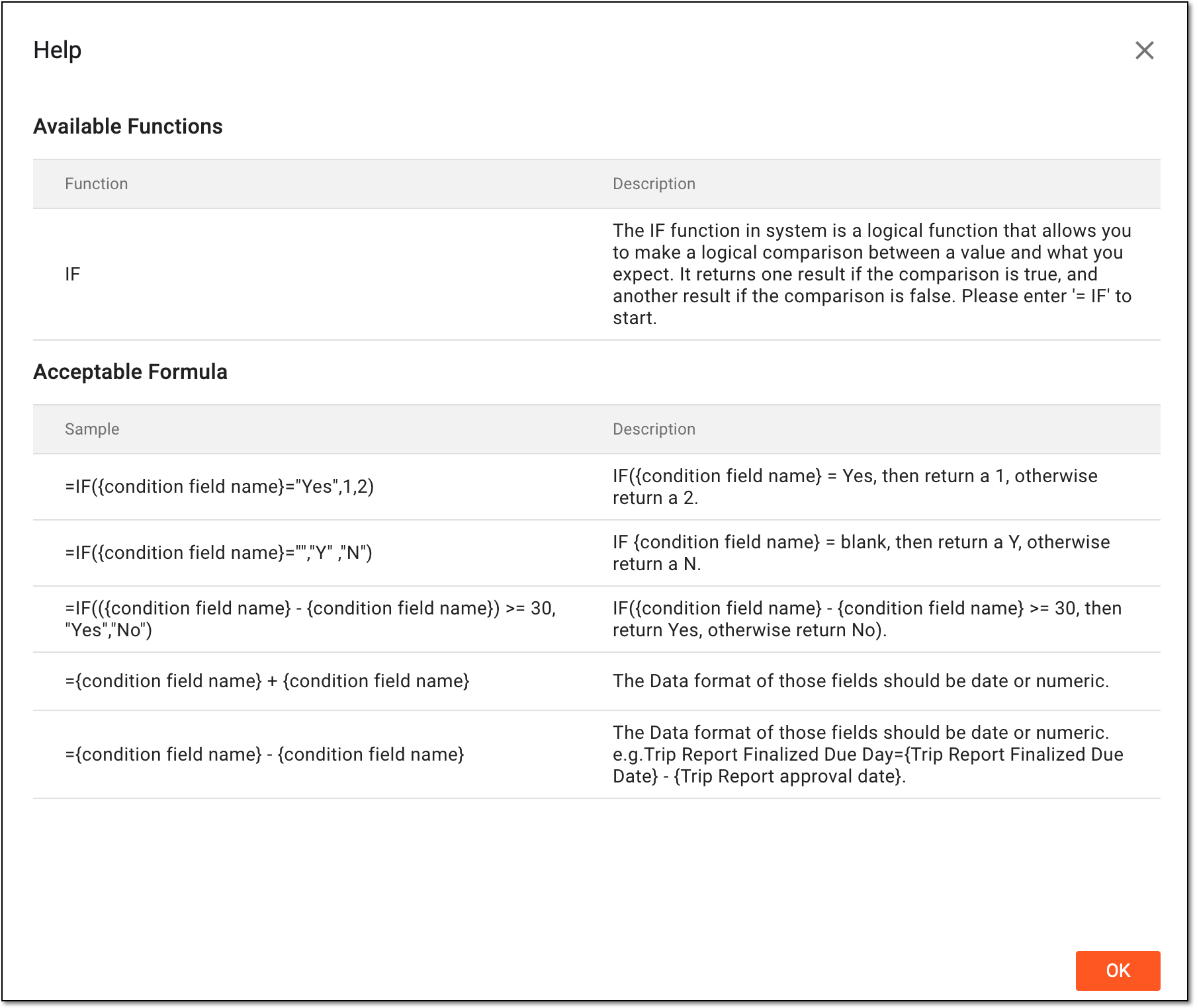 Figure 4. Referring to help with acceptable formulas
Delete
Select Delete
 next to the field to delete it from your report.
Activate
Select Activate
 next to the inactive field to make it available in your report.
Inactivate
Select Inactivate
 next to the active field to make it unavailable in your report.
SAVE
Select
 to save the implemented changes.
 -
Upon saving, the configured report is added to the CTMS system. You can now view your on-demand report data.
In CTMS, with the On-Demand Report feature, you can create custom reports to include only the data you need for your statistical analysis or other business needs.
For instance, you can configure reports to track selective data on monitoring visits, site details, or else.
This section explains, how you can copy the existing on-demand report and modify the needed fields to create a similar yet unique report that suits your business requirements.
-
In the CTMS application header, select the REPORT tab.
-
On the page that opens, from the left pane, select On-Demand Report > Report Setting.
Figure 1. Accessing on-demand report setting
-
In the Report Setting List table that appears, locate the report you want to copy and next to it, from the Action(s) column, select More
 > Copy
  .
.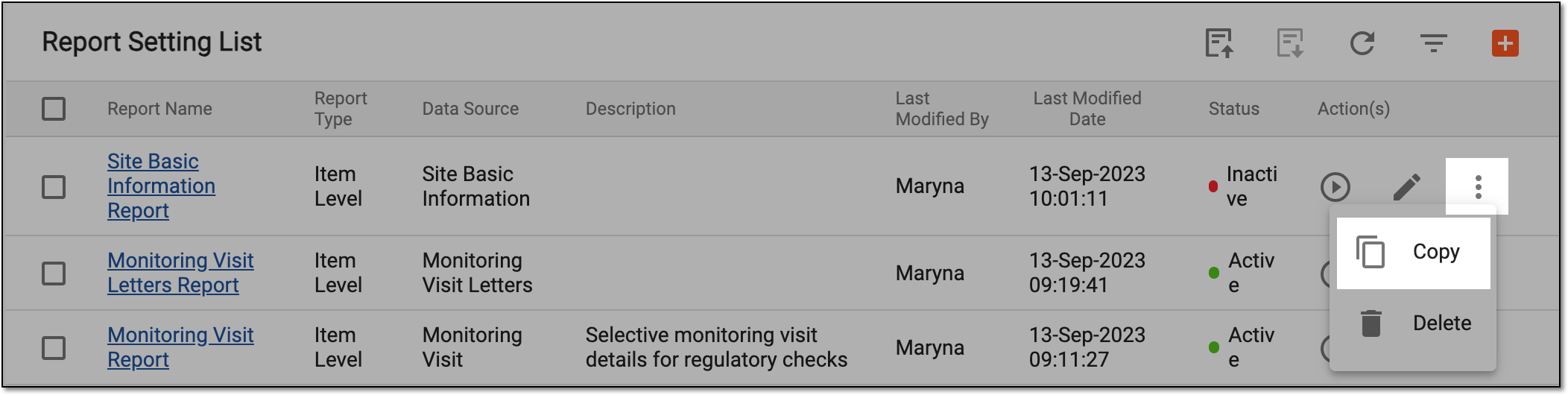 Figure 2. Selecting to copy report
-
On the form page that opens, enter the name of the report you are creating from copy and modify the report configurations as needed. The configuration details here are identical to the ones explained in the table of the Create on-demand report from scratch section.
Figure 3. Modifying copied on-demand report
-
Select
to save the implemented changes.
Once saved, the new report is added and can be viewed via the On-Demand Report module.
In CTMS, with the On-Demand Report feature, you can create custom reports to include only the data you need for your statistical analysis or other business needs.
Sometimes, you might find it useful to export the on-demand report configuration as a file and then reuse it elsewhere or share with stakeholders.
For instance, you have configured the report for one set of studies and find it useful for another set of studies also managed in CTMS. Thus, you can export the report configuration and then import it back to the system but for another studies.
-
In the CTMS application header, select the REPORT tab.
-
On the page that opens, from the left pane, select On-Demand Report > Report Setting.
Figure 1. Accessing on-demand report setting
-
In the Report Setting List table that appears, locate the reports you want to export and next to them, select the checkboxes.
-
After one or multiple reports for export are selected, from the workspace toolbar, select Export
 and then one of the
following options:
and then one of the
following options:-
Export as Config: to export the report configuration as a CONFIG file (with .config extension) and reuse it for another study setup.
-
Export as PDF: to export the report configuration as a PDF file and share it with stakeholders or other interested parties.
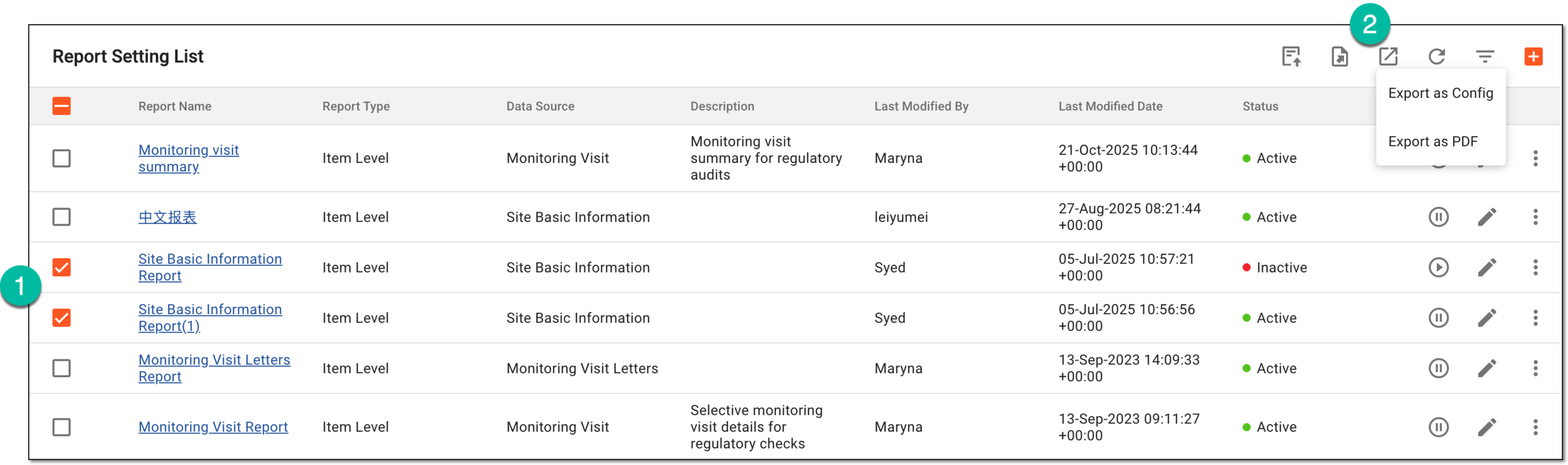 Figure 2. Exporting on-demand report configuration
-
Once selected, the file in the selected format is exported. For multiple files, a ZIP folder is exported with the files of your choice within.
For CONFIG files, you can also import the report configuration back to the CTMS system as needed.
In CTMS, with the On-Demand Report feature, you can create custom reports to include only the data you need for your statistical analysis or other business needs.
For instance, you can configure reports to track selective data on monitoring visits, site details, or else.
Sometimes, you might find it useful to import the preconfigured on-demand report from the file. This might be the case if you have configured the report for one study and you want to use this configuration for another study. Thus, you can export the report configuration you need as a .config file and then import it back to the system but under another study or sponsor.
-
In the CTMS application header, select the REPORT tab.
-
On the page that opens, from the left pane, select On-Demand Report > Report Setting.
Figure 1. Accessing on-demand report setting
-
On the Report Setting List page that opens, from the workspace toolbar, select Import Configuration
 .
. Figure 2. Importing configuration file
-
Follow the prompts to select the .config file on your computer to import it to the system.
Once imported, a new report appears in the Report Setting List table. You can now edit the report to better suit your requirements.