Analyze configured on-demand report
In CTMS, you can configure custom on-demand reports to include only the data you need for your statistical analysis or other business needs.
For instance, configure reports to track selective data on monitoring visits, site details, or else.
You can access the previously configured custom reports under the REPORT > On-Demand Report module.
Important
You can only access the reports if your user role has been added to the permissions list with at least Read permission upon the report configuration.
-
In the CTMS application header, select the REPORT tab.
-
On the page that opens, from the left pane, select On-Demand Report and from the expanded menu, select the report you want to view.
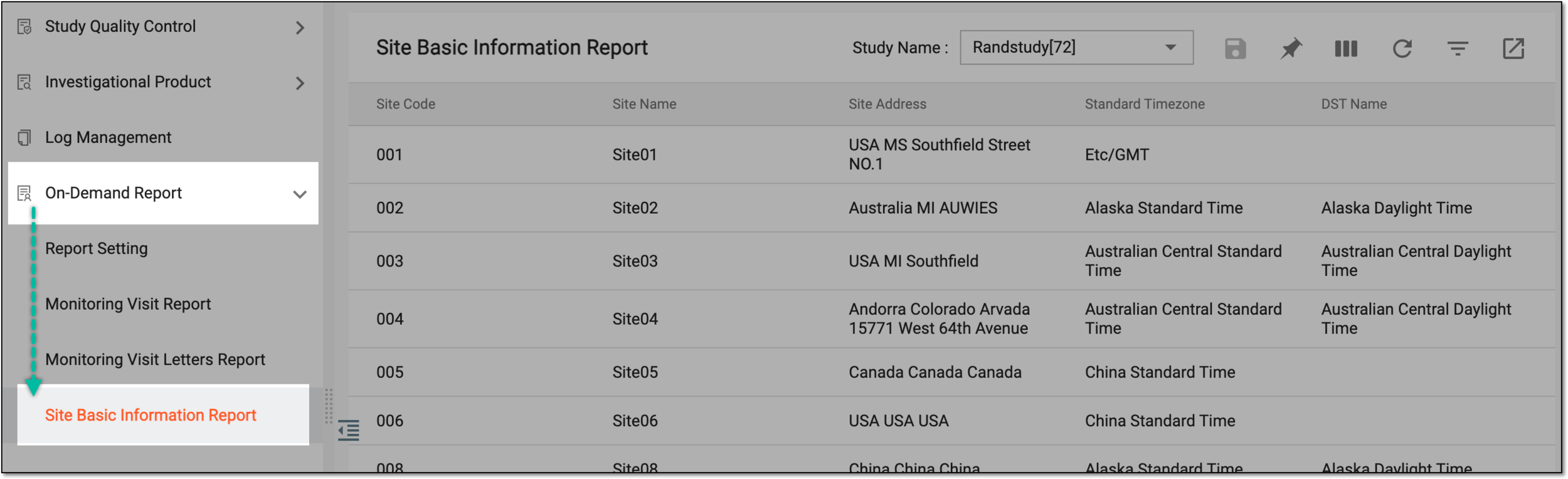 Figure 1. Selecting report to view
-
On the report page that opens, from the Study Name dropdown menu, select the study for which you want to view the report data.
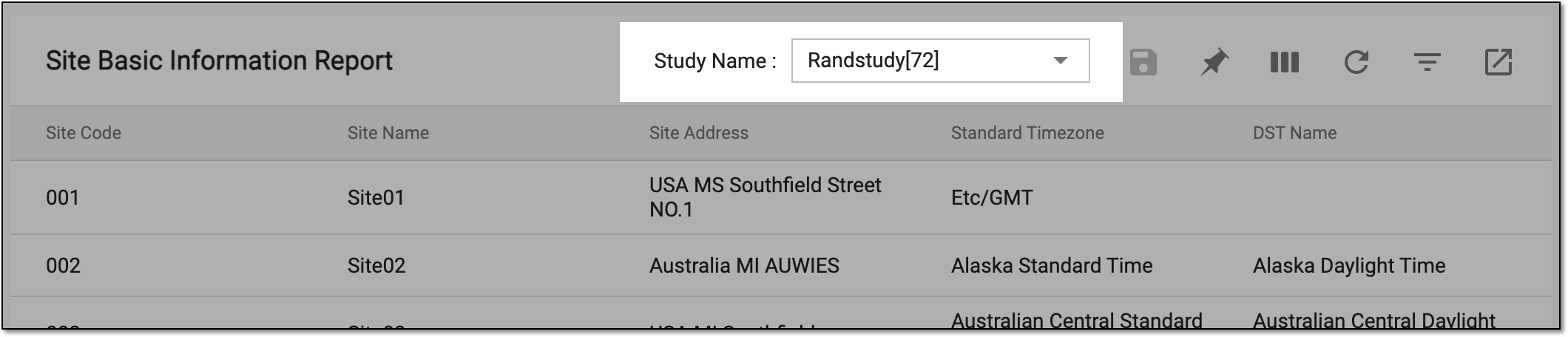 Figure 2. Selecting study to view report data
-
In the resulting table, view the details of the report.
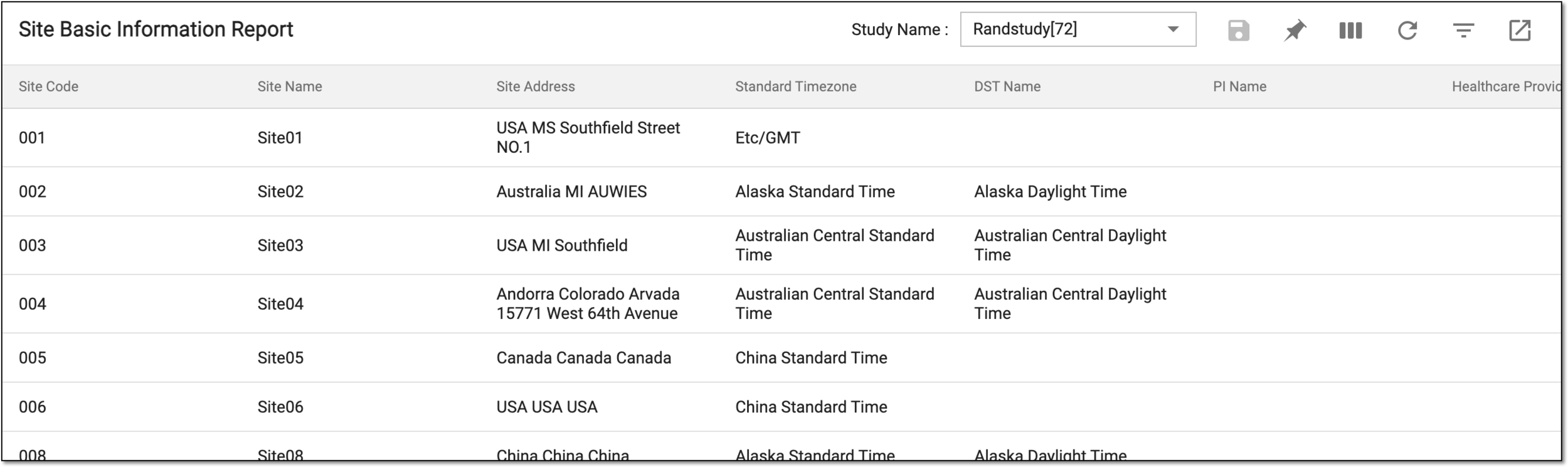 Figure 3. Viewing report data
Tip
If your report has manual fields—that require manual data input—you can enter the data and select Submit
 to save the values.
 Figure 4. Saving manually completed fields
You have viewed the configured on-demand report.