Export configured on-demand report
In CTMS, you can configure custom on-demand reports to include only the data you need for your statistical analysis or other business needs.
For instance, configure reports to track selective data on monitoring visits, site details, or else.
Sometimes, you might need to export the report to work with its data offline or share it with the party with no access to the CTMS system.
-
In the CTMS application header, select the REPORT tab.
-
On the page that opens, from the left pane, select On-Demand Report and from the expanded menu, select the report you want to export.
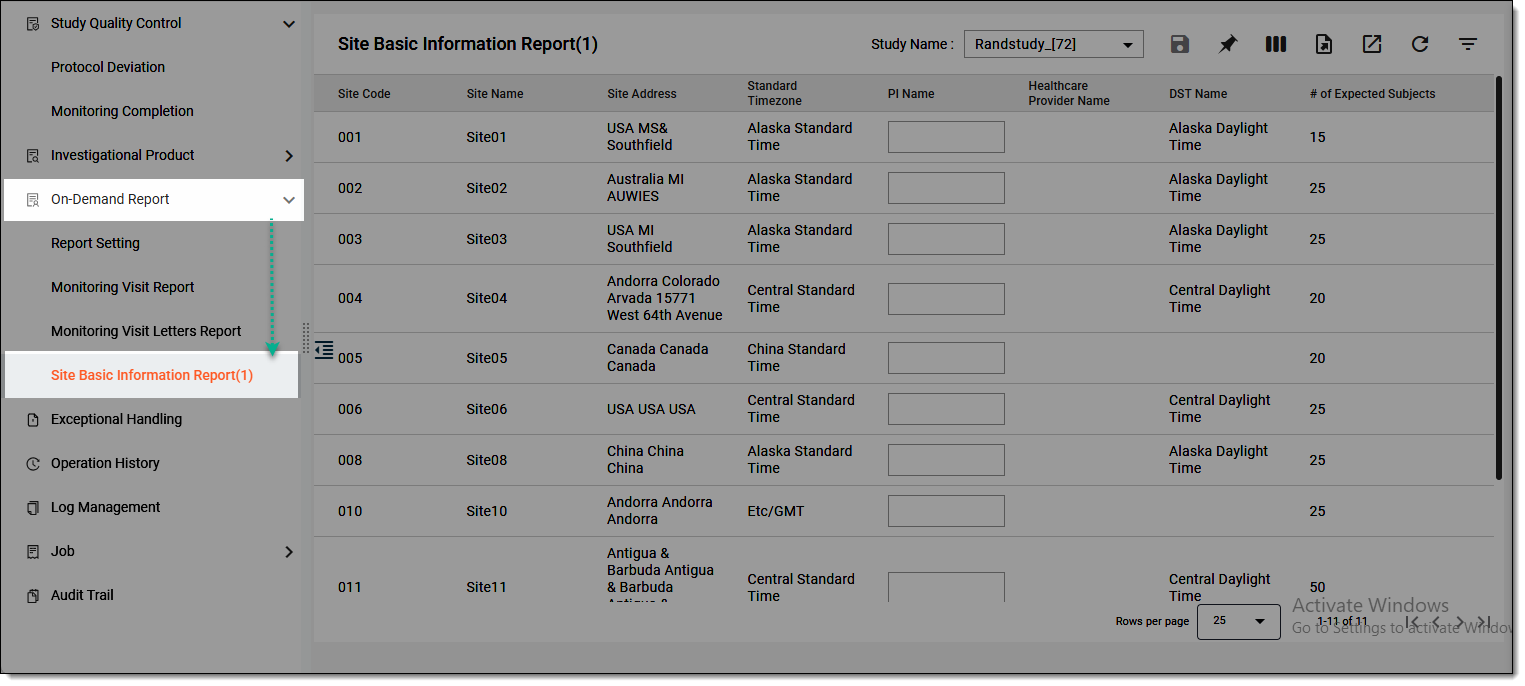 Figure 1. Selecting report to export
-
On the report page that opens, from the Study Name dropdown menu, select the study for which you want to export the report data.
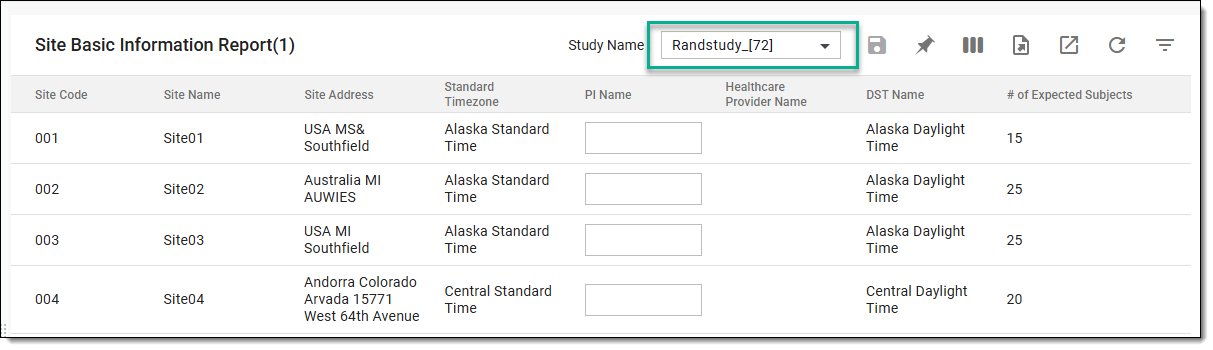 Figure 2. Selecting study to export report data
-
From the workspace toolbar, select Export
 .
.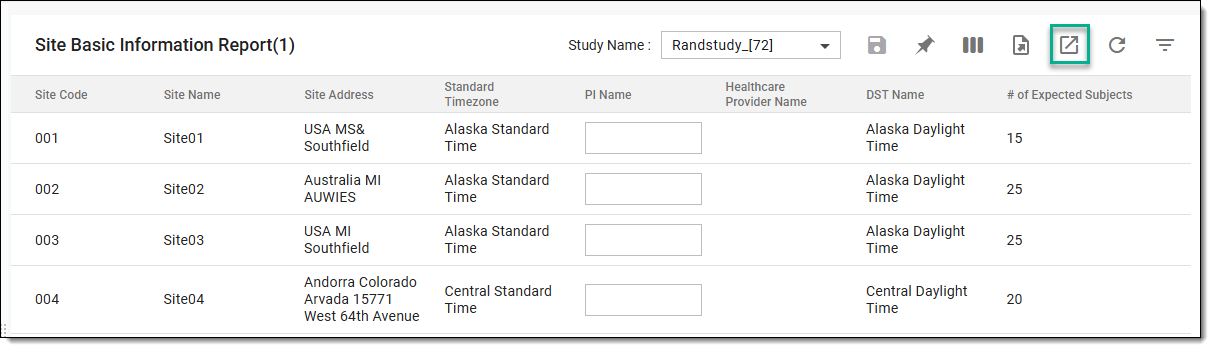 Figure 3. Exporting on-demand report
Tip
If you want to view or download the historic files of the operational history report, then from the workspace toolbar, select Export History
 . In the Export History dialog that opens, next to the file you want to download, select
  and save it to your computer and use it offline.
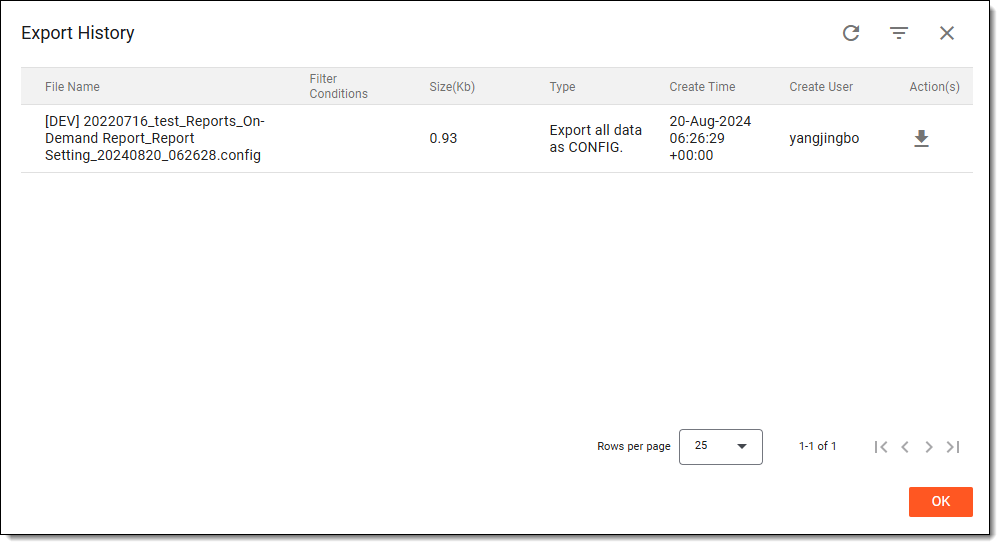 Figure 4. Exporting historic files
Once exported, the XLSX file is available on your computer and you can use it offline as needed.