Activate/Inactivate on-demand report setting
In CTMS, you can configure custom on-demand reports to include only the data you need for your statistical analysis or other business needs.
For instance, configure reports to track selective data on monitoring visits, site details, or else.
Sometimes, you might need to temporarily hide the report from the tree, for instance, while it is being modified, and you do not want other users to be able to access it. To accomplish this, in CTMS, you can inactivate any of your on-demand reports and activate it when it is ready to be used again.
-
In the CTMS application header, select the REPORT tab.
-
On the page that opens, from the left pane, select On-Demand Report > Report Setting.
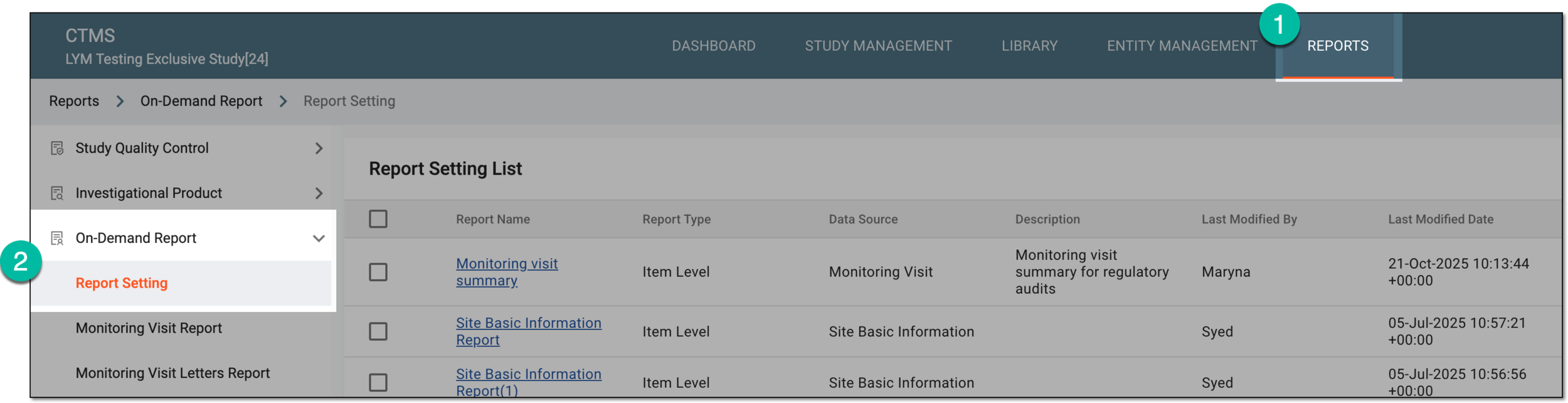 Figure 1. Accessing on-demand report setting
-
In the Report Setting List table that appears, locate the report you want to activate/inactivate and next to it, from the Action(s) column, select Activate
 or Inactivate
  as needed.
 Figure 2. Activating/Inactivating on-demand report
Once done, the report is successfully activated or inactivated and, respectively, appears or becomes hidden in the reports tree of the left pane.