Add new comment
In the context of CRF design, a comment refers to a note, explanation, or remark added by the study team to provide context, insights, or documentation related to the visit and form configuration. Unlike queries, which primarily focus on data integrity, comments serve to request or provide additional information that may aid in understanding choices that have been made during the configuration process.
-
In the Study Designer application header, select the CRF DESIGN tab.
-
In the toolbar, select the needed CRF version.
 Figure 1. Selecting CRF version
-
On the page that opens, add a comment to any of the available objects as follows.
Important
You cannot add comments to a study node, cycle folders, and custom folders.
-
In the Add Comment dialog that appears, add a new comment by providing the following details.
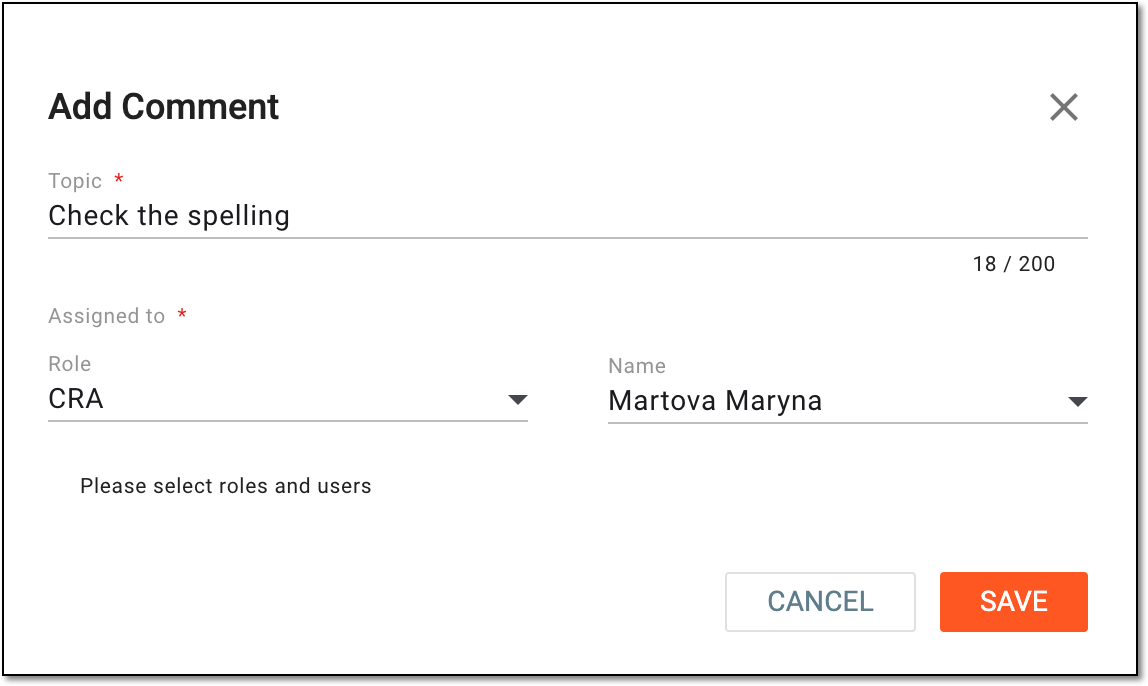 Figure 8. Adding new comment
Tip
In the following table, mandatory elements are marked with an asterisk (*).
Element
Details
Topic*
Enter a text describing the issue that pertains to the selected object (form, question item, and so on).
Assigned to*
Role
Select the role to which belongs the user to whom you want to assign the comment.
Name*
After selecting the role, select a user within the assigned user role who needs to address the comment.
SAVE
Select
 to add a comment.
CANCEL
Select
 to call off the comment creation.

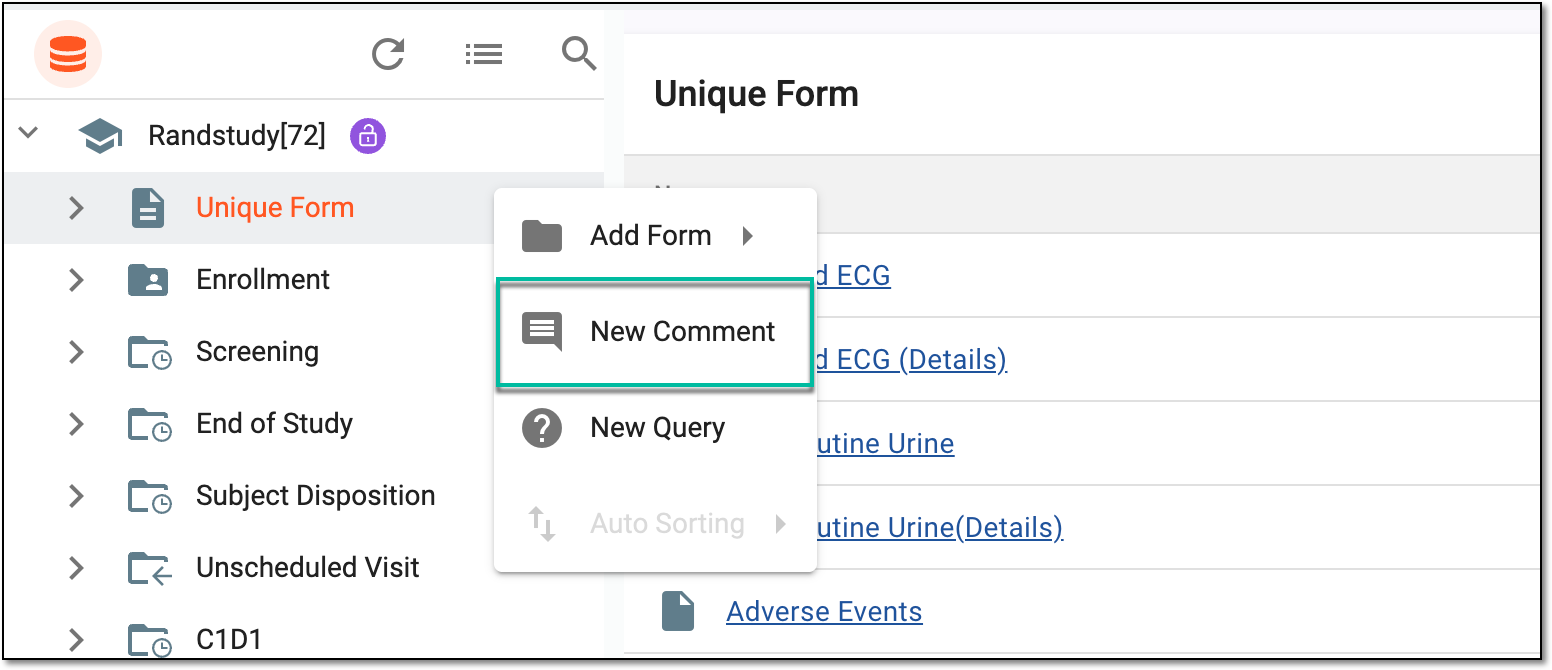
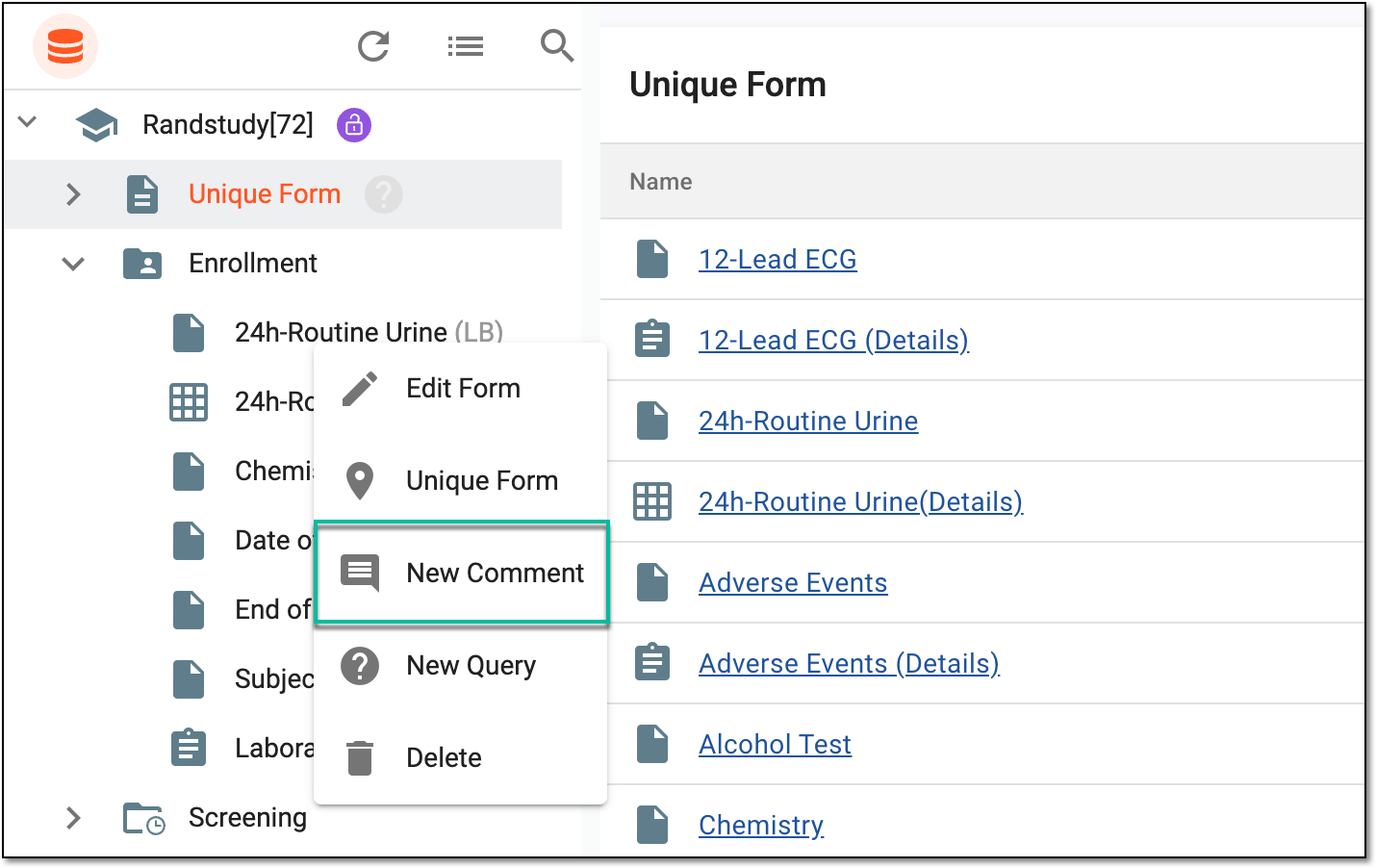
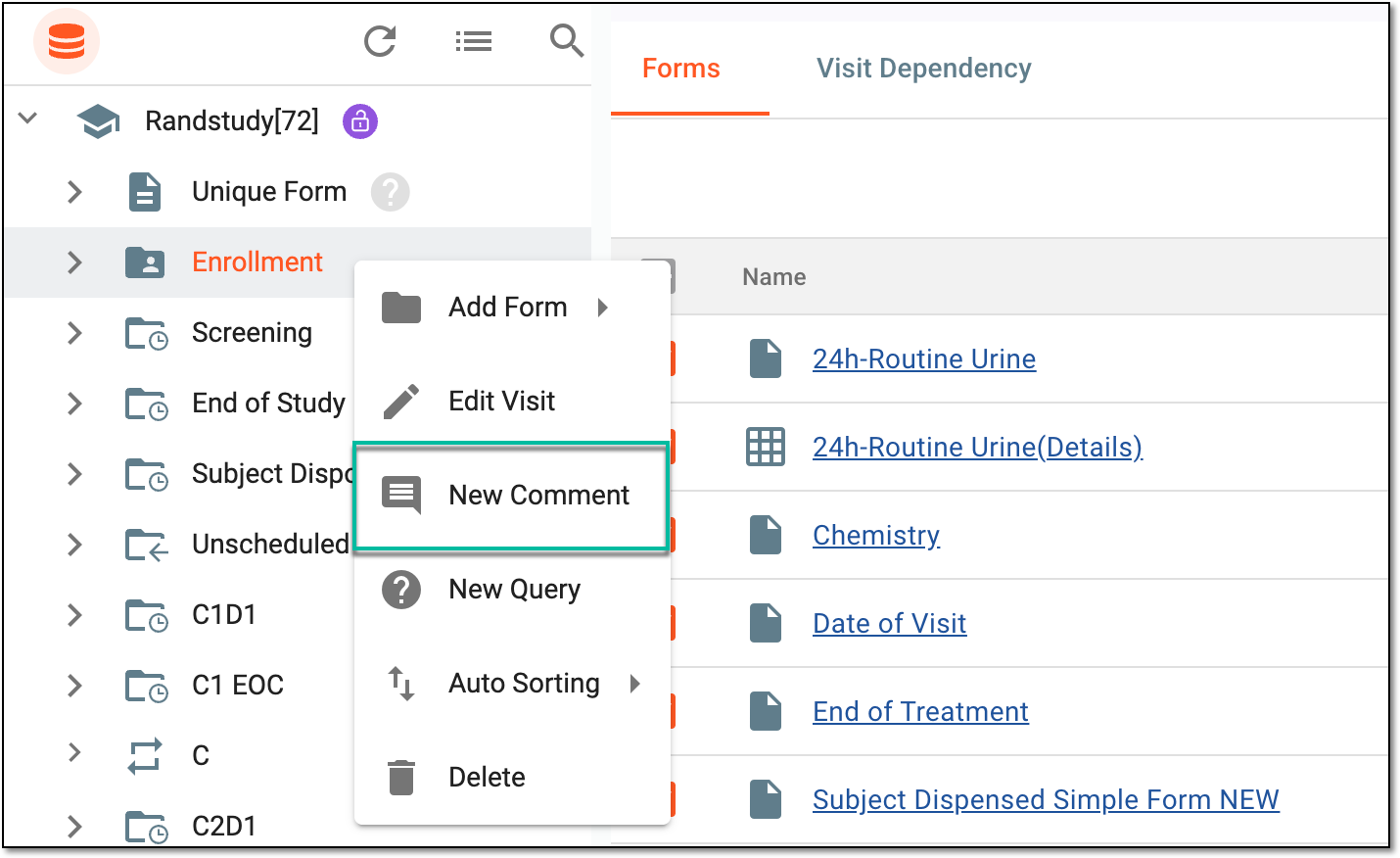

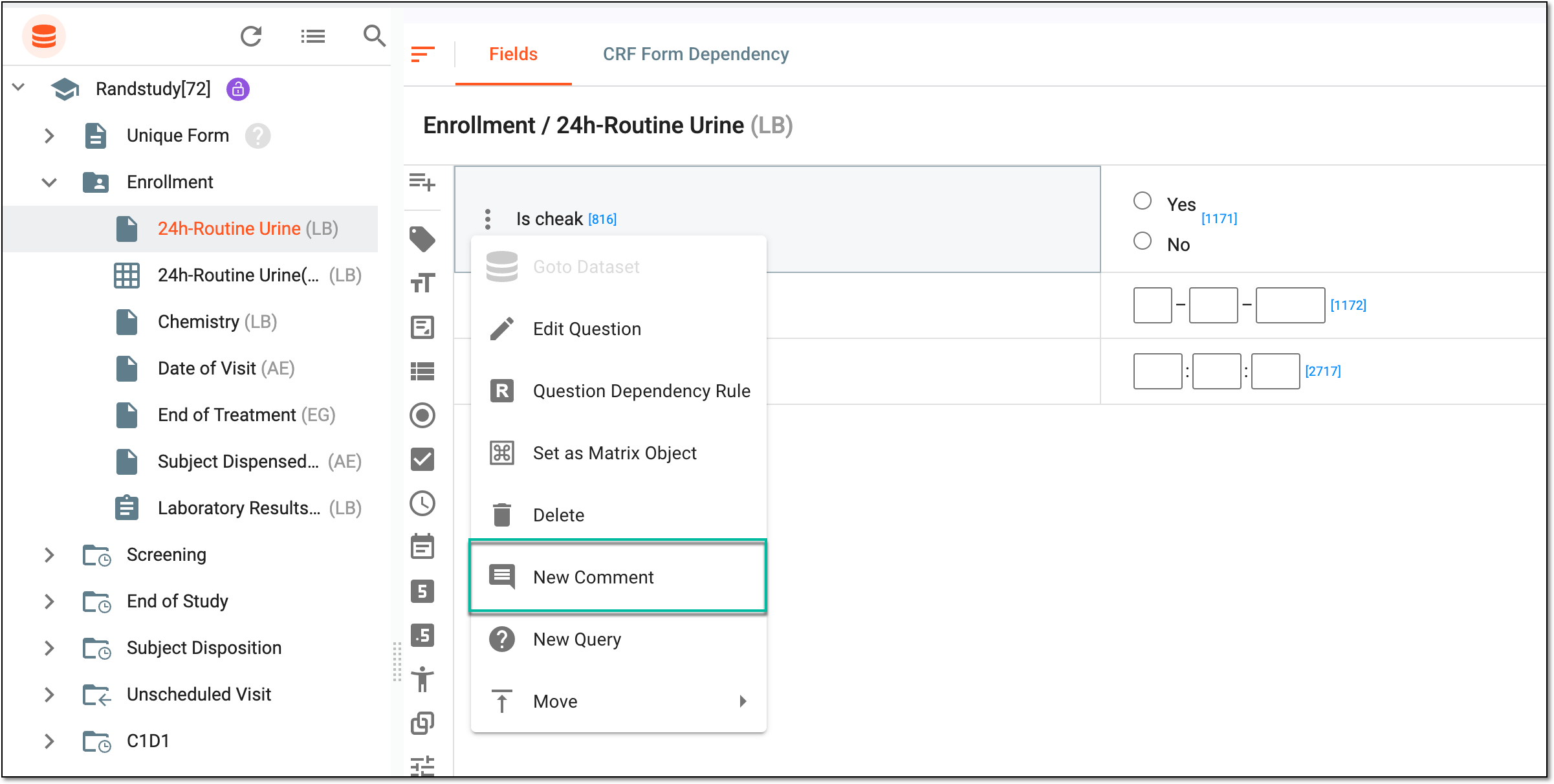
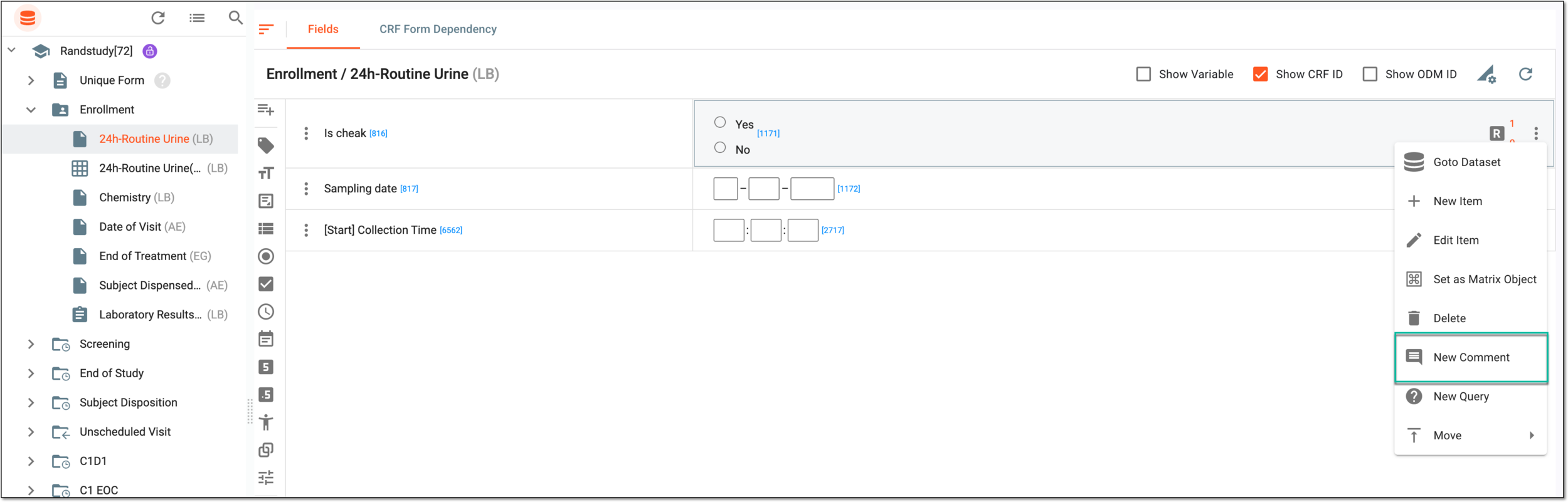


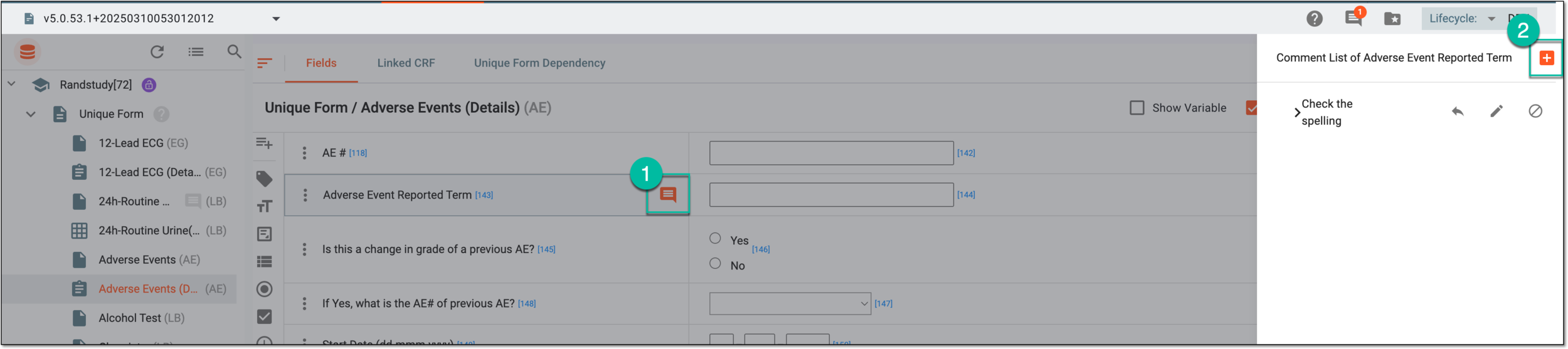
Once saved, the comment is added. The user assigned to the comment now needs to address the reported issue and close the comment.