Close comment
In the context of CRF design, a comment refers to a note, explanation, or remark added by the study team to provide context, insights, or documentation related to the visit and form configuration. Unlike queries, which primarily focus on data integrity, comments serve to request or provide additional information that may aid in understanding choices that have been made during the configuration process.
If you have been assigned to a comment, it means that you need to address an issue pertaining to a specific form, question, and so on. Once you have resolved the indicated discrepancies, the comment can be closed permanently.
-
In the Study Designer application header, select the CRF DESIGN tab.
-
In the toolbar, select the latest draft CRF version marked with the respective unlock symbol
 , otherwise, you cannot perform any actions.
 Figure 1. Selecting latest draft CRF version
-
In the same toolbar, select Comment List
 .
. Figure 2. Accessing comment list
-
In the Comment List dialog that appears, select either All Comment or Pending Deal tab to locate the needed open comment and select it.
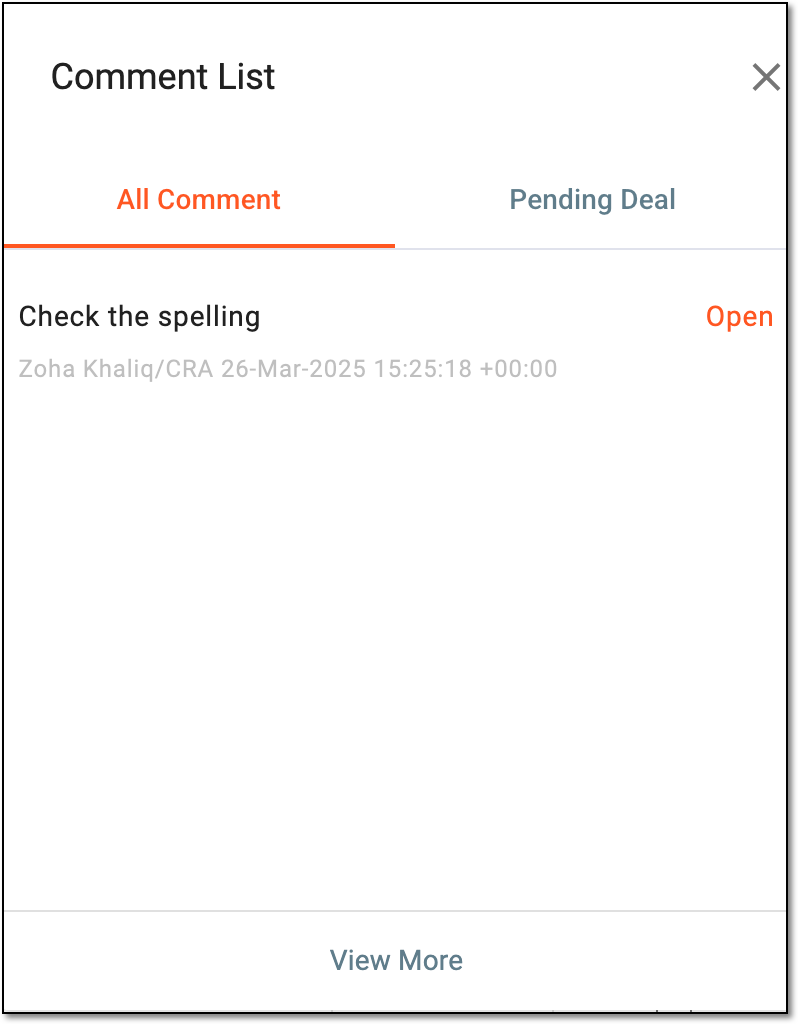 Figure 3. Selecting comment from list
Tip
You can skip this step if you know exactly where the comment is located within the selected CRF version.
You can select View More to access detailed comment list.
-
After opening the needed comment, you are redirected to this comment and it becomes highlighted within the page. Select
 to expand the comment details.
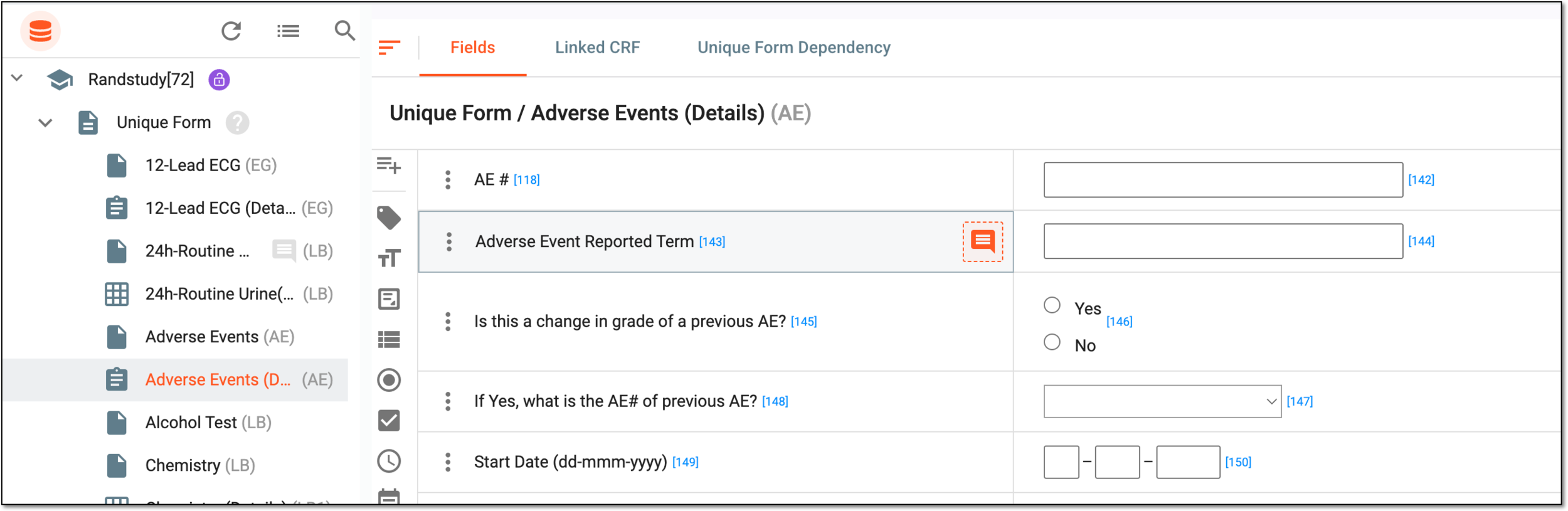 Figure 4. Opening comment details
-
In the panel that expands, select
 next to the needed comment.
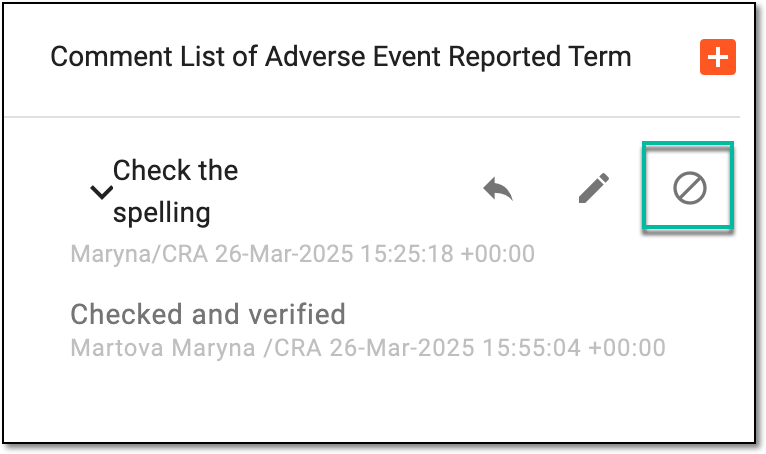 Figure 5. Selecting option to close comment
-
In the Close Comment dialog that appears, select
 to shut the comment.
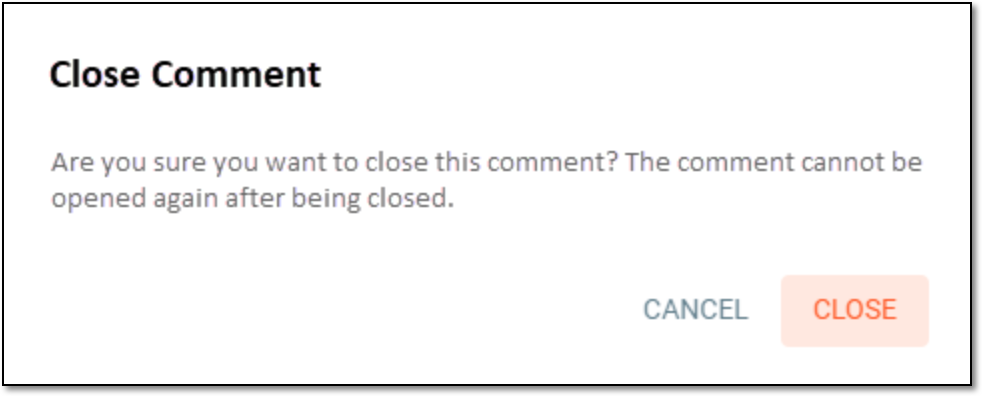 Figure 6. Closing comment
Once selected, the comment is closed permanently.