Preview inventory alert email
An inventory refers to the record-keeping and tracking of various items that are used or stored at a particular site or depot within a study. An inventory alert is a customizable notification mechanism that generates an email to inform relevant parties when an inventory is running low.
The purpose of an inventory alert is to promptly notify site or depot personnel when item quantities reach a specified threshold so they can timely replenish stock levels to ensure uninterrupted study operations. The created inventory alerts include settings that define how the email subject and content need to be populated. You can preview these settings in a separate dialog to see how the alert will generate the email.
-
In the IWRS application header, select the ALERT tab.
-
On the page that opens, from the left pane, select the subtab corresponding to the alert category of your interest.
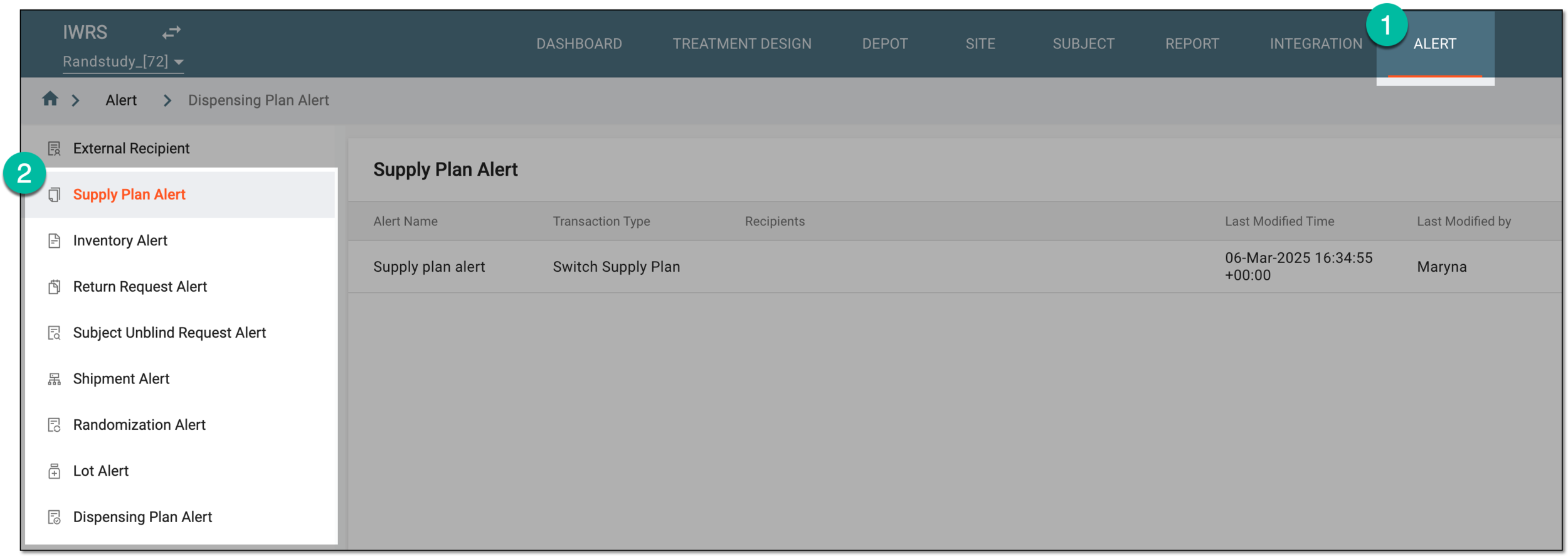 Figure 1. Accessing alert settings
-
In the Inventory Alert table that appears, next to the needed inventory alert, select Info
 .
. Figure 2. Selecting option to preview inventory alert email
-
In the Mail dialog that appears, preview the content of the inventory alert email.
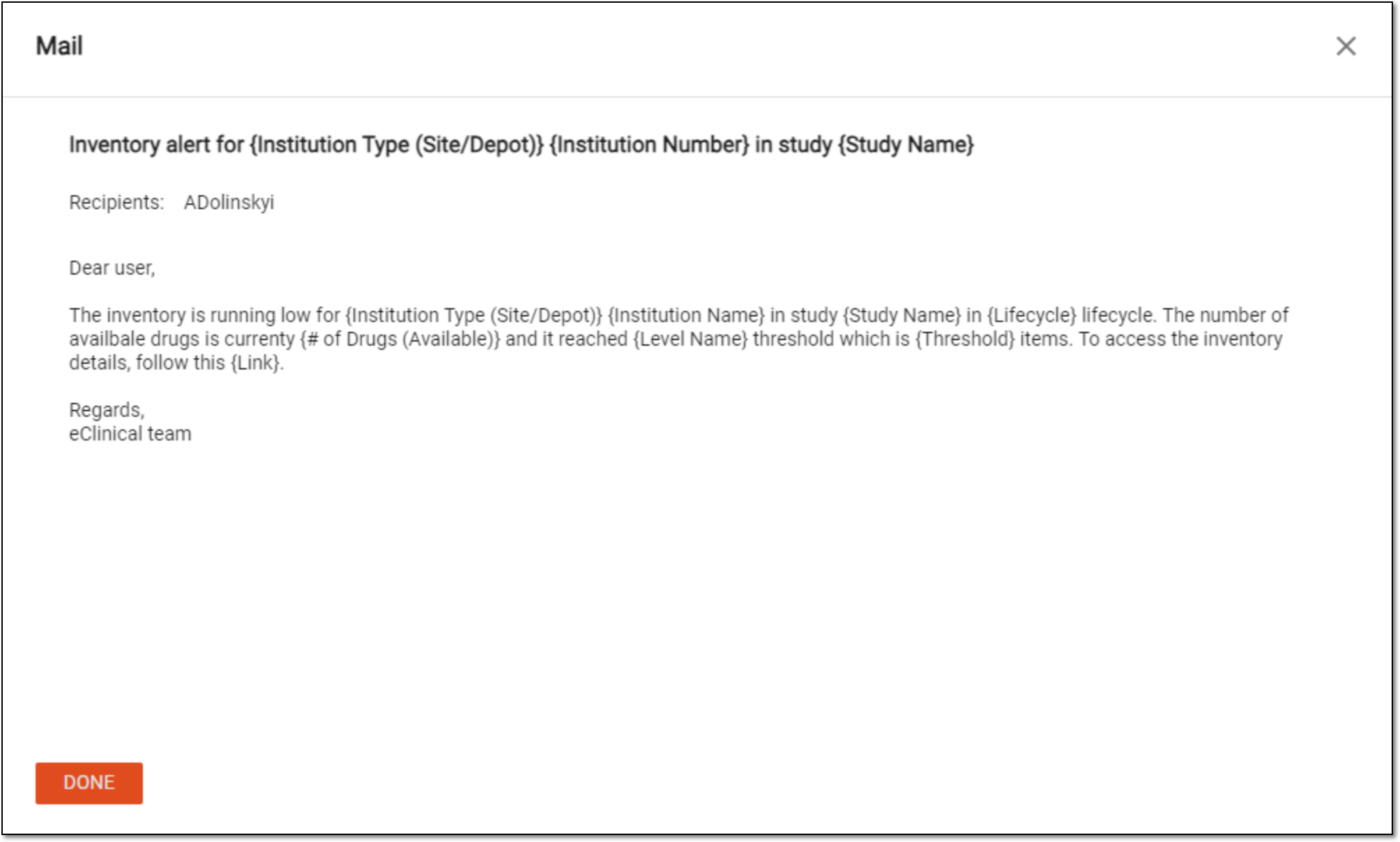 Figure 3. Previewing inventory alert email
Tip
You can update the email subject or content if needed using the Edit option.
Once previewed, select  or
or  to close the Mail dialog.