Edit inventory alert
An inventory refers to the record-keeping and tracking of various items that are used or stored at a particular site or depot within a study. An inventory alert is a customizable notification mechanism that generates an email to inform relevant parties when an inventory is running low.
The purpose of an inventory alert is to promptly notify site or depot personnel when item quantities reach a specified threshold so they can timely replenish stock levels to ensure uninterrupted study operations. You may need to modify inventory alert settings over time to adapt to changing study requirements, thus ensuring that email notifications remain aligned with evolving inventory management needs.
-
In the IWRS application header, select the ALERT tab.
-
On the page that opens, from the left pane, select the subtab corresponding to the alert category of your interest.
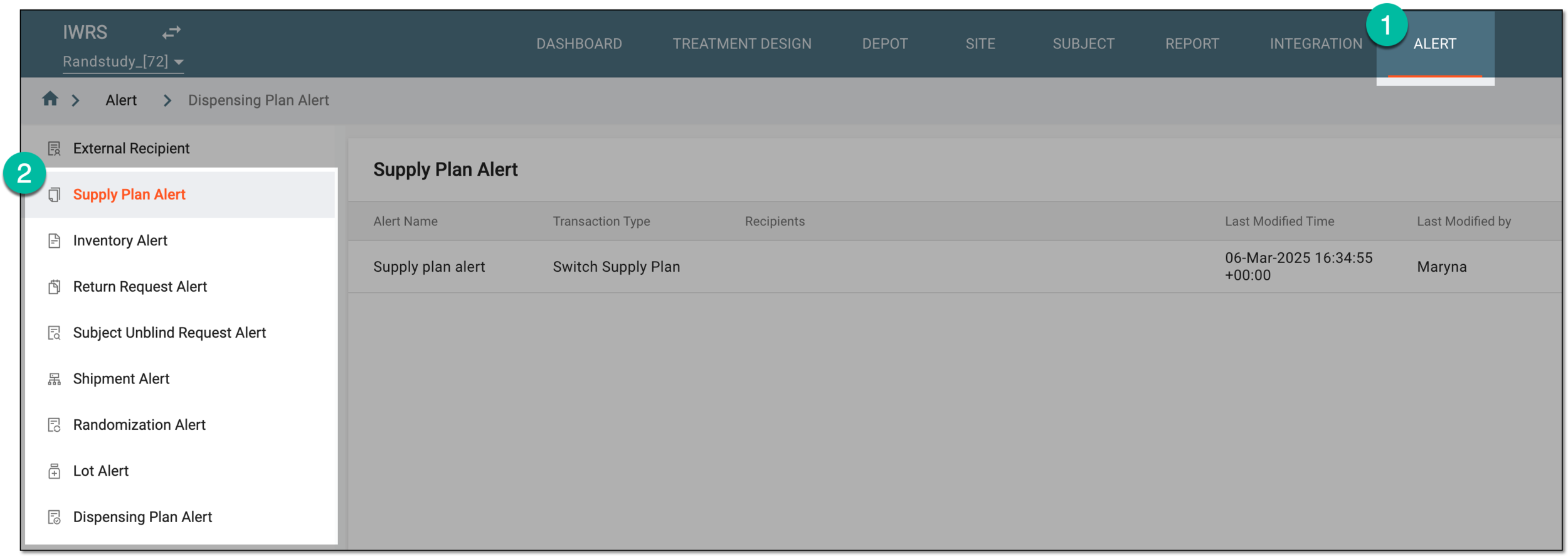 Figure 1. Accessing alert settings
-
In the Inventory Alert table that appears, next to the needed inventory alert, select More
 > Edit
  .
. Figure 2. Selecting option to edit inventory alert
-
On the page that opens, update the fields as needed. These fields are identical to the ones explained in the table of the Create inventory alert section.
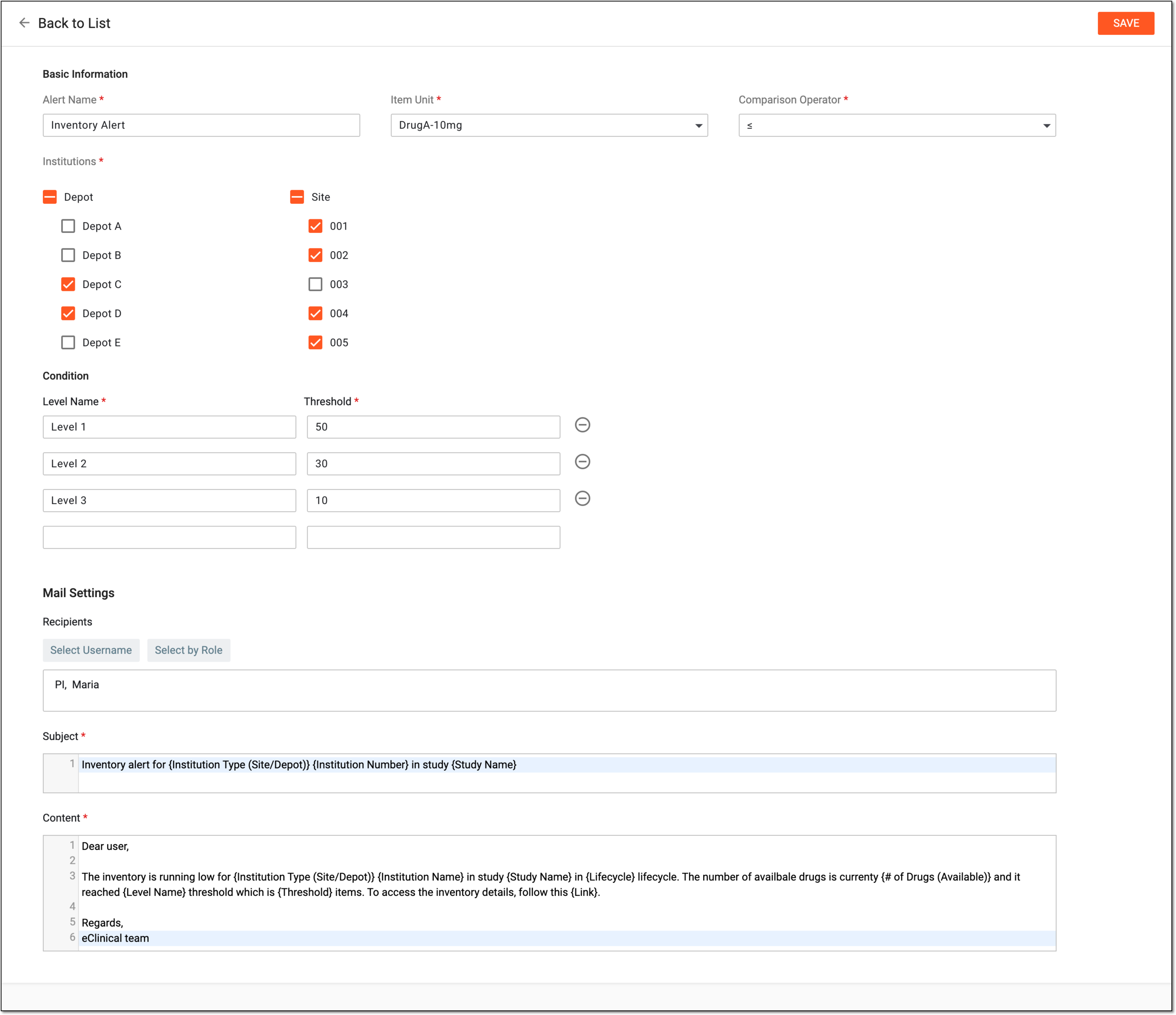 Figure 3. Editing inventory alert
-
Select
 to apply new settings of the inventory alert.
Once saved, the inventory alert is updated. Now the system generates emails based on the new settings of the inventory alert.