Create supply plan alert
A supply plan represents a set of parameters such as item units, stock values, and so on that is configured to automate the process of item supply to sites to always maintain a sufficient amount of medication or devices for all registered subjects. A supply plan alert is a customizable notification mechanism that generates an email to inform relevant parties when a different supply plan is assigned to some study site.
You can create only one supply plan alert per study. The purpose of this alert is to keep the site personnel informed about any modifications to the planned drug supply so they can manage inventory and distribution effectively during the clinical trial.
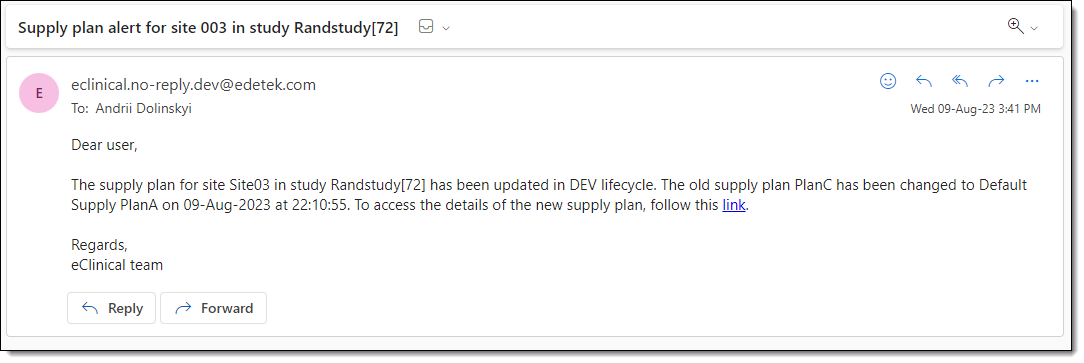
The following figure is an example of the email that an eClinical user can receive after the supply plan alert has been properly configured and a supply plan for any study site has been changed.
-
In the IWRS application header, select the ALERT tab.
-
On the page that opens, from the left pane, select the subtab corresponding to the alert category of your interest.
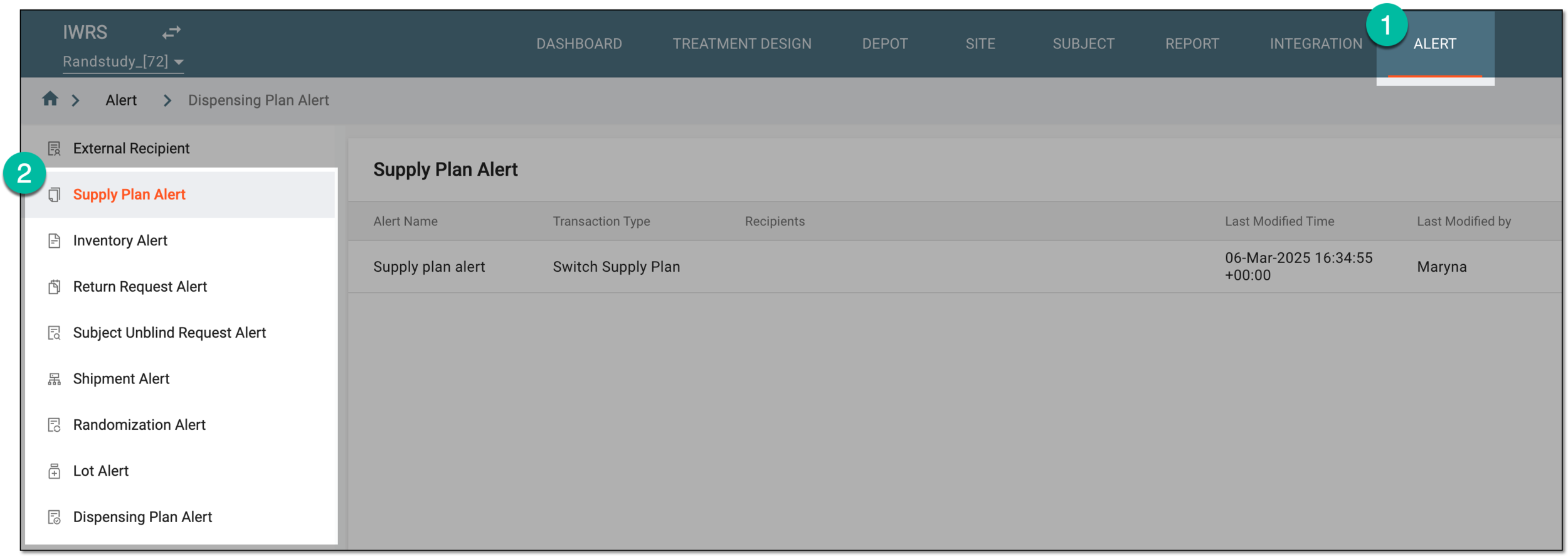 Figure 2. Accessing alert settings
-
From the workspace toolbar of the Supply Plan Alert page that appears, select Add
 .
. Figure 3. Selecting option to add supply plan alert
-
On the page that opens, configure a supply plan alert as explained in the following table.
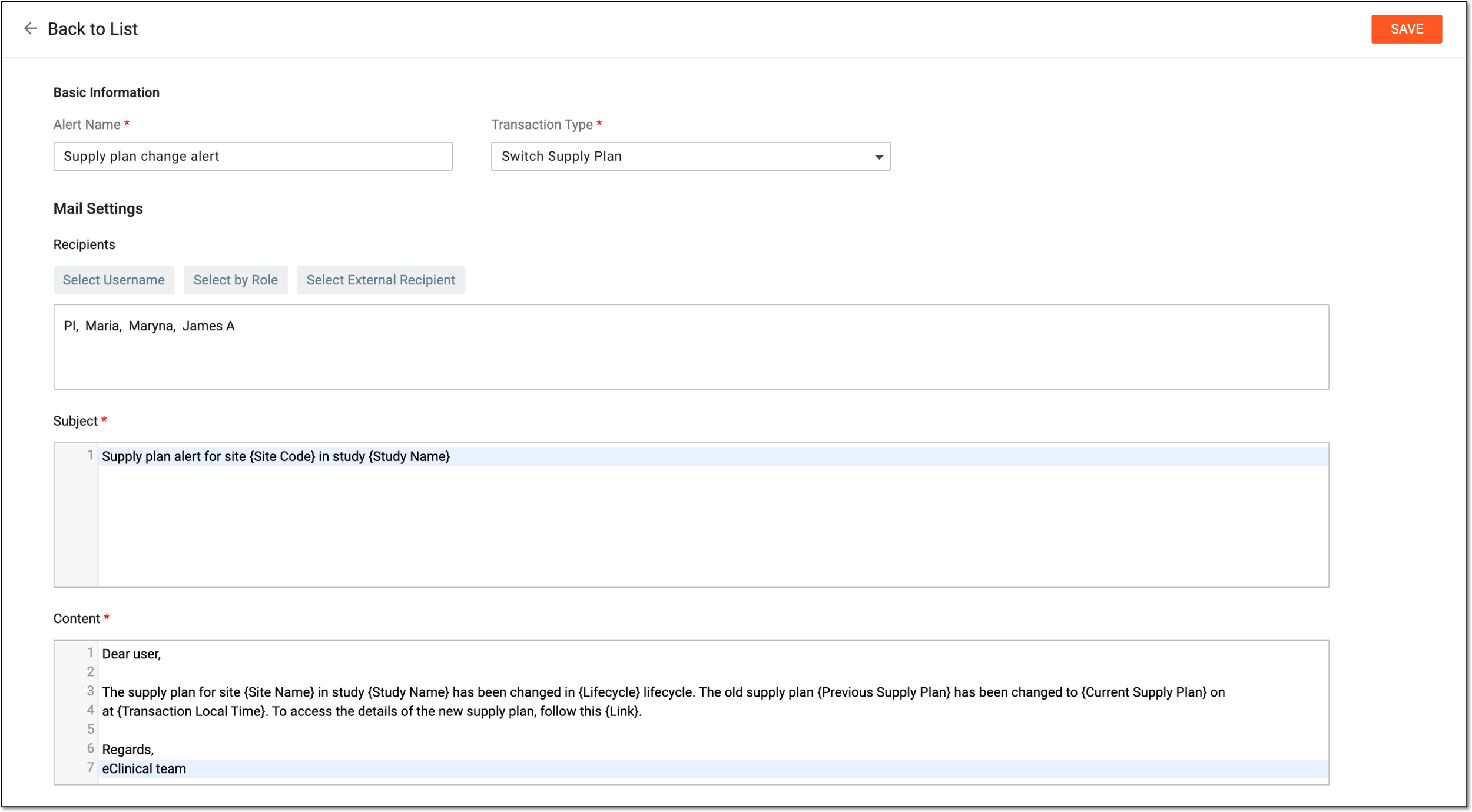 Figure 4. Configuring supply plan alert
Tip
In the following table, mandatory elements are marked with an asterisk (*).
Element
Details
Basic Information
Alert Name*
Enter a name for the supply plan alert that you are creating.
Transaction Type*
Select the Switch Supply Plan type that is the only one currently available. The transaction type represents the action taken to trigger the alert.
Mail Settings
Recipients
Select either of the following options:
-
Select Username: to expand the list of system users and select the ones to receive an alert email. To remove a user from recipients, clear the checkbox next to their name.
-
Select by Role: to expand the list of system user roles and select the ones to receive an alert email. To remove a user role from recipients, clear the checkbox next to its name.
-
Select External Recipient: to expand the list of preconfigured external recipients—contacts who are not system users but for whom the account exists in IWRS to be able to include them in correspondence—and select the ones to receive an alert email. To remove a person from recipients, clear the checkbox next to their name.
You can specify users, roles, and external recipients together.Subject*
Enter the subject of the email. You can also start typing with the opening brace "{" to open the list of predefined values that you want to include in the email subject, for example, the study name or site code.
Content*
Enter the text of the email. You can also start typing with the opening brace "{" to open the list of predefined values that you want to include in the email content, for example, the name of the previous or new supply plan.
SAVE
Select
 to create a supply plan alert after it has been configured.
 -
Once saved, the supply plan alert for the study is created. Whenever a supply plan is changed for any site of this study, an email is sent to the corresponding recipients.