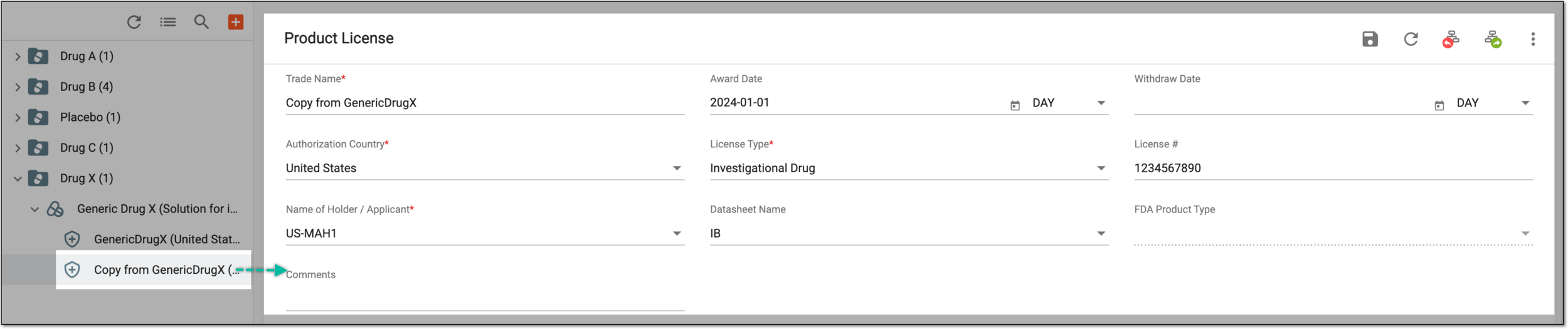
Copy license from existing
In PV, every company product should belong to a product family that shares the same key ingredient and data sheets but can have a different concentration for the active ingredient. Also, all products must have the license(s) configured for them.
Sometimes, for one product, you might need to configure multiple licenses that share the same details except for some minor differences, for instance, authorization country. This can be easily done via the Copy option—simply copy the existing product license and amend the required details.
-
In the PV application header, select the PRODUCT tab.
-
On the page that opens, in the left pane, expand the product family and the product within which resides the license of your interest.
-
From the expanded list, right-click the license that you want to copy and from the menu that opens, select Copy
 .
.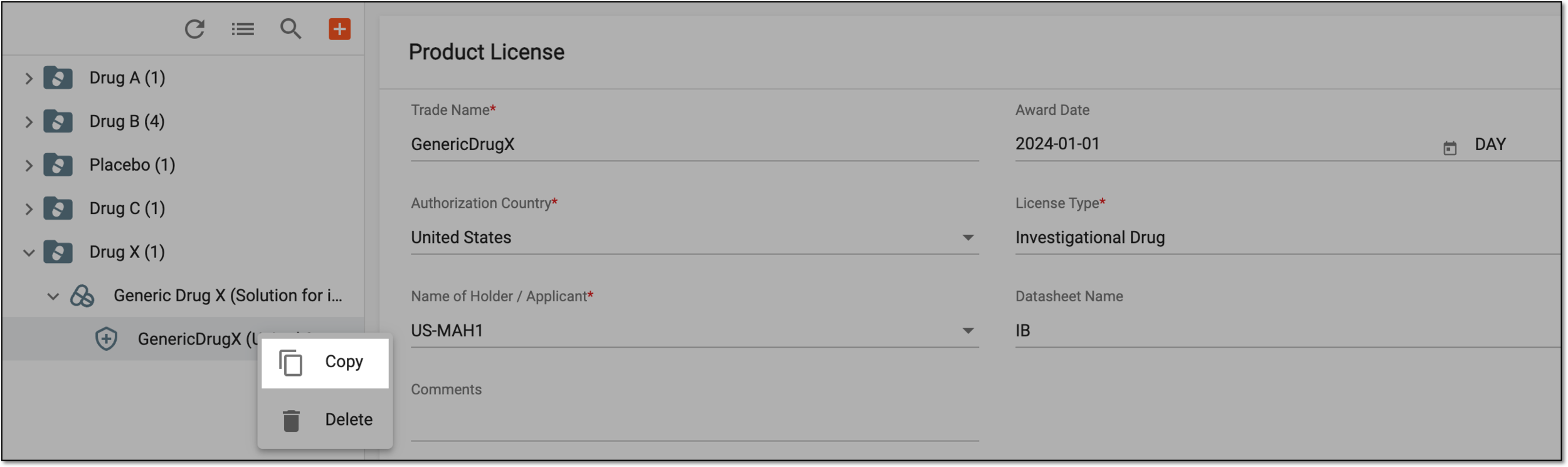 Figure 1. Selecting license
-
In the confirmation dialog that appears, select
 to copy the product.
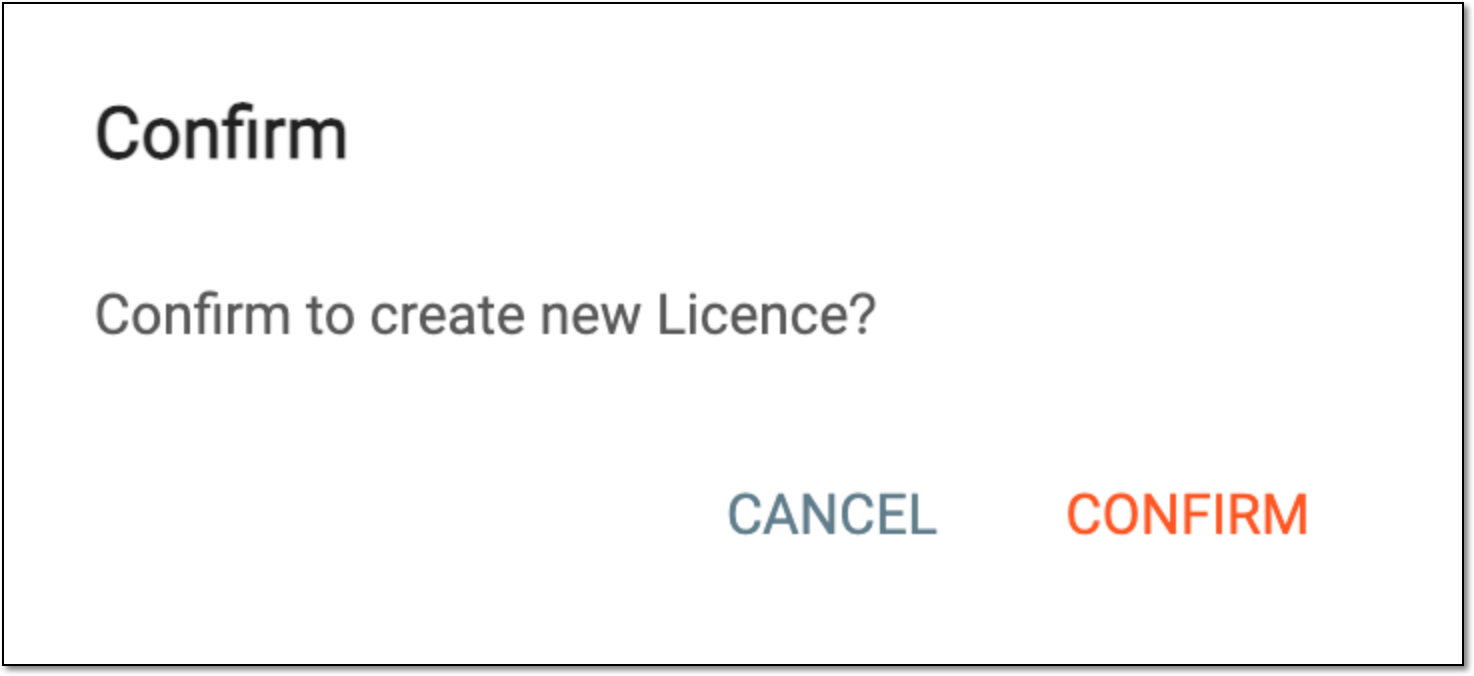 Figure 2. Confirming to copy license
Once confirmed, the license copy is created and you can now configure its details as per your needs.