Delete license
In PV, every company product should belong to a product family that shares the same key ingredient and data sheets but can have a different concentration for the active ingredient. Also, all products must have the license(s) configured for them.
Sometimes, to keep the license list up-to-date for your product, you might need to delete the licenses that are no longer relevant.
-
In the PV application header, select the PRODUCT tab.
-
On the page that opens, in the left pane, expand the product family and the product within which resides the license of your interest.
-
From the expanded list of licenses, right-click the one you want to delete and from the menu that opens, select Delete
 .
.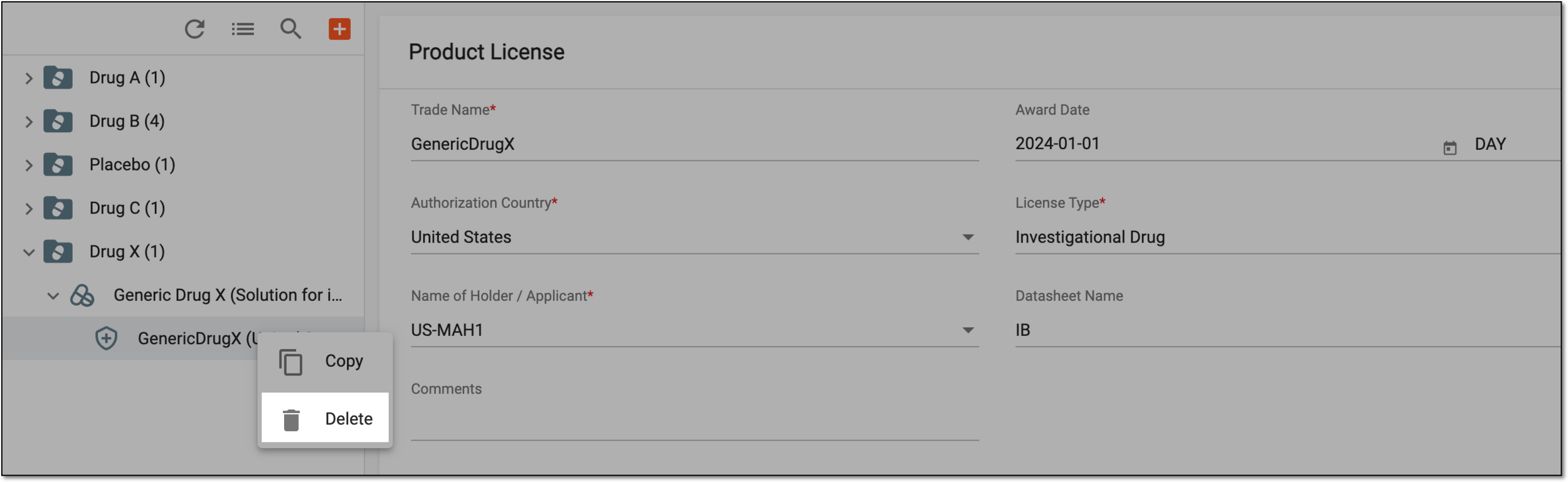 Figure 1. Deleting license
Tip
Alternatively, you can delete a license by opening the Product License form page and from the workspace toolbar, selecting More
 > Delete .
 Figure 2. Deleting license
-
In the dialog that appears, select
 to confirm the deletion.
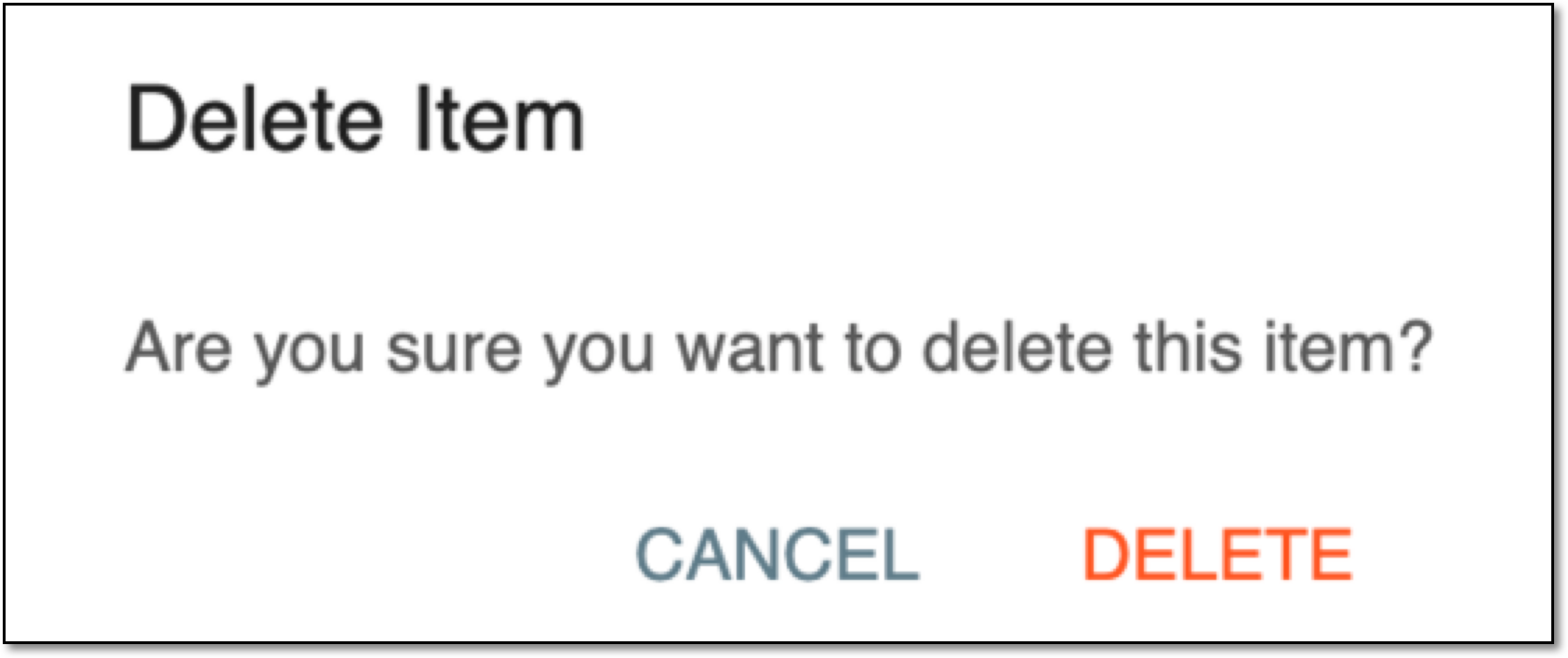 Figure 3. Confirming license deletion
Once confirmed, the license is deleted.