View license audit trail
In the PV application, once the product configuration is complete, you must create product license(s) for it. Then there might be the need to make some edits to the license, the status of the license is changed via route forwarding or returning, and so on.
Sometimes, there might be the need to view the descriptive information about all operations taken towards the product license. For this purpose, you can use the Audit Trail feature.
-
In the PV application header, select the PRODUCT tab.
-
On the page that opens, in the left pane, expand the product family and the product within which resides the license of your interest.
-
From the expanded list, select the license for which you want to view the audit trail.
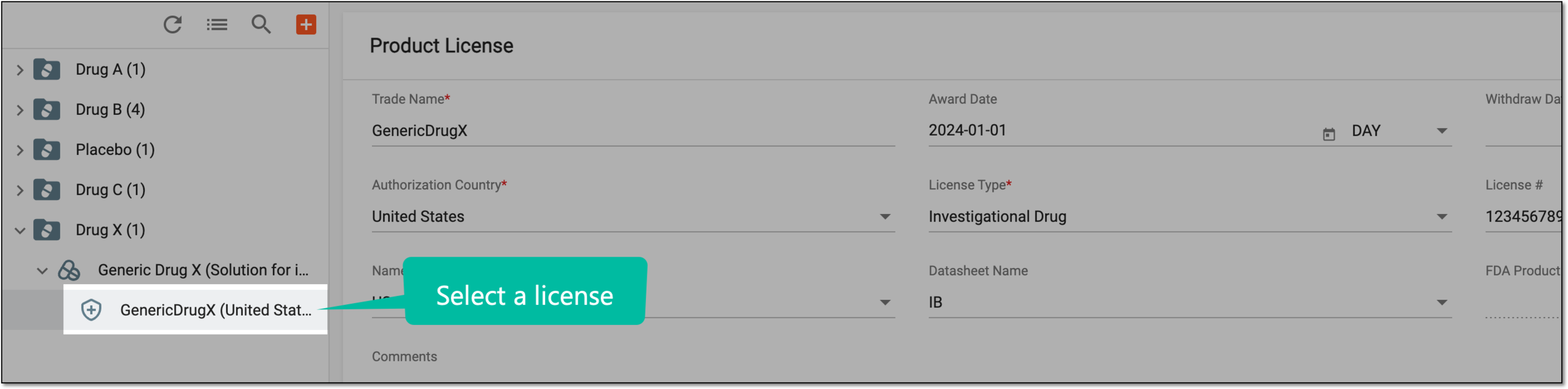 Figure 1. Selecting license
-
On the Product License form page that opens, from the workspace toolbar, select More
 >
Audit Trail
>
Audit Trail  .
. Figure 2. Selecting to view audit trail
-
In the Audit Trail dialog that opens, view descriptive information about all operations taken towards the product license. You can see who and when operated, the operation type, and so on.
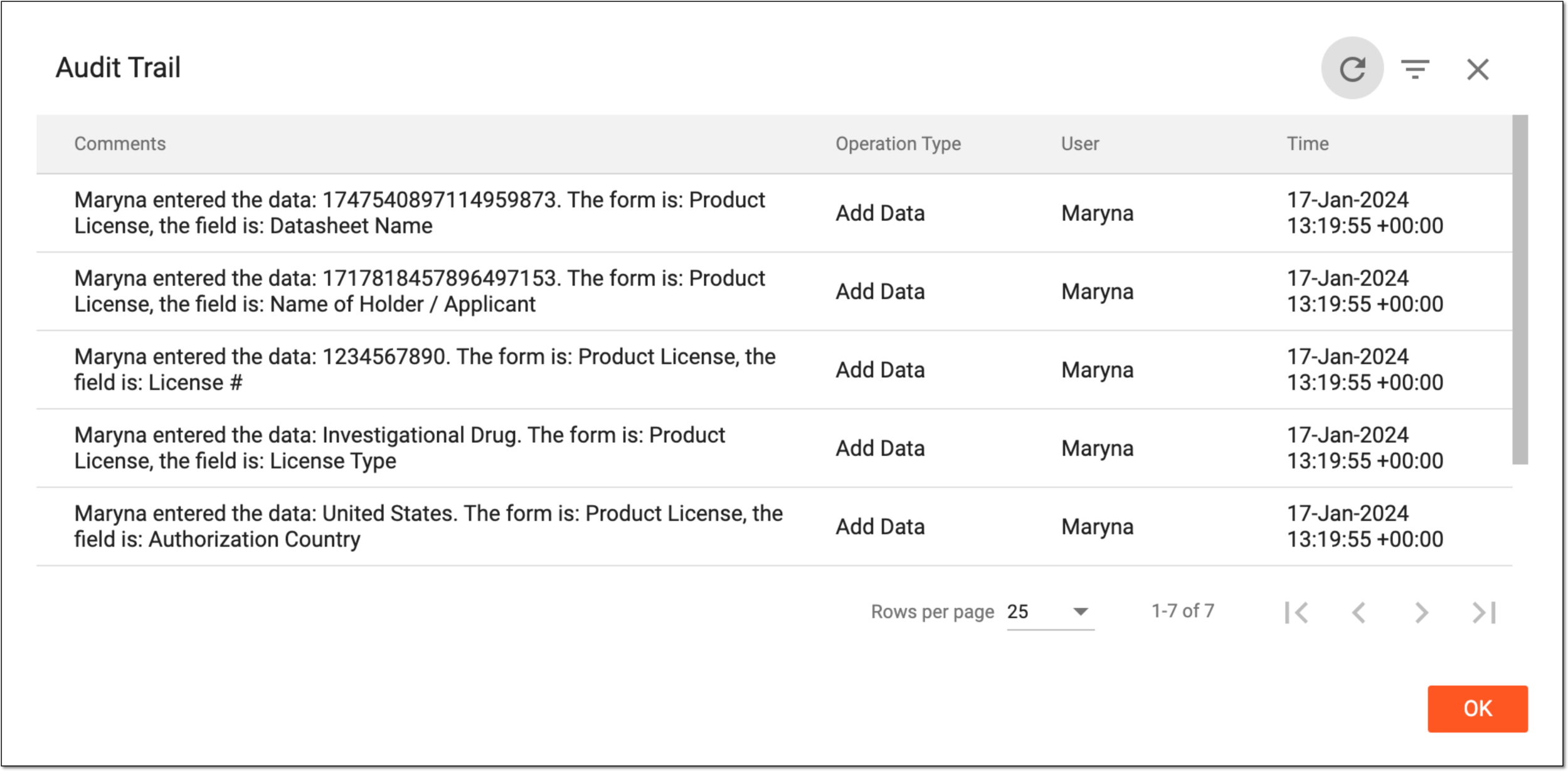 Figure 3. Viewing license audit trail
-
Select
 to close the dialog.
You have successfully viewed the product license audit trail.